
Query Example (Auto-Extract Centerlines such as Walls and Roads)
Introduction
Centerline extraction from CAD drawings is an important geometry simplification technique. In architectural drawings, extracting wall centerlines simplifies the geometry for space analysis, path planning, or BIM reconstruction. In energy and mining, extracting tunnel centerlines is critical for reflecting underground channel layout, turns, and connections. Centerline extraction converts concrete geometry into abstract topology and is a key preprocessing step in CAD data handling.
Centerline extraction traditionally required manual drawing, which is time-consuming and prone to human error. Automatic extraction is faster, reduces errors, ensures consistency, and supports batch processing of large drawings. This lowers labor cost and moves CAD processing toward automation and efficiency.
Effect Preview
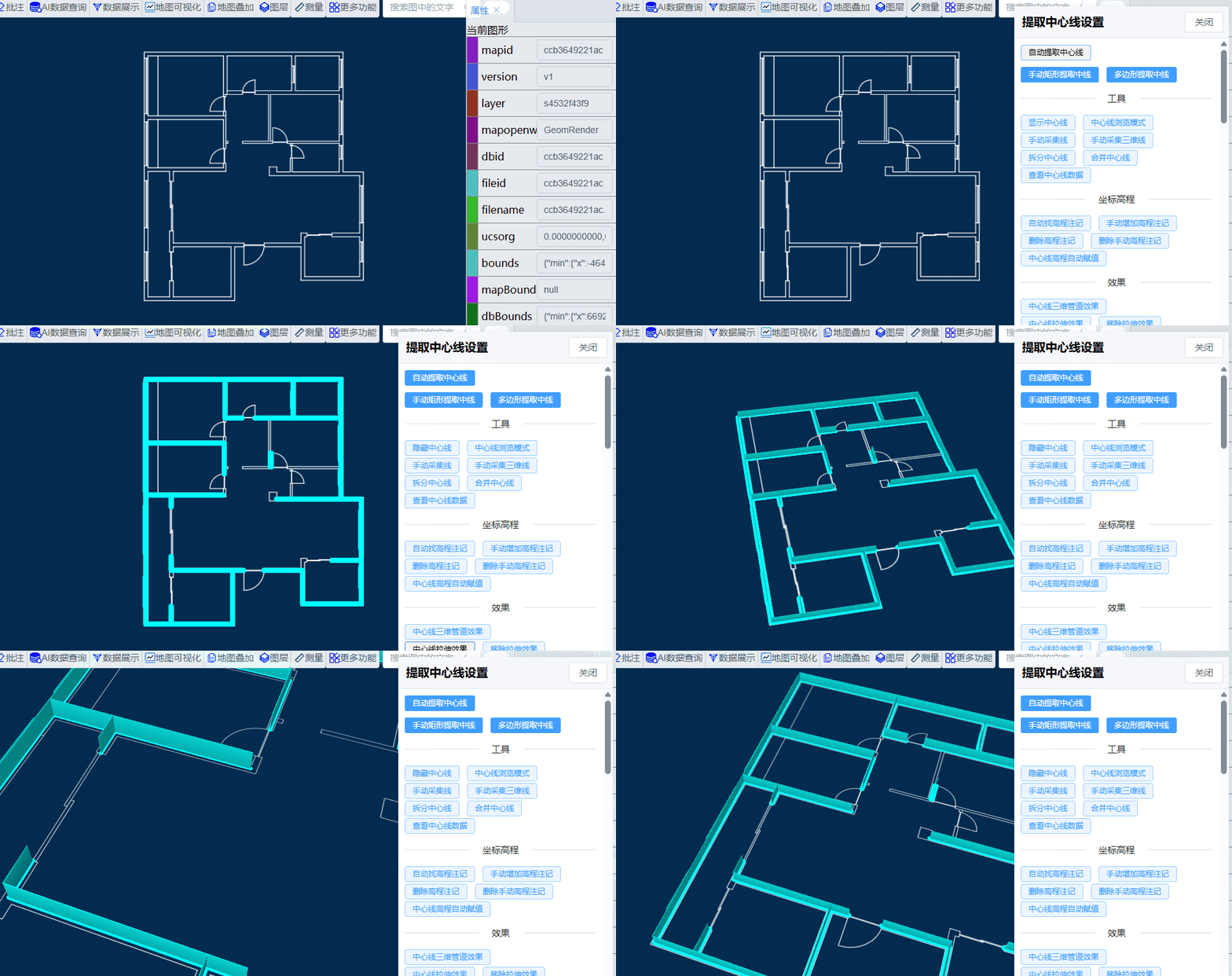
Extract wall centerlines
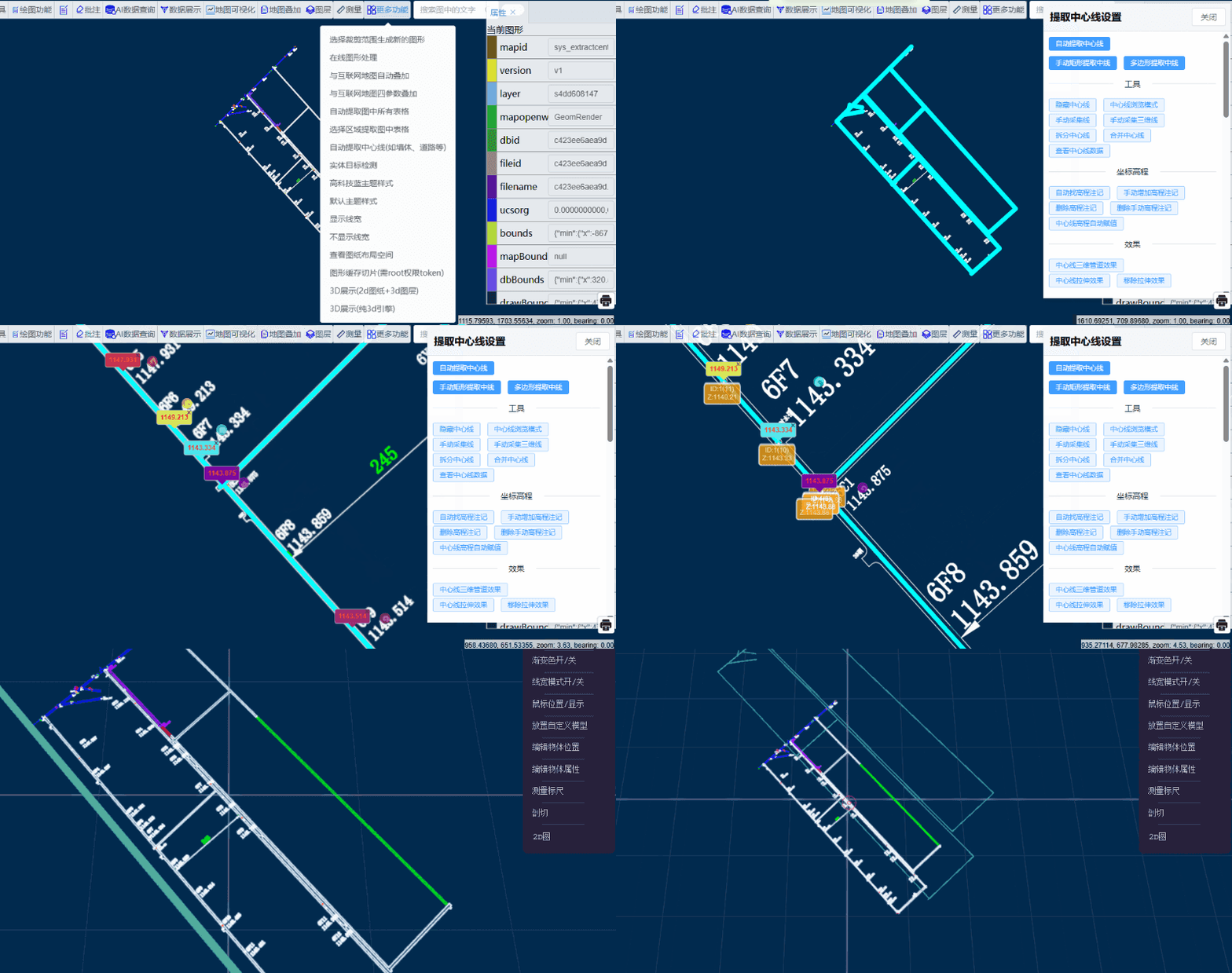
Extract tunnel centerlines
Video tutorial:
https://www.bilibili.com/video/BV14coEY5EdR/
Basic Operations
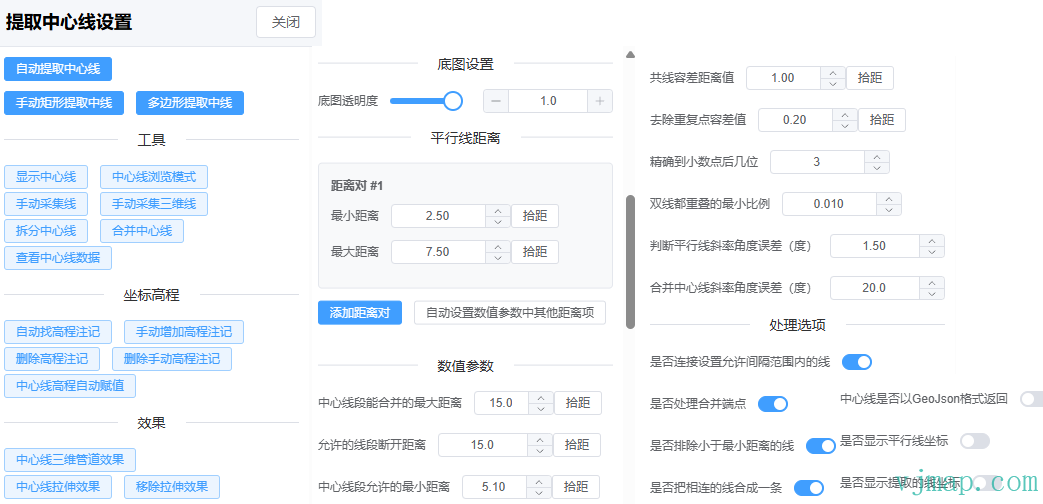
Upload the CAD drawing to the VJMap Cloud Management Platform. After opening it, click "Auto-extract centerlines (e.g. walls, roads)" under "More Features".
Interface Controls
- Draggable window: Drag the window by the title bar
- Base map opacity: Use the slider to adjust base map opacity (0–1)
- Close button: Click the "Close" button in the top-right corner to close the settings window
Centerline Extraction
Parameter Settings
Parallel Line Distance Settings
-
Distance pair settings
- Add multiple distance pairs
- Each pair has minimum and maximum distance
- Use "Pick distance" to measure distance directly on the map
-
Auto settings
- Click "Auto-set other distance parameters" to compute other distance parameters
This step is important. Different drawings need different values; adjust them based on the actual drawing.
If the drawing has different parallel line widths (e.g. different wall thicknesses), add more distance pairs.

After changing distance options, click Auto-set other distance parameters to recalculate other distance parameters
Numeric Parameters
- Distance parameters
- Maximum merge distance for centerline segments (segments within this range are merged into one)
- Allowed segment gap distance (when parallel lines are broken, gaps smaller than this are merged)
- Minimum centerline distance (segments shorter than this are excluded)
- Collinearity tolerance (tolerance for collinearity check)
- Duplicate point tolerance (tolerance for removing duplicate points)
- Precision parameters
- Decimal places (0–10)
- Minimum overlap ratio for double lines (0–1) (used to determine if parallel lines have a centerline)
- Parallel line slope angle tolerance (0–90 degrees)
- Merge centerline slope angle tolerance (0–90 degrees)
Processing Options
- Connect lines within allowed gap distance
- Merge endpoints
- Exclude lines shorter than minimum distance
- Merge connected lines into one
- Return centerlines in GeoJSON format (for debugging)
- Show parallel line coordinates (for debugging)
- Show extracted line coordinates (for debugging)
Auto Extract Centerlines
- Click "Auto Extract Centerlines"
- The system analyzes the current view and extracts centerlines
Manual Rectangle Extract
- Click "Manual Rectangle Extract Centerlines"
- Draw a rectangle on the map
- The system extracts centerlines within that region
Polygon Extract
- Click "Polygon Extract Centerlines"
- Draw a polygon on the map
- The system extracts centerlines within that region
Note: If parameters are correct but other elements affect the result, try:
(1) Use the layer menu in the toolbar: "Show only specified layers" to isolate data and reduce interference.
(2) Use manual rectangle or polygon selection to extract only the desired region.
Tool Features
Centerline Edit Tools
-
Show/hide centerlines: Toggle the centerline display
-
Edit/browse mode: Switch between editing and browsing modes
- Edit mode:
Click a centerline to drag and edit coordinates, or press
Deleteto remove it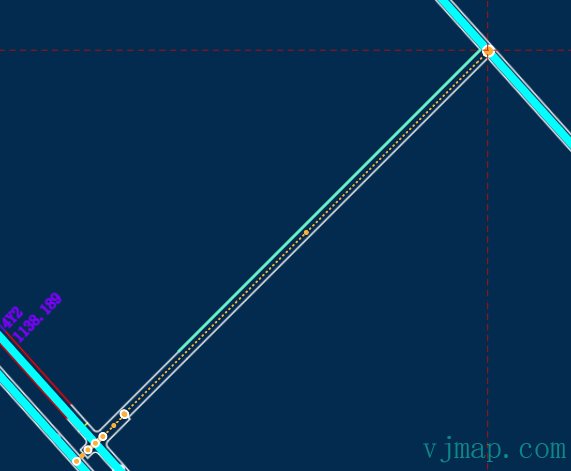
image-20250414161148669 -
Browse mode:
Hover over a centerline to see its attributes. Click to open detailed coordinates and attributes for editing.
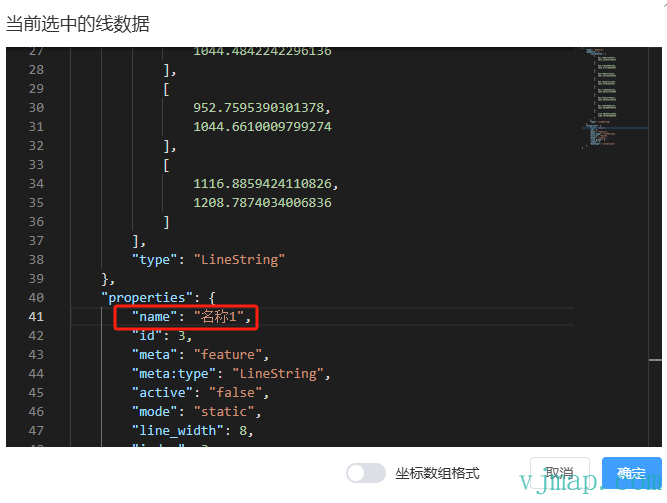
You can enter the centerline name here or edit coordinates directly.
Manual Collection
-
Manual collection line: Click to collect 2D lines on the map
-
Manual collection 3D line: Click to collect 3D lines on the map
If no auto-extracted data is available, use manual collection. For 3D lines, elevation is automatically assigned from the drawing at each point (or enter manually if not found).
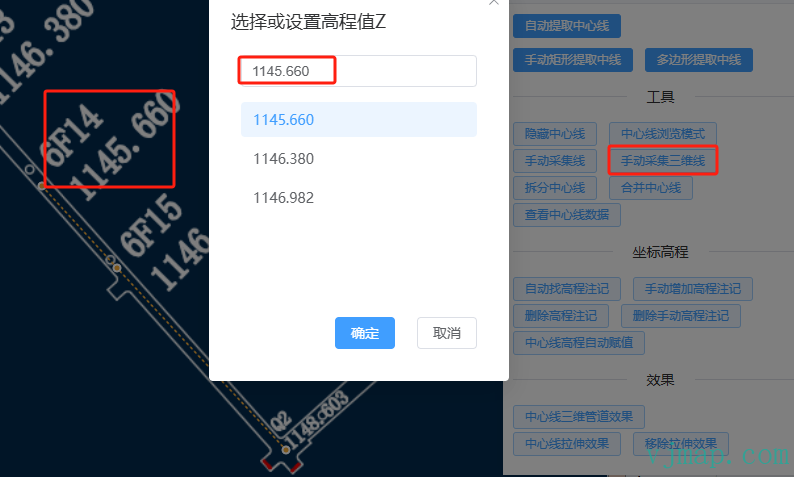
image-20250414162038735
Centerline Editing
-
Split centerline: Select a centerline and specify a split point to split it

image-20250414162650071 -
Merge centerlines: Select two centerlines to merge them
Merging is the opposite of splitting. Select two centerlines and they are merged into one.
-
View centerline data: View detailed centerline data
Use this to view all centerline data or edit it directly.
You can copy processed centerline data here and paste it back later to restore.
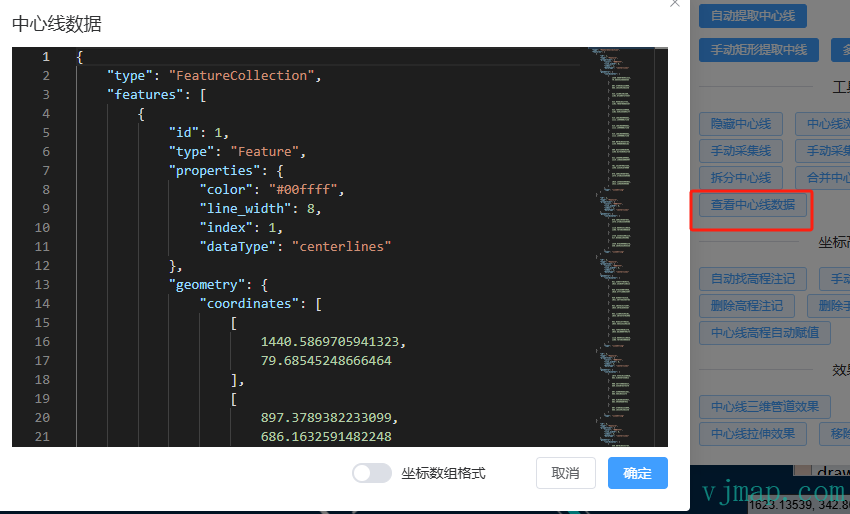
image-20250414162757031
Coordinate Elevation Handling
To assign elevation to each point of a centerline, first auto-find all elevation annotations in the drawing or manually add elevation annotations, then interpolate elevation for each centerline point.
Elevation Annotation Handling
-
Auto-find elevation annotations
-
Click "Auto Find Elevation Annotations"
-
The system identifies elevation annotations in the drawing
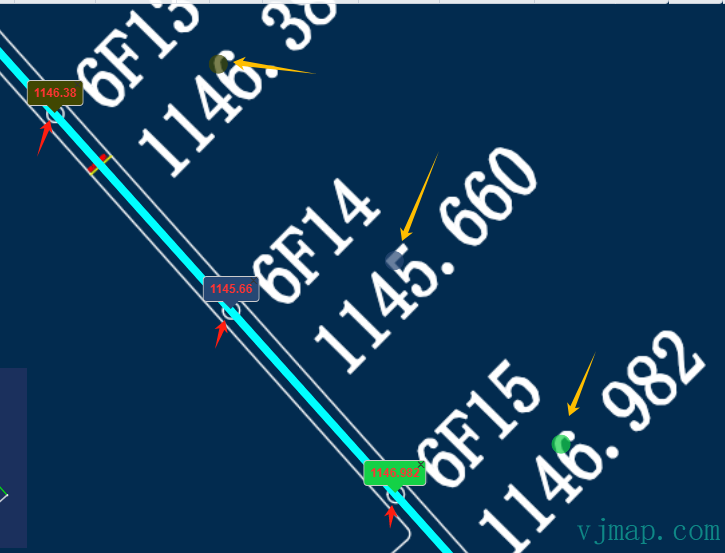
image-20250414163522616 The flow: find all circles of the specified radius, then search for elevation values near each circle.
Found elevations are marked with a filled circle of the same color. For example, green for "1146.983" shows a green circle above the text. This shows which text in the drawing each elevation came from. If incorrect, click the close button on the elevation annotation to remove it.
-
-
Manually add elevation annotations
-
Click "Manually Add Elevation Annotation"
-
Click on the map to add an elevation value
For elevations not found automatically, add them manually. Manual additions appear in blue to distinguish them from auto-found ones.
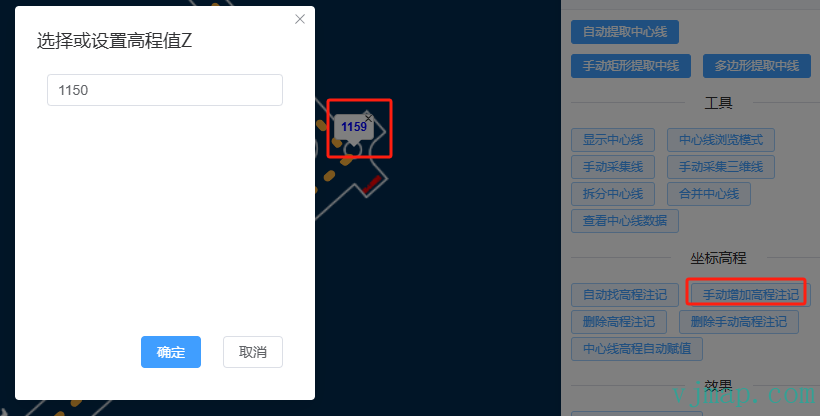
image-20250414165344400
-
-
Elevation annotation management
-
Delete elevation annotations: Remove all auto-found elevation annotations
-
Delete manual elevation annotations: Remove manually added elevation annotations
-
Auto-assign elevation to centerlines: Assign elevation to centerlines from elevation annotations
Centerline elevation auto-assignment uses
auto-found elevation annotationsandmanually added elevation annotationsto interpolate elevation for all centerline points.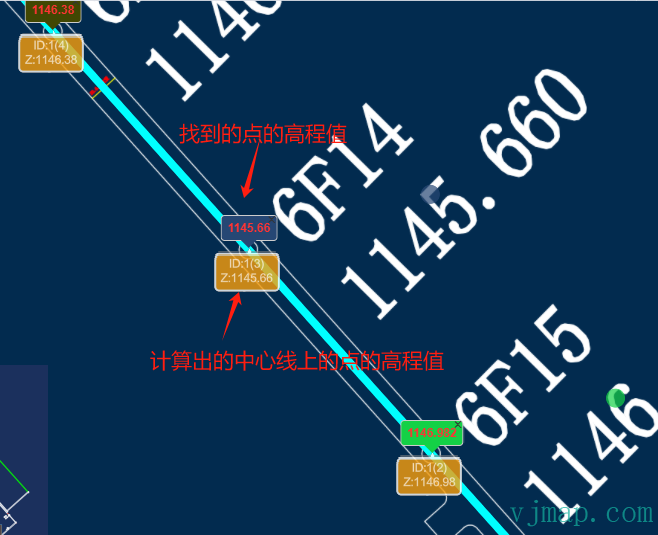
image-20250414170003060 Points without elevation annotations are interpolated from other points
If a line is red, it means no elevation was found and all assignments failed; add elevation annotations manually and try again
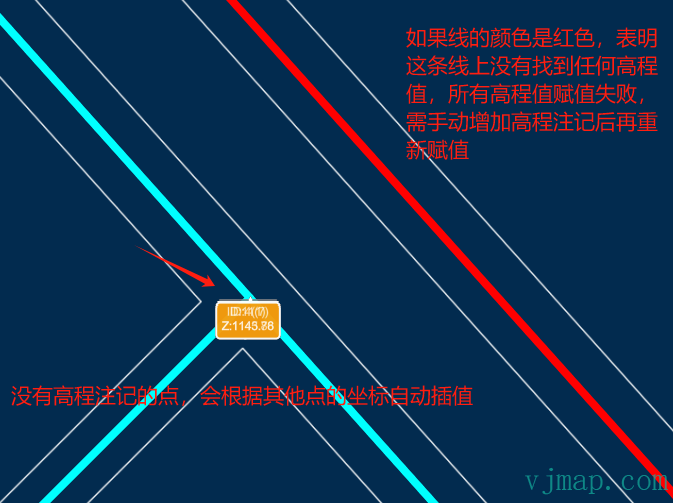
image-20250414170313222
-
Effect Preview
3D Effects
-
Centerline 3D pipe effect: Convert centerlines to 3D pipe visualization
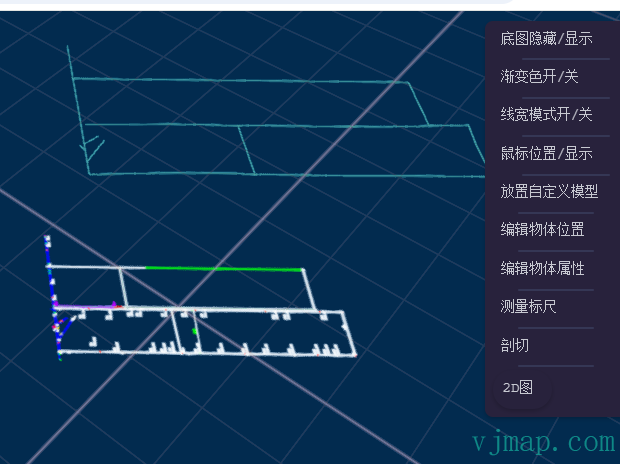
image-20250414170750772 -
Centerline extrusion effect: Show extrusion along centerlines
-
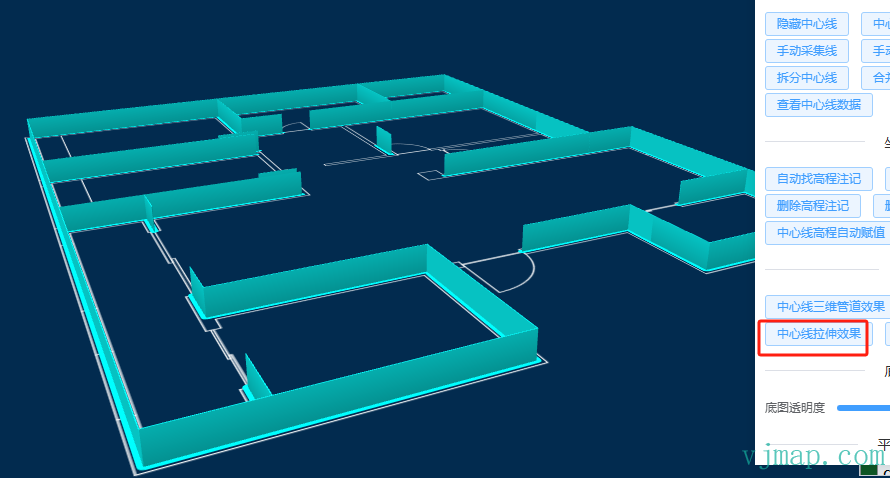
image-20250414171252950 -
Remove extrusion effect: Clear extrusion effect
Usage Steps
- Set
parallel line distance, then clickAuto-set other distance parametersto compute other distance parameters - For extraction, try
auto extractfirst; if results are poor, usemanual extract - For elevation handling, use
auto find elevation annotationsfirst, thenauto assign elevation to centerlines. If lines appear red, add or correct manually as needed - Use 3D effects to verify data and correct as needed.
SDK Usage
 /**
 * Extract centerline command parameters
 * @interface ExtractCenterLinesParams
 */
interface ExtractCenterLinesParams {
  /** Include boundary */
  isContains: boolean;

  /** Boundary coordinate string */
  bounds: string;

  /** Minimum spacing, comma-separated for multiple values */
  minSpaceDistance: string;

  /** Maximum spacing, comma-separated for multiple values */
  maxSpaceDistance: string;

  /** Map ID */
  mapid?: string;

  /** Map version */
  version?: string;

  /** Layer */
  layer?: string;

  /** Whether geometry rendering mode */
  geom?: boolean;

  /** Collinearity tolerance */
  collinearTolerance: number;

  /** Duplicate point tolerance */
  duplicateTolerance: number;

  /** Allowed segment gap distance */
  maxGapDistance: number;

  /** Decimal places */
  numDecimalDigits: number;

  /** Minimum overlap ratio for double lines */
  minDlMinRatio: number;

  /** Parallel line slope angle tolerance (degrees) */
  paralleSlopeAngleTolerance: number;

  /** Merge centerline slope angle tolerance (degrees) */
  mergeSlopeAngleTolerance: number;

  /** Maximum merge distance for centerline segments */
  maxCenterMergeDistance: number;

  /** Minimum centerline distance */
  minCenterDistance: number;

  /** Connect lines within allowed gap */
  bConnectGrapLine: boolean;

  /** Merge endpoints */
  bMergeNode: boolean;

  /** Exclude lines shorter than minimum distance */
  bFilterShortLine: boolean;

  /** Merge connected lines into one */
  bMergeLine: boolean;

  /** Return centerlines in GeoJSON format */
  bCenterGeoJson: boolean;

  /** Show parallel line coordinates */
  bSaveParalleLineJson: boolean;

  /** Show extracted line coordinates */
  bExtractLines: boolean;
}

/**
 * Extract centerline command
 * @function extractCenterLines
 * @param {ExtractCenterLinesParams} params - Extract centerline parameters
 * @param {string} [options="_null"] - Options
 * @param {string} [version="v1"] - API version
 * @returns {Promise<any>} Extracted centerline data
 * @description
 * Extracts centerlines from the map. Supports auto and manual region extraction.
 * Use parameters to control precision and behavior.
 *
 * @example
 * const result = await svc.execCommand("extractCenterLines", {
 *   isContains: true,
 *   bounds: "x1,y1,x2,y2",
 *   minSpaceDistance: "2.5,3.5",
 *   maxSpaceDistance: "7.5,8.5",
 *   collinearTolerance: 1.0,
 *   duplicateTolerance: 0.2,
 *   // ... other parameters
 * });
 */