
Data Access Permissions
VJMAP Frontend CAD/GIS Data Access Permission Configuration
In the digital economy era, the value of data elements is increasingly prominent, and accordingly, data security issues are receiving more attention. VJMAP provides a one-stop solution for WebGIS visualization display of CAD drawings or custom map formats. It supports formats such as AutoCAD's DWG files and common GIS file formats like GeoJSON. It uses WebGL vector tiles and raster tiles to render interactive maps, achieving perfect integration of CAD and GIS, and implementing functions such as CAD drawing upload, open, version management, attribute query, layer toggle, annotation, data display, internet map overlay, and drawing. So how can we configure to ensure secure access to frontend CAD/GIS data?
Backend RBAC Permission Management
VJMAP backend uses RBAC (Role-Based Access Control) for permission management.
Role-based access control (RBAC) grants users permissions through their roles, enabling fine-grained access control and providing a simpler, more manageable approach compared to directly granting permissions to individual users.
Different tokens represent different role permissions.
Default roles include root, admin, and guest.
root has the highest permissions; admin cannot delete system graphics prefixed with sys_, cannot perform tiling, etc., but has the same other functions as root; guest has read-only access.
You can configure permissions for different roles in the backend, and then use different tokens to implement data security.
The backend can allocate and configure permissions for the entire system, while users can also achieve data security by setting Map Hidden and Map Password when uploading graphics from the frontend.
Map Hidden
Operation Steps
(1) Upload Map
Upload graphics through Upload Map provided by VJMAP Cloud Drawing Management Platform
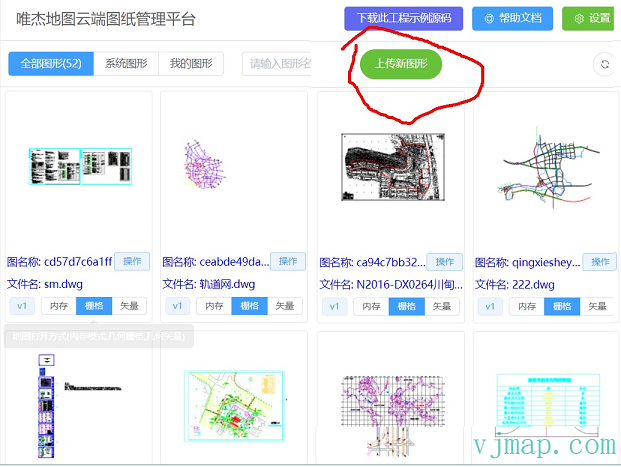
(2) After successful upload, set a map name ID
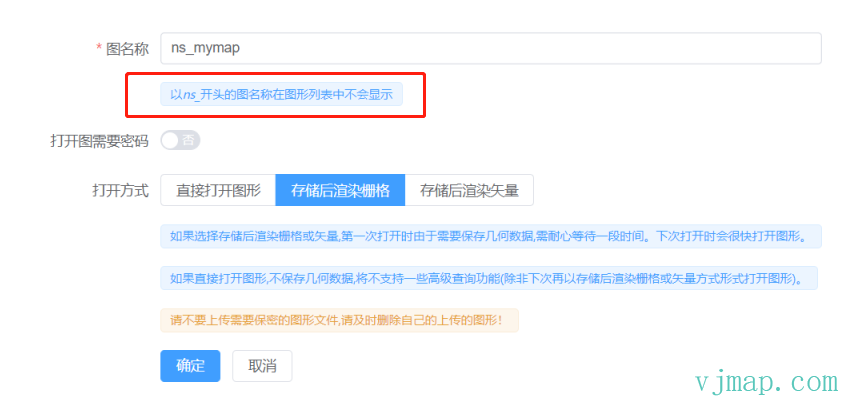
To set map hidden, the map name must start with ns_. This way, after the map is opened, it will be automatically hidden in the map list and other users cannot see it. To access this map, you can directly enter the map ID.
Map Password
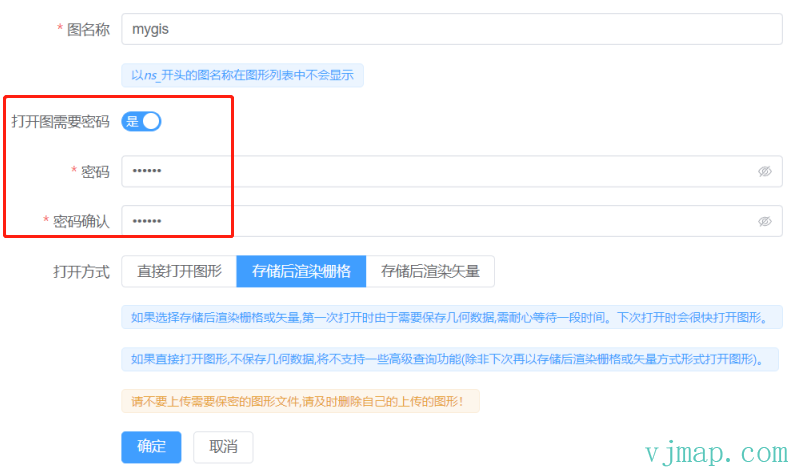
The map hidden approach above is slightly cumbersome when opening next time. You can also set a map password to protect data security. The operation is to set Password required to open map after uploading the map.
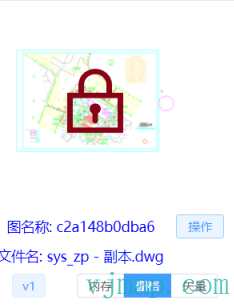
After successful upload, maps with password protection will display a lock symbol in the map list. When clicking to open a map, you need to enter the password to access it.
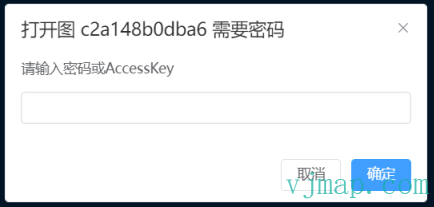
Here is the mechanism for map password access permissions.
superKey: This is a super permission set in the backend. superKey can reset passwords for all maps, or set/cancel passwords for maps, and has access to all maps.
secretKey: This permission has full access to a specific map. secretKey is derived from the password set when the user uploads the map. For example, if a map has password 123456, you can use the method pwdToSecretKey('123456') in vjmap.Service to convert the plaintext password to a secret key. This secretKey is only valid for the map with the password set. Users should not save or distribute it; obtain this value by entering the password.
accessKey: This permission has access to a specific map. accessKey is generated from secretKey and a random salt. Similar to secretKey, accessKey can open password-protected maps, but unlike secretKey, it cannot manage the map (e.g., delete map, rename, delete version). This accessKey can be distributed. If you don't want the password input box to pop up every time you open a map, you can use the method addAccessKey in vjmap.Service, e.g., svc.addAccessKey("akxxxxxxxxxxxxxxxx"). When opening a map, it will automatically verify this key, and if validation passes, the password input box will not pop up.
Permission hierarchy: superKey (highest permission for all maps) > secretKey (highest permission for one map) > accessKey (access permission for one map)
superKey can reset secretKey or accessKey;
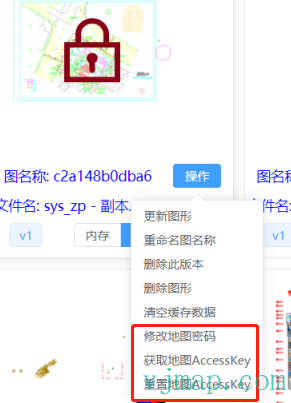
secretKey can reset or obtain accessKey;
Click the Operations menu to perform password settings, obtain accessKey, and other operations.
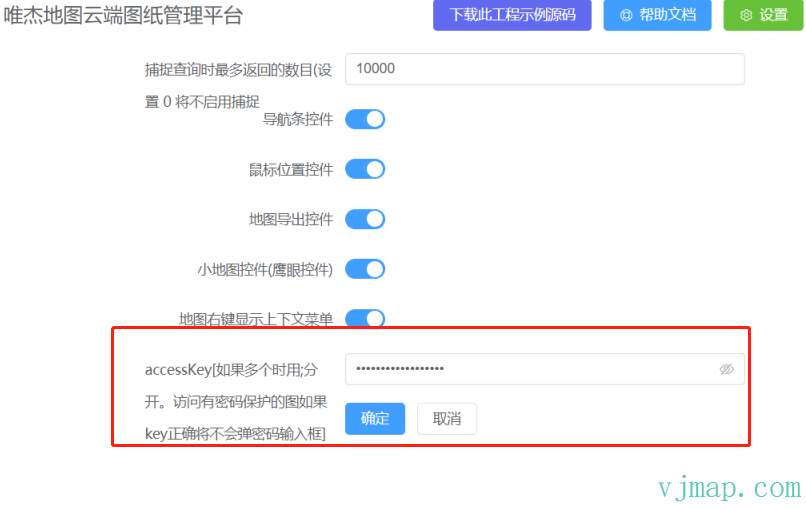
Additionally, if different maps may have different keys and you want to avoid entering passwords every time when opening these maps, you can set the accessKey value in settings. This value can be superKey or each map's accessKey. For multiple keys, separate them with commas and save.
Summary
Through the above settings, based on backend and frontend user configuration, we can achieve secure access to CAD/GIS data. Since VJMAP https://vjmap.com is only a map development platform and does not encapsulate username and password, the official examples do not include user login functionality for user convenience. In actual projects, developers can integrate with their own user permission systems to implement user login functionality.