
Drawing Tool
Getting Started
const draw = new vjmap.Draw.Tool();
map.addControl(draw, 'top-right');
Options
All options below are optional.
keybindings, boolean (defaulttrue): Whether to enable keyboard interaction for drawing.touchEnabled, boolean (defaulttrue): Whether to enable touch interaction for drawing.boxSelect, boolean (defaulttrue): Whether to enable feature box selection withshift+click+drag. Iffalse,shift+click+drag zooms the area.clickBuffer, number (default:2): Number of pixels around any feature or vertex (in each direction) that will respond to a click.touchBuffer, number (default:25): Number of pixels around any feature or vertex (in each direction) that will respond to touch.controls, Object: Hide or show individual controls. Each property name is a control, and the value is a boolean indicating whether the control is on or off. Available control names:point,line_string,polygon,trash,combine_features,uncombine_features,drawCircle,snap_mode_snap,snap_mode_grid,splitLine,cutPolygon,drawRectangle,redo,undo,snap_mode_snap,snap_mode_grid. By default, all controls are on. To change this default, usedisplayControlsDefault.displayControlsDefault, boolean (default:true): Default value forcontrols. For example, if you want all controls off by default and specify an allow list withcontrols, usedisplayControlsDefault: false.styles, Arraymodes, Object: Override default modes with your own.defaultMode, String (default:'simple_select'): The mode frommodesthat the user will land on first.snap, boolean (default:true): Whether to enable vertex snappingguides, boolean (default:true): Whether to enable snap gridsnapOptionsObject, snap options, default is ({snapPx: 15, snapToMidPoints: false, snapVertexPriorityDistance: 1.25, snapGridPx: 2000 (snap grid line pixel length))addControlsArrayapiObject api methods, can set additional snap entities via thegetSnapFeaturespropertyisActionDrawModeWhen set to true, the button toolbar will not be created, and can only be invoked via commands
Tip
While drawing, hold the Alt key to temporarily disable snap mode While drawing, hold the Ctrl key to temporarily enable orthogonal mode, allowing only horizontal or vertical lines relative to the viewport
Snap style legend
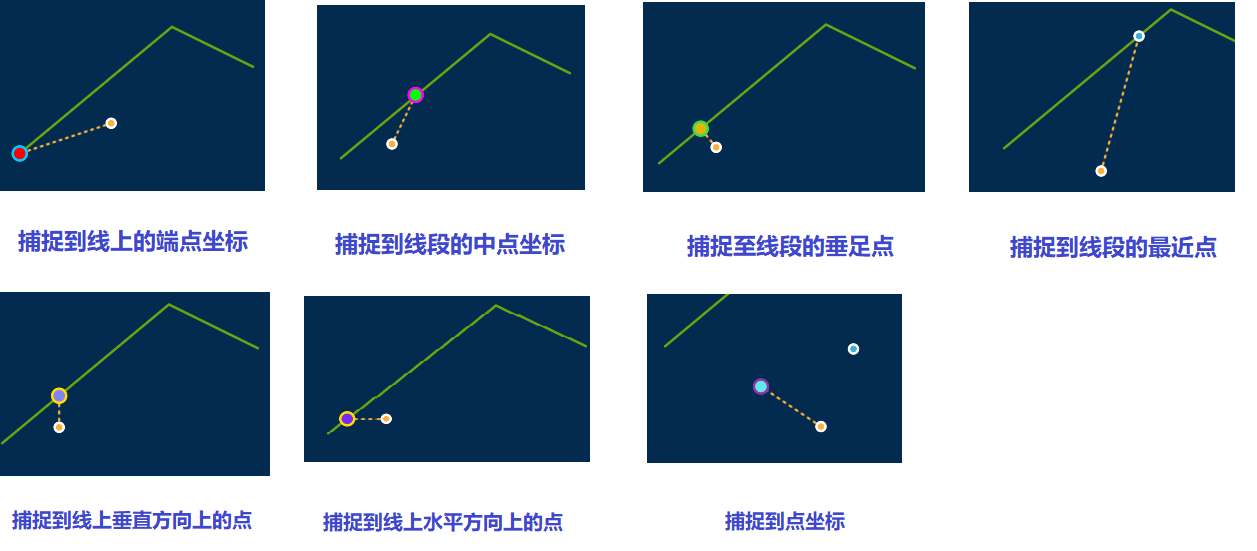
Modes
Mode name strings can be used as enums via Draw.modes.
static
Non-edit mode. In non-edit mode, users cannot edit shapes but can highlight or click shapes.
To enable highlighting in non-edit mode, set the hoverPointer property to true on the feature. To customize highlight opacity, set the hover_opacity property. Default highlight opacity is 0.55
Events in non-edit mode:
- draw.static.setup start
- draw.static.click click
- draw.static.mousedown
- draw.static.mouseup
- draw.static.mouseout
- draw.static.keyup
- draw.static.keydown
- draw.static.mouseenter
- draw.static.mouseleave
- draw.static.contextmenu
- draw.static.tap
- draw.static.stop end
For example, you can respond to the above events to show an info popup in non-edit mode
// Modify color after creation
map.on("draw.create", function (e) {
    let color = vjmap.randomColor();
    for(let i = 0; i <  e.features.length; i++) {
        let id = e.features[i].id;
        if (!draw.get(id)) continue;
        draw.setFeatureProperty(id, "color", color);
        draw.setFeatureProperty(id, "hoverPointer", true); // Allow highlighting in non-edit mode
    }
});

 const popup = new vjmap.Popup({
     closeButton: false
 });
// In non-edit mode, when mouse hovers, display info popup content
map.on("draw.static.mouseenter", e => {
    if (e.event.featureTarget) {
        popup.setLngLat(e.event.lngLat);
        popup.setHTML(JSON.stringify(e.event.featureTarget.properties, null, 4));
        popup.addTo(map);
    }
});

map.on("draw.static.mouseleave", e => {
   if (popup) popup.remove();
});

map.on("draw.static.click", e => {
   alert(`You clicked the feature with id: ${e.event.featureTarget.properties.id}`)
});
simple_select
Draw.modes.SIMPLE_SELECT === 'simple_select'
Used for selecting, deleting, and dragging features.
In this mode, users can change the selected state of features.
Draw defaults to simple_select mode, and automatically switches back to this mode each time the user finishes drawing a feature or exits direct_select mode.
direct_select
Draw.modes.DIRECT_SELECT === 'direct_select'
Allows you to select, delete, and drag vertices; and drag features.
direct_select mode does not apply to point features, as they have no vertices.
Draw enters direct_select mode when the user clicks a vertex of the selected line or polygon. So direct_select mode typically follows simple_select mode.
draw_line_string
Draw.modes.DRAW_LINE_STRING === 'draw_line_string'
Allows you to draw LineString features. Press Backspace to delete the previous point
draw_polygon
Draw.modes.DRAW_POLYGON === 'draw_polygon'
Allows you to draw polygon features. Press Backspace to delete the previous point
draw_point
Draw.modes.DRAW_POINT === 'draw_point'
Used for drawing point features.
draw_circle
Used for drawing circle features.
draw_rectangle
Used for drawing rectangle features.
splitLineMode
Used for splitting line features.
cutPolygonMode
Used for splitting polygon features.
var addControls = [
{
   id: "drawCircle",
   title: 'Draw Circle',
   className: "vjmap-map-draw_circle",
   onActivate: function (ctx){
     ctx.api.changeMode('draw_circle');
   }
},
{
    id: "drawRectangle",
    title: 'Draw Rectangle',
    className: "vjmap-map-draw_rectangle",
    onActivate: function (ctx){
      ctx.api.changeMode('draw_rectangle');
    }
 },
{
    id: "splitLine",
    title: 'Split Line',
    className: "vjmap-map-draw-cut-line",
    onActivate: function (ctx){
      ctx.api.changeMode('splitLineMode', { spliter: 'line_string' });
    }
 },
 {
    id: "cutPolygon",
    title: 'Split Polygon',
    className: "vjmap-map-draw-cut-polygon",
    onActivate: function (ctx){
      ctx.api.changeMode('cutPolygonMode');
    }
 },
 {
    id: "undo",
    title: 'Undo Last Action',
    className: "vjmap-map-draw_undo",
    onActivate: function (ctx){
      ctx.api.undo();
    }
},
  {
    id: "redo",
    title: 'Redo Last Action',
    className: "vjmap-map-draw_redo",
    onActivate: function (ctx){
      ctx.api.redo();
    }
},
{
    id: "snap_mode_snap",
    title: 'Snap Points',
    className: "snap_mode_snap",
    isCheckbox: true,
    checked: true,
    onActivate: function (ctx, e){
        ctx.options.snap = e.target.checked;
    }
 },
 {
     id: "snap_mode_grid",
     title: 'Snap Grid',
     isCheckbox: true,
     checked: true,
     className: "snap_mode_grid",
     onActivate: function (ctx, e){
        ctx.options.guides = e.target.checked;
     }
  }
  ]
API Methods
var draw = new vjmap.Draw.Tool() returns the following API:
add(geojson: Object) => Array<string>
This method takes a GeoJSON Feature, FeatureCollection, or Geometry and adds it to Draw. It returns an array of ids for interacting with the added features. If a feature does not have its own id, one will be auto-generated.
Supported GeoJSON feature types: Point, LineString, Polygon, MultiPoint, MultiLineString, and MultiPolygon.
If the id of a feature you add() is already in use, the existing feature will be updated and no new feature will be added.
Example without specified feature ID:
var feature = { type: 'Point', coordinates: [0, 0] };
var featureIds = draw.add(feature);
console.log(featureIds);
//=> ['some-random-string']
Example with specified feature ID:
var feature = {
  id: 'unique-id',
  type: 'Feature',
  properties: {},
  geometry: { type: 'Point', coordinates: [0, 0] }
};
var featureIds = draw.add(feature);
console.log(featureIds)
//=> ['unique-id']
get(featureId: string): ?Feature
Returns the GeoJSON feature in Draw with the specified id, or undefined if the id does not match any feature.
Example:
var featureIds = draw.add({ type: 'Point', coordinates: [0, 0] });
var pointId = featureIds[0];
console.log(draw.get(pointId));
//=> { type: 'Feature', geometry: { type: 'Point', coordinates: [0, 0] } }
getFeatureIdsAt(point: { x: number, y: number }): Array<string>
Returns an array of feature ids for features currently rendered at the specified point.
Note that the point parameter requires x, y coordinates from pixel space, not longitude, latitude coordinates.
With this function, you can get information from Draw using coordinates provided by mouse events.
var featureIds = Draw.getFeatureIdsAt({x: 20, y: 20});
console.log(featureIds)
//=> ['top-feature-at-20-20', 'another-feature-at-20-20']
getSelectedIds(): Array<string>
Returns an array of feature ids for currently selected features.
getSelected(): FeatureCollection
Returns a FeatureCollection of all currently selected features.
getSelectedPoints(): FeatureCollection
Returns a FeatureCollection of points representing all vertices of the current selection.
getAll(): FeatureCollection
Returns a FeatureCollection of all features.
Example:
draw.add({ type: 'Point', coordinates: [0, 0] });
draw.add({ type: 'Point', coordinates: [1, 1] });
draw.add({ type: 'Point', coordinates: [2, 2] });
console.log(draw.getAll());
// {
//   type: 'FeatureCollection',
//   features: [
//     {
//       id: 'random-0'
//       type: 'Feature',
//       geometry: {
//         type: 'Point',
//         coordinates: [0, 0]
//       }
//     },
//     {
//       id: 'random-1'
//       type: 'Feature',
//       geometry: {
//         type: 'Point',
//         coordinates: [1, 1]
//       }
//     },
//     {
//       id: 'random-2'
//       type: 'Feature',
//       geometry: {
//         type: 'Point',
//         coordinates: [2, 2]
//       }
//     }
//   ]
// }
delete(ids: string | Array<string>): draw
Deletes features with the specified IDs. Returns the draw instance for chaining.
In direct_select mode, deleting the active feature will exit that mode and return to simple_select mode.
Example:
var feature = { type: 'Point', coordinates: [0, 0] };
var ids = draw.add(feature);
draw
  .delete(ids)
  .getAll();
// { type: 'FeatureCollection', features: [] }
deleteAll(): draw
Deletes all features. Returns the draw instance for chaining.
Example:
draw.add({ type: 'Point', coordinates: [0, 0] });
draw
  .deleteAll()
  .getAll();
// { type: 'FeatureCollection', features: [] }
forceRefresh
Force refresh
Example:
draw.forceRefresh();
undo
Undo
Example:
draw.undo();
redo
Redo
Example:
draw.redo();
clearHistory
Clear history
Example:
draw.clearHistory();
set(featureCollection: FeatureCollection): Array<string>
Sets Draw's features to those in the specified FeatureCollection.
Performs any necessary delete, create, and update operations to make Draw's features match the specified FeatureCollection. In effect, this is the same as Draw.deleteAll() followed by Draw.add(featureCollection), except it does not have as much performance impact.
Example:
var ids = draw.set({
  type: 'FeatureCollection',
  features: [{
    type: 'Feature',
    properties: {},
    id: 'example-id',
    geometry: { type: 'Point', coordinates: [0, 0] }
  }]
});
// ['example-id']
trash(): draw
Invokes the current mode's trash action. Returns the draw instance for chaining.
In simple_select mode, this will delete all selected features.
In direct_select mode, this will delete the selected vertices.
In drawing mode, this will cancel drawing and return Draw to simple_select mode.
If you want to delete features regardless of the current mode, use the delete or deleteAll functions.
combineFeatures(): draw
Invokes the current mode's combineFeatures action. Returns the draw instance for chaining.
In simple_select mode, this will combine all selected features into one Multi* feature, as long as they are all the same geometry type. For example:
- Selection is two LineStrings => MultiLineString
- Selection is one MultiLineString and one LineString => MultiLineString
- Selection is two MultiLineStrings => MultiLineString
Calling this function when selecting features of different geometry types will not result in any changes. For example:
- Selection is one point and one LineString => no action taken
- Selection is one MultiLineString and one MultiPoint => no action taken
In direct_select mode and drawing mode, no action is performed.
uncombineFeatures(): draw
Invokes the current mode's uncombineFeatures action. Returns the draw instance for chaining.
In simple_select mode, this will split each selected Multi* feature into its component feature parts, and leave non-multi features unchanged. For example:
- Selection is two-part MultiLineString => LineString, LineString
- Selection is three-part MultiLineString => LineString, LineString, LineString
- Selection is MultiLineString with two parts and one Point => LineString, LineString, Point
- Selection is LineString => LineString
In direct_select and drawing mode, no action is performed.
getMode(): string
Returns Draw's current mode.
changeMode(mode: string, options?: Object): draw
Changes Draw to another mode. Returns the draw instance for chaining.
The mode parameter must be one of the mode names described above and enumerated in Draw.modes.
// `simple_select` options
{
  // Array of ids of features that will be initially selected
  featureIds: Array<string>
}
// `direct_select` options
{
  // The id of the feature that will be directly selected (required)
  featureId: string
}
// `draw_line_string` options
{
  // The id of the LineString to continue drawing
  featureId: string,
  // The point to continue drawing from
  from: Feature<Point>|Point|Array<number>
}
setFeatureProperty(featureId: string, property: string, value: any): draw
Sets the property value of the feature with the specified id. Returns the draw instance for chaining.
This is helpful if you use Draw's features as the primary data store in your application.
For example, to set color:
draw.setFeatureProperty(featureId, "color", color);
With default style, supported properties are:
Point
// Circle symbol

draw.setFeatureProperty(featureId, "stroke_color_active", "#fff"); // Border circle color in active edit mode
draw.setFeatureProperty(featureId, "stroke_radius_active", 7); // Border circle size in active edit mode
draw.setFeatureProperty(featureId, "color_active", "#fbb03b"); // Fill circle color in active edit mode
draw.setFeatureProperty(featureId, "radius_active", 5); // Fill circle size in active edit mode

draw.setFeatureProperty(featureId, "stroke_color_inactive", "#fff"); // Border circle color in inactive edit mode
draw.setFeatureProperty(featureId, "stroke_radius_inactive", 5); // Border circle size in inactive edit mode
draw.setFeatureProperty(featureId, "color_inactive", "#3bb2d0"); // Fill circle color in inactive edit mode
draw.setFeatureProperty(featureId, "radius_inactive", 3); // Fill circle size in inactive edit mode

draw.setFeatureProperty(featureId, "color_static", "#3bb2d0"); // Fill circle color in non-edit mode
draw.setFeatureProperty(featureId, "radius_static", 5); // Border circle size in non-edit mode

// Icon symbol
draw.setFeatureProperty(featureId, "icon_image", "xxx");
draw.setFeatureProperty(featureId, "icon_size", 1); // Scale factor
draw.setFeatureProperty(featureId, "icon_rotate", "xxx");
draw.setFeatureProperty(featureId, "text", "xxx"); // Text value
draw.setFeatureProperty(featureId, "text_rotate", "xxx");// Text rotation angle
draw.setFeatureProperty(featureId, "text_opacity", "xxx"); // Text opacity
draw.setFeatureProperty(featureId, "text_size", "xxx"); // Text size (default 22)
draw.setFeatureProperty(featureId, "symbol", true|false); // Has icon and text
draw.setFeatureProperty(featureId, "onlyText", true|false);  // No icon, text only
Line
draw.setFeatureProperty(featureId, "color", "xxx");
draw.setFeatureProperty(featureId, "line_width", "xxx");
Polygon
draw.setFeatureProperty(featureId, "opacity", "xxx");
draw.setFeatureProperty(featureId, "color", "xxx");
draw.setFeatureProperty(featureId, "line_width", "xxx");
Modify coordinates
draw.setFeatureProperty(featureId, "coordinates", [xxx]);
Built-in special properties:
- Set feature visibility Hide
draw.setFeatureProperty(featureId, "isOff", true); // isOff set to true means hidden
Show
draw.setFeatureProperty(feature.id, "isOff", undefined); // Remove isOff property. Default is visible
- Set feature lock/unlock (locked features are visible only, not editable) Lock
draw.setFeatureProperty(featureId, "isLocked", true); // isLocked set to true means locked
Unlock
draw.setFeatureProperty(feature.id, "isLocked", undefined); // Remove isLocked property. Default is unlocked
Set to not snap to this feature when drawing
draw.setFeatureProperty(featureId, "noSnap", true); // noSnap set to true means do not snap to this feature when drawing
When a feature is selected during drawing, disallow editing on second click (hold Ctrl to edit). Allows dragging
draw.setFeatureProperty(featureId, "disableDirectEdit", true); // disableDirectEdit set to true means editing not allowed on second click after selecting
When a feature is selected during drawing, disallow editing (no dragging, no editing)
draw.setFeatureProperty(featureId, "disable_edit", true); // disable_edit set to true means editing not allowed. Set to undefined to allow editing
The difference from disableDirectEdit:
disableDirectEdit allows dragging. By default editing handles not allowed, hold Ctrl to allow editing
disable_edit no dragging, no editing handles
- Set feature visibility at different zoom levels
draw.setFeatureProperty(id, "minZoom", 5); // Show this feature only below zoom level 5
draw.setFeatureProperty(id, "maxZoom", 10); // Do not show this feature above zoom level 10
- Set feature color
draw.setFeatureProperty(id, "color", color);

draw.setFeatureProperty(id, "fillColor", color); // Fill color, only for polygons (if not set, uses color property)
draw.setFeatureProperty(id, "outlineColor", color);// Outline color, only for polygons (if not set, uses color property)

draw.setFeatureProperty(id, "noneOutline", true);// Do not show polygon outline, only for polygons
- Set feature to allow highlighting in browse mode (non-edit mode)
draw.setFeatureProperty(id, "hoverPointer", true); // Allow highlighting in non-edit mode
draw.setFeatureProperty(id, "hover_color", "#f00"); // Set highlight color
draw.setFeatureProperty(id, "hover_opacity", 0.3); // Set highlight opacity
- Set polygon as extrusion feature
draw.setFeatureProperty(id, "extrusionHeight", 100000); // If polygon has height property, it becomes an extrusion feature
// draw.setFeatureProperty(id, "extrusionHeight", undefined); // Remove height property, revert to polygon
- Symbol text related properties
draw.setFeatureProperty(featureId, "symbol", true); // When symbol is true, also shows symbol text, otherwise a small dot
draw.setFeatureProperty(featureId, "text", ""); // Text content
draw.setFeatureProperty(featureId, "icon_image", ""); // Icon
// Set rotation angle
draw.setFeatureProperty(featureId, "text_rotate", angle);
draw.setFeatureProperty(featureId, "icon_rotate", angle);
map.setCustomKeyValue("_disable_drawkey_backspacekey", true); // Disable delete key when drawing
map.setCustomKeyValue("_disable_drawkey_escapekey", true); // Disable esc cancel key when drawing
map.setCustomKeyValue("_disable_drawkey_enterkey", true); // Disable enter key when drawing
To extend more properties, custom styles are required. See default styles at the end of this document
Events
Draw fires many events. All events are namespaced with draw. and emitted from the map object. All events are triggered by user interaction.
map.on('draw.create', function (e) {
  console.log(e.features);
});
If you call Draw API functions programmatically, no events directly corresponding to that function will be fired. For example, if you call draw.delete(), there will be no corresponding draw.delete event, because you already know what you did. However, subsequent events not directly corresponding to the called function may be fired. For example, if you select a feature and then call draw.changeMode('draw_polygon'), you will not see a draw.modechange event (because it directly corresponds to the called function), but you will see a draw.selectionchange event, because by changing mode you indirectly deselected a feature.
draw.create
Fired when features are created. The following interactions will trigger this event:
- Finishing drawing a feature. A point is created with a single click. LineString or Polygon is only created when the user finishes drawing—i.e., double-click the last vertex or press Enter—and the drawn feature is valid.
Event data is an object with the following shape:
{
  // Array of GeoJSON objects representing the features that were created
  features: Array<Object>
}
draw.delete
Fired when one or more features are deleted. The following interactions will trigger this event:
- Clicking the trash button when one or more features are selected in
simple_selectmode. - Pressing Backspace or Delete when one or more features are selected in
simple_selectmode. - Calling
draw.trash()when you have a feature selected insimple_selectmode.
Event data is an object with the following shape:
{
  // Array of GeoJSON objects representing the features that were deleted
  features: Array<Feature>
}
draw.combine
Fired when features are combined. The following interactions will trigger this event:
- Clicking the combine button when multiple features are selected in
simple_selectmode. - Calling
draw.combineFeatures()when multiple features are selected insimple_selectmode.
Event data is an object with the following shape:
{
  deletedFeatures: Array<Feature>, // Array of deleted features (those incorporated into new multifeatures)
  createdFeatures: Array<Feature> // Array of created multifeatures
}
draw.uncombine
Fired when features are uncombined. The following interactions will trigger this event:
- Clicking the uncombine button when one or more multi-features are selected in
simple_selectmode. Non-multi features can also be selected. - Calling
draw.uncombineFeatures()when one or more multi-features are selected insimple_selectmode. Non-multi features can also be selected.
Event data is an object with the following shape:
{
  deletedFeatures: Array<Object>, // Array of deleted multifeatures (split into features)
  createdFeatures: Array<Object> // Array of created features
}
draw.update
Fired when one or more features are updated. The following interactions will trigger this event, which can be subdivided by action:
action: 'move'- Completing a move of one or more selected features in
simple_selectmode. The event only fires when the move is complete (i.e., when the user releases the mouse button or presses Enter).
- Completing a move of one or more selected features in
action: 'change_coordinates'- Completing a move of one or more vertices of the selected feature in
direct_selectmode. The event only fires when the move is complete (i.e., when the user releases the mouse button or presses Enter, or when the mouse leaves the map container). - Deleting one or more vertices of the selected feature in
direct_selectmode, which can be done by pressing Backspace or Delete, clicking the trash button, or callingdraw.trash(). - Adding a vertex to the selected feature by clicking the midpoint on the feature in
direct_selectmode.
- Completing a move of one or more vertices of the selected feature in
This event is not fired when features are created or deleted. To track those interactions, listen for draw.create and draw.delete events.
Event data is an object with the following shape:
{
  features: Array<Feature>, // Array of features that were updated
  action: string // Name of the action that triggered the update
}
draw.selectionchange
Fired when the selection changes (i.e., when one or more features are selected or deselected). The following interactions will trigger this event:
- Clicking a feature to select it.
- When a feature is already selected, holding Shift and clicking another feature to add it to the selection.
- Clicking a vertex to select it.
- When a vertex is already selected, holding Shift and clicking another vertex to add it to the selection.
- Creating a box selection that contains at least one feature.
- Clicking outside the selected features to deselect.
- Clicking away from the selected vertices to deselect.
- Finishing drawing a feature (the feature is selected immediately after creation).
- When a feature is already selected, calling
draw.changeMode()such that the feature gets deselected. - Using
draw.changeMode('simple_select', { featureIds: [..] })to switch tosimple_selectmode and immediately select the specified features. - Deleting features with
draw.delete,draw.deleteAll, ordraw.trash.
Event data is an object with the following shape:
{
  features: Array<Feature> // Array of features that are selected after the change
}
draw.modechange
Fired when the mode changes. The following interactions will trigger this event:
- Clicking the point, line, or polygon button to start drawing (entering
draw_*mode). - Finishing drawing a feature (entering
simple_selectmode). - In
simple_selectmode, clicking a selected feature (enteringdirect_selectmode). - In
direct_selectmode, clicking outside all features (enteringsimple_selectmode).
This event fires after the current mode stops and before the next mode starts. Rendering does not occur until all event handlers have been fired, so you can force a mode redirect by calling draw.changeMode() inside a draw.modechange handler.
Event data is an object with the following shape:
{
  mode: string // The next mode, i.e. the mode that Draw is changing to
}
simple_select and direct_select modes can be started with mode-specific options (see above).
draw.render
Fired after Draw's setData() is called on the map. This does not mean the set data call has finished updating the map, only that the map is being updated.
draw.actionable
Fired when Draw's state changes to enable or disable different actions. This event lets you know whether draw.trash(), draw.combineFeatures(), and draw.uncombineFeatures() will have an effect.
{
  actions: {
    trash: true
    combineFeatures: false,
    uncombineFeatures: false
  }
}
draw.updatecoordinate
Real-time point coordinate updates during drawing
draw.simpleselect.contextmenu
Context menu event in select mode
draw.directselect.contextmenu
Context menu event in direct select edit handle mode
draw.custom
Other custom events. For example, to show a prompt when clicking a locked shape, use the following code:
map.on('draw.custom', e=> {
  if (e.customName === "clickedlocked") {
    console.log(e)
  }
})
Drawing Actions
actionDraw
Draw different shapes based on parameters
- draw_point draw point
- draw_line_string draw line
- draw_polygon draw polygon
- draw_rectangle draw rectangle
- draw_slant_rectangle draw slant rectangle
- draw_circle draw circle
Example: call draw point
await vjmap.Draw.actionDraw(map, 'draw_point', {})
During drawing, press ESC or Enter to cancel or finish. You can also cancel or finish programmatically:
// Fire ESC key message to map to cancel, simulates pressing ESC
map.fire("keyup", {keyCode:27})

// Fire Enter key message to map to confirm, simulates pressing Enter
map.fire("keyup", {keyCode:13})
actionDrawPoint
Draw a point, returns a Promise until drawing ends. Pass callback parameter updatecoordinate to get real-time coordinate updates. If cancelled, returns with cancel as true. Example:
let ellipse = new vjmap.EllipseFill({
    center: center,
    majorAxisRadius: 0,
    minorAxisRadius: 0,
    fillColor: 'green',
    fillOpacity: 0.8,
    fillOutlineColor: "#f00"
});
ellipse.addTo(map);
let ellipseMajorAxisPt = await vjmap.Draw.actionDrawPoint(map, {
    updatecoordinate: (e) => {
        if (!e.lnglat) return;
        const co = map.fromLngLat(e.lnglat);
        ellipse.setMinorAxisRadius(center.distanceTo(co));
        ellipse.setMajorAxisRadius(center.distanceTo(co));
    }
});
if (ellipseMajorAxisPt.cancel) {
    ellipse.remove()
    return ;// Cancel operation
}
actionDrawLineSting
Draw a line, returns a Promise until drawing ends. Pass callback parameter updatecoordinate to get real-time coordinate updates. If cancelled, returns with cancel as true. Example:
To draw a straight line, set pointCount to 2. (You can also customize the number of points; drawing ends automatically when that count is reached)
To draw a closed polyline, set isClosed to true
let res = await vjmap.Draw.actionDrawLineSting(map, {
    //pointCount: 2, // Draw straight line, auto-end when two points
    // isClosed: true, // Auto-close
    api: {
        getSnapFeatures: snapObj // Snap data items assigned via features property
    },
    updatecoordinate: (e) => {
        // Real-time point coordinate update callback
        if (!e.lnglat) return;

    },contextMenu: (e) => {
        // Context right-click menu callback
    }
});
if (res.cancel) {
    return ;// Cancel operation
}
To set line width and color during drawing, use:
// Get default style
const opts = vjmap.cloneDeep(vjmap.Draw.defaultOptions());
let styles = opts.styles
// Modify line width
styles[7]["paint"]["line-width"] = ["case",['has', 'line_width'],['get', 'line_width'], 8]
// Modify color
styles[7]["paint"]["line-color"] = "#00ffff"
let line = await vjmap.Draw.actionDrawLineSting(map, {
    styles
});
if (line.cancel) {
    return
}
// Get drawn point coordinates
let coords = map.fromLngLat(line.features[0].geometry.coordinates).map(pt => pt.toArray())
actionDrawPolygon
Draw a polygon, returns a Promise until drawing ends. Pass callback parameter updatecoordinate to get real-time coordinate updates. If cancelled, returns with cancel as true. Example:
To draw a triangle, set pointCount to 3. (You can also customize the number of points; drawing ends automatically when that count is reached)
let res = await vjmap.Draw.actionDrawPolygon(map, {
  //pointCount: 3, // Draw triangle, auto-end when three points
    api: {
        getSnapFeatures: snapObj // Snap data items assigned via features property
    },
    updatecoordinate: (e) => {
      // Real-time point coordinate update callback
      if (!e.lnglat) return;

    },contextMenu: (e) => {
      // Context right-click menu callback
    }
});
if (res.cancel) {
    return ;// Cancel operation
}
actionDrawRectangle
Draw a rectangle, returns a Promise until drawing ends. Pass callback parameter updatecoordinate to get real-time coordinate updates. If cancelled, returns with cancel as true. Example:
let res = await vjmap.Draw.actionDrawRectangle(map, {
    api: {
        getSnapFeatures: snapObj // Snap data items assigned via features property
    },
    updatecoordinate: (e) => {
      // Real-time point coordinate update callback
      if (!e.lnglat) return;

    },contextMenu: (e) => {
      // Context right-click menu callback
    }
});
if (res.cancel) {
    return ;// Cancel operation
}
actionDrawSlantRectangle
Draw a slant rectangle, returns a Promise until drawing ends. Pass callback parameter updatecoordinate to get real-time coordinate updates. If cancelled, returns with cancel as true. Example:
let res = await vjmap.Draw.actionDrawSlantRectangle(map, {
    api: {
        getSnapFeatures: snapObj // Snap data items assigned via features property
    },
    updatecoordinate: (e) => {
      // Real-time point coordinate update callback
      if (!e.lnglat) return;

    },contextMenu: (e) => {
      // Context right-click menu callback
    }
});
if (res.cancel) {
    return ;// Cancel operation
}
actionDrawCircle
Draw a circle, returns a Promise until drawing ends. Pass callback parameter updatecoordinate to get real-time coordinate updates. If cancelled, returns with cancel as true. Example:
let res = await vjmap.Draw.actionDrawCircle(map, {
    api: {
        getSnapFeatures: snapObj // Snap data items assigned via features property
    },
    updatecoordinate: (e) => {
      // Real-time point coordinate update callback
      if (!e.lnglat) return;

    },contextMenu: (e) => {
      // Context right-click menu callback
    }
});
if (res.cancel) {
    return ;// Cancel operation
}
actionSelect
Select features, returns a Promise until right-click ends selection. Pass callback parameter selectSingle to return after selecting just one feature. Returns array of selected features when selection ends. Example:
// draw is the DrawTool object to select from
let selected = await vjmap.Draw.actionSelect(map, draw,
        {
          selectSingle: false // Can select multiple until right-click ends; if true, returns after selecting one
        }
);
console.log(selected.features) // Returns array of selected features
During the above drawing methods, if you need to manually input coordinates, fire the draw.input.click event to the map object. Format:
map.fire("draw.input.click", {
    lngLat: map.toLngLat([x, 1]),
    styleId: "current style id" // Can be obtained via statusChange callback in options
})

Example
await vjdraw.actionDrawPoint(map, {
  statusChange: e => {
    if (e.isStart) {
        // Drawing started, can get current style id
        let styleId = e.styleId
    } else if (e.isEnd) {
       // Drawing ended, can get current style id
       let styleId = e.styleId
    }
  }
})
Default Style
const opts = vjmap.Draw.defaultOptions();
opts.styles = "new style"
Modify Default Style
For example, to modify default style so line midpoints are not shown when not editable:
const opts = vjmap.Draw.defaultOptions()
opts.midpoints = false;
const draw = new vjmap.Draw.Tool(opts);
// or map.getDrawLayer(opts);