ID: ${f.properties.name}`, { anchor: 'bottom' });
// 获取绘制图层
const draw = map.getDrawLayer();
// 初始加入一个多边形
draw.set(vjmap.createPolygonGeoJson(map.toLngLat(bounds.randomPoints(3, 3))));
}
// 创建地图
let map = await newMap(env.serviceUrl, env.exampleMapId, vjmap.MapOpenWay.GeomRender, true)
setInterval(async () => {
map.logInfo("销毁地图")
map.destory(); // 销毁地图
curMapIdIndex = (curMapIdIndex + 1) % mapids.length;
// 再创建一个新的map对象
map = await newMap(env.serviceUrl, env.exampleMapId, vjmap.MapOpenWay.GeomRender, true)
}, 10000)
```
## 切换图形(地图对象改变, 关联不同div元素)
这个方法是清空之前地图对象关联的div,再重新创建一个新的div,与创建的新的`map`对象相关联
[切换图形(地图对象改变,不同div)](https://vjmap.com/demo/#/demo/map/service/14switchMapNew)
```js
// 创建一个新的div对象
const createNewMapDivId = ()=> {
// 先清空之前的
let parentDiv = document.getElementById("map");
parentDiv.innerHTML = "";
let newMapDiv = document.createElement("div");
newMapDiv.id = vjmap.RandomID(6);
newMapDiv.style.position = 'absolute';
newMapDiv.style.width = "100%";
newMapDiv.style.height = "100%";
parentDiv.appendChild(newMapDiv);
return newMapDiv.id;
}
const openNewMap = async (mapid, isVector) => {
// 打开地图
let res = await svc.openMap({
mapid: mapid,
mapopenway: vjmap.MapOpenWay.GeomRender, // 以几何数据渲染方式打开
style: vjmap.openMapDarkStyle() // div为深色背景颜色时,这里也传深色背景样式
})
if (res.error) {
message.error(res.error)
return;
}
// 获取地图的范围
let mapExtent = vjmap.GeoBounds.fromString(res.bounds);
// 建立坐标系
let prj = new vjmap.GeoProjection(mapExtent);
// 新建地图对象
let map = new vjmap.Map({
container: createNewMapDivId(), // 这里要创建一个新的div对象,与新的map对象相绑定
style: isVector ? svc.vectorStyle() : svc.rasterStyle(), // 栅格瓦片样式
center: prj.toLngLat(mapExtent.center()), // 中心点
zoom: 2,
renderWorldCopies: false
});
// 地图关联服务对象和坐标系
map.attach(svc, prj);
// 使地图全部可见
map.fitMapBounds();
}
let curMapId;
const switchMap = async mapid => {
if (curMapId == mapid) return; // 如果一样,不用管了
await openNewMap(mapid);
curMapId = mapid;
}
await switchMap("sys_zp");
```
::: tip 提示
地图销毁前记得调用 `map.destory()` [销毁地图对象](https://vjmap.com/demo/#/demo/map/map/closeMap)
:::
---
# 地图数据源
## 概述
---
数据源定义地图上能够被应用的数据,每个数据源都必须有唯一的 ID 标识,不能重复。
每个数据源都必须要有指定一个数据源类型,数据源类型范围如下:
```
["vector", "raster", "geojson", "image", "video"];
```
### vector 类型说明
---
vector 类型表示矢量数据类型,数据提供的形式为矢量瓦片服务的形式,数据返回格式为 protubuf 格式。
详细说明如下:
```js
map.addSource("Source1", {
/*Source1代表数据源ID,是唯一的,不能重复*/
type: "vector" /*数据源类型*/,
tiles: ["http://yourwebsite/{z}/{x}/{y}.mvt"] /*数据源请求地址URL,可以是多个*/,
});
```
## raster 类型说明
---
raster 类型表示栅格类型,数据提供的形式为瓦片服务的形式,数据返回栅格图片。
详细说明如下:
```js
map.addSource("Source1", {
/*Source1代表数据源ID,是唯一的,不能重复*/
type: "raster" /*数据源类型*/,
tileSize: 256 /*返回栅格图片尺寸,如果不添加该参数,默认为512*/,
tiles: ["http://yourwebsite/{z}/{x}/{y}.png"] /*数据源请求地址URL,可以是多个*/,
});
```
## geojson 类型说明
---
geojson 类型表示 geojson 类型,数据提供的形式为 geojson 结构的数据,数据一次性加载。
详细说明如下:
示例一:
```js
map.addSource("jsonSource", { /*jsonSource代表数据源ID,是唯一的,不能重复*/
"type": "geojson", /*数据源类型*/
"data": "./data.json"
/*data参数为geojson格式的数据,支持两种结构:1、url形式,返回的结果为geojson格式;2、具体的geojson格式的数据*/
});
```
示例二:
```js
var jsonData = {"type": "FeatureCollection",
"features": [{
"type": "Feature",
"geometry": {
"type": "Point",
"coordinates": [116.46, 39.92]
},
"properties": {
"title": "大学"
}
}]
};
map.addSource("jsonSource", {
"type": "geojson",
"data": jsonData
});
```
geojson 数据源数据内容更新,调用 setData 方法:
```js
map.addSource("jsonSource", {
"type": "geojson",
"data": {"type": "FeatureCollection","features": []} /*空数据*/
});
// 某些业务场景先定义geojson数据源,数据内容设为空,添加具体的图层,当业务数据组织好后,通过调用setData方法更新数据
map.getSource('jsonSource').setData(json) /*参数json可以是url或具体的geojson数据*/
```
## image 类型说明
---
image 类型表示图像类型,图像格式可以为 gif、png、jpg、jpeg 形式。
详细说明如下:
```js
map.addSource("imageSource", { /*imageSource代表数据源ID,是唯一的,不能重复*/
"type": "image", /*数据源类型*/
"url": "./images/flash.gif", /*图像url地址*/
"coordinates": [[106.45, 29.93],[106.47, 29.93],[106.47, 29.91],[106.45, 29.91]]
/*图像在地图上的坐标点边界,边界值为顺时针方式,依次为:左上、右上、右下、左下。*/
});
```
## video 类型说明
---
video 类型表示视频类型,视频格式可以为 mp4 等形式。
详细说明如下:
```js
map.addSource("videoSource", { /*videoSource代表数据源ID,是唯一的,不能重复*/
"type": "video", /*数据源类型*/
"urls": ["http://yourwebsite/assets/v.mp4"], /*视频请求地址URL,可以是多个*/
"coordinates": [[106.45, 29.93],[106.47, 29.93],[106.47, 29.91],[106.45, 29.91]]
/*图像在地图上的坐标点边界,边界值为顺时针方式,依次为:左上、右上、右下、左下。*/
});
```
---
# 地图图层
## 概述
---
图层定义数据源中的数据内容在地图上的展现方式,每个图层都必须有唯一的 ID 标识,不能重复。
每个图层都必须要有指定一个数据源类型,图层类型范围如下:
```js
背景类型:'background'
面几何对应类型:'fill'、'extrusion'
栅格图片对应类型:'raster'
线几何对应类型:'line'
点几何对应类型:'symbol'、'circle'、'heatmap'
```
## 图层规格
---
图层样式设置的结构为 JSON 结构,根级别结构如下:
```js
{
"id": "road-layer-1",
"type": "line",
"source": "RoadSource",
"source-layer": "Road",
"layout": {...},
"paint": {...},
"minzoom": 6,
"maxzoom": 17.5,
"filter": [...]
}
```
字段定义说明如下:
**id**:图层 ID,必填项;说明:(值唯一,不能重复)
**type**:图层渲染类型,必填项;(值域范围,参考本章「概述」)
**source**:所使用的数据源 ID,说明:(当图层类型不为 background 时,该值为必填项)
**source-layer**:所使用的 vector 数据源中的图层标识,说明:(当数据源类型为 vector 时,该值为必填项;其它数据源类型,去除该参数)
**layout**:布局属性
**paint**:绘制属性
**minzoom**:图层可展示的最小缩放等级值,选填项;说明:(值为小数或整数,值域范围\[0,24\],不设置该参数则地图允许的最小缩放等级内都可显示)
**maxzoom**:图层可展示的最大缩放等级值,选填项;说明:(值为小数或整数,值域范围\[0,24\],不设置该参数则地图允许的最大缩放等级内都可显示)
**filter**:所使用数据源的 features 数据的过滤条件,选填项;说明:(当数据源 features 数据信息和 filter 条件匹配时图层才显示)
### filter 规格
---
fliter 表示从所有图层过滤出特定特征的图层,有以下几种过滤形式:
**1、存在过滤:**
表达式形式:\[way, key\]
```js
存在过滤主要有“has”、“!has”两种形式
["has", "count"],表示过滤出存在属性"count"的所有的feature数据
["!has","count"],表示过滤出不存在属性"count"的所有的feature数据
```
**2、比较过滤:**
表达式形式:\[way, key, value\]
```js
比较过滤有等于“==”、大于“>”、小于“<”、不等于“!=”、大于等于“>=”、小于等于“<=”几种形式
["==", "count", "1000"],表示过滤出属性"count"值为1000的feature数据,
// 注意此时数据源name存储的值为"1000"而不是1000 过滤时数据类型是严格匹配的
```
**3、成员过滤:**
计算形式:\[way, key, v0,v1,…,vn\]
```js
成员过滤主要有"in"、"!in"两种形式
["in", "name", "point", "fill", "line"],
// 表示过滤出属性"name"值为"point", "fill", "line"其中任一一个的feature数据
```
**4、匹配过滤:**
选择标签值与输入值匹配的输出,如果找不到匹配项,则选择回退值。输入可以是任何表达式(例如["get", "building_type"])。每个标签label必须是:
单个文字值;要么
文字值数组,其值必须是所有字符串或所有数字(例如[100, 101]或["c", "b"])。如果数组中的任何值匹配,则输入匹配,类似于不推荐使用的"in"运算符。
每个标签必须唯一。如果输入类型与标签类型不匹配,则结果将是后备值。
```js
"circle-color": [
'match', ['get', 'name'],
'点1', 'red',
'点2', 'yellow',
['点3','点4'], 'blue',
'#fff'
],
//获取feature's properties 中的name值,根据name值匹配对应的颜色,默认是(没有匹配到)#fff , ['点3','点4'] 表示是label是可以是数组类型,
```
**5、组合过滤:**
计算形式:\[way, f0,f1,…,fn\]
```js
组合过滤主要有等于"all"、"any"、"none"三种形式
"all"表示满足所有过滤条件的数据,"any"表示满足任一一个过滤条件的数据,"none"表示过滤出不满足所有过滤条件的数据
["all", ["<=", "count", 34], ["like", "code", "101"]]
// 表示过滤出属性"count"满足大于等于34,属性"code"值包含101的feature数据
```
更多的表达式语法请查看文档 [样式表达式](/guide/expression.html)
### 图层样式操作
---
图层样式操作常用方法,说明如下:
**获取图层布局的一个具体的样式值:**
```js
参数说明:图层id、图层布局参数名称,example:
map.getLayoutProperty('my-layer-id', 'visibility')
```
**设置图层布局的一个具体的样式值:**
```js
参数说明:图层id、图层布局参数名称、布局参数值,example:
map.setLayoutProperty('my-layer-id', 'visibility', 'none')
```
**获取图层绘制的一个具体的样式值:**
```js
参数说明:图层id、图层绘制参数名称,example:
map.getPaintProperty('my-layer-id', 'fill-color')
```
**设置图层绘制的一个具体的样式值:**
```js
参数说明:图层id、图层绘制参数名称、绘制参数值,example:
map.setPaintProperty('my-layer-id', 'fill-color', '#faafee')
```
**设置图层的缩放区间:**
```js
参数说明:图层id、最小缩放级别、最大缩放级别,example:
map.setLayerZoomRange('my-layer-id', 6, 12)
```
**获取图层的过滤器:**
```js
参数说明:图层id,example:
map.getFilter('my-layer-id')
```
**设置图层的过滤器:**
```js
参数说明:图层id、过滤器内容,如果过滤器内容为null或是undefined,将清除图层上所有已有的过滤器,example:
map.setFilter('my-layer-id', ['==', 'name', 'myname'])
```
## 增加图层的三种写法
::: tip 提示
以下三种写法效果一样,只是封装程度不同
:::
**以增加线图层为例**
线数据示例如下
```js
var geoLines = {
"type": "LineString",
"properties":{
"prop0": "value0"
},
"coordinates": [
[
10,
30
],
[
50,
30
],
[
110,
40
]
]
};
```
### 写法一
::: tip 提示
属性用基于`kebab-case`写法
:::
```js
map.addSource("lines", {
type: "geojson",
data: geoLines
});
map.addLayer({
id: 'route',
source: 'lines',
type: 'line',
"layout": {
"line-cap": "square", //butt 尖头,round 圆头,square平头
"line-join": "round" //bevel平拐,round 圆拐,miter棱拐
},
"paint": {
"line-width": 20, //宽度
"line-color": "#FF0000", //颜色
"line-opacity": 0.8 //透明度
}})
```
### 写法二
::: tip 提示
属性用驼峰式大小写,不用区分`layout`还是`paint`属性,更详细的写法参考[数据源和图层](/guide/sourcelayer.html)
:::
```js
map.addGeoJSONSource("lines", geoLines);
map.addLineLayer("route", "lines", {
lineCap: "square", //butt 尖头,round 圆头,square平头
lineJoin: "round", //bevel平拐,round 圆拐,miter棱拐
lineWidth: 20, //宽度
lineColor: "#FF0000", //颜色
lineOpacity: 0.8 //透明度
})
```
### 写法三
::: tip 提示
更进一步简化,封装省了传递sourceID和layerID
:::
```js
let polylines = new vjmap.Polyline({
data: geoLines,
lineCap: "square", //butt 尖头,round 圆头,square平头
lineJoin: "round", //bevel平拐,round 圆拐,miter棱拐
lineWidth: 20, //宽度
lineColor: "#FF0000", //颜色
lineOpacity: 0.8 //透明度
});
polylines.addTo(map);
```
---
# 图层样式
## Background
#### 参数
##### layout参数
|名称|类型|说明|
|:---|:---|:---|
|visibility|String字符串| visible, 是否可见 visible / none|
##### paint参数
|名称|类型|说明|
|:---|:---|:---|
|background-color|String字符串|颜色举例:`#ff0`,`#ffff00`,`rgb(255, 255, 0)`,`rgba(255, 255, 0, 1)`,`hsl(100, 50%, 50%)`,`hsla(100, 50%, 50%, 1)`,`yellow`|
|background-opacity|Number数字型|0~1.0, 透明度,越低越透明|
|`background-pattern`|String字符串|picture_name, 区的拉伸图片类型,一定要与对应的样式库的图片名字一一对应|
## symbol
**Symbol样式由两部分组成,分别是`图标`与`文字`,这两者是各自独立互不影响的**
> 核心思想是,通过`geojson图层`来实现特定的样式配置,然后再通过geojson图层`动态添加数据`的方式实现动态添加图片注记。
``` javascript
map.on('click', function(mapMouseEvent) {
//鼠标单击点坐标
var latlon = mapMouseEvent.lngLat;
//添加一个新的标注(矢量要素)
var symbol = { //一定要是最标准的geojson格式
"type": "Feature",
"geometry": {
"type": "Point",
"coordinates": latlon.toArray()
},
"properties": {
"name": "新增点",
}
};
GeoPoints.features.push(symbol);
map.getSource('symbolLayer').setData(GeoPoints);//名字symbolLayer与上面的source一致
});
```
``` javascript
//添加数据源,这里是geojson
map.addSource('symbolLayer', {
"type": "geojson",
"data": GeoPoints
});
// 增加图层
map.addLayer({
"id": "zondy",
"type": "symbol",
"source": "symbolLayer", //必须和上面的symbolLayer一致
"filter": ["==", "name", "东正门", "南副门", "北副门"], //关键点:name对应geojson中的属性字段
"layout": {
"symbol-placement": "point", //"point"表示基于单个点的注记, "line"表示平铺在线上的注记,"line-center"表示平铺在线的中心点的注记
"symbol-spacing": 200, //单位像素,便是每个注记的占用空间,只有symbol-placement=line才生效
"symbol-avoid-edges": false, //避免在边界情况的,注记碰撞压盖,一般不设置
"icon-allow-overlap": false, //true表示在图层有压盖关系时,仅仅是当前图标保持可见
"icon-ignore-placement": false, //如果设置成true,即使其他要素有碰撞的情况下,依然可以显示
"icon-optional": true, // true表示和其他注记冲突的时候,如果文字没被压盖,显示文字,隐藏图标
"icon-rotation-alignment": "viewport", //map表示随地图旋转角度旋转,viewport表示随当前视角/数据形态(线的方向)一致
"icon-size": 1.4, //表示图片的缩放比例
"icon-text-fit": "none", //"none", "width", "height", "both"让图片适应文字的宽高
"icon-text-fit-padding": [0, 0, 0, 0], // 在适应文字大小的基础上添加对应的内部padding距离
"icon-image": "college-15", //与line-pattern,fill-pattern一样是对应样式库中的图片的名字
"icon-rotate": 0, //图片旋转角度
"icon-padding": 2, //图片正常的内部padding间距
"icon-keep-upright": false, //true表示在地图旋转方向变化是保持图片的上下翻转,就是防止拼接的时候上下颠倒
"icon-offset": [0, 0], //[x,y]图片的偏移,图标与其锚点的偏移距离。正值表示向右和向下,而负值表示向左和向上。每个分量乘以 的值icon-size以获得最终的偏移量(以像素为单位)。与icon-rotate偏移结合时,就像旋转方向向上一样。
"icon-anchor": "center", //"center", "left", "right", "top", "bottom", "top-left", "top-right", "bottom-left", "bottom-right"图片的对齐方向
"icon-pitch-alignment": "auto", //"map", "viewport"对齐方向,这个用于道路的注记,表示是延道路方向显示还是生硬的添加注记
"text-pitch-alignment": "auto", //"map", "viewport"对齐方向,这个用于道路的注记,表示是延道路方向显示还是生硬的添加注记
"text-rotation-alignment": "auto", //map表示随地图旋转角度旋转,viewport表示随当前视角/数据形态(线的方向)一致
"text-field": "{name}", //固定语法,请不要忘记{}号
"text-font": ["Open Sans Regular", "Arial Unicode MS Regular"],
"text-size": 20, //字体大小,默认16
"text-max-width": 10, //字体最大宽度,默认10 ems
"text-line-height": 1.2, //字体高度,默认 1.2 ems
"text-letter-spacing": 0,
"text-justify": "center", //文字对齐方式,"left", "center", "right"
"text-anchor": "center", //文字对齐方向,"center", "left", "right", "top", "bottom", "top-left", "top-right", "bottom-left", "bottom-right"
"text-max-angle": 45, //针对拐角处,相邻字符的最大角度差
"text-rotate": 0, //文字旋转方向,单位degrees
"text-padding": 0, //文字的padding内间距,单位像素
"text-keep-upright": false, //true表示在地图旋转方向变化是保持文字的上下翻转,就是防止文字拼接的时候上下颠倒
"text-transform": "none", //"none", "uppercase", "lowercase",显示文字的时候是全大写、全小写,保持不变
"text-offset": [4.5,0], ////[x,y]文字的偏移
"text-allow-overlap": false, // true表示和其他注记有压盖关系时,当前文字保持可见
"text-ignore-placement": false, //如果设置成true,即使其他要素有碰撞的情况下,依然可以显示
"text-optional": true, // true表示和其他注记冲突的时候,如果图标没被压盖,显示图标,隐藏文字
"visibility": "visible", //visible/none
},
"paint": {
"icon-opacity": 1.0, //图标透明度
"icon-color": "#202", //图标颜色
"icon-halo-color": "#888", //图标光晕颜色
"icon-halo-width": 2, //图标光晕宽度
"icon-halo-blur": 1, //图标光晕模糊度
"icon-translate": [0, 0], //表示显示位置基于原始位置上,再按照屏幕坐标进行偏移
"text-opacity": 1.0, // 文字透明度
"text-color": "#fff", //文字颜色
"text-halo-color": "#000", //文字光晕颜色
"text-halo-width": 2, //文字光晕宽度
"text-halo-blur": 1, //文字光晕模糊度
"text-translate": [0, 0] //表示显示位置基于原始位置上,再按照屏幕坐标进行偏移
}
});
```
上面的代码核心部分是4个部分
> + **source** `数据源的名称`必须和之前的map.addSource('sourceName')一致,`特别重要`
> + **filter** `过滤条件` 按照各自的业务实现对应的数据过滤,注意属性字段的一一匹配
> + **layout** `视图` 一般是控制是否可见、注记的避让压盖关系等,`类型type=symbol时`需要特别重视
> + **paint** `画笔样式` *这才是真正决定颜色、宽度、透明度等样式的地方*,不同的类型对应的属性也各自不同,需要注意这点
---
#### 参数
##### layout参数
|名称|类型|说明|
|:---|:---|:---|
|||**Symbol参数**|
|`symbol-placement`|String字符串| "point"表示基于单个点的注记, "line"表示平铺在线上的注记|
|symbol-spacing|Number数字型| 200, 单位像素,便是每个注记的占用空间,只有symbol-placement=line才生效|
|symbol-avoid-edges|Bool布尔型| false, 避免在边界情况的,注记碰撞压盖,一般不设置|
|||**Icon参数**|
|icon-allow-overlap|Bool布尔型| false, true表示在图层有压盖关系时,仅仅是当前图标保持可见|
|icon-ignore-placement|Bool布尔型| false, 如果设置成true,即使其他要素有碰撞的情况下,依然可以显示|
|icon-optional|Bool布尔型| true, true表示和其他注记冲突的时候,如果文字没被压盖,显示文字,隐藏图标|
|`icon-rotation-alignment`|String字符串| "viewport", map表示随地图旋转角度旋转,viewport表示随当前视角/数据形态(线的方向)一致|
|`icon-size`|Number数字型|1.4, 表示图片的缩放比例|
|icon-text-fit|String字符串| "none", "none", "width", "height", "both"让图片适应文字的宽高|
|icon-text-fit-padding|Number数组型| [0, 0, 0, 0], 在适应文字大小的基础上添加对应的内部padding距离|
|`icon-image`|String字符串| "college-15", 与line-pattern,fill-pattern一样是对应样式库中的图片的名字|
|icon-rotate|Number数字型| 0, 图片旋转角度|
|icon-padding|Number数字型| 2, 图片正常的内部padding间距|
|icon-keep-upright|Bool布尔型| false, true表示在地图旋转方向变化是保持图片的上下翻转,就是防止拼接的时候上下颠倒|
|`icon-offset` |Number数组型|[0, 0], [x,y]图片的偏移|
|icon-anchor|String字符串| "center", "center", "left", "right", "top", "bottom", "top-left", "top-right", "bottom-left", "bottom-right"图片的对齐方向|
|icon-pitch-alignment|String字符串| "auto", "map", "viewport"对齐方向,这个用于道路的注记,表示是延道路方向显示还是生硬的添加注记|
|||**Text参数**|
|text-pitch-alignment|String字符串| "auto", "map", "viewport"对齐方向,这个用于道路的注记,表示是延道路方向显示还是生硬的添加注记|
|text-rotation-alignment|String字符串| "auto", map表示随地图旋转角度旋转,viewport表示随当前视角/数据形态(线的方向)一致|
|`text-field`|String字符串| "{name}",|
|`text-font`|String字符串数组| ["Open Sans Regular", "Arial Unicode MS Regular"],
|`text-size`|Number数字型| 20, 字体大小,默认16|
|text-max-width|Number数字型| 10, 字体最大宽度,默认10 ems|
|text-line-height|Number数字型| 1.2, 字体高度,默认 1.2 ems|
|text-letter-spacing|Number数字型| 0,文字字母间距,基本没用|
|text-justify|String字符串| "center", 文字对齐方式,"left", "center", "right"|
|text-anchor|String字符串| "center", 文字对齐方向,"center", "left", "right", "top", "bottom", "top-left", "top-right", "bottom-left", "bottom-right"|
|text-max-angle|Number数字型|45, 针对拐角处,相邻字符的最大角度差|
|text-rotate|Number数字型| 0, 文字旋转方向,单位degrees|
|text-padding|Number数字型| 0, 文字的padding内间距,单位像素|
|text-keep-upright|Bool布尔型| false, true表示在地图旋转方向变化是保持文字的上下翻转,就是防止文字拼接的时候上下颠倒|
|text-transform|String字符串| "none", "none", "uppercase", "lowercase",显示文字的时候是全大写、全小写,保持不变|
|`text-offset`|Number数组型| [4.5,0], [x,y]文字的偏移|
|text-allow-overlap|Bool布尔型|true表示和其他注记有压盖关系时,当前文字保持可见|
|text-ignore-placement|Bool布尔型| `false,如果设置成true,即使其他要素有碰撞的情况下,依然可以显示`|
|text-optional|Bool布尔型| true, true表示和其他注记冲突的时候,如果图标没被压盖,显示图标,隐藏文字|
|visibility|String字符串| "visible", visible/none|
##### paint参数
|名称|类型|说明|
|:---|:---|:---|
|||**Icon参数**|
|`icon-opacity`|Number数字型| 1.0,图标透明度|
|`icon-color`|String字符串|图标颜色,颜色举例:`#ff0`,`#ffff00`,`rgb(255, 255, 0)`,`rgba(255, 255, 0, 1)`,`hsl(100, 50%, 50%)`,`hsla(100, 50%, 50%, 1)`,`yellow`|
|`icon-halo-color`|String字符串|图标光晕颜色,颜色举例:`#ff0`,`#ffff00`,`rgb(255, 255, 0)`,`rgba(255, 255, 0, 1)`,`hsl(100, 50%, 50%)`,`hsla(100, 50%, 50%, 1)`,`yellow`|
|`icon-halo-width`|Number数字型| 2, 图标光晕宽度|
|`icon-halo-blur`|Number数字型| 1, 图标光晕模糊度|
|icon-translate|Number数组型|[x,y]表示显示位置基于原始位置上,再按照屏幕坐标进行偏移,这个应该绝大部分都用不上|
|||**Text参数**|
|`text-opacity`|Number数字型| 1.0, 文字透明度|
|`text-color`|String字符串|文字颜色,颜色举例:`#ff0`,`#ffff00`,`rgb(255, 255, 0)`,`rgba(255, 255, 0, 1)`,`hsl(100, 50%, 50%)`,`hsla(100, 50%, 50%, 1)`,`yellow`|
|`text-halo-color`|String字符串|文字光晕颜色,颜色举例:`#ff0`,`#ffff00`,`rgb(255, 255, 0)`,`rgba(255, 255, 0, 1)`,`hsl(100, 50%, 50%)`,`hsla(100, 50%, 50%, 1)`,`yellow`|
|`text-halo-width`|Number数字型| 2,文字光晕宽度|
|`text-halo-blur`|Number数字型| 1, 文字光晕模糊度,这里的数值要`小于`上面`text-halo-width`的宽度|
|text-translate|Number数组型|[x,y]表示显示位置基于原始位置上,再按照屏幕坐标进行偏移,这个应该绝大部分都用不上|
## Line
``` json
//添加数据源,这里是geojson
map.addSource('lineLayer', {
"type": "geojson",
"data": geojsonData
});
//针对数据源设置图层样式
map.addLayer({
"id": "roadid", //id不同重复,否则只绘制一次
"type": "line",
"source": "lineLayer", //必须和上面的lineLayer一致
"filter": ["==", "name", "光谷大道"], //关键点:name对应geojson中的属性字段
"layout": {
"line-cap": "square", //butt 尖头,round 圆头,square平头
"line-join": "miter", //bevel平拐,round 圆拐,miter棱拐
"line-miter-limit": 2, //棱拐的限制,一般用不上
"line-round-limit": 1.05, //圆拐的限制,一般用不上
"visibility": "visible", //是否可见 visible / none
},
"paint": {
"line-width": 10, //宽度
"line-color": "#9c27b0", //颜色
"line-opacity": 0.8, //透明度 `0 ~ 1.0`
"line-gap-width": 0, //线的沟宽,如果有一条线会变成2条线,中间有条沟
"line-offset": 0, //尽量少用,如果这个值相对大的话在拐角处很容易变形变胖
"line-dasharray": [1,1],//实线、虚线的组合,可以表示铁路线等
"line-blur": 2, //模糊度,和宽度配合使用,当宽度20,模糊度10时,出现边线模糊的效果,该值要小于线宽度
"line-pattern": "picture_name", //线的拉伸图片类型,一定要与对应的样式库的图片名字一一对应
"line-translate": [0,0] //表示显示位置基于原始位置上,再按照屏幕坐标进行偏移,这个应该绝大部分都用不上
}
});
```
上面的代码核心部分是4个部分
> + **source** `数据源的名称`必须和之前的map.addSource('sourceName')一致,`特别重要`
> + **filter** `过滤条件` 按照各自的业务实现对应的数据过滤,注意属性字段的一一匹配
> + **layout** `视图` 一般是控制是否可见、注记的避让压盖关系等,`类型type=symbol时`需要特别重视
> + **paint** `画笔样式` *这才是真正决定颜色、宽度、透明度等样式的地方*,不同的类型对应的属性也各自不同,需要注意这点
---
#### 参数
##### layout参数
|名称|类型|说明|
|:---|:---|:---|
|line-cap|String字符串|默认square, `butt` 尖头,`round` 圆头,`square`平头|
|line-join|String字符串| 默认miter, `bevel`平拐,`round` 圆拐,`miter`棱拐|
|line-miter-limit|Number数字型| 2, 棱拐的限制,一般用不上|
|line-round-limit|Number数字型| 1.05, 圆拐的限制,一般用不上|
|visibility|String字符串| visible, 是否可见 visible / none|
##### paint参数
|名称|类型|说明|
|:---|:---|:---|
|line-width|Number数字型| 10, 宽度|
|line-color|String字符串| 颜色举例:`#ff0`,`#ffff00`,`rgb(255, 255, 0)`,`rgba(255, 255, 0, 1)`,`hsl(100, 50%, 50%)`,`hsla(100, 50%, 50%, 1)`,`yellow`|
|line-opacity|Number数字型| 0.8, 透明度`0 ~ 1.0`|
|line-gap-width|Number数字型| 0, 线的沟宽,如果有一条线会变成2条线,中间有条沟|
|line-offset|Number数字型| 0,`尽量少用`,如果这个值相对大的话在拐角处很容易变形变胖|
|line-dasharray|Number数组型| [1,1],实线、虚线的组合,可以表示铁路线等|
|line-blur|Number数字型| 2, 模糊度,和宽度配合使用,当宽度20,模糊度10时,出现边线模糊的效果,该值要小于线宽度|
|`line-pattern`|String字符串| picture_name, 线的拉伸图片类型,`一定`要与对应的`样式库Sprite`的图片名字`一一对应`|
|line-translate|Number数组型| [0,0] `[x,y]`表示显示位置基于原始位置上,再按照屏幕坐标进行偏移,这个应该绝大部分都用不上|
## Circle
``` json
//添加数据源,这里是geojson
map.addSource('circleLayer', {
"type": "geojson",
"data": geojsonData
});
//针对数据源设置图层样式
map.addLayer({
"id": "circle_cug", //id不同重复,否则只绘制一次
"type": "circle",// 固定语法 circle/line/fill/fill-extrusion/symbol/background
"source": "circleLayer", //必须和上面的map.addSource('circleLayer')的circleLayer一致
"filter": ["==", "name", "中国地质大学(武汉)"], //过滤属性,关键点:name对应geojson中的属性字段
"layout": {
"visibility": "visible",//visible/none 表示是否可见
},
"paint": {
"circle-radius": 15, //半径
"circle-color": "#202", //颜色
"circle-opacity": 0.8, //透明度
"circle-stroke-width": 5, //轮廓线宽度
"circle-stroke-color": "#0000FF", //轮廓线颜色
"circle-stroke-opacity": 0.7, //轮廓线透明度
"circle-translate": [0,0] //表示显示位置基于原始位置上,再按照屏幕坐标进行偏移,这个应该绝大部分都用不上
}
});
```
上面的代码核心部分是4个部分
> + **source** `数据源的名称`必须和之前的map.addSource('sourceName')一致,`特别重要`
> + **filter** `过滤条件` 按照各自的业务实现对应的数据过滤,注意属性字段的一一匹配
> + **layout** `视图` 一般是控制是否可见、注记的避让压盖关系等,`类型type=symbol时`需要特别重视
> + **paint** `画笔样式` *这才是真正决定颜色、宽度、透明度等样式的地方*,不同的类型对应的属性也各自不同,需要注意这点
---
#### 参数
##### layout参数
|名称|类型|说明|
|:---|:---|:---|
|visibility|String字符串| visible, 是否可见 visible / none|
##### paint参数
|名称|类型|说明|
|:---|:---|:---|
|circle-radius|Number数字型|15, 半径|
|circle-color|String字符串|颜色举例:`#ff0`,`#ffff00`,`rgb(255, 255, 0)`,`rgba(255, 255, 0, 1)`,`hsl(100, 50%, 50%)`,`hsla(100, 50%, 50%, 1)`,`yellow`|
|circle-opacity|Number数字型|0~1.0, 透明度,越低越透明|
|circle-stroke-width|Number数字型|5, 轮廓线宽度|
|circle-stroke-color|String字符串|: #0000FF, 轮廓线颜色,颜色举例:`#ff0`,`#ffff00`,`rgb(255, 255, 0)`,`rgba(255, 255, 0, 1)`,`hsl(100, 50%, 50%)`,`hsla(100, 50%, 50%, 1)`,`yellow`|
|circle-stroke-opacity|Number数字型|0.7, 轮廓线透明度|
|circle-translate|Number数组型|[0,0] 表示显示位置基于原始位置上,再按照屏幕坐标进行偏移,这个应该绝大部分都用不上|
## Fill
``` json
//添加数据源,这里是geojson
map.addSource('fillLayer', {
"type": "geojson",
"data": geojsonData
});
//针对数据源设置图层样式
map.addLayer({
"id": "huiyishi", //id不同重复,否则只绘制一次
"type": "fill",
"source": "fillLayer", //必须和上面的geojsonPolygon一致
"filter": ["==", "name", "会议室"], //关键点:name对应geojson中的属性字段
"layout": {
"visibility": "visible",//visible/none 表示是否可见
},
"paint": {
"fill-antialias": true, //抗锯齿,true表示针对边界缝隙进行填充
"fill-color": "#00695c", //颜色
"fill-opacity": 0.9, //透明度 `0 ~ 1.0`
"fill-outline-color": "#FFFF00", //边线颜色,没错,确实没有边线宽度这个选项
"fill-pattern":"picture_name", //线的拉伸图片类型,一定要与对应的样式库的图片名字一一对应
"fill-translate": [0,0] //表示显示位置基于原始位置上,再按照屏幕坐标进行偏移,这个应该绝大部分都用不上
}
});
map.addLayer({
"id": "bounding",
"type": "line", //相信你的眼睛,这里的的确确是line,区可以复用线的样式
"source": "fillLayer", //必须和上面的geojsonPolygon一致
"filter": ["==", "name", "边界区"], //关键点:name对应geojson中的属性字段
"paint": {
"line-width": 4, //宽度
"line-color": "#e51c23", //颜色
"line-opacity": 1.0, //透明度
"line-gap-width": 2, //线的沟宽,如果有一条线会变成2条线,中间有条沟
}
});
```
上面的代码核心部分是4个部分
> + **source** `数据源的名称`必须和之前的map.addSource('sourceName')一致,`特别重要`
> + **filter** `过滤条件` 按照各自的业务实现对应的数据过滤,注意属性字段的一一匹配
> + **layout** `视图` 一般是控制是否可见、注记的避让压盖关系等,`类型type=symbol时`需要特别重视
> + **paint** `画笔样式` *这才是真正决定颜色、宽度、透明度等样式的地方*,不同的类型对应的属性也各自不同,需要注意这点
---
#### 参数
##### layout参数
|名称|类型|说明|
|:---|:---|:---|
|visibility|String字符串| visible, 是否可见 visible / none|
##### paint参数
|名称|类型|说明|
|:---|:---|:---|
|fill-antialias|Bool布尔型| true, 抗锯齿,true表示针对边界缝隙进行填充|
|fill-color|String字符串|颜色举例:`#ff0`,`#ffff00`,`rgb(255, 255, 0)`,`rgba(255, 255, 0, 1)`,`hsl(100, 50%, 50%)`,`hsla(100, 50%, 50%, 1)`,`yellow`|
|fill-opacity|Number数字型| 0.9, 透明度|
|fill-outline-color|String字符串| #FFFF00, 边线颜色,没错,确实`没有边线宽度`这个选项|
|`fill-pattern`|String字符串|picture_name, 区的拉伸图片类型,一定要与对应的样式库的图片名字一一对应|
|fill-translate|Number数组型| [0,0] `[x,y]`表示显示位置基于原始位置上,再按照屏幕坐标进行偏移,这个应该绝大部分都用不上|
## fillextrusion
``` json
//添加数据源,这里是geojson
map.addSource('fillExtrusionLayer', {
"type": "geojson",
"data": geojsonData
});
//针对数据源设置图层样式
map.addLayer({
"id": "main", //id不同重复,否则只绘制一次
"type": "fill-extrusion",
"source": "fillExtrusionLayer", //必须和上面的fillExtrusionLayer一致
"filter": ["==", "name", "主楼"], //关键点:name对应geojson中的属性字段
"paint": {
"fill-extrusion-height": ['get', 'height'], //固定语法,获取属性值height的数值
"fill-extrusion-base": 10,//基础高度,表示相对水平面的高度
"fill-extrusion-color": "#00695c", //颜色
"fill-extrusion-opacity": 0.9, //透明度 `0 ~ 1.0`
"fill-extrusion-pattern":"si-main-3", //线的拉伸图片类型,一定要与对应的样式库的图片名字一一对应
"fill-extrusion-translate": [0,0] //表示显示位置基于原始位置上,再按照屏幕坐标进行偏移,这个应该绝大部分都用不上
}
});
```
上面的代码核心部分是4个部分
> + **source** `数据源的名称`必须和之前的map.addSource('sourceName')一致,`特别重要`
> + **filter** `过滤条件` 按照各自的业务实现对应的数据过滤,注意属性字段的一一匹配
> + **layout** `视图` 一般是控制是否可见、注记的避让压盖关系等,`类型type=symbol时`需要特别重视
> + **paint** `画笔样式` *这才是真正决定颜色、宽度、透明度等样式的地方*,不同的类型对应的属性也各自不同,需要注意这点
---
#### 参数
##### layout参数
|名称|类型|说明|
|:---|:---|:---|
|visibility|String字符串| visible, 是否可见 visible / none|
##### paint参数
|名称|类型|说明|
|:---|:---|:---|
|`fill-extrusion-height`|Number数字型| `['get', 'height']`, 固定语法,获取属性值height的数值,或者是直接传递`固定数值`|
|fill-extrusion-base|Number数字型| 10,基础高度,表示`相对水平面`的高度|
|fill-extrusion-color|String字符串|#00695c颜色举例:`#ff0`,`#ffff00`,`rgb(255, 255, 0)`,`rgba(255, 255, 0, 1)`,`hsl(100, 50%, 50%)`,`hsla(100, 50%, 50%, 1)`,`yellow`|
|fill-extrusion-opacity|Number数字型| 0.9, 透明度|
|`fill-extrusion-pattern`|String字符串|`si-main-3`, 区表面的拉伸图片类型,一定要与对应的样式库的图片名字一一对应|
|fill-extrusion-translate|Number数组型| [0,0] `[x,y]`表示显示位置基于原始位置上,再按照屏幕坐标进行偏移,这个应该绝大部分都用不上|
---
# 数据源与图层
### 主要特点:
- 无需区分绘制、布局和其他属性。
- 所有属性都可以表示为camelCase 而不是kebab-case。
- 层操作可以作用于多个层(由数组、正则表达式或过滤器函数给出),而不仅仅是一层。
- 源类型、图层类型和属性名称合并到函数名称中:`addGeoJSON()`, `addCircleLayer()`, `setCircleRadius()`, `getTextFont()`...
- 添加层和源是幂等的:调用`addLineLayer()`多次创建,然后更新层。
- 其他一些便利功能:`show()`, `hide()`, `onLoad()`, `setData()`,`fontsInUse()`
- 更好的点击和悬停功能:`hoverPointer()`, `hoverFeatureState()`, `hoverPopup()`,`clickLayer()`
- 某些功能表现更好:(`removeLayer()`如果图层不存在则不会出错),`removeSource()`(自动删除附加图层),`setFilter()`(一次在多个图层上工作),`setData()`如果没有提供 GeoJSON ,则清除数据。
### 使用图层
`props`添加图层时传递的对象可以自由混合绘制、布局等属性。可以在camelCase 或kebab-case 中指定属性键:
```js
map.addCircleLayer('trees-circle', 'trees', {
circleColor: 'green', // paint property
circleRadius: ['interpolate', ['zoom'], 12, 3, 15, 5], // paint property
circleSortKey: ['get', 'tree-sort-key'], // layout property
filter: ['!=', 'type', 'stump'], // other property
});
```
几乎所有适用于现有层(例如`show()`)的方法都可以适用于多个层。有四种方法可以指定要修改的图层:
- 字符串: `map.show('trees-label'); map.show('trees-circle');`
- 字符串数组:`map.show(['trees-label', 'trees-circle'])`;
- 正则表达式:`map.show(/^trees-/)`;
- 接受一个层并返回真实值的函数: `map.show(layer => layer.source === 'trees');`
### 添加源
添加源的方法返回一个对象,可以链接该对象以允许向其中添加层:
```js
map.addGeoJSONSource( 'properties' )
.addCircleLayer( 'properties-line' , { lineWidth : 3 })
.addSymbolLayer( 'properties-fill' , { fillColor : 'hsla(30,30%,60%,0.5)' })
```
添加和删除图层
```js
// 方便地添加线要素,混合绘制,布局等属性。
// 请注意,您可以对所有属性名称使用驼峰命名法。
map.addLineLayer( 'mylines' , 'mysource' , {
lineWidth : 3 ,
lineCap : 'round' ,
minzoom : 11
});
// 还有 addFillLayer, addFillExtrusionLayer, addRasterLayer, addVideoLayer, addSymbolLayer, addHillshadeLayer, addHeatmapLayer
map.addCircleLayer( 'mycircles' , 'mysource' , { circleStrokeColor : 'red' });
// 如果图层已经存在,调用 add*Layer 只会更新任何属性
map.addCircleLayer( 'mycircles' , 'mysource' , { circleStrokeColor : 'red' , circleRadius : 4 , filter: ['==', 'type', 'active'});
// 当然,如果需要,在另一个图层“之前”添加图层:
map.addLineLayer( 'mylayer' , 'mysource' , { lineColor : 'red' }, 'toplayer' );
// 如果图层不存在,removeLayer() 不会抛出错误
map.removeLayer([ 'towns' , 'town-labels' ]);
```
### 添加和删除源
```js
// 创建 GeoJSON 源的更简单方法:
map.addGeoJSON( 'mysource' , geojson);
// 或者使用初始空白数据创建一个 GeoJSON 源。如果您单独加载, 数据并且稍后将调用`setData()`这将非常方便。
map.addGeoJSON( 'mysource' );
// 创建矢量切片源的更简单方法:
map.addVector( 'mysource' , 'xxx' );
map.addVector( 'mysource' , 'https://example.com/tiles/{z}/{x}/{y}.pbf' );
// 其他属性仍然有效
map.addVector( 'mysource' , 'https://example.com/tiles/{z}/{x}/{y}.pbf' , { maxzoom : 13 });
// 还有 addRaster(), addRasterDem(), addImage(), addVideo()
// 调用任何 add* 函数只会更新源定义(如果源定义已经存在)。
// 使用这些源自动删除任何层。如果源不存在,则不是错误。
map.removeSource(['buildings', 'roads']);
// 您也可以使用返回的对象方便地添加图层:
map.addGeoJSON( 'buildings' , 'data/buildings.geojson' )
.addFillExtrusion( 'buildings-3d' , {
fillExtrusionHeight : 100 ,
fillExtrusionColor : 'grey'
}).addLineLayer( 'buildings-footprint' , {
lineColor : ' lightblue '
});
// 替换现有图层上的源。(实际上删除并重新添加它。)
map.setLayerSource( 'buildings' , 'newsource' );
map.setLayerSource([ 'buildings-3d' , 'buildings-outline]' , 'newsource' , 'newsourcelayer' );
// 要更改源图层,请传递第三个参数或 null 以清除它(如果从矢量切片切换到 geojson)
map.setLayerSource( 'buildings' , 'mylocalbuildings' , null );
```
### 设置属性和更新数据
```js
// 每个属性都有一个 setXxx() 形式:
map.setTextSize( 'mylayer' , 12 );
// 它们都同时作用于多个层:
map.setLineWidth([ 'mylayer' , 'mylayer-highlight' ], 4 );
map.setLineOpacity( /^ border- / , 0 );
map.setFillColor( layer => layer.source === 'farms' , 'green' );
// 还有一个更熟悉的 setProperty() 形式。
map.setProperty( 'mylayer' , 'line-width' , 3 );
// 现有属性不会被触及
map.setProperty( 'mylayer' , {
textSize : 12 ,
textColor : 'red'
});
// 每个函数都有一个 `get...` 版本。
map.getFillColor( 'water' )
// 更新源数据的更简单方法:
map.setData( 'mysource' , data);
// 您可以省略 data 参数以清除 GeoJSON 源:
map.setData( 'mysource' );
// 更容易记住打开和关闭图层的方法:
map.show( 'mylayer' );
map.hide( 'mylayer' );
map.toggle([ 'mylayer' , 'myotherlayer' ], isVisible);
// 为避免名称冲突,例如与 'raster' 的名称冲突,您可以使用更长的形式
// 以 ...Layer() 或 ...Source()结尾
map.addRasterSource( 'myrastersource' , { type : 'raster' , url : 'xxx' , tileSize : 256 });
map.addRasterLayer( 'myrasterlayer' , 'myrastersource' , { rasterSaturation : 0.5 });
```
### 悬停和点击
```js
// 悬停在此图层上时使用鼠标“手指”光标。
map.hoverPointer( 'mylayer' );
// 如果您传递多个图层,它会正确处理从一个图层移动到另一个图层
// 悬停在该图层上时使用鼠标“手指”光标。
map.hoverPointer([ 'regions-border' , 'regions-fill' ]);
// 当鼠标移动到该层的特征上时,将“悬停”特征状态设置为真或假。
// 要求特性有一个 `id`。
map.hoverFeatureState( 'mylayer' );
// 想要将悬停功能状态应用于不同的源?
// 例如,您将鼠标悬停在标签上,但想要突出显示周围的边界。
map.hoverFeatureState( 'town-labels' , 'boundaries' , 'town-boundaries' );
// 您还可以添加其他事件处理程序:
map.hoverFeatureState( 'mylayer' , 'mysource' , 'mysourcelayer' ,
e => console.log(`Entered ${e.features[0].id}`),
e => console.log(`Left ${e.oldFeatureid}`);
// 当一个功能悬停或点击时显示一个弹出窗口。
// 第三个参数是一个选项对象,传递给 Popup 构造函数。
// 回调被调用为: (feature, popup) => htmlString
map.hoverPopup( 'mylayer' , f => ` ${f.properties.Name}
${f.properties.Description} ` , { anchor : 'left' });
map.clickPopup( 'mylayer' , f => ` ${f.properties.Name}
${f.properties.Description} ` , { maxWidth : 500 });
// clickLayer() 类似于 .on('click)',但可以接受一个数组并向事件中添加一个 'features' 成员用于点击的内容。
map.clickLayer([ 'towns' , 'town-labels' ], e => panel.selectedId = e.features[ 0 ].id);
// clickOneLayer 按顺序测试多个层,在第一个命中的 上触发回调。回调被传递 { 功能,功能,层,事件 }。
map.clickOneLayer([ 'town-labels' , 'state-boundaries' ], e => {
if (e.layer === 'town-labels') {
setView('town');
panel.selectedId = e.features[0].id;
} else if (e.layer === 'state-boundaries') {
setView('state');
panel.selectedId = e.features[0].id;
}
});
// 可选地传入一个额外的回调,该回调为错过所有图层的点击而触发:
map.clickOneLayer(['town-labels', 'state-boundaries'], e => {...}, e => {
console.log('Missed everything');
});
// 所有这些函数都返回一个“撤消”函数,删除添加的处理程序:
const remove = map.hoverPopup( 'mylayer' , showPopupFunc);
//...
remove(); // 不再有悬停弹出
```
### 其他功能
```js
// 与 on('load') 类似,但在地图加载后的任何时候都会立即(并且可靠地)触发。
map.onLoad(回调);
// 如果没有回调,则返回一个承诺:
await map.onLoad();
// 获取图层定义。
const layer = map.getLayerStyle( 'mylayer' );
// 首先将所有其他属性重置为默认值。忽略非绘制、非布局属性。
map.setLayerStyle( 'mylayer' , {
lineWidth : 3
});
// properties() 将对象转换为 `kebab-case`写法的图层对象
map.addLayer(map.properties({
id : 'mylayer' ,
source : 'mysource' ,
type : 'line' ,
lineWidth : 3 ,
lineCap : 'round' ,
minzoom : 11 ,
filter : [ '==' , 'status' , 'confirmed' ]
}));
// layerStyle() 很灵活,可以根据需要传递尽可能多的 id, source, 和 type
map.layerStyle( 'mylayer' , 'mysource' , 'line' , { ... })
map.layerStyle( 'mylayer' , 'mysource' , { ... })
map.layerStyle( 'mylayer' , { ... })
map.layerStyle({ ... })
// 隐藏/显示/切换附加到此源地图的所有图层
map.hideSource('buildings');
map.showSource('buildings');
map.toggleSource('buildings', true);
// 一次更新多个过滤器。
map.setFilter([ 'buildings-fill' , 'buildings-outline' , 'buildings-label' ], [...]);
// 一步方便地将图像加载到地图中
map.loadImage( 'marker' , '/assets/marker-pin.png' );
map.loadImage( 'marker' , '/assets/marker-pin@2x.png' , { pixelRatio : 2 }).then( /* ... */) ;
// 更新地图样式的根“transition”属性
map.setTransition({ delay : 1000 , delay : 0 });
// 使用 fontsUsed() 获取符号层中使用的字体列表。用于快速显示一些文本。
const fonts = map.fontsInUse();
map.addSymbolLayer( 'labels' , 'mysource' , { textFont : fonts[ 0 ], textField : '{label}' });
```
### 例子
```js
map.onload( () => {
map.addGeoJSON('towns');
map.addCircleLayer('small-towns', 'towns', { circleColor: 'green', filter: ['==', 'size', 'small']});
map.addCircleLayer('large-towns', 'towns', {
circleColor: 'red',
filter: ['==', 'size', ['large']],
circleStrokeWidth: ['case', ['to-boolean', ['feature-state', 'hover']], 5, 1]
);
map.setCircleRadius(['small-towns', 'large-towns'], 12);
map.hoverPointer(['small-towns', 'large-towns']);
map.hoverFeatureState('large-towns');
// 更新数据
d3.json('http://example.com/towns.json', data => map.setData('towns', data));
});
```
---
# 常见图层
## 绘图图层
```js
let data = {
"type": "FeatureCollection",
"features": [
{
"id": "1",
"type": "Feature",
"properties": {
"name": "point1",
"color": "#00ffff",
"icon": "icon1"
},
"geometry": {
"coordinates": [
6971.5378667085715,
14385.014943907285
],
"type": "Point"
}
},
{
"id": "2",
"type": "Feature",
"properties": {
"name": "polyline1",
"color": "#00ffff"
},
"geometry": {
"coordinates": [
[
3006.0952985307595,
15198.972934052355
],
[
12606.64046359223,
9285.59366571666
],
[
4745.324495099878,
3720.060236694666
],
[
3006.0952985307595,
15198.972934052355
]
],
"type": "LineString"
}
},
{
"id": "3",
"type": "Feature",
"properties": {
"name": "polygon1",
"color": "#ff00ff"
},
"geometry": {
"coordinates": [
[
[
19841.833921319492,
13807.589576796912
],
[
19841.833921319492,
4207.0444117340885
],
[
26172.62819683108,
4207.0444117340885
],
[
26172.62819683108,
13807.589576796912
],
[
19841.833921319492,
13807.589576796912
]
]
],
"type": "Polygon"
}
}
]
}
map.getDrawLayer().set(map.toLngLat(data));
```
let svc = new vjmap.Service(env.serviceUrl, env.accessToken)
// 打开地图
let res = await svc.openMap({
    mapid: "sys_hello", // 地图ID
    mapopenway: vjmap.MapOpenWay.GeomRender, // 以几何数据渲染方式打开
    style: vjmap.openMapLightStyle() // div为深色背景颜色时,这里也传深色背景样式
})
if (res.error) {
    // 如果打开出错
    showError(res.error)
    return;
}
// 获取地图范围
let mapBounds = vjmap.GeoBounds.fromString(res.bounds);
// 根据地图范围建立几何投影坐标系
let prj = new vjmap.GeoProjection(mapBounds);
//
// 地图对象
let map = new vjmap.Map({
    container: 'map', // DIV容器ID
    style: svc.rasterStyle(), // 样式,这里是栅格样式
    center: prj.toLngLat(mapBounds.center()), // 设置地图中心点
    zoom: 1, // 设置地图缩放级别
    pitch: 0,
    renderWorldCopies: false // 不显示多屏地图
});
// 关联服务对象和投影对象
map.attach(svc, prj);
await map.onLoad();
let data = {
    "type": "FeatureCollection",
    "features": [
        {
            "id": "1",
            "type": "Feature",
            "properties": {
                "name": "point1",
                "color": "#00ffff",
                "icon": "icon1"
            },
            "geometry": {
                "coordinates": [
                    6971.5378667085715,
                    14385.014943907285
                ],
                "type": "Point"
            }
        },
         {
            "id": "2",
            "type": "Feature",
            "properties": {
                "name": "polyline1",
                "color": "#00ffff"
            },
            "geometry": {
                "coordinates": [
                    [
                        3006.0952985307595,
                        15198.972934052355
                    ],
                    [
                        12606.64046359223,
                        9285.59366571666
                    ],
                    [
                        4745.324495099878,
                        3720.060236694666
                    ],
                    [
                        3006.0952985307595,
                        15198.972934052355
                    ]
                ],
                "type": "LineString"
            }
        },
        {
            "id": "3",
            "type": "Feature",
            "properties": {
                "name": "polygon1",
                "color": "#ff00ff"
            },
            "geometry": {
                "coordinates": [
                    [
                        [
                            19841.833921319492,
                            13807.589576796912
                        ],
                        [
                            19841.833921319492,
                            4207.0444117340885
                        ],
                        [
                            26172.62819683108,
                            4207.0444117340885
                        ],
                        [
                            26172.62819683108,
                            13807.589576796912
                        ],
                        [
                            19841.833921319492,
                            13807.589576796912
                        ]
                    ]
                ],
                "type": "Polygon"
            }
        }
    ]
}
map.getDrawLayer().set(map.toLngLat(data));
## 热力图层
```js
let heatmapLayer = new vjmap.Heatmap({
data: geoDatas,
// heatmapWeight:表示一个点对热力图权重的贡献,在贡献越大的地方热力图显示应该越明显
heatmapWeight: [
'interpolate',
['linear'],
['get', 'value'],
0, // 因为上面用了0,100,最小和最大值,把这两个最小和最大值归化到0,1区间
0,
100,
1
],
// heatmapRadius:热力图的一个点计算权重的时候计算的点的半径,单位为像素,默认为30
heatmapRadius: [
'interpolate',
['linear'],
['zoom'],
0, //0级别
10, //半径10
9, // 9级别 (其余级别,线性插值)
50 // 半径50
],
// heatmapColor:热力图的颜色,设置在各个热力图的数值上是什么颜色
heatmapColor: [
'interpolate',
['linear'],
['heatmap-density'],
0,
'rgba(33,102,172,0)',
0.2,
'rgb(103,169,207)',
0.4,
'rgb(209,229,240)',
0.6,
'rgb(253,219,199)',
0.8,
'rgb(239,138,98)',
1,
'rgb(178,24,43)'
],
//heatmapIntensity:热力图强度,有点类似于heatmapWeight属性,但是该属性是设置整体上热力图的强度
heatmapIntensity: [
'interpolate',
['linear'],
['zoom'],
0,
1,
9,
3
],
//heatmapOpacity:热力图的透明度
heatmapOpacity: [
'interpolate',
['linear'],
['zoom'],
7,
1,
9,
0
]
});
heatmapLayer.addTo(map);
```
// --热力图层--
// 地图服务对象
let svc = new vjmap.Service(env.serviceUrl, env.accessToken)
// 打开地图
let res = await svc.openMap({
    mapid: 'sys_zp', // 地图ID
    mapopenway: vjmap.MapOpenWay.GeomRender, // 以几何数据渲染方式打开
    style: vjmap.openMapDarkStyle() // div为深色背景颜色时,这里也传深色背景样式
})
if (res.error) {
    // 如果打开出错
    message.error(res.error)
}
// 获取地图范围
let mapExtent = vjmap.GeoBounds.fromString(res.bounds);
// 根据地图范围建立几何投影坐标系
let prj = new vjmap.GeoProjection(mapExtent);
// 地图对象
let map = new vjmap.Map({
    container: 'map', // DIV容器ID
    style: svc.rasterStyle(), // 样式,这里是栅格样式
    center: prj.toLngLat(mapExtent.center()), // 设置地图中心点
    zoom: 2, // 设置地图缩放级别
    renderWorldCopies: false // 不显示多屏地图
});
// 关联服务对象和投影对象
map.attach(svc, prj);
// 根据地图本身范围缩放地图至全图显示
map.fitMapBounds();
await map.onLoad();
const mapBounds = map.getGeoBounds(0.6);
let geoDatas = []
for(let i = 0; i < 1000; i++) {
    const pt = mapBounds.randomPoint();
    const data = {
        point:  map.toLngLat(pt),
        properties: {
           value: vjmap.randInt(0, 100)
        }
    }
    geoDatas.push(data)
}
let heatmapLayer = new vjmap.Heatmap({
    data: geoDatas,
    // heatmapWeight:表示一个点对热力图权重的贡献,在贡献越大的地方热力图显示应该越明显
    heatmapWeight:  [
        'interpolate',
        ['linear'],
        ['get', 'value'],
        0, // 因为上面用了0,100,最小和最大值,把这两个最小和最大值归化到0,1区间
        0,
        100,
        1
    ],
    // heatmapRadius:热力图的一个点计算权重的时候计算的点的半径,单位为像素,默认为30
    heatmapRadius: [
        'interpolate',
        ['linear'],
        ['zoom'],
        0, //0级别
        10, //半径10
        9, // 9级别 (其余级别,线性插值)
        50 // 半径50
    ],
    // heatmapColor:热力图的颜色,设置在各个热力图的数值上是什么颜色
    heatmapColor: [
        'interpolate',
        ['linear'],
        ['heatmap-density'],
        0,
        'rgba(33,102,172,0)',
        0.2,
        'rgb(103,169,207)',
        0.4,
        'rgb(209,229,240)',
        0.6,
        'rgb(253,219,199)',
        0.8,
        'rgb(239,138,98)',
        1,
        'rgb(178,24,43)'
    ],
    //heatmapIntensity:热力图强度,有点类似于heatmapWeight属性,但是该属性是设置整体上热力图的强度
    heatmapIntensity: [
        'interpolate',
        ['linear'],
        ['zoom'],
        0,
        1,
        9,
        3
    ],
    //heatmapOpacity:热力图的透明度
    heatmapOpacity: [
        'interpolate',
        ['linear'],
        ['zoom'],
        7,
        1,
        9,
        0
    ]
});
heatmapLayer.addTo(map);
// 点击查询热力图层
map.on('click', heatmapLayer.layerId, (e) => {
    map.logInfo(`影响此点热力值的要素有: ${e.features.length} 个`);
});
## 背景遮盖层
```js
const background = new vjmap.BackgroundLayer({
backgroundColor: "yellow",
backgroundOpacity: 0.4
}
)
background.addTo(map);
```
// 地图服务对象
let svc = new vjmap.Service(env.serviceUrl, env.accessToken)
// 打开地图
let res = await svc.openMap({
    mapid: 'sys_zp', // 地图ID
    mapopenway: vjmap.MapOpenWay.GeomRender, // 以几何数据渲染方式打开
    style: vjmap.openMapDarkStyle() // div为深色背景颜色时,这里也传深色背景样式
})
if (res.error) {
    // 如果打开出错
    message.error(res.error)
}
// 获取地图范围
let mapExtent = vjmap.GeoBounds.fromString(res.bounds);
// 根据地图范围建立几何投影坐标系
let prj = new vjmap.GeoProjection(mapExtent);
// 地图对象
let map = new vjmap.Map({
    container: 'map', // DIV容器ID
    style: svc.rasterStyle(), // 样式,这里是栅格样式
    center: prj.toLngLat(mapExtent.center()), // 设置地图中心点
    zoom: 2, // 设置地图缩放级别
    renderWorldCopies: false // 不显示多屏地图
});
// 关联服务对象和投影对象
map.attach(svc, prj);
// 根据地图本身范围缩放地图至全图显示
map.fitMapBounds();
await map.onLoad();
const background = new vjmap.BackgroundLayer({
        backgroundColor: "yellow",
        backgroundOpacity: 0.4
    }
)
background.addTo(map);
## 自定义水印背景层
```js
// 注意图片大小必须为2的指数倍,如(2, 4, 8, ..., 512)
await map.loadImageEx(`testwatermark`, `https://vjmap.com/static/assets/images/testwatermark.png`);
let layers = map.getStyle().layers
const background = new vjmap.BackgroundLayer({
backgroundPattern: "testwatermark",
backgroundOpacity: 0.3
})
background.addTo(map);
// 把这个图层放至所有图层的最下面
map.moveLayer(background.layerId, layers[0].id)
```
// 地图服务对象
let svc = new vjmap.Service(env.serviceUrl, env.accessToken)
// 打开地图
let res = await svc.openMap({
    mapid: 'sys_zp', // 地图ID
    mapopenway: vjmap.MapOpenWay.GeomRender, // 以几何数据渲染方式打开
    style: vjmap.openMapDarkStyle() // div为深色背景颜色时,这里也传深色背景样式
})
if (res.error) {
    // 如果打开出错
    message.error(res.error)
}
// 获取地图范围
let mapExtent = vjmap.GeoBounds.fromString(res.bounds);
// 根据地图范围建立几何投影坐标系
let prj = new vjmap.GeoProjection(mapExtent);
// 地图对象
let map = new vjmap.Map({
    container: 'map', // DIV容器ID
    style: svc.rasterStyle(), // 样式,这里是栅格样式
    center: prj.toLngLat(mapExtent.center()), // 设置地图中心点
    zoom: 2, // 设置地图缩放级别
    renderWorldCopies: false // 不显示多屏地图
});
// 关联服务对象和投影对象
map.attach(svc, prj);
// 根据地图本身范围缩放地图至全图显示
map.fitMapBounds();
await map.onLoad();
// 注意图片大小必须为2的指数倍,如(2, 4, 8, ..., 512)
await map.loadImageEx(`testwatermark`, `https://vjmap.com/static/assets/images/testwatermark.png`);
let layers = map.getStyle().layers
const background = new vjmap.BackgroundLayer({
    backgroundPattern: "testwatermark",
    backgroundOpacity: 0.3
})
background.addTo(map);
// 把这个图层放至所有图层的最下面
map.moveLayer(background.layerId, layers[0].id)
## 栅格图像图层
```js
const mapBounds = map.getGeoBounds(0.001);
const coords = map.toLngLat(mapBounds.toPointArray());
map.addImageSource("park", {
url: "https://vjmap.com/static/assets/images/park.jpg",
coordinates: coords
})
map.addRasterLayer("parkLayer", "park", {
rasterOpacity: 0.8,
minzoom: 7,
maxzoom: 20
})
```
// --热力图层--
// 地图服务对象
let svc = new vjmap.Service(env.serviceUrl, env.accessToken)
// 打开地图
let res = await svc.openMap({
    mapid: 'sys_zp', // 地图ID
    mapopenway: vjmap.MapOpenWay.GeomRender, // 以几何数据渲染方式打开
    style: vjmap.openMapDarkStyle() // div为深色背景颜色时,这里也传深色背景样式
})
if (res.error) {
    // 如果打开出错
    message.error(res.error)
}
// 获取地图范围
let mapExtent = vjmap.GeoBounds.fromString(res.bounds);
// 根据地图范围建立几何投影坐标系
let prj = new vjmap.GeoProjection(mapExtent);
// 地图对象
let map = new vjmap.Map({
    container: 'map', // DIV容器ID
    style: svc.rasterStyle(), // 样式,这里是栅格样式
    center: prj.toLngLat(mapExtent.center()), // 设置地图中心点
    zoom: 9, // 设置地图缩放级别
    pitch: 40, // 倾斜角度
    renderWorldCopies: false // 不显示多屏地图
});
// 关联服务对象和投影对象
map.attach(svc, prj);
await map.onLoad();
const mapBounds = map.getGeoBounds(0.001);
const coords = map.toLngLat(mapBounds.toPointArray());
map.addImageSource("park", {
    url: "https://vjmap.com/static/assets/images/park.jpg",
    coordinates: coords
})
map.addRasterLayer("parkLayer", "park", {
    rasterOpacity: 0.8,
    minzoom: 7,
    maxzoom: 20
})
// 增加四个覆盖物用来调节位置
const colors = ["#FF0000", "#00FF00", "#0000FF", "#FFFF00"];
const markers = []
for(let c = 0; c <  colors.length; c++) {
    const marker = new vjmap.Marker({
        color: colors[c],
        draggable: true
    });
    marker.setLngLat(coords[c]).addTo(map);
    marker.on('drag', e => {
        updateBounds();
    });
    markers.push(marker);
}
const updateBounds = () => {
    // 更新位置
    map.getSource("park").setCoordinates(markers.map(m => {
        let lngLat = m.getLngLat();
        return [lngLat.lng,lngLat.lat]
    }));
}
## 天空图层
```js
const sky = new vjmap.SkyLayer({
skyType: 'gradient',
skyGradient: [
'interpolate',
['linear'],
['sky-radial-progress'],
0.8,
'rgba(135, 206, 235, 1.0)',
1,
'rgba(0,0,0,0.1)'
],
skyGradientCenter: [0, 0],
skyGradientRadius: 90,
skyOpacity: [
'interpolate',
['exponential', 0.1],
['zoom'],
0,
0.3,
22,
1
]
}
)
sky.addTo(map);
```
// --热力图层--
// 地图服务对象
let svc = new vjmap.Service(env.serviceUrl, env.accessToken)
// 打开地图
let res = await svc.openMap({
    mapid: 'sys_zp', // 地图ID
    mapopenway: vjmap.MapOpenWay.GeomRender, // 以几何数据渲染方式打开
    style: vjmap.openMapDarkStyle() // div为深色背景颜色时,这里也传深色背景样式
})
if (res.error) {
    // 如果打开出错
    message.error(res.error)
}
// 获取地图范围
let mapExtent = vjmap.GeoBounds.fromString(res.bounds);
// 根据地图范围建立几何投影坐标系
let prj = new vjmap.GeoProjection(mapExtent);
// 地图对象
let map = new vjmap.Map({
    container: 'map', // DIV容器ID
    style: svc.rasterStyle(), // 样式,这里是栅格样式
    center: prj.toLngLat(mapExtent.center()), // 设置地图中心点
    zoom: 2, // 设置地图缩放级别,
    pitch: 80, // 倾斜角度
    renderWorldCopies: false // 不显示多屏地图
});
// 关联服务对象和投影对象
map.attach(svc, prj);
// 根据地图本身范围缩放地图至全图显示
map.fitMapBounds();
await map.onLoad();
const sky = new vjmap.SkyLayer({
        skyType: 'gradient',
        skyGradient: [
            'interpolate',
            ['linear'],
            ['sky-radial-progress'],
            0.8,
            'rgba(135, 206, 235, 1.0)',
            1,
            'rgba(0,0,0,0.1)'
        ],
        skyGradientCenter: [0, 0],
        skyGradientRadius: 90,
        skyOpacity: [
            'interpolate',
            ['exponential', 0.1],
            ['zoom'],
            0,
            0.3,
            22,
            1
        ]
    }
)
sky.addTo(map);
## 唯杰地图三维图层
[在线示例查看](https://vjmap.com/map3d/demo/#/demo/map/entity/custom/05entitycustommap2d)
// --唯杰2D地图效果--唯杰2D地图为底图,vjmap3d做为一个3D图层叠加在上面
let svc = new vjmap.Service(env.serviceUrl, env.accessToken)
// 打开地图
let res = await svc.openMap({
    mapid: env.exampleMapId, // 地图ID
    // @ts-ignore
    mapopenway: vjmap.MapOpenWay.GeomRender, // 以几何数据渲染方式打开
    style: vjmap.openMapLightStyle() // div为深色背景颜色时,这里也传深色背景样式
})
if (res.error) {
    // 如果打开出错
    showError(res.error)
    return;
}
// 获取地图范围
let mapBounds = vjmap.GeoBounds.fromString(res.bounds);
// 根据地图范围建立几何投影坐标系
let prj = new vjmap.GeoProjection(mapBounds);
let rasterStyle = svc.rasterStyle()
// @ts-ignore
rasterStyle.layers[0].paint = {
    // 自定义地图样式,用深色来代替默认的样式
    "raster-inverse": 1, //  0不反色 1 反色
    "raster-monochrome": "#4586b6", // // 修改地图样式,用纯色代替
    "raster-saturation": 0, // 饱和度  取值 -1 到 1
    "raster-contrast": 0, // 对比度   取值 -1 到 1
}
//
// 地图对象
let map = new vjmap.Map({
    container: 'map', // DIV容器ID
    style: rasterStyle, // 样式,这里是栅格样式
    center: prj.toLngLat(mapBounds.center()), // 设置地图中心点
    zoom: 1, // 设置地图缩放级别
    pitch: 45,
    antialias: true, // 反锯齿
    renderWorldCopies: false // 不显示多屏地图
});
//
// 关联服务对象和投影对象
map.attach(svc, prj);
await map.onLoad();
//
// 创建3d图层
let mapLayer = new vjmap3d.MapThreeLayer(map, {
    stat: {
        show: true,
        left: "0"
    }
});
map.addLayer(new vjmap.ThreeLayer({ context: mapLayer }))
let app = mapLayer.app;
// 创建一个四棱锥
const createConeMesh = (co /*[number, number, number] | THREE.Vector3*/, opts /*{
    size?: number;
    height?: number;
    color?: THREE.ColorRepresentation;
    rotation?: boolean;
    rotationAxis?: THREE.Vector3;
    rotationSpeed?: number;
    jumpHeightScale?: number;
    jumpDuration?: number;
 }*/, app) => {
    opts ??= {};
    let size = opts.size || 0.5;
    let height = opts.height || size * 4; //棱锥高度
    // 圆锥体几何体API(ConeGeometry)圆周方向四等分实现四棱锥效果
    let geometry = new THREE.ConeGeometry(size, height, 4);
    // 可以根据需要旋转到特定角度
    // geometry.rotateX(Math.PI);
    app ??= vjmap3d.Store.app;
    if (app.isMapMode) {
        geometry.rotateX(-Math.PI / 2);
        geometry.translate(0, 0, height / 2);
    } else {
        geometry.rotateX(Math.PI);
        geometry.translate(0, height / 2, 0);
    }
    // MeshBasicMaterial MeshLambertMaterial
    let material = new THREE.MeshLambertMaterial({
        color: opts.color || 0xffcc00,
    });
    let mesh = new THREE.Mesh(geometry, material);
    // // 棱锥上在叠加一个棱锥
    let mesh2 = mesh.clone();
    if (app.isMapMode) {
        //2维地图模式
        mesh2.scale.z = 0.5;
        mesh2.position.z = height * (1 + mesh2.scale.z);
    } else {
        //3维模式
        mesh2.scale.y = 0.5;
        mesh2.position.y = height * (1 + mesh2.scale.y);
    }
    mesh2.rotateX(Math.PI);
    mesh.add(mesh2);
    let entity =  vjmap3d.Entity.fromObject3d(mesh);
    let pt = vjmap3d.toVector3(co);
    entity.position.copy(pt);
    entity.addTo(app);
    // 旋转
    let mod = entity.addModule(vjmap3d.BehaviorModule);
    let rotateId = "";
    const startRotation = () => {
        // 开始旋转
        stopRotation();
        rotateId = mod.addBehavior(vjmap3d.RotationBehavior.fromJSON({
            axis: opts.rotationAxis ?? (app.isMapMode ? new THREE.Vector3(0, 0, 1) : new THREE.Vector3(0, 1, 0)),
            speed: opts.rotationSpeed ?? 2,
            resetWhenFinalize: true // 结束时复位成原来角度
        }))
    }
    const stopRotation = () => {
        // 停止旋转
        if (rotateId) {
            mod.removeBehaviorById(rotateId);
            rotateId = ""
        }
    }
    if (opts.rotation !== false) {
        startRotation()
    }
    // 跳动
    opts.jumpHeightScale ??= 0.6;
    let jumpHeight = height * opts.jumpHeightScale;
    let anim;
    const startJump = () => {
        if (anim) {
            stopJump()
        }
        // 开始跳动
        anim = vjmap3d.animation({
            //from:  mesh.position,
            //to: new THREE.Vector3(mesh.position.x, mesh.position.y + dumpHeight, mesh.position.z),
            duration: opts.jumpDuration ?? 1000,
            onProgress(target, key, start, end, alpha, reversed) {
                if (app.isMapMode) {
                    mesh.position.z = pt.z + alpha * jumpHeight
                } else {
                    mesh.position.y = pt.y + alpha * jumpHeight
                }
            },
            yoyoForever: true
        })
    }
    const stopJump = () => {
        // 停止跳动
        if (!anim) return;
        app.tweenManager.stopById(anim.id)
        anim = null;
        mesh.position.copy(pt);
    }
    if (jumpHeight != 0) {
        startJump()
    }
    return {
        entity,
        startRotation,
        stopRotation,
        startJump,
        stopJump
    };
}
// 创建立体光墙
const createWall = (pts /*[number, number][]*/, opts /*{
    height?: number;
    flyline?: boolean;
    texture1?: string;
    repeatX?: number;
    repeatY?: number;
    color1?: THREE.ColorRepresentation;
    offsetX?: number;
    offsetY?: number;
    texture2?: string;
    color2?: THREE.ColorRepresentation;
    opacity?: number
 }*/, app /*vjmap3d.App*/) => {
    opts ??= {};
    let model = new THREE.Group(); //声明一个组对象,用来添加加载成功的三维场景
    let c = [...pts];
    let geometry = new THREE.BufferGeometry(); //声明一个空几何体对象
    let posArr = [];
    let uvrr = [];
    let h = opts.height || 1; // 围墙拉伸高度
    app ??= vjmap3d.Store.app;
    for (let i = 0; i < c.length - 1; i++) {
        if (app.isMapMode) {
            // 二维地图模式
            posArr.push(c[i][0], c[i][1], 0, c[i + 1][0], c[i + 1][1], 0, c[i + 1][0], c[i + 1][1], h);
            posArr.push(c[i][0], c[i][1], 0, c[i + 1][0], c[i + 1][1], h, c[i][0], c[i][1], h);
        } else {
            posArr.push(c[i][0], 0, c[i][1], c[i + 1][0], 0, c[i + 1][1], c[i + 1][0], h, c[i + 1][1]);
            posArr.push(c[i][0], 0, c[i][1], c[i + 1][0], h, c[i + 1][1], c[i][0], h, c[i][1]);
        }
        // 所有点展开  x方向从零到1   所有点生成的矩形铺满一张纹理贴图
        uvrr.push(i / c.length, 0, i / c.length + 2 / c.length, 0, i / c.length + 2 / c.length, 1);
        uvrr.push(i / c.length, 0, i / c.length + 2 / c.length, 1, i / c.length, 1);
    }
    // 设置几何体attributes属性的位置position属性
    geometry.attributes.position = new THREE.BufferAttribute(new Float32Array(posArr), 3);
    // 设置几何体attributes属性的位置uv属性
    geometry.attributes.uv = new THREE.BufferAttribute(new Float32Array(uvrr), 2);
    geometry.computeVertexNormals();
    if (opts.flyline !== false) {
        let texture = vjmap3d.ResManager.loadTexture(opts.texture1 ?? env.assetsPath + "textures/wall1.png");
        // 设置阵列模式为 RepeatWrapping
        texture.wrapS = THREE.RepeatWrapping
        texture.wrapT = THREE.RepeatWrapping
        texture.repeat.x = opts.repeatX || 3;// x方向阵列
        texture.repeat.y = opts.repeatY || 3;// y方向阵列
        let material = new vjmap3d.FlowMaterial({
            color: new THREE.Color(opts.color1 || 0xffff00),
            uvOffset: new THREE.Vector2(opts.offsetX || -1, opts.offsetY || 0),
            uvScale: new THREE.Vector2(texture.repeat.x, texture.repeat.y), // repeat
            map: texture,
            side: THREE.DoubleSide, //两面可见
            transparent: true, //需要开启透明度计算,否则着色器透明度设置无效
        }, {time: app.commonUniforms.time});
        let mesh = new THREE.Mesh(geometry, material); //网格模型对象Mesh
        model.add(mesh);
    }
    let texture2 =  vjmap3d.ResManager.loadTexture(opts.texture2 ??  env.assetsPath + "textures/wall2.png");
    let material2 = new THREE.MeshLambertMaterial({
        color: opts.color2 || 0x00ffff,
        map: texture2,
        side: THREE.DoubleSide, //两面可见
        transparent: true, //需要开启透明度计算,否则着色器透明度设置无效
        opacity: opts.opacity || 0.5,//整体改变透明度
        depthTest: false,
    });
    let mesh2 = new THREE.Mesh(geometry, material2); //网格模型对象Mesh
    model.add(mesh2);
    let entity =  vjmap3d.Entity.fromObject3d(model);
    entity.addTo(app);
    return entity
}
// 创建波动光墙
const createWaveWall = (pt /*[number, number, number] | THREE.Vector3*/, opts /* {
    size?: number;
    height?: number;
 }*/, app /*vjmap3d.App*/) => {
    opts ??= {};
    app ??= vjmap3d.Store.app;
    let model = new THREE.Group(); //声明一个组对象
    // 矩形平面网格模型设置背景透明的png贴图
    let len = opts.size ?? 10;
    let height = opts.height ?? len / 10;
    const geometry = new THREE.CylinderGeometry(len, len, height, 32, 1, true);
    geometry.translate(0, height / 2, 0);
    if (app.isMapMode) {
        // 二维地图模式
        geometry.rotateX(Math.PI / 2.0);
    }
    let texture = vjmap3d.ResManager.loadTexture(opts.texture ?? env.assetsPath + "textures/wavewall.png")
    let material = new THREE.MeshLambertMaterial({
        color: opts.color || 0x00ffff,
        map: texture,
        side: THREE.DoubleSide, //两面可见
        transparent: true, //需要开启透明度计算,否则着色器透明度设置无效
        opacity: opts.opacity || 0.5,//整体改变透明度
        depthTest: false,
    });
    let mesh = new THREE.Mesh(geometry, material); //网格模型对象Mesh
    model.add(mesh); //网格模型添加到model中
    model.position.copy(vjmap3d.toVector3(pt));
    let entity =  vjmap3d.Entity.fromObject3d(model);
    entity.addTo(app);
    entity.addAnimationAction({
        duration: 2000,
        repeatForever: true
    }, ({ alpha}) => {
        model.scale.set(alpha, alpha, alpha)
    })
    return entity
}
// 获取地图范围
let mapExtent = vjmap.GeoBounds.fromString(res.bounds);
// 查询要绘制的光墙线坐标
let query = await svc.conditionQueryFeature({
    condition: `objectid='9BE'`, // 只需要写sql语句where后面的条件内容,字段内容请参考文档"服务端条件查询和表达式查询"
    // 查询所有文字(包括单行文本,多行文本、块注记文字,属性文字) 具体类型数字参考文档"服务端条件查询和表达式查询-支持的cad实体类型"
    // condition: `name='12' or name='13' or name='26' or name='27'`,
    fields: ""
})
let linePoints = [];
if (query.error) {
    showError(query.error)
    return
} else {
    if (query.recordCount > 0) {
        let points = query.result[0].points; // 得到点坐标序列
        linePoints = points.split(";").map(p => vjmap.GeoPoint.fromString(p));
        // 闭合
        linePoints.push(linePoints[0]);
        linePoints = linePoints.map(p => vjmap3d.toWorld(p).toArray())
        createWall(linePoints, {
            height: vjmap3d.toDist(mapExtent.width() / 20)
        }, app)
    }
}
let c = mapExtent.center();
linePoints[0] = vjmap3d.toWorld(c).toArray();
for(let i = 0; i < linePoints.length; i++) {
    if (i != 0) {
        // 增加从中点至坐标点的飞线
        vjmap3d.createFlyline({
            source: [linePoints[0][0], linePoints[0][1], 0],
            target: [linePoints[i][0], linePoints[i][1], 0],
            count: 1000,
            range: 200,
            height: vjmap3d.toDist(mapExtent.width() / 5),
            color: vjmap.randomColor(),
            color2: vjmap.randomColor(),
            size: 5000
        }, app);
    }
    let pt = linePoints[i];
    pt.z = 1000;
    // 创建一个四棱锥
    createConeMesh(pt, {
        size: 10240,
        color: vjmap.randomColor()
    }, app);
}
// 创建一个波动光圈
createWaveWall(linePoints[0], {
    color: "#ffff00",
    size: vjmap3d.toDist(mapExtent.width() / 10),
    height: vjmap3d.toDist(mapExtent.width() / 20),
}, app);
// 增加烟花背景
for(let i = 0; i < 20; i++) {
    let pt = vjmap3d.toWorld(mapExtent.randomPoint().toArray());
    vjmap3d.createFlyline({
        source: [pt.x, pt.y, 0],
        target: [pt.x, pt.y, vjmap3d.toDist(mapExtent.width() / 10)],
        count: 1000,
        range: 500,
        height: 0,
        color: vjmap.randomColor(),
        color2: vjmap.randomColor(),
        speed: 1,
        size: 3,
        opacity: 1.0,
    }, app);
}
## 视频图层
```js
map.addSource("butterfly_src", {
type: 'video',
urls: ["https://vjmap.com/static/assets/video/butterfly.mp4"],
coordinates: map.toLngLat(mapBounds.toPointArray())
});
map.addLayer({
'id': 'video_layer',
'type': 'raster',
'source': 'butterfly_src'
});
let video = map.getSource('butterfly_src');
// 播放
// video.play();
// 暂停
// video.pause();
```
// --热力图层--
// 地图服务对象
let svc = new vjmap.Service(env.serviceUrl, env.accessToken)
// 打开地图
let res = await svc.openMap({
    mapid: 'sys_zp', // 地图ID
    mapopenway: vjmap.MapOpenWay.GeomRender, // 以几何数据渲染方式打开
    style: vjmap.openMapDarkStyle() // div为深色背景颜色时,这里也传深色背景样式
})
if (res.error) {
    // 如果打开出错
    message.error(res.error)
}
// 获取地图范围
let mapExtent = vjmap.GeoBounds.fromString(res.bounds);
// 根据地图范围建立几何投影坐标系
let prj = new vjmap.GeoProjection(mapExtent);
// 地图对象
let map = new vjmap.Map({
    container: 'map', // DIV容器ID
    style: svc.rasterStyle(), // 样式,这里是栅格样式
    center: prj.toLngLat(mapExtent.center()), // 设置地图中心点
    zoom: 4, // 设置地图缩放级别
    renderWorldCopies: false // 不显示多屏地图
});
// 关联服务对象和投影对象
map.attach(svc, prj);
// 根据地图本身范围缩放地图至全图显示
map.fitMapBounds();
await map.onLoad();
const mapBounds = map.getGeoBounds(0.1);
map.addSource("butterfly_src", {
    type: 'video',
    urls: ["https://vjmap.com/static/assets/video/butterfly.mp4"],
    coordinates: map.toLngLat(mapBounds.toPointArray())
});
map.addLayer({
    'id': 'video_layer',
    'type': 'raster',
    'source': 'butterfly_src'
});
let video = map.getSource('butterfly_src');
// 播放
// video.play();
// 暂停
// video.pause();
---
# 图层操作
## 增加图层
先增加数据源,再根据数据源增加相应的图层。如增加`wms`栅格图层
```js
map.addSource('wms-test-source', {
'type': 'raster',
'tiles': [
wmsurl
],
'tileSize': 256
});
map.addLayer({
'id': 'wms-test-layer',
'type': 'raster',
'source': 'wms-test-source',
'paint': { "raster-opacity": 1 }
}
);
```
[在线示例天地图与CAD图叠加](https://vjmap.com/demo/#/demo/map/web/04webWms)
```js
// 创建为"ids"的geojson数据源
map.addGeoJSONSource('ids');
// 创建关联"ids"的图层id为 'ids-circle'的圆图层
map.addCircleLayer('ids-circle', 'ids', {
// 根据hover不同的状态设置不同的颜色值
circleColor: ['case', ['to-boolean', ['feature-state', 'hover']], 'red', '#FFA0FD'],
// 根据hover不同的状态设置不同的宽度值
circleStrokeWidth: ['case', ['to-boolean', ['feature-state', 'hover']], 2, 1],
});
// 设置图层的圆的半径
map.setCircleRadius(['ids-circle'], 12);
// 设置鼠标位于此图层上时,鼠标改变为 'pointer‘ 形状
map.hoverPointer(['ids-circle']);
// 设置可以改变此图层的 hover state,用于根据hover不同的状态设置不同的值
map.hoverFeatureState('ids-circle');
// 随机生成一些geojson的点
let data = mapBounds.randomGeoJsonPointCollection(1000);
// 设置数据源数据
map.setData('ids', map.toLngLat(data))
```
let svc = new vjmap.Service(env.serviceUrl, env.accessToken)
// 打开地图
let res = await svc.openMap({
    mapid: "sys_hello", // 地图ID
    mapopenway: vjmap.MapOpenWay.GeomRender, // 以几何数据渲染方式打开
    style: vjmap.openMapLightStyle() // div为深色背景颜色时,这里也传深色背景样式
})
if (res.error) {
    // 如果打开出错
    showError(res.error)
    return;
}
// 获取地图范围
let mapBounds = vjmap.GeoBounds.fromString(res.bounds);
// 根据地图范围建立几何投影坐标系
let prj = new vjmap.GeoProjection(mapBounds);
//
// 地图对象
let map = new vjmap.Map({
    container: 'map', // DIV容器ID
    style: svc.rasterStyle(), // 样式,这里是栅格样式
    center: prj.toLngLat(mapBounds.center()), // 设置地图中心点
    zoom: 1, // 设置地图缩放级别
    pitch: 0,
    renderWorldCopies: false // 不显示多屏地图
});
// 关联服务对象和投影对象
map.attach(svc, prj);
await map.onLoad();
// 创建为"ids"的geojson数据源
map.addGeoJSONSource('ids');
// 创建关联"ids"的图层id为 'ids-circle'的圆图层
map.addCircleLayer('ids-circle', 'ids', {
    // 根据hover不同的状态设置不同的颜色值
    circleColor: ['case', ['to-boolean', ['feature-state', 'hover']], 'red', '#FFA0FD'],
    // 根据hover不同的状态设置不同的宽度值
    circleStrokeWidth: ['case', ['to-boolean', ['feature-state', 'hover']], 2, 1],
});
// 设置图层的圆的半径
map.setCircleRadius(['ids-circle'], 12);
// 设置鼠标位于此图层上时,鼠标改变为 'pointer‘ 形状
map.hoverPointer(['ids-circle']);
// 设置可以改变此图层的 hover state,用于根据hover不同的状态设置不同的值
map.hoverFeatureState('ids-circle');
// 随机生成一些geojson的点
let data = mapBounds.randomGeoJsonPointCollection(1000);
// 设置数据源数据
map.setData('ids', map.toLngLat(data))
setInterval(() => {
    data = mapBounds.randomGeoJsonPointCollection(Math.floor(Math.random() * 1000));
    // 模拟更新数据
    map.setData('ids', map.toLngLat(data))
}, 5000)
其他增加图层方法
```ts
/** 添加一个图层,给定 id、来源、类型和属性。
* @param id
* @param source
* @param type
* @param props
* @param before
*/
addLayerEx(
id: string,
source: string,
type: string,
props: {},
before: string | null | undefined
): SourceBoundUtils;
/** 在某个图层之前添加一个图层,给定 id、来源、类型和属性。
* @param id
* @param source
* @param type
* @param props
* @param before
*/
addLayerBefore(
id: string,
source: SourceOrData,
type: string,
props: {},
before?: string
): SourceBoundUtils | null | undefined;
/** 添加一个类型为“line”的图层。
* @param id
* @param props
* @param before
* @param source
*/
addLineLayer(id: string, source: string, props: LineLayerStyleProp, before?: string): void;
/** 添加一个类型为“fill”的图层。
* @param id
* @param props
* @param before
* @param source
*/
addFillLayer(id: string, source: string, props: FillLayerStyleProp, before?: string): void;
/** 添加一个类型为“circle”的图层。
* @param id
* @param props
* @param before
* @param source
*/
addCircleLayer(
id: string,
source: string,
props: CircleLayerStyleProp,
before?: string
): void;
/** 添加一个类型为“符号”的图层。
* @param id
* @param props
* @param before
* @param source
*/
addSymbolLayer(
id: string,
source: string,
props: SymbolLayerStyleProp,
before?: string
): void;
/** 添加一个类型为`video`的层。
* @param id
* @param props
* @param before
* @param source
*/
addVideoLayer(id: string, source: string, props: object, before?: string): void;
/**添加一个类型为 `raster` 的图层。
* @param id
* @param props
* @param before
* @param source
*/
addRasterLayer(
id: string,
source: string,
props: RasterLayerStyleProp,
before?: string
): void;
/** 添加一个类型为“FillExtrusion”的层。
* @param id
* @param props
* @param before
* @param source
*/
addFillExtrusionLayer(
id: string,
source: string,
props: FillExtrusionLayerStyleProp,
before?: string
): void;
/** 添加一个类型为“Heatmap”的图层。
* @param id
* @param props
* @param before
* @param source
*/
addHeatmapLayer(
id: string,
source: string,
props: HeatmapLayerStyleProp,
before?: string
): void;
/** 添加一个类型为“hillshade”的图层。
* @param id
* @param props
* @param before
* @param source
*/
addHillshadeLayer(
id: string,
source: string,
props: HillshadeLayerStyleProp,
before?: string
): void;
/** 添加一个 `raster` 源
@param sourceId ID of the new source.
@param {object} props Properties defining the source, per the style spec.
*/
addRasterSource(sourceId: string, props: RasterSourceSpecification): SourceBoundUtils;
/** 添加一个 `raster-dem` 源
@param sourceId ID of the new source.
@param {object} props Properties defining the source, per the style spec.
*/
addRasterDemSource(sourceId: string, props: RasterDEMSourceSpecification): SourceBoundUtils;
/** 添加一个 `image` 源
@param sourceId ID of the new source.
@param {object} props Properties defining the source, per the style spec.
*/
addImageSource(sourceId: string, props: ImageSourceSpecification): SourceBoundUtils;
/** 添加“Video”源
@param sourceId ID of the new source.
@param {object} props Properties defining the source, per the style spec.
*/
addVideoSource(sourceId: string, props: VideoSourceSpecification): SourceBoundUtils;
```
## 删除图层
`removeLayer` 从地图的样式中删除具有给定 ID 的图层。如果不存在这样的层,error则会触发一个事件。
```js
if (map.getLayer('state-data')) map.removeLayer('state-data');
```
`removeLayerEx` 移除一个或多个图层,如果不存在,不会报错
```js
map.removeLayerEx('state-data');
map.removeLayerEx(['state-data', "layer2"]);
```
`removeSourceEx` 移除一个或多个源,首先移除所有依赖于它们的层。如果源不存在,则不会提示错误
```js
map.removeSourceEx('ids');
map.removeLayerEx(['source1', "source2"]);
```
## 显示图层
通过设置布局`visibility`属性`显示图层`
```js
map.setLayoutProperty(layerid, "visibility", "visible");
```
或通过图层id显示
```js
map.show(layerid);
```
或
```js
map.toggle(layerid, true)
```
或使数据源相关的图层都可见
```js
map.showSource(sourceid);
```
或
```js
map.toggleSource(sourceid, true)
```
## 隐藏图层
通过设置布局`visibility`属性`隐藏图层`
```js
map.setLayoutProperty(layerid, "visibility", "none");
```
或通过图层id隐藏
```js
map.hide(layerid);
```
或
```js
map.toggle(layerid, false)
```
或使数据源相关的图层都隐藏
```js
map.hideSource(sourceid);
```
或
```js
map.toggleSource(sourceid, false)
```
## 设置图层属性
```js
// 它们都同时作用于多个层:
map.setLineWidth([ 'mylayer' , 'mylayer-highlight' ], 4 );
map.setLineOpacity( /^ border- / , 0 );
map.setFillColor( layer => layer.source === 'farms' , 'green' );
// 还有一个更熟悉的 setProperty() 形式。
map.setProperty( 'mylayer' , 'line-width' , 3 );
// 更新源数据的更简单方法:
map.setData( 'mysource' , data);
// 您可以省略 data 参数以清除 GeoJSON 源:
map.setData( 'mysource' );
// 一次更新多个过滤器。
map.setFilter([ 'buildings-fill' , 'buildings-outline' , 'buildings-label' ], [...]);
```
## 图层事件
通过`map`事件监听,如
```js
map.on("click", layerid, e => {
console.log(e)
})
```
或
```js
// clickLayer() 类似于 .on('click)',但可以接受一个数组并向事件中添加一个 'features' 成员用于点击的内容。
map.clickLayer([ 'towns' , 'town-labels' ], e => panel.selectedId = e.features[ 0 ].id);
```
```js
// 悬停在此图层上时使用鼠标“手指”光标。
map.hoverPointer( 'mylayer' );
// 如果您传递多个图层,它会正确处理从一个图层移动到另一个图层
// 悬停在该图层上时使用鼠标“手指”光标。
map.hoverPointer([ 'regions-border' , 'regions-fill' ]);
// 当鼠标移动到该层的特征上时,将“悬停”特征状态设置为真或假。
// 要求特性有一个 `id`。
map.hoverFeatureState( 'mylayer' );
// 想要将悬停功能状态应用于不同的源?
// 例如,您将鼠标悬停在标签上,但想要突出显示周围的边界。
map.hoverFeatureState( 'town-labels' , 'boundaries' , 'town-boundaries' );
// 您还可以添加其他事件处理程序:
map.hoverFeatureState( 'mylayer' , 'mysource' , 'mysourcelayer' ,
e => console.log(`Entered ${e.features[0].id}`),
e => console.log(`Left ${e.oldFeatureid}`);
// 当一个功能悬停或点击时显示一个弹出窗口。
// 第三个参数是一个选项对象,传递给 Popup 构造函数。
// 回调被调用为: (feature, popup) => htmlString
map.hoverPopup( 'mylayer' , f => ` ${f.properties.Name}
${f.properties.Description} ` , { anchor : 'left' });
map.clickPopup( 'mylayer' , f => ` ${f.properties.Name}
${f.properties.Description} ` , { maxWidth : 500 });
// clickOneLayer 按顺序测试多个层,在第一个命中的 上触发回调。回调被传递 { 功能,功能,层,事件 }。
map.clickOneLayer([ 'town-labels' , 'state-boundaries' ], e => {
if (e.layer === 'town-labels') {
setView('town');
panel.selectedId = e.features[0].id;
} else if (e.layer === 'state-boundaries') {
setView('state');
panel.selectedId = e.features[0].id;
}
});
// 可选地传入一个额外的回调,该回调为错过所有图层的点击而触发:
map.clickOneLayer(['town-labels', 'state-boundaries'], e => {...}, e => {
console.log('Missed everything');
});
// 所有这些函数都返回一个“撤消”函数,删除添加的处理程序:
const remove = map.hoverPopup( 'mylayer' , showPopupFunc);
//...
remove(); // 不再有悬停弹出
```
---
# 地图控件
### 目前支持的控件
目前支持的控件有:
- 导航条控件 `NavigationControl`
- 比例尺控件 `ScaleControl`
- 全屏控件 `FullscreenControl`
- 鼠标位置控件 `MousePositionControl`
- 小地图控件(鹰眼控件) `MiniMapControl`
- 按钮组控件 `ButtonGroupControl`
### 示例
let svc = new vjmap.Service(env.serviceUrl, env.accessToken)
// 打开地图
let res = await svc.openMap({
    mapid: env.exampleMapId, // 地图ID
    // @ts-ignore
    mapopenway: vjmap.MapOpenWay.GeomRender, // 以几何数据渲染方式打开
    style: vjmap.openMapLightStyle() // div为深色背景颜色时,这里也传深色背景样式
})
if (res.error) {
    // 如果打开出错
    showError(res.error)
    return;
}
// 获取地图范围
let mapBounds = vjmap.GeoBounds.fromString(res.bounds);
// 根据地图范围建立几何投影坐标系
let prj = new vjmap.GeoProjection(mapBounds);
//
// 地图对象
let map = new vjmap.Map({
    container: 'map', // DIV容器ID
    style: svc.rasterStyle(), // 样式,这里是栅格样式
    center: prj.toLngLat(mapBounds.center()), // 设置地图中心点
    zoom: 2, // 设置地图缩放级别
    pitch: 45,
    antialias: true, // 反锯齿
    renderWorldCopies: false // 不显示多屏地图
});
//
// 关联服务对象和投影对象
map.attach(svc, prj);
await map.onLoad();
// 比例尺控件
let scaleControl =  new vjmap.ScaleControl();
map.addControl(scaleControl, "bottom-left");
// 导航条控件
let navigationControl = new vjmap.NavigationControl();
map.addControl(navigationControl, "top-right");
// 全屏控件
let fullScreenControl = new vjmap.FullscreenControl();
map.addControl(fullScreenControl, "bottom-right");
// 鼠标位置控件
let mousePositionControl =  new vjmap.MousePositionControl();
map.addControl(mousePositionControl, "top-left");
map.addControl(new vjmap.MiniMapControl({
    containerStyle: {
    background: "#31346a85",
    transform: "scale(0.6)",
    transformOrigin: "0% 100%"
    // 放置位置不同,transformOrigin也应相应的修改
    //'top-right'
    //transformOrigin: "100% 0%"
    //'top-left'
    //transformOrigin: "0% 0%"
    //'bottom-right'
    //transformOrigin: "100% 100%"
    //'bottom-left'
    //transformOrigin: "0% 100%"
    }
}), 'bottom-left');
####
```js
// 比例尺控件
let scaleControl = new vjmap.ScaleControl();
map.addControl(scaleControl, "bottom-left");
// 导航条控件
let navigationControl = new vjmap.NavigationControl();
map.addControl(navigationControl, "top-right");
// 全屏控件
let fullScreenControl = new vjmap.FullscreenControl();
map.addControl(fullScreenControl, "bottom-right");
// 鼠标位置控件
let mousePositionControl = new vjmap.MousePositionControl();
map.addControl(mousePositionControl, "top-left");
```
### 小地图控件(鹰眼控件)
```js
map.addControl(new vjmap.MiniMapControl({
containerStyle: {
background: "#31346a85",
transform: "scale(0.6)",
transformOrigin: "100% 0%"
// 放置位置不同,transformOrigin也应相应的修改
//'top-right'
//transformOrigin: "100% 0%"
//'top-left'
//transformOrigin: "0% 0%"
//'bottom-right'
//transformOrigin: "100% 100%"
//'bottom-left'
//transformOrigin: "0% 100%"
}
}), 'top-right');
```
### 按钮组控件
// --按钮组控件--
// 地图服务对象
let svc = new vjmap.Service(env.serviceUrl, env.accessToken)
// 打开地图
let res = await svc.openMap({
    mapid: env.exampleMapId, // 地图ID
    mapopenway: vjmap.MapOpenWay.GeomRender, // 以几何数据渲染方式打开
    style: vjmap.openMapDarkStyle() // div为深色背景颜色时,这里也传深色背景样式
})
if (res.error) {
    // 如果打开出错
    message.error(res.error)
}
// 获取地图范围
let mapExtent = vjmap.GeoBounds.fromString(res.bounds);
// 根据地图范围建立几何投影坐标系
let prj = new vjmap.GeoProjection(mapExtent);
// 地图对象
let map = new vjmap.Map({
    container: 'map', // DIV容器ID
    style: svc.rasterStyle(), // 样式,这里是栅格样式
    center: prj.toLngLat(mapExtent.center()), // 设置地图中心点
    zoom: 2, // 设置地图缩放级别
    pitch: 0, // 倾斜角度
    renderWorldCopies: false // 不显示多屏地图
});
// 关联服务对象和投影对象
map.attach(svc, prj);
// 根据地图本身范围缩放地图至全图显示
//map.fitMapBounds();
await map.onLoad();
const mapBounds = map.getGeoBounds(0.6);
let options = {};
options.buttons = [
    {
        id: "zoomFit",
        title: "全图显示",
        style: {
            "background-image": `url('data:image/png;base64,iVBORw0KGgoAAAANSUhEUgAAACAAAAAgCAYAAABzenr0AAAAAXNSR0IArs4c6QAAALNJREFUWEftltENgCAMRGEwJtBRdAZ1Bh1FJ2AwTIwkBqw56EcxKd+lHK9Ne9YIHyv8vlEBGQE/HBNVFrd1C1Kykhy5gHEPpIC1h0rmC3LQAoKdUyEsAjZc+VzyCVJAGoig/4qJVH4g4G5CFDdKJjZmmhdqKvSRmjgVoASUgBJQAu0RoJZGzZx/3oGXEbW32QJul/QDPxD9nLQle0OO2jSeKZW25dxmK73f3hwo/QE3XpzACTqIZiEG/iYrAAAAAElFTkSuQmCC')`,
            "background-size": "80% 80%"
        },
        onActivate: (ctx) => {
            map.fitMapBounds();
        }
    },
    {
        id: "zoomFit",
        title: "允许地图右键旋转",
        style: {
            "background-image": `url('data:image/png;base64,iVBORw0KGgoAAAANSUhEUgAAACAAAAAgCAYAAABzenr0AAAAAXNSR0IArs4c6QAAAllJREFUWEfFl1FOwzAMhu1wAcR4ZwwOwk4CuwWqkMYkVLgF4ySUe8Ao7xRxgDVB7prKCW6Sdkj0sW3qL/bv3ynCP1/4z/FhNMDx+c0Fh99ut+V3+VAO3dAggMlZdgUGlgAwFQMZUxjEQmv9lAqTBBANLG97XWu9ioEEAQ6n19MDpd6F768NQIkIH/TMGDhBYy4AkTLDs1OiUovP17uirzQOAAW0xELwEhBW1Vu+DtVZzBbCom9dB0CiMnW9rI1ZUABv5+tqkzf3U6/JLHsEgCv7fq31qVQOJwOTWUbpdgRmAG6/NvkqNTB/72iWLRHgtr1X1lrPfQgfwKEGY4rq/X4+JrhdwyGkzbgAuzYjCH4lqTmoC5ZZvxQOQKMDrZ99AFTqKaTkWIZCWfjVhq0OCkB4iSk+Fpg/7/TllTXJiKRA1KZKqUsEmKYYDu8KXoZRAJJHxAznTwH8Hm/cMNKurUE1Akel5lZTozLg9betUNCs+Jq9AaQZwT8qaWYQALVjrO1aiCUNpZTxy8tWbfIu804JWkryb1K26N1DWs9rQ2Mtudrkp/aZBLDz7sAEGwrBBeiL9dc4PlCKnJAGkjg8hgan9yezzO4eePp3+/Su2PAYCsBrHx1G9uN8LMf6OwTkj2Nee1ED9mY7lMg0mrMBQaQo3ROdM9r72rTXiHhHWPXSkayudRE6aEpHspBHBJ3Qz0S3w/b47RxKd9nqjmAWOjYjkqy4FRL9iMj/A7IQks6RSQD0fTZ+G6PqFR/CIlYmvjYZwA/If83G/paJPjC0z/d9f3QG9g1s1/8ATi1yMPW6z1YAAAAASUVORK5CYII=')`,
            "background-size": "80% 80%"
        },
        isCheckbox: true,
        checked: true,
        onActivate: (ctx, e) => {
            e.target.checked ? map.dragRotate.enable() : map.dragRotate.disable();
        }
    },
    {
        id: "pos",
        title: "定位到一个位置",
        text: "定位",
        onActivate: (ctx, e) => {
            map.flyTo({
                center: [10, 20],
                pitch: 30,
                zoom: 6,
                speed: 0.2,
                easing(t) {
                    return t;
                }
            });;
        }
    }
];
let btnGroupCtrl = new vjmap.ButtonGroupControl(options);
map.addControl(btnGroupCtrl, 'top-right');
### 自定义控件
#### 示例
```js
// 自定义显示缩放级的控件
class CustomShowZoomControl {
constructor(options = {}) {
this.style = options.style || {};// 样式
}
_insertControl() {
this.container = document.createElement("div");
this.container.classList.add("vjmap-ctrl");
this.container.style.border = this.style.border || "1px";
this.container.style.backgroundColor = this.style.backgroundColor || "#A0CFFF";
this.panel = document.createElement("div");
this._zoomend();
this.container.appendChild(this.panel);
}
_zoomend() {
let strZoom = `当前级别: ${this.map.getZoom().toFixed(2)}`
this.panel.innerHTML = strZoom;
}
onAdd(map) {
this.map = map;
this._insertControl();
this.map.on("zoomend", this._zoomend.bind(this));
return this.container;
}
onRemove() {
this.map.off("zoomend", this._zoomend.bind(this));
this.container.parentNode.removeChild(this.container);
}
getDefaultPosition() {
return "bottom-left";
}
}
let control = new CustomShowZoomControl({style: {border : "1px"}})
map.addControl(control);
```
---
# 地图事件
本章介绍 `唯杰地图` `vjmap` 事件类型的使用。
## 事件绑定和取消
事件的绑定通过 map 实例的 on()方法实现,事件解绑移除通过 map 实例的 off()方法实现。
事件定义示例:
```js
function customClick(e){
// 实现自定义单击事件
})
```
绑定自定义事件示例:
```js
map.on("click", customClick);
```
自定义事件解除绑定示例:
```js
map.off("click", customClick);
```
只监听一次特定事件。事件响应后将自动取消绑定
```js
map.once('click', (e) => {
console.log('仅一次点击事件:', e.lngLat);
});
```
## 地图常见事件
### 地图加载事件
---
**load 事件**:地图对象创建后,开始加载地图资源,地图资源加载完成后触发 load 事件。
```js
map.on("load", function() {
// 地图资源加载完成后触发
// 增加自定义数据源、自定义图层
});
```
### 地图鼠标事件
**mouseout 事件**:当鼠标移出地图时触发;
```js
map.on("mouseout", function() {
console.log("鼠标从地图上移出了");
});
```
**2、mousedown 事件**:当鼠标按下时触发;
```js
map.on("mousedown", function() {
console.log("鼠标按键按下了");
});
```
**3、mouseup 事件**:当鼠标按键释放时触发;
```js
map.on("mouseup", function() {
console.log("鼠标按键释放了");
});
```
**4、mousemove 事件**:当鼠标在地图内移动时触发;
```js
map.on("mousemove", function() {
console.log("鼠标在地图内移动中");
});
```
**5、click 事件**:鼠标在地图上任一位置单击时触发;
```js
map.on("click", function() {
console.log("鼠标单击地图了");
});
```
**6、dblclick 事件**:鼠标在地图上任一位置双击时触发;
```js
map.on("dblclick", function() {
console.log("鼠标双击地图了");
});
```
**7、contextmenu 事件**:鼠标在地图上任一位置右键点击时触发;
```js
map.on("contextmenu", function() {
console.log("鼠标右键点击地图了");
});
```
### 地图移动事件
---
**1、movestart 事件**:地图要开始移动,但还未移动时触发的事件,地图移动过程中不触发;
```js
map.on("movestart", function() {
console.log("地图要开始移动了");
});
```
**2、move 事件**:地图移动过程中触发;
```js
map.on("move", function() {
console.log("地图在移动中");
});
```
**moveend 事件**:地图移动一次结束时触发的事件,地图移动过程中不触发;
```js
map.on("moveend", function() {
console.log("地图移动结束了");
});
```
### 地图缩放事件
---
**zoomstart 事件**:当地图缩放开始时触发;
```js
map.on("zoomstart", function() {
console.log("地图要开始zoom缩放了");
});
```
**zoom 事件**:地图缩放进行时触发;
```js
map.on("zoom", function() {
console.log("地图在zoom缩放中");
});
```
**zoomend 事件**:地图缩放结束时触发;
```js
map.on("zoomend", function() {
console.log("地图zoom缩放结束了");
});
```
### 地图旋转事件
---
**rotatestart 事件**:当地图旋转开始时触发;
```js
map.on("rotatestart", function() {
console.log("地图要开始旋转了");
});
```
**rotate 事件**:地图旋转进行时触发;
```js
map.on("rotate", function() {
console.log("地图在旋转进行中");
});
```
**rotateend 事件**:地图旋转结束时触发;
```js
map.on("rotateend", function() {
console.log("地图旋转结束了");
});
```
### 地图俯仰事件
---
**pitchstart 事件**:当地图俯仰开始时触发;
```js
map.on("pitchstart", function() {
console.log("地图要开始俯仰了");
});
```
**pitch 事件**:地图俯仰进行时触发;
```js
map.on("pitch", function() {
console.log("地图在俯仰进行中");
});
```
**pitchend 事件**:地图俯仰结束时触发;
```js
map.on("pitchend", function() {
console.log("地图俯仰结束了");
});
```
### 地图触摸事件
---
**touchstart 事件**:手指放在地图上时触发;
```js
map.on("touchstart", function() {
console.log("手指开始触摸地图了");
});
```
**touchend 事件**:手指从地图上移开时触发;
```js
map.on("touchend", function() {
console.log("手指触摸地图结束了");
});
```
**touchcancel 事件**:手指从地图上移动中断时触发;
```js
map.on("touchcancel", function() {
console.log("手指触摸地图中断了");
});
```
---
# 地图投影
地图投影根据地图底图不同,分为`几何投影` `GeoProjection` 和`经纬度投影` `LnglatProjection`
投影主要用于计算`图形几何坐标`转渲染用的`经纬度坐标`
## 以CAD为底图的几何投影
```js
// 得到图的元数据
let metadata = await svc.metadata(mapid, "v1");
// 根据图的范围字符串生成一个范围对象
let mapBounds = vjmap.GeoBounds.fromString(metadata.bounds);
// 根据地图范围建立几何投影坐标系
let prj = new vjmap.GeoProjection(mapBounds);
// 获取CAD图范围的中心点几何坐标
let center = mapBounds.center();
// 利用投影对象把CAD几何坐标转渲染用的经纬度坐标
let lngLat = prj.toLngLat(center);
// 根据这个经纬度坐标创建一个marker加进地图中
new vjmap.Marker().setLngLat(lngLat).addTo(map);
```
## 以互联网地图为底图的经纬度投影
对于以互联网地图为底图的经纬度投影,因为互联网地图本身就是经纬度坐标,所以`图形中的经纬度坐标`转渲染用的`经纬度坐标`是一致的。
```js
let prj = new vjmap.LnglatProjection();
let mapPoint = [106.31, 26.87];
let lngLat = prj.toLngLat(lngLat);
// lngLat输出的值也是 [106.31, 26.87]
```
---
# 测量工具
CAD如今在各个领域均得到了普遍的应用并大大提高了工程技术人员的工作效率。在桌面端,AutoCAD测量工具已经非常强大;然后在Web端,如何准确、快速的对CAD图在Web进行测量呢?
# 功能
- 能Web在线打开AutoCAD图形
- 测量距离
- 测量面积
- 测量角度
- 坐标标注
- 测量时能捕捉Web端CAD图形上面的坐标,提高准确度
- 测量时能对捕捉进行开关启用
- 测量时能启用正交模式
- 测量时能自定义右键菜单功能
- 能进行连续测量
- 测量结束后,能删除已测量的结果
# 效果
## 测量距离
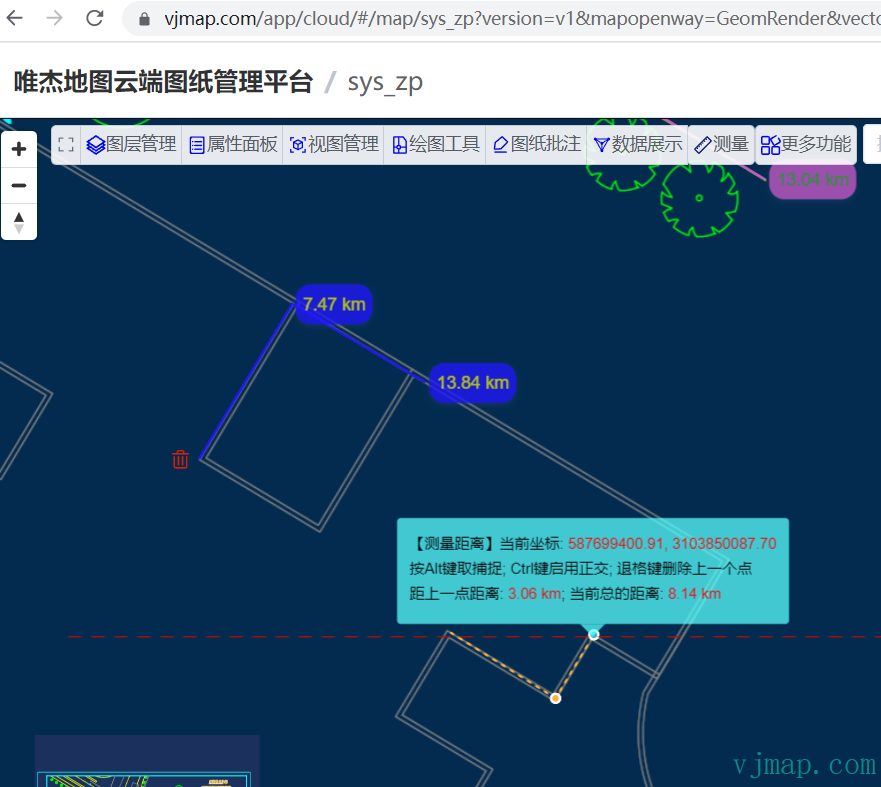
## 测量面积
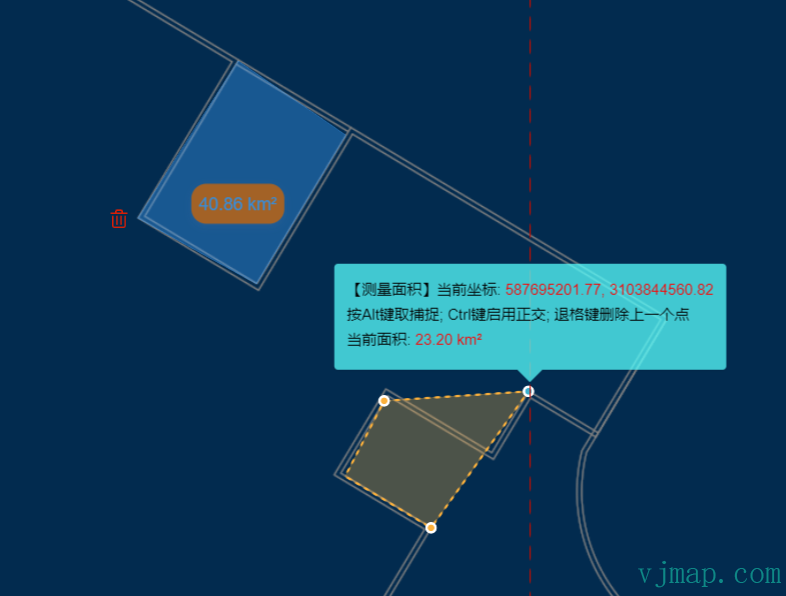
## 测量角度
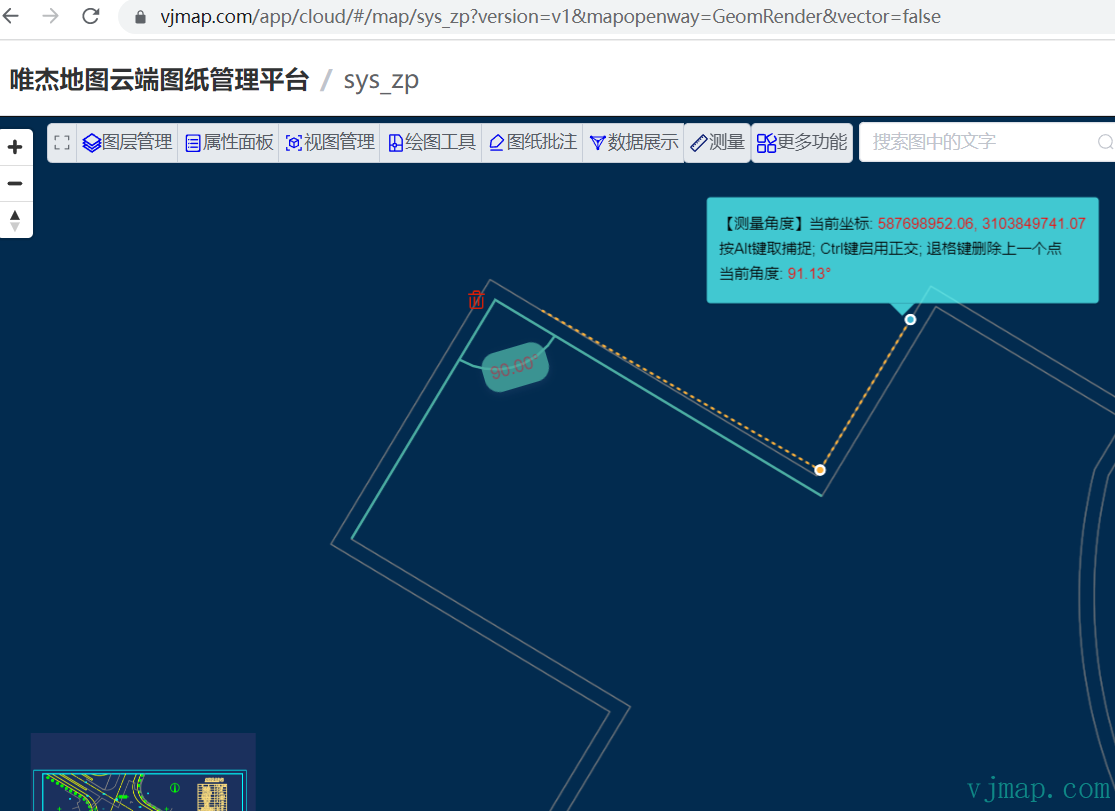
## 坐标标注
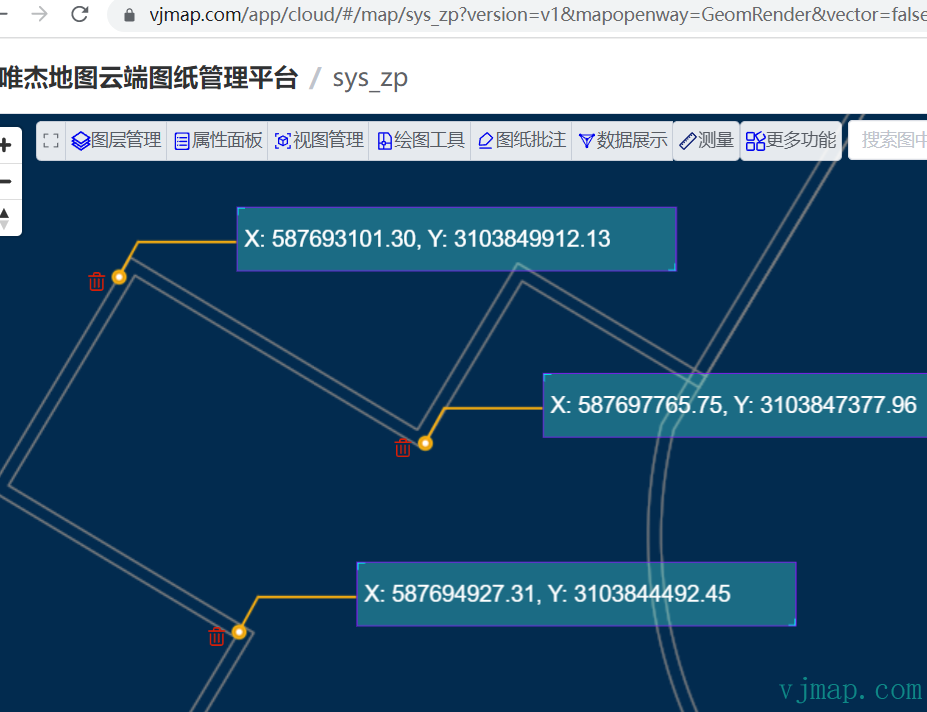
## 其他功能
在测量过程中,按`Alt`键可开启关闭捕捉;按`Ctrl`键可启用正交模式;按`退格键`可删除上一个点;按`ESC`键取消测量;按`Enter`键结束测量; 按`右键`弹出上下文菜单
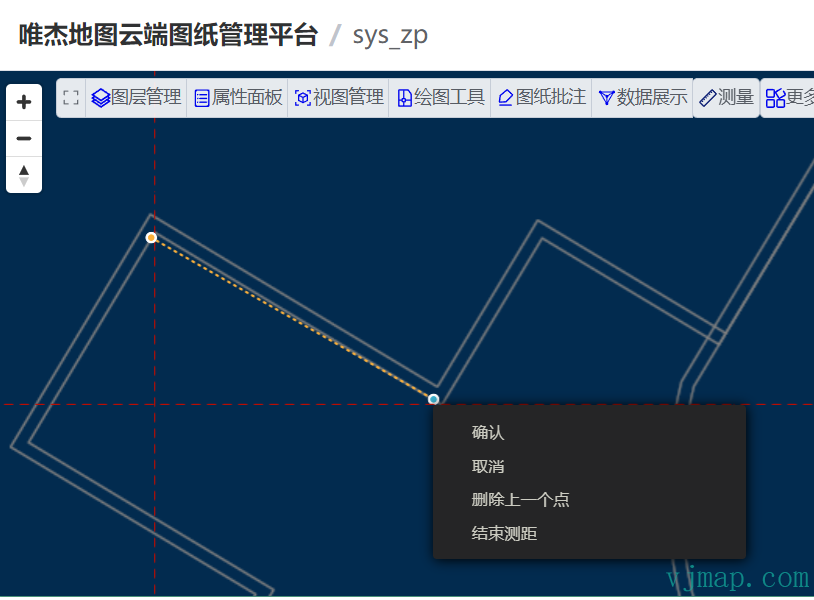
// --测距--
// 地图服务对象
let svc = new vjmap.Service(env.serviceUrl, env.accessToken)
// 打开地图
let res = await svc.openMap({
    mapid: env.exampleMapId, // 地图ID
    mapopenway: vjmap.MapOpenWay.GeomRender, // 以几何数据渲染方式打开
    style: vjmap.openMapDarkStyle() // div为深色背景颜色时,这里也传深色背景样式
})
if (res.error) {
    // 如果打开出错
    message.error(res.error)
}
// 获取地图范围
let mapExtent = vjmap.GeoBounds.fromString(res.bounds);
// 根据地图范围建立几何投影坐标系
let prj = new vjmap.GeoProjection(mapExtent);
// 地图对象
let map = new vjmap.Map({
    container: 'map', // DIV容器ID
    style: svc.rasterStyle(), // 样式,这里是栅格样式
    center: prj.toLngLat(mapExtent.center()), // 设置地图中心点
    zoom: 2, // 设置地图缩放级别
    renderWorldCopies: false, // 不显示多屏地图
    doubleClickZoom: false // 禁用鼠标双击放大
});
// 关联服务对象和投影对象
map.attach(svc, prj);
// 根据地图本身范围缩放地图至全图显示
map.fitMapBounds();
const addStyle = cssStyle => {
    let style = `<style>${cssStyle }</style>`;
    let ele = document.createElement('div');
    ele.innerHTML = style;
    document.getElementsByTagName('head')[0].appendChild(ele.firstElementChild)
}
// 增加一个popup自定义的样式
addStyle(`
                .custom-popup .vjmapgis-popup-content {
                    background-color: #0EFFC2;
                    opacity: 0.7;
                }
                .custom-popup .vjmapgis-popup-tip {
                    border-top-color: #0EFFC2;
                    opacity: 0.7;
                }
            `)
// 跟随鼠标动的弹框
let popup = null;
const setPopupText = text => {
    if (text) {
        if (!popup) {
            popup = new vjmap.Popup({
                className: "custom-popup",
                closeOnClick: false,
                closeButton: false
            })
                .setHTML(text)
                .setMaxWidth("500px")
                .trackPointer()
                .addTo(map)
        }
        else {
            popup.setHTML(text);
        }
    } else {
        // 如果为空时,则删除popup
        if (popup) {
            popup.setLngLat([0,0]); // 取消trackPointer
            popup.remove();
            popup = null;
        }
    }
}
let snapObj = {}; // 设置的捕捉的实体
// 测量距离
const measureDist = async ()=> {
    let isDrawing = false;
    let line = await vjmap.Draw.actionDrawLineSting(map, {
        api: {
            getSnapFeatures: snapObj //要捕捉的数据项在后面,通过属性features赋值
        },
        updatecoordinate: (e) => {
            if (!e.lnglat) return;
            /*
            // 如果需要指定事先指定起点,可用如下代码
            if (e.state.line.coordinates.length == 1) {
                // 第一个点时自动加最开始的点做为起点
                e.state.line.coordinates.unshift(map.toLngLat([
                    587662045.9814225, // cad坐标x
                    3103973655.658176 // cad坐标y
                ]))
                e.state.currentVertexPosition = 1;
            }*/
            isDrawing = true;
            const co = map.fromLngLat(e.feature.coordinates[e.feature.coordinates.length - 1]);
            let html = `当前坐标:<span style="color: #ff0000"> ${co.x.toFixed(2)}, ${co.y.toFixed(2)}</span>`;
            if (e.feature.coordinates.length == 1) {
                html += "<r/>请指定要测量的第一点的坐标位置"
            } else {
                let len = e.feature.coordinates.length;
                html += `<br/>按Alt键取捕捉; Ctrl键启用正交; 退格键删除上一个点`
                html += `<br/>距上一点距离: <span style="color: #ff0000">${getDist([e.feature.coordinates[len - 2], e.feature.coordinates[len -1]])}</span>`
                html += `;  当前总的距离: <span style="color: #ff0000">${getDist(e.feature.coordinates)}</span>`
            }
            setPopupText(html)
        },
        contextMenu: (e) => {
            new vjmap.ContextMenu({
                event: e.event.originalEvent,
                theme: "dark", //light
                width: "250px",
                items: [
                    {
                        label: '确认',
                        onClick: () => {
                            // 给地图发送Enter键消息即可取消,模拟按Enter键
                            map.fire("keyup", {keyCode:13})
                            setPopupText("");
                        }
                    },
                    {
                        label: '取消',
                        onClick: () => {
                            // 给地图发送ESC键消息即可取消,模拟按ESC键
                            map.fire("keyup", {keyCode:27})
                            setPopupText("");
                        }
                    },{
                        label: '删除上一个点',
                        onClick: () => {
                            // 给地图发送退格键Backspace消息即可删除上一个点,模拟按Backspace键
                            map.fire("keyup", {keyCode:8})
                        }
                    },{
                        label: '结束测距',
                        onClick: () => {
                            // 给地图发送ESC键消息即可取消,模拟按ESC键
                            map.fire("keyup", {keyCode:27})
                            isDrawing = false;
                            setPopupText("");
                        }
                    }
                ]
            });
        }
    });
    if (line.cancel) {
        setPopupText("");
        return {
            cancel: true,
            exit: isDrawing === false // 如果还没有绘制,就取消的话,就结束测距
        };// 取消操作
    }
    let color = vjmap.randomColor();
    let polyline = new vjmap.Polyline({
        data: line.features[0].geometry.coordinates,
        lineColor: color,
        lineWidth: 2
    });
    polyline.addTo(map);
    addMarkersToLine(line.features[0].geometry.coordinates, color, polyline.sourceId);
    return {
        polyline
    };
}
// 测量距离循环,直至按ESC键取消,否则测量完一条后,继续测量下一条
const measureDistLoop = async ()=> {
    while(true) {
        let res = await measureDist();
        if (res.exit === true) break;
    }
}
measureDistLoop();
const clearAll  = (map)=> {
    // 清空绘制的图层,如果怕误删除,每次绘制完成,把相关的 sourceId和marker记录下来。然后依次删除
    // @ts-ignore
    Object.keys(map.getStyle().sources).filter(e=>e.indexOf("custom_") == 0).forEach(e=> map.removeSourceEx(e));
    // 清除所有marker
    map.removeMarkers();
}
// 给线的加个点加个测量的结果值
const addMarkersToLine = (coordinates, color, sourceId) => {
    let markerTexts = [];
    for(let i = 1; i < coordinates.length; i++) {
        let text = new vjmap.Text({
            text: getDist(coordinates.slice(0, i + 1)),
            anchor: "left",
            offset: [3, 0], // x,y 方向像素偏移量
            style:{     // 自定义样式
                'cursor': 'pointer',
                'opacity': 0.8,
                'padding': '6px',
                'border-radius': '12px',
                'background-color': color,
                'border-width': 0,
                'box-shadow': '0px 2px 6px 0px rgba(97,113,166,0.2)',
                'text-align': 'center',
                'font-size': '14px',
                'color': `#${color.substr(1).split("").map(c => (15 - parseInt(c,16)).toString(16)).join("")}`,
            }
        });
        text.setLngLat(coordinates[i]).addTo(map);
        markerTexts.push(text);
    }
    // 给第一个点加一个marker用来删除
    const deletePng = "data:image/png;base64,iVBORw0KGgoAAAANSUhEUgAAACAAAAAgCAYAAABzenr0AAAAAXNSR0IArs4c6QAAAbNJREFUWEftlrFOAkEQhv9Z4XgJOCrlTgp5ABOhMBoTCws7EzUaeAx5A0sDiYmFxpLGaAkU2KqFArHi4CU4cMccAQN6HHcIwZi7cnd25tt/5maHsOCPFhwfPoAnBarhQFIIccjAkV3qCMhKKct6q1tym1pPAHVVOWMg6+ScgKuYYR7PBaCmKmw5XgLiy4b5NhzkXVVWP4BXa00zTNcXc21oOR4AjAswaX9M2n4u1yLBIoiSbmV0Zcdc0pqd1HdbWwUWDuDqRjMy8lQDM4o54sYRoJcKq6qHclePKnuScQ0pd/RWt2ztVyOhLUFckIwTvWneDiLYnXdVA18O+r/dcNXXIsozCGsMzuhGJ98DUINpAuUAqmhGe33k/JjiG9g4K2ADUFdDOQan7QAIlI8Z7YwP4CvgK/C/FahFlQcwtm0bEeNFa5qJuSpgdT2AzkFyU290H3udMBzYgBD3gnAQa5iFuQJ4eZB6A8ovW/ETgARLmfIyaPZVSZIQRTBdas326Thwx7fAzRA6SREB2l0x2ndTAfTnwH0CrGk4PinY6D5VQHyhNcwbp3N/eyDxduPprH0FPgHEyH4wGIHUYwAAAABJRU5ErkJggg==";
    let el = document.createElement('div');
    el.className = 'marker';
    el.style.backgroundImage =
        `url(${deletePng})`;
    el.style.width = '20px';
    el.style.height = '20px';
    el.style.backgroundSize = '100%';
    el.style.cursor = "pointer";
    el.addEventListener('click', function (e) {
        map.removeSourceEx(sourceId); // 删除绘制的线
        markerTexts.forEach(m => m.remove());
        markerTexts = [];
        // 多点了下,给地图发送退格键Backspace消息即可删除上一个点,模拟按Backspace键
        map.fire("keyup", {keyCode:8})
    });
    // Add markers to the map.
    let deleteMarker = new vjmap.Marker({
        element: el,
        anchor: 'right'
    });
    deleteMarker.setLngLat(coordinates[0])
        .setOffset([-5, 0])
        .addTo(map);
    markerTexts.push(deleteMarker)
    // 把坐标加进捕捉数组中。
    addSnapCoordinates(coordinates);
}
// 得到距离值
const getDist = (coordinates) => {
    let result = vjmap.Math2D.lineDist(map.fromLngLat(coordinates));
    let unit = "m";
    if (result >= 1000) {
        result /= 1000;
        unit = "km";
    } else if (result < 0.01) {
        result *= 100;
        unit = "cm";
    }
    return result.toFixed(2) + " " + unit;
}
// 增加捕捉点
const addSnapCoordinates = (coordinates) => {
    snapObj.features.push({
        type: "Feature",
        geometry: {
            type: "LineString",
            coordinates: [...coordinates]
        }
    })
}
// 获取捕捉点
if (map.hasVectorLayer()) {
    // 矢量样式
    // 矢量样式获取捕捉点
    snapObj.features = map.queryRenderedFeatures({layers: ['vector-layer-lines']})
} else {
    //栅格样式去服务器获取坐标点数据
    // 栅格样式获取捕捉点
    // 查询所有坐标数据,字段含义可参考https://vjmap.com/guide/svrStyleVar.html
    let res = await svc.conditionQueryFeature({ fields:"s3", condition:"s3 != ''", limit: 100000})
    res = res.result.map(e => e.s3.split(";"))
    snapObj.features = []
    for(let item of res) {
        let coordinates = []
        for(let pt of item) {
            const p = pt.split(",")
            if (p.length >= 2) {
                coordinates.push(map.toLngLat([+p[0], +p[1]]))
            }
        }
        if (coordinates.length == 1) {
            snapObj.features.push({
                type: "Feature",
                geometry: {
                    type: "Point",
                    coordinates: coordinates[0]
                }
            })
        }
        else if (coordinates.length > 1) {
            snapObj.features.push({
                type: "Feature",
                geometry: {
                    type: "LineString",
                    coordinates: coordinates
                }
            })
        }
    }
}
# 代码实现
上面的案例代码已开源。访问 ([唯杰地图云端图纸管理平台](https://vjmap.com/app/cloud) https://vjmap.com/app/cloud) ,点击`下载此案例源码`即可。
```typescript
import vjmap, { Map } from 'vjmap'
import { sleep } from '~/utils/ui';
import { getMapSnapPoints } from './snap';
let snapObj: any; // 设置的捕捉的实体
let curMeasureCmd: string; // 当前测量命令
export async function runMeasureCmd(map: Map, cmd: string) {
curMeasureCmd = cmd;
if (cmd != "measureCancel") {
// 先结束当前测量
await measureCancel(map);
if (!snapObj) {
// 获取地图上的捕捉点
snapObj = {};
getMapSnapPoints(map, snapObj);
}
}
switch (cmd) {
case "measureDist":
measureDistLoop(map, snapObj);
break;
case "measureArea":
measureAreaLoop(map, snapObj);
break;
case "measureAngle":
measureAngleLoop(map, snapObj);
break;
case "measureCoordinate":
measureCoordinateLoop(map, snapObj);
break;
case "measureCancel":
await measureCancel(map);
break;
}
}
// 结束绘制
const measureCancel = async (map: Map)=> {
// 连续发送取消键,第一次取消当前绘制,第二次退出测量
map.fire("keyup", {keyCode:27});
await sleep(100);
map.fire("keyup", {keyCode:27});
await sleep(100);
map.setIsInteracting(false); // 没有进行交互操作了
}
let popup: vjmap.Popup | null;
const setPopupText = (text: string, map: Map) => {
if (text) {
if (!popup) {
popup = new vjmap.Popup({
className: "my-custom-popup",
closeOnClick: false,
closeButton: false
})
.setHTML(text)
.setMaxWidth("500px")
.trackPointer()
.addTo(map)
}
else {
popup.setHTML(text);
}
} else {
// 如果为空时,则删除popup
if (popup) {
popup.setLngLat([0,0]); // 取消trackPointer
popup.remove();
popup = null;
}
}
}
// 测量距离循环,直至按ESC键取消,否则测量完一条后,继续测量下一条
const measureDistLoop = async (map: Map, snapObj: any)=> {
while(true) {
let res = await measureDist(map, snapObj);
if (res.exit === true) break;
if (curMeasureCmd != "measureDist") break;
}
}
// 测量距离
const measureDist = async (map: Map, snapObj: any)=> {
let isDrawing = false;
let line = await vjmap.Draw.actionDrawLineSting(map, {
api: {
getSnapFeatures: snapObj //要捕捉的数据项在后面,通过属性features赋值
},
updatecoordinate: (e: any) => {
if (!e.lnglat) return;
isDrawing = true;
const co = map.fromLngLat(e.feature.coordinates[e.feature.coordinates.length - 1]);
let html = `【测量距离】当前坐标: ${co.x.toFixed(2)}, ${co.y.toFixed(2)}`;
if (e.feature.coordinates.length == 1) {
html += "
请指定要测量的第一点的坐标位置"
} else {
let len = e.feature.coordinates.length;
html += `
按Alt键取捕捉; Ctrl键启用正交; 退格键删除上一个点`
html += `
距上一点距离: ${getDist(map, [e.feature.coordinates[len - 2], e.feature.coordinates[len -1]])}`
html += `; 当前总的距离: ${getDist(map, e.feature.coordinates)}`
}
setPopupText(html, map)
},
contextMenu: (e: any) => {
new vjmap.ContextMenu({
event: e.event.originalEvent,
theme: "dark", //light
width: "250px",
items: [
{
label: '确认',
onClick: () => {
// 给地图发送Enter键消息即可取消,模拟按Enter键
map.fire("keyup", {keyCode:13})
setPopupText("", map);
}
},
{
label: '取消',
onClick: () => {
// 给地图发送ESC键消息即可取消,模拟按ESC键
map.fire("keyup", {keyCode:27})
setPopupText("", map);
}
},{
label: '删除上一个点',
onClick: () => {
// 给地图发送退格键Backspace消息即可删除上一个点,模拟按Backspace键
map.fire("keyup", {keyCode:8})
}
},{
label: '结束测距',
onClick: () => {
// 给地图发送ESC键消息即可取消,模拟按ESC键
map.fire("keyup", {keyCode:27})
isDrawing = false;
setPopupText("", map);
}
}
]
});
}
});
if (line.cancel) {
setPopupText("", map);
return {
cancel: true,
exit: isDrawing === false // 如果还没有绘制,就取消的话,就结束测距
};// 取消操作
}
let color = vjmap.randomColor();
let polyline = new vjmap.Polyline({
data: line.features[0].geometry.coordinates,
lineColor: color,
lineWidth: 2
});
polyline.addTo(map);
addMarkersToLine(map, line.features[0].geometry.coordinates, color, polyline.sourceId || "", snapObj);
return {
polyline
};
}
// 给线的加个点加个测量的结果值
const addMarkersToLine = (map: Map, coordinates: Array<[number, number]>, color: string, sourceId: string, snapObj: any) => {
let markerTexts: any = [];
for(let i = 1; i < coordinates.length; i++) {
let text = new vjmap.Text({
text: getDist(map, coordinates.slice(0, i + 1)),
anchor: "left",
offset: [3, 0], // x,y 方向像素偏移量
style:{ // 自定义样式
'cursor': 'pointer',
'opacity': 0.8,
'padding': '6px',
'border-radius': '12px',
'background-color': color,
'border-width': 0,
'box-shadow': '0px 2px 6px 0px rgba(97,113,166,0.2)',
'text-align': 'center',
'font-size': '14px',
'color': `#${color.substring(1).split("").map(c => (15 - parseInt(c,16)).toString(16)).join("")}`,
}
});
text.setLngLat(coordinates[i]).addTo(map);
markerTexts.push(text);
}
// 给第一个点加一个marker用来删除
const deletePng = "delete.png";
let el = document.createElement('div');
el.className = 'marker';
el.style.backgroundImage =
`url(${deletePng})`;
el.style.width = '20px';
el.style.height = '20px';
el.style.backgroundSize = '100%';
el.style.cursor = "pointer";
el.addEventListener('click', function (e) {
map.removeSourceEx(sourceId); // 删除绘制的线
markerTexts.forEach((m: any) => m.remove());
markerTexts = [];
// 多点了下,给地图发送退格键Backspace消息即可删除上一个点,模拟按Backspace键
map.fire("keyup", {keyCode:8})
});
// Add markers to the map.
let deleteMarker = new vjmap.Marker({
element: el,
anchor: 'right'
});
deleteMarker.setLngLat(coordinates[0])
.setOffset([-5, 0])
.addTo(map);
markerTexts.push(deleteMarker)
// 把坐标加进捕捉数组中。
addSnapCoordinates(snapObj, coordinates);
}
// 得到距离值
const getDist = (map: Map, coordinates: Array<[number, number]>) => {
let result = vjmap.Math2D.lineDist(map.fromLngLat(coordinates));
let unit = "m";
if (result >= 1000) {
result /= 1000;
unit = "km";
} else if (result < 0.01) {
result *= 100;
unit = "cm";
}
return result.toFixed(2) + " " + unit;
}
// 增加捕捉点
const addSnapCoordinates = (snapObj: any, coordinates: Array<[number, number]>) => {
snapObj.features.push({
type: "Feature",
geometry: {
type: "LineString",
coordinates: [...coordinates]
}
})
}
// 测量面积
const measureArea = async (map: Map, snapObj: any)=> {
let isDrawing = false;
let poly = await vjmap.Draw.actionDrawPolygon(map, {
api: {
getSnapFeatures: snapObj //要捕捉的数据项在后面,通过属性features赋值
},
updatecoordinate: (e: any) => {
if (!e.lnglat) return;
isDrawing = true;
const co = map.fromLngLat(e.feature.coordinates[0][e.feature.coordinates.length - 1]);
let html = `【测量面积】当前坐标: ${co.x.toFixed(2)}, ${co.y.toFixed(2)}`;
if (e.feature.coordinates[0].length == 1) {
html += "
请指定要测量的第一点的坐标位置"
} else {
html += `
按Alt键取捕捉; Ctrl键启用正交; 退格键删除上一个点`
html += `
当前面积: ${getArea(map, e.feature.coordinates[0])}`
}
setPopupText(html, map)
},
contextMenu: (e: any) => {
new vjmap.ContextMenu({
event: e.event.originalEvent,
theme: "dark", //light
width: "250px",
items: [
{
label: '确认',
onClick: () => {
// 给地图发送Enter键消息即可取消,模拟按Enter键
map.fire("keyup", {keyCode:13})
setPopupText("", map);
}
},
{
label: '取消',
onClick: () => {
// 给地图发送ESC键消息即可取消,模拟按ESC键
map.fire("keyup", {keyCode:27})
setPopupText("", map);
}
},{
label: '删除上一个点',
onClick: () => {
// 给地图发送退格键Backspace消息即可删除上一个点,模拟按Backspace键
map.fire("keyup", {keyCode:8})
}
},{
label: '结束测面积',
onClick: () => {
// 给地图发送ESC键消息即可取消,模拟按ESC键
map.fire("keyup", {keyCode:27})
isDrawing = false;
setPopupText("", map);
}
}
]
});
}
});
if (poly.cancel) {
debugger
setPopupText("", map);
return {
cancel: true,
exit: isDrawing === false // 如果还没有绘制,就取消的话,就结束测距
};// 取消操作
}
let color = vjmap.randomColor();
let polygon = new vjmap.Polygon({
data: poly.features[0].geometry.coordinates[0],
fillColor: color,
fillOpacity: 0.4,
fillOutlineColor: color,
});
polygon.addTo(map);
addMarkersToPolygon(map, poly.features[0].geometry.coordinates[0], color, polygon.sourceId || "", snapObj);
return {
polygon
};
}
// 测量面积循环,直至按ESC键取消,否则测量完一条后,继续测量下一条
const measureAreaLoop = async (map: Map, snapObj: any)=> {
while(true) {
let res = await measureArea(map, snapObj);
if (res.exit === true) break;
if (curMeasureCmd != "measureArea") break;
}
}
// 给加个测量的结果值
const addMarkersToPolygon = (map: Map, coordinates: Array<[number, number]>, color: string, sourceId: string, snapObj: any) => {
let markerTexts: any = [];
const center = vjmap.polygonCentroid(map.fromLngLat(coordinates));
let text = new vjmap.Text({
text: getArea(map, coordinates),
anchor: "center",
offset: [0, 0], // x,y 方向像素偏移量
style:{ // 自定义样式
'cursor': 'pointer',
'opacity': 0.8,
'padding': '6px',
'border-radius': '12px',
'background-color': `#${color.substring(1).split("").map(c => (15 - parseInt(c,16)).toString(16)).join("")}`,
'border-width': 0,
'box-shadow': '0px 2px 6px 0px rgba(97,113,166,0.2)',
'text-align': 'center',
'font-size': '14px',
'color': color,
}
});
text.setLngLat(map.toLngLat(center)).addTo(map);
markerTexts.push(text);
// 给第一个点加一个marker用来删除
const deletePng = = "delete.png";
let el = document.createElement('div');
el.className = 'marker';
el.style.backgroundImage =
`url(${deletePng})`;
el.style.width = '20px';
el.style.height = '20px';
el.style.backgroundSize = '100%';
el.style.cursor = "pointer";
el.addEventListener('click', function (e) {
map.removeSourceEx(sourceId); // 删除绘制的线
markerTexts.forEach((m: any) => m.remove());
markerTexts = [];
});
// Add markers to the map.
let deleteMarker = new vjmap.Marker({
element: el,
anchor: 'right'
});
deleteMarker.setLngLat(coordinates[0])
.setOffset([-5, 0])
.addTo(map);
markerTexts.push(deleteMarker)
// 把坐标加进捕捉数组中。
addSnapCoordinates(snapObj, coordinates);
}
// 得到面积值
const getArea = (map: Map, coordinates: Array<[number, number]>) => {
let result = vjmap.calcPolygonArea(map.fromLngLat(coordinates));
let unit = "m²";
if (result >= 1e6) {
result /= 1e6;
unit = "km²";
} else if (result < 1.0/1e4) {
result *= 1e4;
unit = "cm²";
}
return result.toFixed(2) + " " + unit;
}
// 测量角度
const measureAngle = async (map: Map, snapObj: any)=> {
let isDrawing = false;
let line = await vjmap.Draw.actionDrawLineSting(map, {
pointCount: 3,// 只需三个点,绘制完三个点后,自动结束
api: {
getSnapFeatures: snapObj //要捕捉的数据项在后面,通过属性features赋值
},
updatecoordinate: (e: any) => {
if (!e.lnglat) return;
isDrawing = true;
const co = map.fromLngLat(e.feature.coordinates[e.feature.coordinates.length - 1]);
let html = `【测量角度】当前坐标: ${co.x.toFixed(2)}, ${co.y.toFixed(2)}`;
if (e.feature.coordinates.length == 1) {
html += "
请指定要测量的第一点的坐标位置"
} else {
let len = e.feature.coordinates.length;
html += `
按Alt键取捕捉; Ctrl键启用正交; 退格键删除上一个点`
html += `
当前角度: ${getAngle(map, e.feature.coordinates).angle}`
}
setPopupText(html, map)
},
contextMenu: (e: any) => {
new vjmap.ContextMenu({
event: e.event.originalEvent,
theme: "dark", //light
width: "250px",
items: [
{
label: '确认',
onClick: () => {
// 给地图发送Enter键消息即可取消,模拟按Enter键
map.fire("keyup", {keyCode:13})
setPopupText("", map);
}
},
{
label: '取消',
onClick: () => {
// 给地图发送ESC键消息即可取消,模拟按ESC键
map.fire("keyup", {keyCode:27})
setPopupText("", map);
}
},{
label: '删除上一个点',
onClick: () => {
// 给地图发送退格键Backspace消息即可删除上一个点,模拟按Backspace键
map.fire("keyup", {keyCode:8})
}
},{
label: '结束测角度',
onClick: () => {
// 给地图发送ESC键消息即可取消,模拟按ESC键
map.fire("keyup", {keyCode:27})
isDrawing = false;
setPopupText("", map);
}
}
]
});
}
});
if (line.cancel) {
setPopupText("", map);
return {
cancel: true,
exit: isDrawing === false // 如果还没有绘制,就取消的话,就结束测距
};// 取消操作
}
let color = vjmap.randomColor();
let polyline = new vjmap.Polyline({
data: line.features[0].geometry.coordinates,
lineColor: color,
lineWidth: 2
});
polyline.addTo(map);
addMarkersToAngle(map, line.features[0].geometry.coordinates, color, polyline.sourceId || "", snapObj);
return {
polyline
};
}
// 测量角度循环,直至按ESC键取消,否则测量完一条后,继续测量下一条
const measureAngleLoop = async (map: Map, snapObj: any)=> {
while(true) {
let res = await measureAngle(map, snapObj);
if (res.exit === true) break;
if (curMeasureCmd != "measureAngle") break;
}
}
// 给加个测量的结果值
const addMarkersToAngle = (map: Map, coordinates: Array<[number, number]>, color: string, sourceId: string, snapObj: any) => {
if (coordinates.length < 3) return;
let markerTexts: any = [];
let points = map.fromLngLat(coordinates);
let textPoint = coordinates[1];
let ang = getAngle(map, coordinates);
// 绘制注记圆弧
const cirleArcPath = vjmap.getCirclePolygonCoordinates(
points[1],
points[1].distanceTo(points[0]) / 4.0, 36,
ang.startAngle, ang.endAngle, false);
let path = new vjmap.Polyline({
data: map.toLngLat(cirleArcPath),
lineColor: color,
lineWidth: 2
});
path.addTo(map);
markerTexts.push(path)
// @ts-ignore
let arcPoints = path.getData().features[0].geometry.coordinates;
let arcMid = arcPoints[Math.ceil(arcPoints.length / 2)];// 取中点
let textAngle = vjmap.radiansToDegrees(-map.fromLngLat(arcMid).angleTo(points[1])) + 90;
if (textAngle > 90) textAngle += 180;
else if (textAngle > 270) textAngle -= 180;
let text = new vjmap.Text({
text: ang.angle as string,
anchor: "center",
rotation: textAngle,
offset: [0, 0], // x,y 方向像素偏移量
style:{ // 自定义样式
'cursor': 'pointer',
'opacity': 0.8,
'padding': '6px',
'border-radius': '12px',
'background-color': color,
'border-width': 0,
'box-shadow': '0px 2px 6px 0px rgba(97,113,166,0.2)',
'text-align': 'center',
'font-size': '14px',
'color': `#${color.substring(1).split("").map(c => (15 - parseInt(c,16)).toString(16)).join("")}`,
}
});
text.setLngLat(arcMid).addTo(map);
markerTexts.push(text);
// 给第一个点加一个marker用来删除
const deletePng = = "delete.png";
let el = document.createElement('div');
el.className = 'marker';
el.style.backgroundImage =
`url(${deletePng})`;
el.style.width = '20px';
el.style.height = '20px';
el.style.backgroundSize = '100%';
el.style.cursor = "pointer";
el.addEventListener('click', function (e) {
map.removeSourceEx(sourceId); // 删除绘制的线
markerTexts.forEach((m: any) => m.remove());
markerTexts = [];
});
// Add markers to the map.
let deleteMarker = new vjmap.Marker({
element: el,
anchor: 'right'
});
deleteMarker.setLngLat(coordinates[1])
.setOffset([-5, 0])
.addTo(map);
markerTexts.push(deleteMarker)
// 把坐标加进捕捉数组中。
addSnapCoordinates(snapObj, coordinates);
}
// 得到角度值
const getAngle = (map: Map, coordinates: Array<[number, number]>) => {
let points = map.fromLngLat(coordinates);
if (points.length < 3) return { angle: 0.0 }
let angle1 = points[0].angleTo(points[1]);
let angle2 = points[2].angleTo(points[1]);
let angle = angle1 - angle2;
let deg = vjmap.radiansToDegrees(angle);//弧度转角度
let dir = true;
if (deg < 0) {
deg = -deg;
dir = !dir;
}
if (deg > 180) {
deg = 360 - deg;
dir = !dir;
}
let startAngle = !dir ? vjmap.radiansToDegrees(angle1) : vjmap.radiansToDegrees(angle2);
let endAngle = dir ? vjmap.radiansToDegrees(angle1) : vjmap.radiansToDegrees(angle2);
startAngle = startAngle < 0 ? 360 + startAngle : startAngle;
endAngle = endAngle < 0 ? 360 + endAngle : endAngle;
if (endAngle < startAngle) {
endAngle += 360;
}
return {
angle: deg.toFixed(2) + "°",
dir,
startAngle,
endAngle
}
}
// 测量坐标
const measureCoordinate = async (map: Map, snapObj: any)=> {
let isDrawing = false;
let point = await vjmap.Draw.actionDrawPoint(map, {
api: {
getSnapFeatures: snapObj //要捕捉的数据项在后面,通过属性features赋值
},
updatecoordinate: (e: any) => {
if (!e.lnglat) return;
isDrawing = true;
const co = map.fromLngLat(e.lnglat);
let html = `【测量坐标】当前坐标: ${co.x.toFixed(2)}, ${co.y.toFixed(2)}`;
setPopupText(html, map)
},
contextMenu: (e: any) => {
new vjmap.ContextMenu({
event: e.event.originalEvent,
theme: "dark", //light
width: "250px",
items: [
{
label: '确认',
onClick: () => {
// 给地图发送Enter键消息即可取消,模拟按Enter键
map.fire("keyup", {keyCode:13})
setPopupText("", map);
}
},
{
label: '取消',
onClick: () => {
// 给地图发送ESC键消息即可取消,模拟按ESC键
map.fire("keyup", {keyCode:27})
setPopupText("", map);
}
},
{
label: '结束测坐标',
onClick: () => {
// 给地图发送ESC键消息即可取消,模拟按ESC键
map.fire("keyup", {keyCode:27})
isDrawing = false;
setPopupText("", map);
}
}
]
});
}
});
if (point.cancel) {
setPopupText("", map);
return {
cancel: true,
exit: isDrawing === false
};// 取消操作
}
addMarkersToCoord(map, point.features[0].geometry.coordinates);
return {
point
};
}
// 测量坐标循环,直至按ESC键取消
const measureCoordinateLoop = async (map: Map, snapObj: any)=> {
while(true) {
let res = await measureCoordinate(map, snapObj);
if (res.exit === true) break;
if (curMeasureCmd != "measureCoordinate") break;
}
}
// 给加个点加个测量的结果值
const addMarkersToCoord = (map: Map, coordinates: [number, number]) => {
let markerTexts: any = [];
let co = map.fromLngLat(coordinates);
let content = `X: ${co.x.toFixed(2)}, Y: ${co.y.toFixed(2)}`
let marker = createLeaderMarker(map, coordinates, content);
markerTexts.push(marker);
// 给第一个点加一个marker用来删除
const deletePng = "delete.png";
let el = document.createElement('div');
el.className = 'marker';
el.style.backgroundImage =
`url(${deletePng})`;
el.style.width = '20px';
el.style.height = '20px';
el.style.backgroundSize = '100%';
el.style.cursor = "pointer";
el.addEventListener('click', function (e) {
markerTexts.forEach((m: any) => m.remove());
markerTexts = [];
});
// Add markers to the map.
let deleteMarker = new vjmap.Marker({
element: el,
anchor: 'right'
});
deleteMarker.setLngLat(coordinates)
.setOffset([-5, 0])
.addTo(map);
markerTexts.push(deleteMarker)
}
// 引线标记
const createLeaderMarker = (map: Map, lnglat: [number, number], content: string) => {
let el = document.createElement('div');
el.className = 'marker';
el.style.position = 'absolute'
let img = document.createElement("div");
img.style.backgroundImage = 'bk.png';
img.style.backgroundRepeat = "no-repeat"
img.style.height = '37px';
img.style.width = '100px';
img.style.position = 'absolute';
img.style.left = '-3px';
img.style.bottom = '-3px';
img.style.right = "0px"
el.appendChild(img);
let panel = document.createElement("div");
panel.style.height = '50px';
panel.style.width = '350px';
panel.style.position = 'absolute';
panel.style.left = '97px';
panel.style.top = '-60px';
panel.style.border = "solid 1px #8E0EFF";
panel.style.background = 'linear-gradient(#00ffff, #00ffff) left top, linear-gradient(#00ffff, #00ffff) left top, linear-gradient(#00ffff, #00ffff) right bottom, linear-gradient(#00ffff, #00ffff) right bottom';
panel.style.backgroundRepeat = 'no-repeat';
panel.style.backgroundColor ='rgba(87,255,255, 0.3)'
panel.style.backgroundSize = '1px 6px, 6px 1px';
panel.style.fontSize = '18px';
panel.style.color = '#ffffff';
panel.innerHTML = `
${content}
`;
el.appendChild(panel);
// Add markers to the map.
let marker = new vjmap.Marker({
element: el,
anchor: "bottom-left"
})
marker.setLngLat(lnglat)
.addTo(map);
return marker
}
```
---
# 样式规范
样式规范是定义地图视觉外观的文档:绘制哪些数据,绘制顺序以及绘制数据时如何设置数据样式。
一个样式有以下根属性:
- 描述信息:`version`, `metadata`
- 地图状态:`center`, `bearing`, `pitch`
- 地图要素:`sources`, `layers`
- 其他:`sprite`, `glyphs`, `light`, `transition`
``` js
{
'version': number, // 版本号
'name': 'string', // 样式名称
'sprite': 'string', // 雪碧图
'glyphs': '***/{fontstack}/{range}.pbf', // 字体
'sources': {}, // 数据源
'layers': [] // 图层
}
```
## 数据源
> `sources`
>
数据源类型由 `type` 指定,并且必须是 `vector`, `raster`, `raster-dem`, `geojson`, `image`, `video` 之一。
::: tip 提示
另外,还有一个 `canvas` 类型,是 `image` 的扩展:[CanvasSource](/doc/#canvassource)
:::
### vector
使用 `vector` 数据源的图层必须指定 `source-layer` 。
``` js
'sources': {
'{source-id}': {
'type': 'vector',
'tiles': [
'http://a.example.com/tiles/{z}/{x}/{y}.pbf'
],
'bounds': [-180, -85.051129, 180, 85.051129]
},
'{source-id}': {
'type': 'vector',
'url': 'http://api.example.com/tilejson.json'
},
'{source-id}', {
'type': 'vector',
'url': 'xxx'
},
}
```
### raster
``` js
'sources': {
'{source-id}': {
'type': 'raster',
'tiles': [
'http://xxx&x={x}&y={y}&l={z}&tk={key}',
'http://xxx&x={x}&y={y}&l={z}&tk={key}'
],
'tileSize': 256
},
}
```
### raster-dem
栅格 DEM 数据源,可使用 [rio-rgbify](https://github.com/mapbox/rio-rgbify) 生成。
``` sh
# fill no data
gdalwarp -t_srs EPSG:3857 -dstnodata None -co TILED=YES -co COMPRESS=DEFLATE -co BIGTIFF=IF_NEEDED E:\xxx.tif E:\xxxx.tif
# conver to rgb
rio rgbify -b -10000 -i 0.1 E:\xxxx.tif E:\test\xxx.tif
```
### geojson
GeoJSON 数据源,必须提供 `data` 属性。可设置 `cluster`, `filter` 等。
``` js
'sources': {
// inline GeoJSON
'geojson-marker': {
'type': 'geojson',
'data': {
'type': 'Feature',
'geometry': {
'type': 'Point',
'coordinates': [-77.0323, 38.9131]
},
'properties': {
'title': 'xxx',
'marker-symbol': 'monument'
}
}
},
// url
'geojson-lines': {
'type': 'geojson',
'data': './lines.geojson'
}
}
```
### image & video
见[数据/栅格](/guide/data.html#raster)。
### GeoServer
#### TMS
> 标准:[Tile Map Service](https://wiki.osgeo.org/wiki/Tile_Map_Service_Specification)
Tile Map Service(瓦片地图服务),简称 `TMS`。TMS 的切片坐标系统和组织方式可参考下图:
![]()
在加载 TMS 服务时,需要设置 `scheme` 属性为 `tms`。`scheme` 属性影响瓦片坐标 `y` 轴的方向。`scheme` 有两个值可选:`xyz`(默认)和 `tms`。其中 `xyz` 代表常用的切片规则,即 `OGC` 标准,切片源点在左上角。`tms` 是 `OSGeo` 标准,切片源点是左下角。
加载示例:
``` js
// 矢量
'source-id': {
'type': 'vector',
'tiles': [
'https://xxx@pbf/{z}/{x}/{y}.pbf'
],
'scheme': 'tms'
}
// 栅格
'source-id': {
'type': 'raster',
'tiles': [
'https://xxx@png/{z}/{x}/{y}.png'
],
'tileSize': 256,
'scheme': 'tms'
}
```
#### WMS
> 标准:[Web Map Service](http://www.opengeospatial.org/standards/wms)
Web Map Service(Web 地图服务),简称 `WMS`。WMS 标准定义了允许用户通过 HTTP 对空间数据进行渲染出图等操作。WMS 服务中包括以下3个操作:
1. GetCapabilities(获取服务中的要素类及支持的操作)
2. GetMap(获取地图)
3. GetFeatureInfo(根据地图上的像素点获取更详细的要素信息,类似Identify功能)
利用 `GetMap` 操作和指定地图边框范围(`bbox`)和输出格式(`format`)即可使用。
加载示例(image/png 格式):
``` js
'source-id': {
'type': 'raster',
'tiles': [
'https://xxx?service=WMS&version=1.3.0&request=GetMap&layers=china:bj&bbox={bbox-epsg-3857}&width=512&height=512&srs=EPSG:3857&format=image/png&TRANSPARENT=TRUE'
]
}
```
注意url中的 `bbox` 参数值 `"{bbox-epsg-3857}"`。地图会自动计算地图范围替换该值,获取地图。这也是与下面WMTS同样用栅格格式,WMS不会模糊的原因。
#### WMTS
> 标准:[Web Map Tile Service](http://www.opengeospatial.org/standards/wmts)
Web Map Tile Service(Web地图瓦片服务),简称 `WMTS`。WMTS 标准定义了一些操作允许用户访问瓦片地图。WMTS 服务中包括以下 3 个操作:
1. GetCapabilities(获取服务的元信息)
2. GetTile(获取切片)
3. GetFeatureInfo(可选,获取点选的要素信息)
WMTS的切片坐标系统和组织方式可参考下图:
![]()
利用 `GetTile` 操作和指定输出格式即可在中使用。
加载示例(image/png格式):
``` js
'source-id': {
'type': 'raster',
'tiles': [
'https://xxx/service/wmts?REQUEST=GetTile&SERVICE=WMTS&VERSION=1.0.0&LAYER=buildings:Chongqing&STYLE=&TILEMATRIX=EPSG:900913:{z}&TILEMATRIXSET=EPSG:900913&FORMAT=image/png&TILECOL={x}&TILEROW={y}'
// 或 geoserver rest 服务
// 'https:/xxx/wmts/rest/buildings:Chongqing/EPSG:900913/EPSG:900913:{z}/{y}/{x}?format=image/png'
]
}
```
::: warning 注意
这种方式请求栅格格式(如 `image/png`)数据会有些模糊,设置 `'tileSize': 256` 会好很多。但是实际 WMTS 请求返回的图片格式是清晰的。模糊的原因是地图的缩放是无极缩放,也就是 `zoom` 可以是小数,而 WMTS 的 `z` 值是整数,在渲染过程中有缩放,所以模糊了。
前面提到加载 wms 也不会模糊,但是 wms 实际上是根据请求范围实时渲染,加载速度不如瓦片服务。
:::
加载示例
``` js
'source-id': {
'type': 'vector',
'tiles': [
// geoserver rest 服务
// 'https://xxx/wmts/rest/buildings:Chongqing/EPSG:900913/EPSG:900913:{z}/{y}/{x}
]
}
```
#### WFS
> 标准:[Web Feature Service](http://www.opengeospatial.org/standards/wfs)
Web Feature Service(Web 要素服务),简称 WFS。WFS 标准定义了一些操作允许用户通过 HTTP 对空间数据进行查询、编辑等操作。WFS 服务中常用的操作包括:
1. GetCapabilities(获取服务中的要素类及支持的操作)
2. DescribeFeatureType(描述要素类的信息)
3. GetFeature(获取要素)
4. Transaction(创建、更新、删除数据的事务操作)
利用 `GetFeature` 操作和指定输出格式即可在使用。
加载示例(application/json 格式):
``` js
'source-id': {
'type': 'geojson',
'data': `https://xxx?service=WFS&version=2.0.0&request=GetFeature&typeName=buildings:cq_point&outputFormat=application/json`
}
```
::: tip 提示
- wfs会请求全部数据,不适用于大量数据。但是支持空间查询和属性查询,也会经常用到。
- 文档:[wfs/wms filter](https://docs.geoserver.org/latest/en/user/filter/index.html#filtering)
:::
## 图层
> `layers`
图层属性配置如下:
| 属性 | 类型 | 必须 | 描述 |
| :-- | :--: | :--: | :-- |
| **`id`** | string | 是 | 图层唯一标识 |
| **`type`** | string | 是 | 图层类型 |
| **`source`** | string | 否 | 数据源名称,图层类型除 `background` 外必须 |
| **`source-layer`** | string | 否 | 图层名,矢量瓦片源(vector)必须,其他类型不可用 |
| **`minzoom`** | number | 否 | 图层最小缩放级别 |
| **`maxzoom`** | number | 否 | 图层最大缩放级别 |
| **`filter`** | expression | 否 | 过滤器 |
| **`layout`** | object | 否 | 图层布局属性 |
| **`paint`** | object | 否 | 图层绘制属性 |
| **`metadata`** | any | 否 | 任意属性,对跟踪图层很有用,不影响渲染 |
图层示例:
``` js
'layers': [
{
'id': 'road',
'type': 'line',
'source': 'your source',
'source-layer': 'road',
'minzoom': 7,
'maxzoom': 18,
'layout': {
'visibility': 'visible'
},
'paint': {
'line-color': 'hsl(55, 1%, 20%)'
},
'filter': ['==', '$type', 'LineString']
'metadata': {
'type': 'base'
}
}
]
```
::: tip 提示
- **`"type"`** 属性必须是 `background`, `fill`, `line`, `symbol`, `raster`, `circle`, `fill-extrusion`, `heatmap`, `hillshade` 之一。
- 除 `background` 外的图层都需要引用一个源(source),图层从源获取数据、过滤要素和渲染。
- **`layout`** 属性都有 **`visibility`** 属性,可设置 `"visible"`(默认) 和 `"none"` 。
- 颜色支持 `十六进制`, `RGB`, `RGBA`, `HSL`, `HSLA`, `HTML 预定义颜色名称` 格式。
:::
## 表达式
> 更详细的介绍请参考:[expressions](/guide/expression.html)
任何 `layout` 属性、`paint` 属性或 `filter` 的值都可以是表达式。示例:
``` js
{
"circle-radius": [
"interpolate", ["linear"], ["zoom"],
// when zoom is 0, set each feature's circle radius to the value of its "rating" property
0, ["get", "rating"],
// when zoom is 10, set each feature's circle radius to four times the value of its "rating" property
10, ["*", 4, ["get", "rating"]]
]
}
```
::: warning 注意
在表达式中, `layout` 属性和 `paint` 属性有一个很重要的区别。`paint` 属性,只要缩放级别发生变化,都会重新计算 `paint` 属性,即使是小数变化,比如在 4.1 - 4.6 之间。而 `layout` 属性只在整数缩放级别时计算,在 4.1 - 4.6 之间不会发生变化,只有在高于 5 或小于 4 时计算。
:::
### Types
表达式拥有强大的类型系统,并支持转换和检测。比如,表达式的输入和输出数据类型需和样式规范中的类型一致,在计算表达式时会自动检测,如果检测到错误,会在控制台输出错误提示。
### Feature data
- feature-state:要素状态,要素状态不是数据的某一属性,需要对通过要素 `id` 设置,如给要素设置 `hover` 状态:`map.setFeatureState({source: 'states', id: hoveredStateId}, {hover: false})`,然后在表达式中即可使用:`['feature-state', 'hover']`
### Lookup
- get:获取要素属性,如获取 `name` 属性:`['get', 'name']`
### Decision
在表达式中,可使用常用的条件逻辑,比如:`"if/then/else"` 的逻辑可使用 `'case'` 表达式,如需将输入的特定值映射不同的输出,可使用 `'match'` 表达式。
### Ramps, scales, curves
- interpolate:插值,支持 `linear`、`exponential` 和 `cubic-bezier`
- step:分段
### Variable binding
- let 绑定变量
- var 引用 `let` 绑定的变量
### String
- downcase
- upcase
### Color
- rgb
- rgba
### Math
支持基本的数学运算,如
``` js
['/', ['get', 'gdp'], 1000]
```
### Zoom
获取当前缩放级别,仅用于 `step` 或 `interpolate` 表达式的输入。
``` js
['zoom']: number
```
```
{
"id": "road",
"type": "line",
"source": "a",
"paint": {
"line-width": 10,
"line-pattern": [
"step", ["zoom"],
"generic_icon", /*小于2级时用这个线型符号*/
2,
"generic_metro" /*大小或等于2级时用这个线型符号*/
]
}
}
```
### Heatmap
获取热力图图层中像素的核密度估计,只能用于 `heatmap-color` 属性。
``` js
['heatmap-density']: number
```
> 更详细的介绍请样式表达式请参考:[expressions](/guide/expression.html)
---
# 地图表达式
## 目录
## 表达式语法和概念
可以将任何layout属性,paint属性或filter的值指定为表达式。
```js
[表达式运算符, 参数1, 参数2, ...]
```
参数的值类型:字符串,数字,布尔值,或者另一个表达式数组,null。
也就是说表达式可以嵌套。也就是组合表达式:
例如:
```js
//geojson 的 features 参数
"features": [
{
"type": "Feature",
"properties": {
"id": "1",
"name":"点1",
"desc":"这是点1",
"radius": 10
},
"geometry": {
"type": "Point",
"coordinates": [
108.9902114868164,
34.24813554589752
]
}
}
]
// 根据geojson中 radius 的值来确定圆的半径
"circle-radius": [
"interpolate", ["linear"], ["zoom"],
//zoom为 0,半径为radius的值
0, ['get','radius'],
//zoom为 10,半径为radius的值,zoom为0-10是按照linear 线性增加。
10, ['*', ['get','radius'], 10]
]
```
## 表达式类型系统
### `概述`
表达式输入参数和输出结果的类型:boolean,color,string,number,array。来源于 style 规范中的 Types,
表达式的每次使用都具有已知的结果类型和必需的参数类型,并且SDK会验证表达式的结果类型是否适合使用该表达式的上下文,例如,filter属性中表达式的结果类型必须为boolean,+运算符的参数必须为number。
使用要素数据时,SDK通常不会提前知道要素属性值的类型。为了保持类型安全,在评估数据表达式时,SDK将检查属性值是否适合上下文。例如,如果您["get", "feature-color"]对circle-color属性使用表达式,则SDK将验证feature-color每个功能的值是否是标识有效color的字符串。如果此检查失败,将以特定于SDK的方式指示错误(通常是一条日志消息),并且将使用该属性的默认值。
在大多数情况下,此验证将在需要的任何地方自动进行。但是,在某些情况下,SDK可能无法根据周围环境自动确定数据表达式的预期结果类型。例如,不清楚表达式["<", ["get", "a"], ["get", "b"]]是要比较字符串还是数字。在这种情况下,可以使用类型断言表达式运算符之一来指示数据表达式的预期类型:["<", ["number", ["get", "a"]], ["number", ["get", "b"]]]。类型声明检查特征数据是否确实与数据表达式的预期类型匹配。如果此检查失败,则会产生错误,并使整个表达式恢复为所定义属性的默认值。断言运营商array,boolean,number,和string。
表达式仅执行一种隐式类型转换:在期望颜色的上下文中使用的数据表达式会将颜色的字符串表示形式转换为颜色值。在其他情况下,如果你想类型之间的转换,你必须使用一个类型转换表达式运算符:
```js
to-boolean: 返回 boolean
to-number: 返回 number
to-string: 返回 string
to-color: 返回 color
```
例如,如果您具有一个功能属性,该属性以字符串格式存储数字值,并且您希望将这些值用作数字而不是字符串,则可以使用诸如的表达式["to-number", ["get", "property-name"]]。
例如对数据中的字符串类型,转换成数字类型:
```js
//circle-radius: 的值期望是 number,所以字符串类型会报错
"circle-radius": [
"interpolate",["linear"],["zoom"],
0, ['get','radius'],
10, '*', ["to-number", ["get", "id"]], 10]
]
```
### `断言`
判断输入值是不是属于某种类型
```js
//判断输入值value是一个数组
["array", value]: 返回array
//判断输入值value是一个布尔值
["boolean", value]: 返回boolean
//判断输入值value是一个数字
["number", value]: number
//判断输入值value是一个对象
["object", value]: object
//判断输入值value是一个字符串
["string", value]: string
//以上输入多个value,会按顺序比较,知道返回第一个满足的value,如果都不满足,返回false或者报错
//
```
1. collator
返回一个collator,用于与语言环境相关的比较操作。在case-sensitive和diacritic-sensitive选项默认为false。该locale参数指定要使用的语言环境的IETF语言标记。如果未提供,则使用默认语言环境。如果请求的语言环境不可用,collator则将使用系统定义的后备语言环境。使用resolved-locale测试的现场备用行为的结果。
```js
["collator",
{ "case-sensitive": boolean, "diacritic-sensitive": boolean, "locale": string }
]: collator
```
2. literal
提供文字数组或对象值。
```js
["literal", [...] (JSON array literal)]: array
["literal", {...} (JSON object literal)]: Object
```
3. format
返回formatted包含用于混合格式text-field条目的注释的文本。如果设置,则text-font参数将覆盖由根布局属性指定的字体。如果设置,则font-scale参数指定相对于text-size根布局属性中指定的比例因子。
```js
["format",
input_1: string, options_1: { "font-scale": number, "text-font": array },
...,
input_n: string, options_n: { "font-scale": number, "text-font": array }
]: formatted
```
### `表达式类型转换`
1. 转布尔值boolean
将输入值转换为布尔值。当输入是空字符串,0 ,false,null 或 NaN,结果是false. 否则是true。
```js
["to-boolean", value]: boolean
```
如果提供了多个值,则按顺序计算每个值,直到得到一个布尔值为止。如果所有输入都不是布尔值,则表达式是错误的。
```js
['boolean', ['feature-state', 'hover'], false]
```
首先看`['feature-state', 'hover']`表达式的值是否为bool值,如果是,则返回对应的bool值;如果否,则按顺序依次往后看第二个值是否为bool值。
2. 转为颜色color
将输入值转换为颜色。如果提供了多个值,则会依次评估每个值,直到获得第一个成功的转换为止。如果没有任何输入可以转换,则该表达式为错误。
```js
["to-color", value, fallback: value, fallback: value, ...]: color
```
3. 转数字number
将输入值转换为数字。
* 如果输入为null或false,结果为0。
* 如果输入为true,结果为1。
* 如果输入为字符串,则将按照[ECMAScript中“字符串转Number规则”](https://tc39.es/ecma262/#sec-tonumber-applied-to-the-string-type)中指定的语言规范执行。
* 如果提供了多个值,则会依次评估每个值,直到获得第一个成功的转换为止。
* 如果没有任何输入可以转换,则该表达式为错误。
```js
["to-number", value, fallback: value, fallback: value, ...]: number
```
4. 转字符串string
将输入值转换为字符串。
* 如果输入为null,则结果为""。
* 如果输入为布尔值,则结果为"true"或"false"。
* 如果输入是数字,则将其转换为[ECMAScript语言规范的“ NumberToString”](https://tc39.es/ecma262/#sec-tostring-applied-to-the-number-type)算法指定的字符串。
* 如果输入是彩色,它被转换为以下形式的串"rgba(r,g,b,a)",其中r,g和b是数字范围从0到255,和a范围为0〜1。
* 其他,按照[JSON.stringifyECMAScript语言规范](https://tc39.es/ecma262/#sec-json.stringify)的功能执行。
```js
["to-string", value]: string
```
4. 类型判断typeof
返回描述给定值类型的字符串。
```js
["typeof", value]: string
```
### 特征数据 Feature data
1. accumulated
获取到目前为止累积的集群属性的值。只能在clusterProperties集群化GeoJSON源的选项中使用。
```js
["accumulated"]: value
```
2. feature-state
从当前要素的状态检索属性值。如果请求的属性不在功能状态上,则返回null。要素的状态不是GeoJSON或矢量切片数据的一部分,必须在每个要素上以编程方式设置。请注意,[“ feature-state”] 仅可与支持数据驱动样式的绘画属性一起使用。
```js
["feature-state", string]: value
```
从当前feature-state中检索属性值。如果所请求的属性在feature-state上不存在,则返回null。feature-state不是GeoJSON或矢量瓦片数据的一部分,必须在每个feature上以编程的方式设置。feature由它们的id属性标识,该属性必须是整数或可以转换为整数的字符串。
数据格式示例:
```js
{
"type":"FeatureCollection",
"features": [
{
"type":"Feature",
"geometry":{
"type":"Polygon",
"coordinates":[[[10,20],[10,30],[20,30],[20,10],[10,20]]]
},
"properties":{
"STATE_ID":"54",
"STATE_NAME":"name"
},
"id":54
},
]
}
```
注意`id`的位置不在properties的属性中
```js
'paint': {
'fill-color': '#627BC1',
'fill-opacity': [
'case',
['boolean', ['feature-state', 'hover'], false],
1,
0.5
]
}
```
```js
hoveredStateId = e.features[0].id;
map.setFeatureState(
{ source: 'states', id: hoveredStateId },
{ hover: false }
);
```
3. geometry-type
获取要素的几何类型:(点,多点,线串,多线串,多边形,多多边形)。
Point, MultiPoint, LineString, MultiLineString, Polygon, MultiPolygon.
```js
["geometry-type"]: string
```
例如:
```js
layout:{
"text-field": ["geometry-type"]
}
//获取的值是 Point
```
4. id
获取功能的ID(如果有的话)。
```js
["id"]: value
```
5. line-progress
沿渐变线获取进度。只能在line-gradient属性中使用。
```js
["line-progress"]: number
```
6. properties
获取要素属性对象。请注意,在某些情况下,直接使用[“ get”,“ property_name”] 可能更有效。
例如获取的是properties的整个对象
```js
["properties"]: object
```
### Lookup
1. at
从数组中检索一个项目。
number,在不在数组中
```js
["at", number, array]: ItemType
```
2. get
从当前要素的feature's properties 中 或从 另一个对象(如果提供了第二个自变量)中检索属性值。如果缺少所请求的属性,则返回null。
```js
["get", string]: value
["get", string, object]: value
```
3. has
测试当前要素feature's properties中是否存在某个属性值;如果提供了第二个参数,则从另一个对象中进行测试。
```js
["has", string]: boolean
["has", string, object]: boolean
```
例如:
```js
// 判断properties对象中是否有 id 属性,度过有返回true,否则返回false
filter:["has", 'id']
```
4. length
获取数组或字符串的长度。
```js
["length", string | array | value]: number
```
### 判断
本节中的表达式可用于将条件逻辑添加到样式中。例如,'case'表达式提供基本的“ if / then / else”逻辑,还有'match'允许您将输入表达式的特定值映射到不同的输出表达式。
1. `! 逻辑非`
逻辑否定。true如果输入为false,false则返回true。
```js
["!", boolean]: boolean
```
2. `!= 不等于`
true如果输入值不相等,false则返回,否则返回。比较是严格类型化的:不同运行时类型的值始终被认为是不相等的。在解析时已知类型不同的情况将被视为无效,并会产生解析错误。接受一个可选collator参数来控制与语言环境有关的字符串比较。
```js
["!=", value, value]: boolean
["!=", value, value, collator]: boolean
```
3. `< 小于`
如果第一个输入严格小于第二个输入,则返回true,否则返回false。参数必须是字符串或数字。如果在求值过程中不满足,则表达式求值会产生错误。已知此约束在解析时不成立的情况被认为是有效的,并且会产生解析错误。接受一个可选collator参数来控制与语言环境有关的字符串比较。
```js
["<", value, value]: boolean
["<", value, value, collator]: boolean
```
4. `<= 小于等于(不大于)`
类似于上面的<逻辑,等于或者小于
```js
["<=", value, value]: boolean
["<=", value, value, collator]: boolean
```
5. `== 等于比较`
比较是严格类型化的,不同运行时类型的值始终被认为是不相等的。
```js
["==", value, value]: boolean
["==", value, value, collator]: boolean
```
6. `> 大于`
第一个参数是否大于第二个参数
```js
[">", value, value]: boolean
[">", value, value, collator]: boolean
```
7. `>= 大于等于(不小于)`
```js
[">=", value, value]: boolean
[">=", value, value, collator]: boolean
```
8. `all` 所有满足
是有参数是否都为true,如果是返回true,如果有一个不是,则返回false
```js
["all", boolean, boolean]: boolean
["all", boolean, boolean, ...]: boolean
```
9. `any` 任一满足
是有参数只要有一个为true,如果是返回true,如果全部为false,则返回false
```js
["any", boolean, boolean]: boolean
["any", boolean, boolean, ...]: boolean
```
10. `case` 条件
结果为第一个满足条件的输出吗,如果都不满足则为fallback。
```js
["case",
条件1: boolean, 输出: OutputType,
条件2: boolean, 输出: OutputType,
...,
fallback: OutputType
]: OutputType
```
例如:
```js
"circle-color": [
"case",
['has','ids'], 'red',
['has','id'], 'yellow',
'blue'
],
// 条件返回值需要是一个boolean类型,相当于
"circle-color": [
"case",
true, 'red',
false, 'yellow',
'blue'
],
//以上语句的的意思是,满足为red,不满足为yellow,都不满足(默认)为blue
```
11. `coalesce` 合并
依次评估每个表达式,直到获得第一个非空值,然后返回该值。
["coalesce", OutputType, OutputType, ...]: OutputType
12. `match` 匹配
选择标签值与输入值匹配的输出,如果找不到匹配项,则选择回退值。输入可以是任何表达式(例如["get", "building_type"])。每个标签label必须是:
* 单个文字值;要么
* 文字值数组,其值必须是所有字符串或所有数字(例如[100, 101]或["c", "b"])。如果数组中的任何值匹配,则输入匹配,类似于不推荐使用的"in"运算符。
每个标签必须唯一。如果输入类型与标签类型不匹配,则结果将是后备值。
```js
["match",
input: InputType (number or string),
label: InputType | [InputType, InputType, ...], output: OutputType,
label: InputType | [InputType, InputType, ...], output: OutputType,
...,
fallback: OutputType
]: OutputType
```
例如:
```js
"circle-color": [
'match', ['get', 'name'],
'点1', 'red',
'点2', 'yellow',
['点3','点4'], 'blue',
'#fff'
],
//获取feature's properties 中的name值,根据name值匹配对应的颜色,默认是(没有匹配到)#fff , ['点3','点4'] 表示是label是可以是数组类型,
```
### Ramps, scales, curves 倾斜,比例,曲线
1. interpolate 插
通过在成对的输入和输出值(“stops”)之间进行插值, 产生连续,平滑的结果。input可以是任何number表达式(例如,["get", "population"])。stop_input必须是严格按升序排列的数字文字。输出类型必须是`number`,`array`,或`color`。
interpolation 类型:
* ["linear"]:在两个止动点之间线性地插值,该插值刚好小于输入并且大于输入。
* ["exponential", base]:在停靠点之间小于输入并大于输入的位置按指数进行插值。base控制输出增加的速率:较高的值可使输出向范围的高端增加更多。值接近1时,输出线性增加。
* ["cubic-bezier", x1, y1, x2, y2]:使用给定控制点定义的三次贝塞尔曲线进行插值。
```js
["interpolate",
interpolation: ["linear"] | ["exponential", base] | ["cubic-bezier", x1, y1, x2, y2 ],
input: number,
stop_input_1: number, stop_output_1: OutputType,
stop_input_n: number, stop_output_n: OutputType, ...
]: OutputType (number, array, or Color)
```
例如:
```js
"line-opacity": [
"interpolate", ["linear"], ["zoom"],
9, 0.8,
15, 0.5
]
//当zoom 为9的时候,透明度是0.8,当zoom为15的时候,透明度为0.5
```
2. interpolate-hcl
同上,区别是返回的必须是hcl color颜色,
```js
["interpolate-hcl",
interpolation: ["linear"] | ["exponential", base] | ["cubic-bezier", x1, y1, x2, y2 ],
input: number,
stop_input_1: number, stop_output_1: Color,
stop_input_n: number, stop_output_n: Color, ...
]: Color
```
3. interpolate-lab
同上,区别是返回的必须是lab color颜色,
["interpolate-lab",
interpolation: ["linear"] | ["exponential", base] | ["cubic-bezier", x1, y1, x2, y2 ],
input: number,
stop_input_1: number, stop_output_1: Color,
stop_input_n: number, stop_output_n: Color, ...
]: Color
2. step
相当于,获取input的值的结果,若在某个范围内,就给一个结果。
通过评估由成对的输入和输出值(“停止”)定义的分段常数函数,可以产生离散的步进结果。
* input可以是任何number数值表达式(例如,["get", "radius"])。
* stop_input必须是严格按升序排列的number。stop_output为输出值;
* 如果输入小于第一个止损,则返回第一个输入值stop_output_0。
```js
["step",
input: number,
stop_output_0: OutputType,
stop_input_1: number, stop_output_1: OutputType,
stop_input_n: number, stop_output_n: OutputType, ...
]: OutputType
```
例如
```js
"circle-color": [
//根据feature's properties中的radius值,
'step', ['get', 'radius'],
//radius值小于3的显示#fff
'#fff',
//3-4 显示red
3, 'red',
//5-6显示yellow
5, 'yellow',
//7以上显示blue
7, 'blue',
],
```
### 变量绑定
1. let
将表达式绑定到命名变量,然后可以使用[“ var”,“ variable_name”] 在结果表达式中进行引用。
```js
["let",
string (alphanumeric literal), any, string (alphanumeric literal), any, ...,
OutputType
]: OutputType
```
2. var
引用变量绑定使用“ let”。
```js
["var", previously bound variable name]: the type of the bound expression
```
### 字符串操作
1. concat 字符串连接
返回string,连接各个输入值。每个输入都将转换为字符串,就像通过to-string。
```js
["concat", value, value, ...]: string
```
例如:
```js
"text-field": ['concat' ,'aaa', 'bbb']
结果: aaabbb
```
2. downcase 转小写
```js
["downcase", string]: string
```
3. upcase 转大写
返回转换为大写的输入字符串。遵循Unicode默认大小写转换算法和Unicode字符数据库中不区分语言环境的大小写映射。
```js
["upcase", string]: string
```
4. `is-supported-script 支持脚本`
返回true是否期望输入字符串清晰呈现。返回false如果输入字符串包含无法呈现而不会失去意义的部分。
```js
["is-supported-script", string]: boolean
```
5. `resolved-locale`
返回提供的所使用语言环境的IETF语言标记collator。这可用于确定默认系统区域设置,或确定是否成功加载了请求的区域设置。
```js
["resolved-locale", collator]: string
```
### 颜色表达式
1. rgb
从红色,绿色和蓝色分量创建颜色值,该值必须在0到255之间,并且alpha分量为1。如果任何分量超出范围,则该表达式为错误。
```js
["rgb", number, number, number]: color
```
2. rgba
从必须在0到255之间的红色,绿色,蓝色分量和必须在0到1之间的alpha分量创建颜色值。如果任何分量超出范围,则表达式为错误。
```js
["rgba", number, number, number, number]: color
```
3. to-rgba
返回一个四元素的数组,该数组包含输入颜色的红色,绿色,蓝色和Alpha分量的顺序。
```js
["to-rgba", color]: array
```
### Math 表达式
1. `- 减法`
对于两个输入,返回从第一个输入减去第二个输入的结果。对于单个输入,返回从0减去它的结果。
```js
["-", number, number]: number
["-", number]: number
```
2. `* 乘法`
返回输入的乘积。
```js
["*", number, number, ...]: number
```
3. `/ 除法`
返回第一个输入与第二个输入的浮点除法的结果。
```js
["/", number, number]: number
```
4. `% 取余`
返回第一个输入除以第二个输入的整数后的余数。
```js
["%", number, number]: number
```
5. `^ 幂`
返回将第一个输入提高到第二个指定的幂的结果。
```js
["^", number, number]: number
```
6. `+ 加法`
返回输入的总和。
```js
["+", number, number, ...]: number
```
7. `abs 绝对值`
返回输入的绝对值。
```js
["abs", number]: number
```
8. `三角函数`
```js
// 1. 返回输入的反余弦值。
["acos", number]: number
// 2. 返回输入的反正弦值。
["asin", number]: number
// 3. 返回输入的反正切。
["atan", number]: number
// 4. 返回输入的余弦值。
["cos", number]: number
// 5. 返回输入的正弦值。
["sin", number]: number
// 6. 返回输入的切线。
["tan", number]: number
```
9. `四舍五入取整相关`
```js
// 1. 向上取整,返回大于或等于输入的最小整数。
["ceil", number]: number
// 2. 返回小于或等于输入的最大整数。
["floor", number]: number
// 3. 四舍五入 将输入舍入到最接近的整数。中途值从零舍入。例如,["round", -1.5]计算结果为-2。
["round", number]: number
```
10. `常数类`
```js
// 1. 返回数学常数e。
["e"]: number
// 2. 返回输入的自然对数。
["ln", number]: number
// 3. 返回数学常数ln(2)。
["ln2"]: number
// 4. 返回输入的以十为底的对数。
["log10", number]: number
// 5. 返回输入的以2为底的对数。
["log2", number]: number
// 6. 返回数学常数pi。
["pi"]: number
```
11. max 取最大值
返回输入的最大值。
```js
["max", number, number, ...]: number
```
12. min 取最小值
返回输入的最小值。
```js
["min", number, number, ...]: number
```
13. sqrt 返回输入的平方根。
```js
["sqrt", number]: number
```
### Zoom 缩放
获取当前的缩放级别。请注意,在样式布局和绘画属性中,[“ zoom”] 可能仅作为顶级“ step”或“ interpolate”表达式的输入出现。
```js
["zoom"]: number
```
### Heatmap 热力图
1. heatmap-density
获取热图图层中像素的内核密度估计,这是在特定像素周围拥挤多少数据点的相对度量。只能在heatmap-color属性中使用。
```js
["heatmap-density"]: number
```
heatmap-weight:表示一个点对热力图权重的贡献,在贡献越大的地方热力图显示应该越明显
heatmap-intensity:热力图强度,有点类似于heatmap-weight属性,但是该属性是设置整体上热力图的强度
heatmap-color:热力图的颜色,设置在各个热力图的数值上是什么颜色
heatmap-radius:热力图的一个点计算权重的时候计算的点的半径,单位为像素,默认为30
heatmap-opacity:热力图的透明度
```js
"heatmap-weight": [
"interpolate",
["linear"],
["get", "mag"],
0, 0,
6, 1
]
```
获取配一个要素的mag属性的值来设置每一个点对热力图强度的贡献,事例表示当mag的数值在0~6之间的时候对热力图强度贡献为从0到1进行线性贡献,大于6表示贡献为1,小于0表示无贡献
```js
"heatmap-intensity": [
"interpolate",
["linear"],
["zoom"],
0, 1,
9, 3
]
```
根据地图的缩放级别类设置热力图的强度,当缩放级别在0~9之间进行线性变化的时候,热力图的强度从1~3进行线性变化,小于0是 强度为0,大于9时强度为3
```js
"heatmap-color": [
"interpolate",
["linear"],
["heatmap-density"],
0, "rgba(33,102,172,0)",
0.2, "rgb(103,169,207)",
0.4, "rgb(209,229,240)",
0.6, "rgb(253,219,199)",
0.8, "rgb(239,138,98)",
1, "rgb(178,24,43)"
]
```
设置热力图的颜色,热力图是颜色在强度在给定的两个范围进颜色记性线性变化,heatmap-density表示热力图的密度,
```js
"heatmap-radius": [
"interpolate",
["linear"],
["zoom"],
0, 2,
9, 20
]
```
设置在不同缩放级别的时候更改热力图计算的半径,
```js
"heatmap-opacity": [
"interpolate",
["linear"],
["zoom"],
7, 1,
9, 0
]
```
设置热力图的透明度,是整体图形的透明度,在zoom处于7~9间将热力图逐渐的透明,在zoom大于9的时候完全透明
### 其他方法
可以将任何layout或paint属性的值指定为一个函数。使用功能可以使地图要素的外观随当前缩放级别zoom和/或地图项的feature's properties 变化而变化。默认输入值是zoom
1. stops
必须是一个数组,根据输入和输出值定义功能。一组一个输入值和一个输出值称为stop”。停止输出值必须是文字值(即不是函数或表达式),并且适用于该属性。例如,fill-color属性中使用的stops函数输出值必须为colors。
例如:
```js
"circle-radius": {
"stops": [
// zoom 为1时,半径为2
[1, 2],
//zoom为10时,半径为20
[10, 20]
]
}
// [10, 20] 就是一个stop, 10是输入值, 20是输出值,多个stop就是一个stops
```
stop的四种类型
(1) 指数类型,最终输出值由stops中的差值项进行区间范围内的指数级差值计算生成
```js
map.addLayer({
"paint": {
"circle-color": {
// 指数类型type可不写
"type": "exponential",
"property": "val",
"stops": [
// properties.val为0,圆的颜色为红色
[0, "red"],
// properties.val为500,圆的颜色为绿色
[500, "green"],
// properties.val为1000,圆的颜色为蓝色
[1000, "blue"]
],
// 可选,默认值:1。插值运算的曲率指数基数,控制最终计算结果值的增长率,值越大,最终计算结果值越大,当值趋近于1时,函数采用线性计算方式。
"base": 0.9
}
}
});
```
(2) 区间类型 最终输出值由stops中的差值项进行区间范围内的阶梯型差值计算生成,stops中的输入参数必须为数值类型。
```js
map.addLayer({
"paint": {
"circle-opacity": {
"type": "interval",
"property": "val", // 不写,将会根据zoom设置
"stops": [
// properties.val大于等于0时,圆颜色为红色
[0, "red"],
// properties.val大于等于500时,圆颜色为绿色
[500, "green"],
// properties.val大于等于1000时,圆颜色为蓝色
[1000, "blue"],
]
}
}
});
```
(3) 类别类型, 最终输出值完全匹配stops中的输入值对应的输出值
```js
map.addLayer({
"paint": {
"fill-color": {
"type": "categorical",
"property": "num", // 必写
"stops": [
// 仅当properties.num等于5时,面颜色为红色
[5, "red"],
// 仅当properties.num等于10时,面颜色为绿色
[10, "green"],
]
}
}
});
```
(4) 恒等类型 最终输出值完全等于输入值
```js
map.addLayer({
"paint": {
"line-color": {
"type": "identity",
// 线颜色直接取properties.color的值
"property": "color"
}
}
});
```
2. property
是一个字符串,表示属性名。
如果指定,该函数将采用指定的要素属性作为输入。
```js
"circle-radius": {
"property": "radius",
"stops": [
// radius 为1时,半径为2
[1, 2],
// radius 为5时,半径为 20
[5, 20],
// radius 为10时,半径为5
[10, 5]
]
}
// 此时的 1 5 10 就是radius 的取值步长,在1-5的范围内,取值是2-20,
```
3. base
类型是number,默认是1。
插值曲线的指数基础。它控制函数输出的增加速率。较高的值会使输出向该范围的高端增加更多。值接近1时,输出线性增加. 调节线性
```js
"circle-radius": {
"base": 1.3,
"stops": [
// radius 为1时,半径为2
[1, 2],
// radius 为5时,半径为 20
[10, 20],
]
}
// base为1时,是正常显示,小于1,如0.8时候,差距会变小,大于1时,差距会拉大,大的更大,小的更小。
```
4. type
可选值:"identity", "exponential","interval", or "categorical"
* identity:返回其输入作为输出的函数。
* exponential:通过在停靠点之间进行插值而生成输出的函数,该停靠点小于且大于函数输入。域(输入值)必须是数字,并且style属性必须支持插值。支持插值的样式属性用标记为“指数”符号,并且指数是这些属性的默认函数类型。
* interval: 返回停止点输出值刚好小于函数输入的函数。域(输入值)必须是数字。任何样式属性都可以使用间隔函数。对于标有,“间隔”符号的属性,这是默认功能类型。
*categorical: 一个函数,其返回的停止值等于函数输入的输出值。
5. default
如果没有其他可用值,则该值将用作备用功能。在以下情况下使用它:
* 在分类函数中,当要素值与任何 stops值都不匹配时。
* 在特性和缩放特性函数中,当要素不包含指定特性的值时。
* 在标识函数中,当 feature值对于样式属性无效时(例如,如果函数用于 circle-color属性,但特征属性值不是字符串或无效颜色)。
* 在间隔或指数属性以及缩放和特性函数中,当特征值不是数字时。
如果未提供默认值,则在这些情况下使用style属性的默认值。
6. colorSpace
可选值:"rgb", "lab", "hcl"。
插值颜色的颜色空间。与RGB空间中插值的颜色相比,在LAB和HCL等感知颜色空间中插值的颜色趋向于生成看起来更一致的色带,并产生易于区分的颜色。
* "rgb": 使用RGB颜色空间内插颜色值
* "lab":使用LAB颜色空间对颜色值进行插值。
* "hcl": 使用HCL颜色空间内插颜色值,分别内插Hue,Chroma和Luminance通道。
7. Zoom-and-property functions
允许地图要素的外观随其属性和缩放而改变。每个止挡是一个包含两个元素的数组,第一个是具有属性输入值和缩放的对象,第二个是函数输出值。请注意,对属性功能的支持尚未完成。
```js
{
"circle-radius": {
"property": "rating",
"stops": [
// zoom is 0 and "rating" is 0 -> circle radius will be 0px
[{zoom: 0, value: 0}, 0],
// zoom is 0 and "rating" is 5 -> circle radius will be 5px
[{zoom: 0, value: 5}, 5],
// zoom is 20 and "rating" is 0 -> circle radius will be 0px
[{zoom: 20, value: 0}, 0],
// zoom is 20 and "rating" is 5 -> circle radius will be 20px
[{zoom: 20, value: 5}, 20]
]
}
}
```
用法示例
```js
// match
// match通常用于枚举型的字段渲染,如唯一值渲染。
'circle-color': [
'match',
['get', 'type'],
1, '#FFD273',
2, '#E86D68',
'#A880FF'
]
// case
// case通常用于分段数值型的字段渲染,值域是前关后开,如分级渲染。
'circle-color': [
'case',
['<', ['get', 'speed'], 10.8], 'rgba(0,0,0,0)', //<10.8
['<', ['get', 'speed'], 17.2], 'rgba(153, 255, 153, .9)', //>=10.8 & <17.2
['<', ['get', 'speed'], 24.5], 'rgba(102, 204, 255, .9)',
['<', ['get', 'speed'], 32.7], 'rgba(255, 255, 102, .9)',
['<=', ['get', 'speed'], 41.5], 'rgba(253, 139, 0, .9)',
['<=', ['get', 'speed'], 50.1], 'rgba(255, 51, 0, .9)', //>=41.5 & <50.1
'rgba(255, 0, 255, .9)' // 默认值, >=50.1
]
// 注意:
// 第一个的判断是<;
// 中间的判断是>= 和 <;
// 最后一个判断是>=;
// step
// step和上面的case很类似,只是值域是前开后关的。
// <=100, 100-500, >500
"circle-color": [
"step",
["get", "count"],
"#51bbd6", 100,
"#f1f075", 500,
"#f28cb1" // other
]
'circle-color': [
'step',
['to-number', ['get', 'CID']],
'#0098A3', 10,
'#00CA8D', 20,
'#37C508', 30,
'#98F300', 40,
'#EFFF85'
]
// interpolate
// interpolate 我们可通过interpolate实现按照比例的插值渲染。
// <=8, 8-10, >10
"background-color": [
"interpolate",
["linear"],
["zoom"],
8, "rgba(0, 0, 255, 0.2)",
10, "rgba(255, 0, 0, 0.2)"
]
// <=20, 20-60, 60-100, >100
'fill-extrusion-color': [
'interpolate',
['linear'],
['get', 'height'],
20, 'rgba(255,255,191, 0.65)',
60, 'rgba(253,174,97, 0.65)',
100, "rgba(215,25,28, 0.65)"
]
// exponential,指数
"fill-opacity": [
"interpolate",
["exponential", 1.5],
["zoom"],
2, 0.3,
7, 0
]
// 说明:
// zoom是一个特殊字符,特制地图的缩放级别,同样的还有geometry-type,特指的是geom类型。
// 说明:
// 对于非数值型的字段,我们可以用to-number对字段进行转换。
```
### 一些给filter用的表达式
```js
{
paint:{
...
}
filter: ['in','radius',5]
}
```
1. 是否存在属性
```js
["has", key] feature[key] 存在
["!has", key] feature[key] 不存在
```
2. 比较过滤器
```js
["==", key, value] 相等: feature[key] = value
["!=", key, value] 不相等: feature[key] ≠ value
[">", key, value] 大于: feature[key] > value
[">=", key, value] 大于或等于: feature[key] ≥ value
["<", key, value] 小于: feature[key] < value
["<=", key, value] 小于或等于: feature[key] ≤ value
```
3. in
```js
["in", key, v0, ..., vn] 集合包含:feature [key] ∈ { v0,...,vn }
["!in", key, v0, ..., vn] 设置排除:feature [key] ∉ { v0,...,vn }
```
4. 组合过滤器
["all", f0, ..., fn] 逻辑AND:F0 ∧...∧ FN
["any", f0, ..., fn] 逻辑OR:F0 ∨...∨ FN
["none", f0, ..., fn] 逻辑NOR:¬ F0 ∧...∧¬ FN
以上四类中的:
key 必须是 feature property属性或者以下特殊值:
* "$type":feature 类型,他可以和 "==","!=", "in", and "!in" 一起使用. 结果可能是"Point", "LineString", 或 "Polygon".
* "$id":功能标识符。此键可以与"==","!=","has","!has","in",和"!in"一起使用。
```js
{
"type": "FeatureCollection",
"features": [
{
"type": "Feature",
"properties": {
"id": "1",
"name":"点1",
"desc":"这是点1",
"radius": 1
},
"id":54, //$id 就是这里
"geometry": {
"type": "Point", //$type 就是他
"coordinates": [
108.9902114868164,
34.24813554589752
]
}
}
]
}
```
value 值必须是必须是一个字符串string,数字number或布尔值boolean进行比较的属性值。
相关用法示例
```js
// ==和!=可实现根据某个字段图层的过滤展示。如:只在地图上展示昌平区或者在地图上展示除昌平外的所有区域。
// 只在地图上展示昌平区
var filter = ['==', 'name', '昌平区'];
//地图上展示除昌平外的所有区域
var filter = ['!=', 'name', '昌平区'];
// >、>=、<、<=是通过比较大小的方式,实现图层的过滤,所以此处需要的字段得是数字类型或者通过to-number将字段转换成数字类型。如:展示count>=10的区域。
var filter = ['>=', 'count', 10];
// in和match都可实现对图层根据某个字段进行多值过滤。如:在地图上展示昌平区和海淀区。
// in
var filter = [
'in',
'name',
'昌平区',
'海淀区'
];
// match
var filter = [
"match",
[
"get",
"name"
],
[
"昌平区",
"海淀区",
],
true,
false
]
// 接着上面的例子,如果我们要实现在地图中展示除海淀和昌平区外的其他区域,我们可以直接用!in和将match的条件互换的方式来实现,如下:
// in
var filter = [
'!in',
'name',
'昌平区',
'海淀区'
];
// match
var filter = [
"match",
[
"get",
"name"
],
[
"昌平区",
"海淀区",
],
false,
true
]
// 多条件
// 有时候,会存在多条件的过滤,例如:我们选择type==1并且count>10的区域,我们可以这么写:
var filter = [
'all',
['>=', 'count', 10],
['==', 'type', 1]
]
// 有时我们会存在根据几何类型来进行过滤,此时,我们可用:
var filter = [
"==",
["geometry-type"],
"LineString"
];
```
表达式参考
## 一、数学运算符
## 二、逻辑运算符
## 三、字符串运算符
## 四、数据运算符
数据表达式是用来访问数据的,例如: ['get','name'],就是获取数据中的name值
## 五、Camera operators 表达式
相机类表达式,可以根据地图 zoom 的值变化而变化。
例如:
```js
{
"circle-radius": [
"interpolate", ["linear"], ["zoom"],
// zoom 是5或者更小 -> 圆半径是1px
5, 1,
// zoom 是10或者更大 -> 圆半径是5px
10, 5
]
}
```
---
# 坐标转换
## 坐标转换原因
CAD二维图形世界坐标系是`笛卡尔直角坐标系`,图形的范围是指绘制出的图形所占的范围。
如用户在坐标 [1000,1000]和[2000,2000]绘制了一条直线,那么图形的范围 [左上角x, 左下角y,右上角x,右下角y] 就是[1000,1000,2000,2000]。
但有时候用户制图时坐标用的是大地坐标,坐标数值会比较大,如在坐标[600000000,30000000],[620000000,50000000]绘制了一条直线,那图形的范围就是[600000000,30000000,700000000,70000000]。
同时在一些基于互联网地图开发时,经纬度数值都很小。
为了解决大坐标渲染的问题和统一互联网底图和CAD底图坐标的需要,我们渲染底层采用了经纬度进行渲染,绘制时需要把实际坐标转换成经纬度进行绘制。经纬度范围为 经度范围为(-180,180), 纬度范围为(-85,85)
## 坐标转换关系
|名称|说明|
|:---|:---|
|几何坐标|CAD图中实际的坐标|
|经纬度坐标|经纬度坐标(在渲染时必须要转成经纬度坐标)|
|墨卡托坐标|投影坐标||
### 如果底图为CAD图为坐标系时
转换关系如下图
通过调用 `toLngLat` 把CAD图转成渲染用的`经纬度坐标`, 如会把 [CAD范围左下角x1,左下角y1]转成 经纬度[-180,-85]。
所以**这时候所转成的经纬度只是底层渲染用的经纬度坐标数值,不是实际互联网地图中所用到的经纬度坐标,这是两个不同的概念**。
### 如果底图是互联网地图如天地图时
转换关系如下图
这时候因为互联网地图的范围和渲染用到的经纬度范围完全一样,
所以**这时候所转成的经纬度就是实际互联网地图中所用到的经纬度坐标,这是同一个概念**。
### 有地理坐标系的CAD图与互联网地图经纬度转换
如果CAD图有地理坐标系系,如是2000坐标系时,需要转换为互联网地图经纬度时。这时候需要用第三方坐标转换库如`proj4`进行转换。转换原理如下图:
### 在CAD中使用UCS坐标绘制的图坐标与WCS坐标转换
在云端管理平台打开图后,右侧属性栏中 `ucsorg` 的值不为零的话表示有ucs,或者用`map`的`hasUcs`方法来判断是否有ucs坐标。
在唯杰地图获取的是CAD的`WCS`坐标。
`WCS坐标`转`UCS坐标`用 `map.wcsToUcs`
`UCS坐标`转`WCS坐标`用 `map.ucsToWcs`
## 总结
::: tip 总结1
唯杰地图渲染用的经纬度坐标只有在底图为互联网底图(如天地图、高德地图)时,才是真正的经纬度坐标。
否则为CAD底图时,经纬度坐标值只是一个用于底层渲染的坐标值,没有实际的地理意义,只是为了解决大坐标渲染的问题和统一互联网底图和CAD底图坐标的需要。
如果CAD底图是有真正地理坐标系,如北京54坐标、西安80坐标、2000坐标系时,需要转换成wgs84经纬度时,可以用SDK提供的vjmap.transform.convert方法或者自己用第三方库如proj4进行转换,具体可以参考演示示例中的`互联网地图`
或者使用四参数对不同的坐标系进行坐标转换[如何把另外一个坐标系的数据叠加到当前cad图上](https://vjmap.com/guide/faq.html#%E5%A6%82%E4%BD%95%E6%8A%8A%E5%8F%A6%E5%A4%96%E4%B8%80%E4%B8%AA%E5%9D%90%E6%A0%87%E7%B3%BB%E7%9A%84%E6%95%B0%E6%8D%AE%E5%8F%A0%E5%8A%A0%E5%88%B0%E5%BD%93%E5%89%8Dcad%E5%9B%BE%E4%B8%8A)
:::
::: tip 总结2
如果map关联了[投影对象](/guide/mapProjection.html) `map.attach(svc, prj)` 则
map.toLngLat 等价于 prj.toLngLat
map.fromLngLat 等价于 prj.fromLngLat
CAD实际几何坐标 转 底层渲染的经纬度坐标 一律请调用 toLngLat (与底层绘制有关的,都得调用toLngLat转经纬度)
由底层渲染的经纬度坐标 转 CAD实际几何坐标 一律请调用 fromLngLat (得到CAD图上面的实际几何坐标,都得调用fromLngLat转CAD实际几何坐标)
:::
::: tip 总结3
因为CAD图坐标转渲染经纬度时,转换过程是非线性的,在进行`几何计算`如相交、插值等请使用 `CAD几何坐标`, `渲染时`再转成 `经纬度坐标`
:::
::: tip 总结4
因为CAD图坐标转渲染经纬度时,和CAD当前绘制范围有关。绘图范围变化所转换的渲染经纬度的值也会变化。所以如果要保存坐标至后台下次打开再加载显示的时候,一定要保存CAD图坐标, 不要保存经纬度。因为如果CAD图版本更新了,如果绘图范围有变化的话,加载经纬度坐标就会和原图对应不上了。而加载CAD图坐标能完全对应上。
例如 [自定义高亮区域](https://vjmap.com/demo/#/demo/map/service/29customzhoverregion) 这个示例
当点击保存数据时会获取绘图对象的渲染经纬度,通过调用 `map.fromLngLat` 转为CAD几何坐标再保存至后台
```js
// 保存数据至后台过程
// 获取获取绘图对象的渲染经纬度
let lngLatJson = draw.getAll();
// 渲染经纬度转成CAD几何坐标
let cadJson = map.fromLngLat(lngLatJson);
```
而在加载后台数据显示至地图中,则需要获取 `map.toLngLat` 把CAD几何坐标转为绘图对象的渲染经纬度进行绘制。
```js
// 前端加载后台数据进行显示
let cadJson = {......}; // 后台获取至的CAD几何坐标
// CAD几何坐标转成渲染经纬度
let lngLatJson = map.toLngLat(cadJson);
// 设置绘图对象坐标
draw.set(lngLatJson)
```
:::
## 如何对CAD图进行坐标转换处理
1、获取要转换的四参数
在CAD图上拾取`三组及以上`的对应点坐标(公共点尽量分布在图的四周)
```js
let pts = [
{
cadX: 1, // CAD图上对应点一的坐标X
cadY: 1, // CAD图上对应点一的坐标Y
destX: 101, // 对应点一目标图上的坐标x
destY: 101, // 对应点一目标图上的坐标y
},
{
cadX: 1, // CAD图上对应点二的坐标X
cadY: 5, // CAD图上对应点二的坐标Y
destX: 101, // 对应点二目标图上的坐标x
destY: 105, // 对应点二目标图上的坐标y
},
{
cadX: 5, // CAD图上对应点三的坐标X
cadY: 5, // CAD图上对应点二的坐标Y
destX: 105, // 对应点三目标图上的坐标x
destY: 105, // 对应点三目标图上的坐标y
}
]
let cadPoints = [];
let destPoints = [];
for(let n = 0; n < pts.length; n++) {
cadPoints.push(vjmap.geoPoint([pts[n].cadX, pts[n].cadY]))
destPoints.push(vjmap.geoPoint([pts[n].destX, pts[n].destY]))
}
// 通过坐标参数求出四参数
let fourparam = vjmap.coordTransfromGetFourParamter(cadPoints, destPoints, false);
console.log([fourparam.dx, fourparam.dy, fourparam.scale, fourparam.rotate])
// 计算误差
for(let i = 0; i< cadPoints.length; i++) {
const destPt = vjmap.coordTransfromByFourParamter(cadPoints[i], fourparam);
console.log("原始点:" + cadPoints[i], "计算结果:" + destPt, "误差:" + destPoints[i].distanceTo(destPt))
}
```
例如`把ucs的图转成wcs坐标的图`
用如下代码可自动获取原图wcs到ucs转换的四参数
```js
let cadPoints = [];
let destPoints = []
// 获取地图范围的四个点算出对应的ucs坐标,做为公共点
let mapExtent = map.getMapExtent()
let pts = mapExtent.toPointArray()
for (let n = 0; n < pts.length; n++) {
let wcs = vjmap.geoPoint(pts[n]);
let ucs = map.wcsToUcs(wcs);
cadPoints.push(wcs)
destPoints.push(ucs);
}
// 通过坐标参数求出四参数
let fourparam = vjmap.coordTransfromGetFourParamter(cadPoints, destPoints, false);
console.log([fourparam.dx, fourparam.dy, fourparam.scale, fourparam.rotate])
```
2、在云端管理平台里面打开此图,点击`更多功能`里面的`在线处理图形`
3、在`在线处理图形`中`直接输入四参数格式`输入上面获取到`fourparam.dx, fourparam.dy, fourparam.scale, fourparam.rotate`值
4、点击确定,选择新建图形。即可。
## 坐标控件
CAD为底图坐标系
// --打开地图[栅格瓦片]--以栅格瓦片方式打开已上传的CAD的DWG格式的图
// js代码
// 新建地图服务对象,传入服务地址和token
let svc = new vjmap.Service(env.serviceUrl, env.accessToken)
// 打开地图
let res = await svc.openMap({
    mapid: env.exampleMapId, // 地图ID,(请确保此ID已存在,可上传新图形新建ID)
    mapopenway: vjmap.MapOpenWay.GeomRender, // 以几何数据渲染方式打开
    style: vjmap.openMapDarkStyle() // div为深色背景颜色时,这里也传深色背景样式
})
if (res.error) {
    message.error(res.error)
}
// 获取地图的范围
let mapExtent = vjmap.GeoBounds.fromString(res.bounds);
// 建立坐标系
let prj = new vjmap.GeoProjection(mapExtent);
// 新建地图对象
let map = new vjmap.Map({
    container: 'map', // container ID
    style: svc.rasterStyle(), // 栅格瓦片样式
    center: prj.toLngLat(mapExtent.center()), // 中心点
    zoom: 2,
    renderWorldCopies: false
});
// 地图关联服务对象和坐标系
map.attach(svc, prj);
// 使地图全部可见
map.fitMapBounds();
await map.onLoad();
let mousePositionControl = new vjmap.MousePositionControl({
    showLatLng: true
});
map.addControl(mousePositionControl, "top-left");
互联网地图为底图坐标系
// --天地图地图--
let svc = new vjmap.Service(env.serviceUrl, env.accessToken)
// 根据地图范围建立经纬度投影坐标系
let prj = new vjmap.LnglatProjection();
// 地图对象
let map = new vjmap.Map({
    container: 'map', // DIV容器ID
    style: {
        version: svc.styleVersion(),
        glyphs: svc.glyphsUrl(),
        sources: {
            tdt1: {
                type: 'raster',
                // 影像
                //tiles: ["https://t3.tianditu.gov.cn/DataServer?T=img_w&X={x}&Y={y}&L={z}&tk=7baeffb96bf61861b302d0f963cfda66"],
                // 道路
                tiles: ["https://t3.tianditu.gov.cn/DataServer?T=vec_w&X={x}&Y={y}&L={z}&tk=7baeffb96bf61861b302d0f963cfda66"],
            },
            tdt2: {
                type: 'raster',
                tiles: ["https://t3.tianditu.gov.cn/DataServer?T=cva_w&X={x}&Y={y}&L={z}&tk=7baeffb96bf61861b302d0f963cfda66"],
            }
        },
        layers: [{
            id: 'tdt1',
            type: 'raster',
            source: 'tdt1',
        },{
            id: 'tdt2',
            type: 'raster',
            source: 'tdt2',
        }]
    },
    center: prj.toLngLat([116.3912, 39.9073]),
    zoom: 10,
    pitch: 0,
    renderWorldCopies: false // 不显示多屏地图
});
// 关联服务对象和投影对象
map.attach(svc, prj);
// 根据地图本身范围缩放地图至全图显示
//map.fitMapBounds();
await map.onLoad();
let mousePositionControl = new vjmap.MousePositionControl({
    showLatLng: true
});
map.addControl(mousePositionControl, "top-left");
---
# 相关示例
## 增加Marker至地图
在地图`sys_hello`中,把此地图中一个CAD坐标为[725.32,18969.19]的点加进地图中
```js
let marker = new vjmap.Marker();
let lngLat = map.toLngLat([725.32,18969.19]);
marker.setLngLat(lngLat);
marker.addToMap()
```
let svc = new vjmap.Service(env.serviceUrl, env.accessToken)
// 打开地图
let res = await svc.openMap({
    mapid: "sys_hello", // 地图ID
    mapopenway: vjmap.MapOpenWay.GeomRender, // 以几何数据渲染方式打开
    style: vjmap.openMapLightStyle() // div为深色背景颜色时,这里也传深色背景样式
})
if (res.error) {
    // 如果打开出错
    showError(res.error)
    return;
}
// 获取地图范围
let mapBounds = vjmap.GeoBounds.fromString(res.bounds);
// 根据地图范围建立几何投影坐标系
let prj = new vjmap.GeoProjection(mapBounds);
//
// 地图对象
let map = new vjmap.Map({
    container: 'map', // DIV容器ID
    style: svc.rasterStyle(), // 样式,这里是栅格样式
    center: prj.toLngLat(mapBounds.center()), // 设置地图中心点
    zoom: 0, // 设置地图缩放级别
    pitch: 0,
    renderWorldCopies: false // 不显示多屏地图
});
//
// 关联服务对象和投影对象
map.attach(svc, prj);
await map.onLoad();
let marker = new vjmap.Marker();
let lngLat = map.toLngLat([725.32,18969.19]);
marker.setLngLat(lngLat);
marker.addTo(map)
let mousePositionControl = new vjmap.MousePositionControl({
    showLatLng: true
});
map.addControl(mousePositionControl, "top-left");
## 获取Marker的CAD坐标
```js
// 获取Marker的渲染经纬度坐标
let lngLat = marker.getLngLat();
// 把渲染经纬度坐标坐标转成CAD几何坐标
let pt = map.fromLngLat(lngLat)
```
let svc = new vjmap.Service(env.serviceUrl, env.accessToken)
// 打开地图
let res = await svc.openMap({
    mapid: "sys_hello", // 地图ID
    mapopenway: vjmap.MapOpenWay.GeomRender, // 以几何数据渲染方式打开
    style: vjmap.openMapLightStyle() // div为深色背景颜色时,这里也传深色背景样式
})
if (res.error) {
    // 如果打开出错
    showError(res.error)
    return;
}
// 获取地图范围
let mapBounds = vjmap.GeoBounds.fromString(res.bounds);
// 根据地图范围建立几何投影坐标系
let prj = new vjmap.GeoProjection(mapBounds);
//
// 地图对象
let map = new vjmap.Map({
    container: 'map', // DIV容器ID
    style: svc.rasterStyle(), // 样式,这里是栅格样式
    center: prj.toLngLat(mapBounds.center()), // 设置地图中心点
    zoom: 1, // 设置地图缩放级别
    pitch: 0,
    renderWorldCopies: false // 不显示多屏地图
});
//
// 关联服务对象和投影对象
map.attach(svc, prj);
await map.onLoad();
let marker = new vjmap.Marker({
    draggable: true
});
marker.setLngLat([10, 10]);
marker.addTo(map)
marker.on("dragend", e => {
    // 获取Marker的渲染经纬度坐标
    let lngLat = marker.getLngLat();
    // 把渲染经纬度坐标坐标转成CAD几何坐标
    let pt = map.fromLngLat(lngLat)
    // 像素坐标
    let pixel = map.project(lngLat);
    map.logInfo(`当前Marker的CAD坐标为 X:${pt.x.toFixed(4)}, y:${pt.y.toFixed(4)}, 经纬度:${lngLat.lng.toFixed(4)},${lngLat.lat.toFixed(4)},像素坐标: ${pixel.x.toFixed(0)},${pixel.y.toFixed(0)}`, "success", 3000)
})
let mousePositionControl = new vjmap.MousePositionControl({
    showLatLng: true
});
map.addControl(mousePositionControl, "top-left");
map.logInfo("拖动Marker,显示当前的CAD坐标", 600000)
## 根据CAD坐标序列创建多边形
已知几组CAD的GeoJSON坐标序列和属性值,创建多边形增加至地图中。通过调用 `map.toLngLat`(data) 把CAD的GeoJSON几何坐标转渲染经纬度
```js
let data = {
"type": "FeatureCollection",
"features": [
{
"id": "1",
"type": "Feature",
"properties": {
"name": "polygon1",
"color": "#00ffff"
},
"geometry": {
"coordinates": [
[
[
3006.0952985307595,
15198.972934052355
],
[
12606.64046359223,
9285.59366571666
],
[
4745.324495099878,
3720.060236694666
],
[
3006.0952985307595,
15198.972934052355
]
]
],
"type": "Polygon"
}
},
{
"id": "2",
"type": "Feature",
"properties": {
"name": "polygon2",
"color": "#ff00ff"
},
"geometry": {
"coordinates": [
[
[
19841.833921319492,
13807.589576796912
],
[
19841.833921319492,
4207.0444117340885
],
[
26172.62819683108,
4207.0444117340885
],
[
26172.62819683108,
13807.589576796912
],
[
19841.833921319492,
13807.589576796912
]
]
],
"type": "Polygon"
}
}
]
}
let polygon = new vjmap.Polygon({
data: map.toLngLat(data), // CAD几何坐标转渲染经纬度
fillColor: ['case', ['to-boolean', ['feature-state', 'hover']], 'red', ['get', 'color']],
fillOpacity: 0.8,
fillOutlineColor: "#f00",
isHoverPointer: true,
isHoverFeatureState: true
});
polygon.addTo(map);
```
let svc = new vjmap.Service(env.serviceUrl, env.accessToken)
// 打开地图
let res = await svc.openMap({
    mapid: "sys_hello", // 地图ID
    mapopenway: vjmap.MapOpenWay.GeomRender, // 以几何数据渲染方式打开
    style: vjmap.openMapLightStyle() // div为深色背景颜色时,这里也传深色背景样式
})
if (res.error) {
    // 如果打开出错
    showError(res.error)
    return;
}
// 获取地图范围
let mapBounds = vjmap.GeoBounds.fromString(res.bounds);
// 根据地图范围建立几何投影坐标系
let prj = new vjmap.GeoProjection(mapBounds);
//
// 地图对象
let map = new vjmap.Map({
    container: 'map', // DIV容器ID
    style: svc.rasterStyle(), // 样式,这里是栅格样式
    center: prj.toLngLat(mapBounds.center()), // 设置地图中心点
    zoom: 0, // 设置地图缩放级别
    pitch: 0,
    renderWorldCopies: false // 不显示多屏地图
});
//
// 关联服务对象和投影对象
map.attach(svc, prj);
await map.onLoad();
let data = {
    "type": "FeatureCollection",
    "features": [
        {
            "id": "1",
            "type": "Feature",
            "properties": {
                "name": "polygon1",
                "color": "#00ffff"
            },
            "geometry": {
                "coordinates": [
                    [
                        [
                            3006.0952985307595,
                            15198.972934052355
                        ],
                        [
                            12606.64046359223,
                            9285.59366571666
                        ],
                        [
                            4745.324495099878,
                            3720.060236694666
                        ],
                        [
                            3006.0952985307595,
                            15198.972934052355
                        ]
                    ]
                ],
                "type": "Polygon"
            }
        },
        {
            "id": "2",
            "type": "Feature",
            "properties": {
                "name": "polygon2",
                "color": "#ff00ff"
            },
            "geometry": {
                "coordinates": [
                    [
                        [
                            19841.833921319492,
                            13807.589576796912
                        ],
                        [
                            19841.833921319492,
                            4207.0444117340885
                        ],
                        [
                            26172.62819683108,
                            4207.0444117340885
                        ],
                        [
                            26172.62819683108,
                            13807.589576796912
                        ],
                        [
                            19841.833921319492,
                            13807.589576796912
                        ]
                    ]
                ],
                "type": "Polygon"
            }
        }
    ]
}
let polygon = new vjmap.Polygon({
    data: map.toLngLat(data), // CAD几何坐标转渲染经纬度
    fillColor: ['case', ['to-boolean', ['feature-state', 'hover']], 'red', ['get', 'color']],
    fillOpacity: 0.8,
    fillOutlineColor: "#f00",
    isHoverPointer: true,
    isHoverFeatureState: true
});
polygon.addTo(map);
let mousePositionControl = new vjmap.MousePositionControl({
    showLatLng: true
});
map.addControl(mousePositionControl, "top-left");
## 获取绘制图层的CAD坐标
通过调用 `map.fromLngLat` 把绘制图层的GeoJson转为CAD几何坐标
```js
// 获取获取绘图对象的渲染经纬度
let lngLatJson = draw.getAll();
// 渲染经纬度转成CAD几何坐标
let cadJson = map.fromLngLat(lngLatJson);
```
let svc = new vjmap.Service(env.serviceUrl, env.accessToken)
// 打开地图
let res = await svc.openMap({
    mapid: "sys_hello", // 地图ID
    mapopenway: vjmap.MapOpenWay.GeomRender, // 以几何数据渲染方式打开
    style: vjmap.openMapLightStyle() // div为深色背景颜色时,这里也传深色背景样式
})
if (res.error) {
    // 如果打开出错
    showError(res.error)
    return;
}
// 获取地图范围
let mapBounds = vjmap.GeoBounds.fromString(res.bounds);
// 根据地图范围建立几何投影坐标系
let prj = new vjmap.GeoProjection(mapBounds);
//
// 地图对象
let map = new vjmap.Map({
    container: 'map', // DIV容器ID
    style: svc.rasterStyle(), // 样式,这里是栅格样式
    center: prj.toLngLat(mapBounds.center()), // 设置地图中心点
    zoom: 0, // 设置地图缩放级别
    pitch: 0,
    renderWorldCopies: false // 不显示多屏地图
});
//
// 关联服务对象和投影对象
map.attach(svc, prj);
let mousePositionControl = new vjmap.MousePositionControl({
    showLatLng: true
});
map.addControl(mousePositionControl, "bottom-left");
const draw = new vjmap.Draw.Tool();
map.addControl(draw, 'top-left');
// 增加一个按钮
let options = {};
options.buttons = [
    {
        id: "getdaa",
        title: "查看绘制的GeoJson数据(CAD坐标)",
        text: "查看",
        onActivate: (ctx, e) => {
            // 获取获取绘图对象的渲染经纬度
            let lngLatJson = draw.getAll();
            // 渲染经纬度转成CAD几何坐标
            let cadJson = map.fromLngLat(lngLatJson);
            map.logInfo(JSON.stringify(cadJson));
            console.log(cadJson)
        }
    }
];
let btnGroupCtrl = new vjmap.ButtonGroupControl(options);
map.addControl(btnGroupCtrl, 'top-right');
## 获取鼠标当前位置的坐标
// 地图服务对象
let svc = new vjmap.Service(env.serviceUrl, env.accessToken)
// 打开地图
let res = await svc.openMap({
    mapid: "sys_hello", // 地图ID
    mapopenway: vjmap.MapOpenWay.GeomRender, // 以几何数据渲染方式打开
    style: vjmap.openMapDarkStyle() // div为深色背景颜色时,这里也传深色背景样式
})
if (res.error) {
    // 如果打开出错
    message.error(res.error)
}
// 根据地图范围建立几何投影坐标系
let prj = new vjmap.GeoProjection(res.bounds);
// 地图对象
let map = new vjmap.Map({
    container: 'map', // DIV容器ID
    style: svc.rasterStyle(), //svc.rasterBlankStyle(0, 24), // 样式,这里是栅格样式
    center: prj.toLngLat(prj.getMapExtent().center()), // 设置地图中心点
    zoom: 2, // 设置地图缩放级别
    renderWorldCopies: false // 不显示多屏地图
});
// 关联服务对象和投影对象
map.attach(svc, prj);
// 根据地图本身范围缩放地图至全图显示
map.fitMapBounds();
await map.onLoad();
const addStyle = cssStyle => {
    let style = `<style>${cssStyle }</style>`;
    let ele = document.createElement('div');
    ele.innerHTML = style;
    document.getElementsByTagName('head')[0].appendChild(ele.firstElementChild)
}
// 增加一个popup自定义的样式
addStyle(`
    .custom-popup .vjmapgis-popup-content {
        background-color: #A0FFA0;
    }
    .custom-popup .vjmapgis-popup-tip {
        border-top-color: #A0FFA0;
    }
`)
// 跟随鼠标动的弹框
const div = window.document.createElement('div');
div.innerHTML = '当前位置:';
const popup = new vjmap.Popup({
    className: "custom-popup",
    closeOnClick: false,
    closeButton: false
})
//.setHTML("Hello VJMap!")
.setDOMContent(div)
.trackPointer()
.addTo(map);
map.on("mousemove", e => {
    // 获取当前鼠标的渲染经纬度坐标
    let lngLat = e.lngLat;
    // 把渲染经纬度坐标坐标转成CAD几何坐标
    let pt = map.fromLngLat(lngLat)
    // 像素坐标
    let pixel = map.project(lngLat);
    div.innerHTML =`CAD坐标为 X:${pt.x.toFixed(4)}, Y:${pt.y.toFixed(4)}<br/> 经纬度:${lngLat.lng.toFixed(4)},${lngLat.lat.toFixed(4)}<br/>像素坐标: ${pixel.x.toFixed(0)},${pixel.y.toFixed(0)}`
})
---
# Marker
> Marker的样式与常规的css样式一致
>
## 常用方法
|方法名|参数|返回值|说明|
|:---|:---|:---|:---|
|addTo(map)|map|Marker.this|将这个Marker标注添加到地图上|
|remove()|无|Marker.this |将这个Marker标注添加到地图上|
|getLngLat()|无|Lnglat|返回该标注的经纬度对象|
|setLngLat(lnglat)|lnglat|Marker.this|设置该标注的经纬度信息|
|getElement()|无|[HTML5 Element](https://developer.mozilla.org/zh-CN/docs/Web/HTML/Element)|返回该标注的html信息|
|setPopup(popup)|Popup|Marker.this|针对该标注绑定一个Popup信息|
|getPopup()|无|Popup|返回该标注的Popup对象|
|togglePopup()|无|Marker.this|触发该标注的Popup对象|
|getOffset()|无|Point|返回该标注的偏移值|
|setOffset(offset)|offset|Offset|设置该标注的偏移值|
**示例代码**
```js
var marker = new vjmap.Marker();
marker.setLngLat(latLng).addTo(map);
```
## 根据CAD坐标增加Marker至地图
在地图`sys_hello`中,把此地图中一个CAD坐标为[725.32,18969.19]的点加进地图中
```js
let marker = new vjmap.Marker();
let lngLat = map.toLngLat([725.32,18969.19]);
marker.setLngLat(lngLat);
marker.addToMap()
```
let svc = new vjmap.Service(env.serviceUrl, env.accessToken)
// 打开地图
let res = await svc.openMap({
    mapid: "sys_hello", // 地图ID
    mapopenway: vjmap.MapOpenWay.GeomRender, // 以几何数据渲染方式打开
    style: vjmap.openMapLightStyle() // div为深色背景颜色时,这里也传深色背景样式
})
if (res.error) {
    // 如果打开出错
    showError(res.error)
    return;
}
// 获取地图范围
let mapBounds = vjmap.GeoBounds.fromString(res.bounds);
// 根据地图范围建立几何投影坐标系
let prj = new vjmap.GeoProjection(mapBounds);
//
// 地图对象
let map = new vjmap.Map({
    container: 'map', // DIV容器ID
    style: svc.rasterStyle(), // 样式,这里是栅格样式
    center: prj.toLngLat(mapBounds.center()), // 设置地图中心点
    zoom: 0, // 设置地图缩放级别
    pitch: 0,
    renderWorldCopies: false // 不显示多屏地图
});
//
// 关联服务对象和投影对象
map.attach(svc, prj);
await map.onLoad();
let marker = new vjmap.Marker();
let lngLat = map.toLngLat([725.32,18969.19]);
marker.setLngLat(lngLat);
marker.addTo(map)
let mousePositionControl = new vjmap.MousePositionControl({
    showLatLng: true
});
map.addControl(mousePositionControl, "top-left");
## 自定义标记样式
> Marker的Picture样式主要还是通过HTML的方式来实现的,
**核心代码**
``` javascript
#marker {
background-image: url('../../images/myImg/diqiu.png');
background-size: cover;
width: 20px;
height: 20px;
border-radius: 50%;
cursor: pointer;
}
// 创建一个DOM element
var el = document.createElement('div');
el.id = 'marker';//将该div与marker的样式绑定
new vjmap.Marker(el);////绑定对应的HTML的元素
```
> Marker的 Picture&Text 样式主要还是通过HTML的方式来实现的,不同之处在与是通过一个`父div`动态添加`子picture div`和`子text div`来实现
**核心代码**
``` javascript
// 创建一个子picture DOM element
var icon = document.createElement('div');
icon.id = 'marker-icon';//绑定图片样式
// 创建一个子text DOM element
var text = document.createElement('div');
text.id = 'marker-text';//绑定文字样式
text.innerText = "测试注记";//添加文字样式
// 创建一个父 div DOM elemen
var el = document.createElement('div');
el.id = 'marker'; //将该div与marker的样式绑定
el.appendChild(icon);//整个父标注添加图片内容
el.appendChild(text);//整个父标注添加文字内容
new vjmap.Marker(el)
```
## 自定义Marker缩放时如何保持位置不动
marker是通过设置`一个点`位置进行显示,但是marker是一个div,范围是`一个矩形`,所以要设置marker的锚点和偏移量,也就是这个点在矩形的位置,缩放时这个位置就不会发生变化。
设置`anchor`属性:anchor属性定义了Marker相对于其位置的锚点。常用的锚点包括选项包括'center','top','bottom','left','right','top-left','top-right','bottom-left',和'bottom-right'。(可选,默认'center')。
使用`offset`属性:offset可以用来调整Marker的显示位置。通过指定偏移量,可以将Marker相对于其默认位置进行微调。以像素为单位的偏移量,作为要应用的点对象相对于元素的中心。负数表示向左和向上。
示例: 官网提供的`默认marker`div的高为`28`个像素, `默认marker`地图放大时,底部中间的位置是不会变化的。所以需要把锚点设置为`'bottom'` 或者 锚点还是缺省的`'center'`但是`offset`需要往下移动高度的一半的像素值,也就是`14`个像素。所以`offset`应为[0,14]
```js
const marker = new vjmap.Marker({
offset: [0, 14], // 自定义的偏移量
anchor: 'center' // 锚点设置为中心
})
.setLngLat([lng, lat]) // 设置经纬度
.addTo(map);
```
## marker和symbol的区别
> 图文注记实现方式有两种,一种是采取marker的方式,另一种是采用symbol样式。
marker是用`div`的形式进行开发,优点是实现比较灵活,如可用`vue`进行开发[查看示例](https://vjmap.com/demo/#/demo/map/marker/04markerMvvm)。缺点是如果绘制的太多,会影响性能。
[symbol](https://vjmap.com/demo/#/demo/map/overlay/symbol/symbol) 用基于`webgl`进行渲染,这种方式使用参数相对固定,扩展性差,但是显示效果速度极佳。
## 自定义的Marker设置动画为什么不生效
自定义的Marker通过`marker.setAnimation("MAP_ANIMATION_BOUNCE");` 设置动画效果有时候不生效的原因是这个动画是针对默认marker的,通过访问`marker.getElement().children[0]` 来设置`css动画效果`的。所以如果自定义的Marker如果不是这个`DOM结构`,需要在`外层用div`对整个marker进行包一下。如
```js
let elMarker = document.createElement('div');
let el = document.createElement('div');
el.className = 'marker';
el.style.backgroundImage =
'url("static/assets/images/nilt.png")';
el.style.width = '42px';
el.style.height = '68px';
el.style.backgroundSize = '100%';
el.addEventListener('click', function (e) {
message.info("you click a marker");
});
elMarker.appendChild(el)
// Add markers to the map.
let marker = new vjmap.Marker({
element: elMarker,
anchor: 'bottom',
draggable: true
})
marker.setAnimation("MAP_ANIMATION_BOUNCE");
marker.setLngLat(map.toLngLat(mapBounds.randomPoint()))
.addTo(map);
```
## Maker相关示例
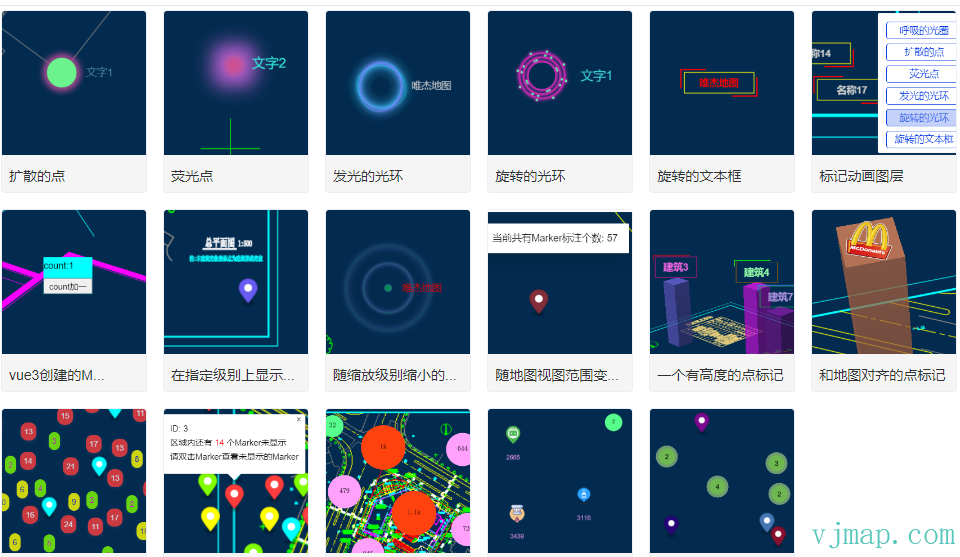
- [创建点标记](https://vjmap.com/demo/#/demo/map/marker/01marker)
- [多个点标记](https://vjmap.com/demo/#/demo/map/marker/02markerSeveral)
- [点标记事件](https://vjmap.com/demo/#/demo/map/event/marker/01eventMarkerOne)
- [多个点标记事件](https://vjmap.com/demo/#/demo/map/event/marker/02eventMarkerSome)
- [点标记悬浮弹框](https://vjmap.com/demo/#/demo/map/event/marker/03eventMarkerHover)
- [点标记拖拽](https://vjmap.com/demo/#/demo/map/marker/03markerSetDrag)
- [地图上绑定多个点标注记](https://vjmap.com/demo/#/demo/map/marker/03markerSetMany)
- [呼吸的光圈](https://vjmap.com/demo/#/demo/map/marker/03markerzBreathingAperture)
- [扩散的点](https://vjmap.com/demo/#/demo/map/marker/03markerzDiffusedAperture)
- [荧光点](https://vjmap.com/demo/#/demo/map/marker/03markerzFluorescence)
- [发光的光环](https://vjmap.com/demo/#/demo/map/marker/03markerzHaloRing)
- [旋转的光环](https://vjmap.com/demo/#/demo/map/marker/03markerzRotatingAperture)
- [旋转的文本框](https://vjmap.com/demo/#/demo/map/marker/03markerzRotatingTextBorder)
- [标记动画图层](https://vjmap.com/demo/#/demo/map/marker/03markerzzAnimateLayer)
- [vue3创建的Marker对象](https://vjmap.com/demo/#/demo/map/marker/04markerMvvm)
- [在指定级别上显示的点标记](https://vjmap.com/demo/#/demo/map/marker/04markerZoom)
- [随缩放级别缩小的点标记](https://vjmap.com/demo/#/demo/map/marker/05markerScaleZoom)
- [随地图视图范围变化自动移除增加的点标记](https://vjmap.com/demo/#/demo/map/marker/06markerRemoveNoInMapView)
- [一个有高度的点标记](https://vjmap.com/demo/#/demo/map/marker/07markerHeight)
- [和地图对齐的点标记](https://vjmap.com/demo/#/demo/map/marker/08markerAlignmentMap)
- [标记Marker聚合(重叠时显示总数)](https://vjmap.com/demo/#/demo/map/marker/14markerClusterShowCount)
- [标记Marker聚合(重叠时只显示一个)](https://vjmap.com/demo/#/demo/map/marker/15markerNoOverlap)
- [点符号聚合](https://vjmap.com/demo/#/demo/map/marker/markerClusterer)
- [点符号聚合自定义图标](https://vjmap.com/demo/#/demo/map/marker/markerClustererCustomIcon)
- [点标记Marker聚合(聚合通过Symbol绘制)](https://vjmap.com/demo/#/demo/map/marker/markerClustererMarker)
## 类型定义
```ts
export interface MarkerOptions {
/** 用作标记的DOM元素。默认值是淡蓝色、液滴形状的SVG标记 */
element?: HTMLElement | undefined;
/** 以像素为单位偏移为PointLike对象,以相对于元素的中心应用。负数表示向左和向上。*/
offset?: PointLike | undefined;
/** 一个字符串,指示标记中应通过Marker.setLngLat定位到最接近描点的部分。
* 选项有 `'center'`, `'top'`, `'bottom'`, `'left'`, `'right'`, `'top-left'`, `'top-right'`, `'bottom-left'`, and `'bottom-right'`.
* The default value os `'center'`
*/
anchor?: Anchor | undefined;
/** 如果未提供options.element,则使用默认标记的颜色。默认值为浅蓝色(#3FB1CE) */
color?: string | undefined;
/** 一个布尔值,指示标记是否能够被拖动到地图上的新位置。默认值为false */
draggable?: boolean | undefined;
/**
* 用户在点击标记时可以移动鼠标指针以使其被视为有效点击的最大像素数
* (与标记拖动相反)。默认值(0)是继承地图的clickTolerance。
*/
clickTolerance?: number | null | undefined;
/** 标记相对于其“旋转对齐”设置的旋转角度(度)。正值将使标记顺时针旋转.
* The default value is 0.
*/
rotation?: number | undefined;
/** map 对齐 Marker 相对于地图的旋转,在地图旋转时保持方位。
*`viewport`使`Marker`的旋转相对于视口对齐,与地图旋转无关。
*`auto`相当于`viewport`。
*/
rotationAlignment?: Alignment | undefined;
/** map 将 Marker 与地图平面对齐.
* `viewport`将`Marker`与视口平面对齐.
* `auto`自动匹配`rotationAlignment`的值`
* The default value is `auto`.
*/
pitchAlignment?: Alignment | undefined;
/** 如果未提供options.element,则使用默认标记的比例.
* 默认比例(1)对应于高度“41px”和宽度“27px”`.
*/
scale?: number | undefined;
}
/**
* Marker
*/
export class Marker extends Evented {
constructor(options?: vjmap.MarkerOptions);
constructor(element?: HTMLElement, options?: vjmap.MarkerOptions);
/**
* 设置动画
* @param animationType
* MAP_ANIMATION_NONE 无动画
* MAP_ANIMATION_BOUNCE 弹跳
* MAP_ANIMATION_DROP 坠落
*/
setAnimation(animationType: string): void;
/**
* 设置颜色
* @param color 颜色
*/
setColor(color: string): void;
/**
* 显示
*/
show(): void;
/**
* 隐藏
*/
hide(): void;
/**
* 获取是否隐藏了,当设置了hide或缩放级别或视图范围外不可见时,返回true,否则返回false
*/
isHidden(): boolean;
/**
* 设置光标
* @param cur 光标名称
*/
setCursor(cur: string): void;
/**
* 设置高度
* @param height 高度值
*/
setHeight(height: number): Marker;
/**
* 设置显示的最小缩放级别
* @param zoom 缩放级别
*/
setMinZoom(zoom: number): Marker;
/**
* 设置显示的最大缩放级别
* @param zoom 缩放级别
*/
setMaxZoom(zoom: number): Marker;
/**
* 设置当marker不在当前地图视图范围内时,将自动移除。进入视图范围内时,将自动增加上,当自动移除或增加时,将触发`autoAdd`和`autoRemove`事件
* @param autoRemove true不在当前地图视图范围内时,将自动移除,false不会自动移除
* @param padding 范围向外扩的像素范围,默认500px,向视图范围往外扩些像素,在平移的时候,能看到marker,体验效果好些。
*/
setRemoveWhenNoInMapView(autoRemove: boolean, padding?: number): Marker;
/**
* 设置能缩放的最大级别。如果小于这个级别,div将根据缩小级别自动缩小比例。默认不会自动缩放,当自动移除或增加时,将触发`autoAdd`和`autoRemove`事件
* @param zoom 缩放级别
*/
setScaleMaxZoom(zoom: number): Marker;
/**
* 得到高度值
*/
getHeight(): number | undefined;
/**
* 得到显示的最小缩放级别
*/
getMinZoom(): number | undefined;
/**
* 得到显示的最大缩放级别
*/
getMaxZoom(): number | undefined;
/**
* 得到能缩放的最大级别。如果小于这个级别,div将根据缩小级别自动缩小比例。默认不会自动缩放
*/
getScaleMaxZoom(zoom: number): number | undefined;
/**
* 得到当marker不在当前地图视图范围内时,将自动移除。进入视图范围内时,将自动增加上
*/
getRemoveWhenNoInMapView(): boolean;
/**
* 设置是否显示隐藏
* @param visible 是否显示
* @param isDisplay true的话,表示用style的display去控制隐藏显示,dom还在文档中。false的话,会从文档动态清空增加
*/
setVisible(visible?: boolean, isDisplay?: boolean): Marker;
addTo(map: Map): this;
remove(): this;
getLngLat(): LngLat;
setLngLat(lngLat: LngLatLike): this;
getElement(): HTMLElement;
setPopup(popup?: Popup): this;
getPopup(): Popup;
togglePopup(): this;
getOffset(): PointLike;
setOffset(offset: PointLike): this;
setDraggable(shouldBeDraggable: boolean): this;
isDraggable(): boolean;
getRotation(): number;
setRotation(rotation: number): this;
getRotationAlignment(): Alignment;
setRotationAlignment(alignment: Alignment): this;
getPitchAlignment(): Alignment;
setPitchAlignment(alignment: Alignment): this;
}
```
---
# Popup
> Popup的样式与常规的css样式一致,不过唯一需要注意的是,如何`针对某个特定图层`或者是`特定marker`添加对应的Popup事件。
## 构造函数参数
|名称| 类型 | 描述|
|:---|:---|:---|
|options.closeButton|boolean(default true)|该popup的右上角的关闭x图标按钮|
|options.closeOnClick|boolean(default true)|为true时,表示点击地图其他位置时,该Popup会消失|
|options.anchor|String|'top' , 'bottom' , 'left' , 'right' , 'top-left' , 'top-right' , 'bottom-left' , and 'bottom-right'表示停靠的方位|
|options.offset|(number/PointLike/Object)|number表示简单的距离,pointlike表示类似点数组的意思,第三个object是特指的`针对上面提到的anchor`属性的对象,示例如下|
``` javascript
var markerHeight = 50, markerRadius = 10, linearOffset = 25;
var popupOffsets = {
'top': [0, 0],
'top-left': [0, 0],
'top-right': [0, 0],
'bottom': [0, -markerHeight],
'bottom-left': [linearOffset, (markerHeight - markerRadius + linearOffset) * -1],
'bottom-right': [-linearOffset, (markerHeight - markerRadius + linearOffset) * -1],
'left': [markerRadius, (markerHeight - markerRadius) * -1],
'right': [-markerRadius, (markerHeight - markerRadius) * -1]
};
var popup = new vjmap.Popup({offset:popupOffsets})
.setLngLat(e.lngLat)
.setHTML("Hello World!
")
.addTo(map);
```
## 常用方法
|方法名|参数|返回值|说明|
|:---|:---|:---|:---|
|addTo(map)|map|Popup.this|将这个Popup标注添加到地图上|
|isOpen|无|boolean|打开状态返回`true`,关闭状态返回`false`|
|remove()|无|Popup.this |将这个Popup标注添加到地图上|
|getLngLat()|无|Lnglat|返回该标注的经纬度对象|
|setLngLat(lnglat)|Lnglat|Popup.this|设置该标注的经纬度信息|
|setText(text)|String|Popup.this|设置该Popup的文字信息|
|setHTML(html)|String|Popup.this|将一些简单的HTML描述传入|
|setDOMContent(htmlNode)|[Node](https://developer.mozilla.org/docs/Web/API/Node/nextSibling)|Popup.this|`var div = window.document.createElement('div');div.innerHTML = 'Hello, world!';`|
## 基本用法
```js
// 参数说明:
// (1)closeButton,true表示会展示一个关闭按钮;
// (2)closeOnClick,设置为true表示当地图被点击时该信息窗体会被关闭;
// (3)offset,参数为点位置相对于其左上角偏移像素大小;
// (4)anchor,停靠点,值域为[top,bottom,left,right,top-left,top-right,bottom-left,bottom-right],如果不设置该参数,则会根据map container动态调整。
// (5)autoPan,设置为true时,当地图拖动到看不到popup的时候,自动将地图平移到可以看到popup,此参数只对固定popup有效;
const popup = new vjmap.Popup({ closeOnClick: false, closeButton: true, anchor: "bottom" });
popup.setHTML('Hello, VJMap!')
.setLngLat(map.getCenter())
.addTo(map);
// 过段时间后删除
// setTimeout(() => popup.remove(), 30000);
// 点击地图,弹出popup
const popup2 = new vjmap.Popup();
popup2.setHTML("唯杰地图");
map.on("click", (e) => popup2.setLngLat(e.lngLat).addTo(map));
```
// --信息窗口新增与删除--
// 地图服务对象
let svc = new vjmap.Service(env.serviceUrl, env.accessToken)
// 打开地图
let res = await svc.openMap({
    mapid: env.exampleMapId, // 地图ID
    mapopenway: vjmap.MapOpenWay.GeomRender, // 以几何数据渲染方式打开
    style: vjmap.openMapDarkStyle() // div为深色背景颜色时,这里也传深色背景样式
})
if (res.error) {
    // 如果打开出错
    message.error(res.error)
}
// 根据地图范围建立几何投影坐标系
let prj = new vjmap.GeoProjection(res.bounds);
// 地图对象
let map = new vjmap.Map({
    container: 'map', // DIV容器ID
    style: svc.rasterStyle(), //svc.rasterBlankStyle(0, 24), // 样式,这里是栅格样式
    center: prj.toLngLat(prj.getMapExtent().center()), // 设置地图中心点
    zoom: 2, // 设置地图缩放级别
    renderWorldCopies: false // 不显示多屏地图
});
// 关联服务对象和投影对象
map.attach(svc, prj);
// 根据地图本身范围缩放地图至全图显示
map.fitMapBounds();
await map.onLoad();
// 参数说明:
// (1)closeButton,true表示会展示一个关闭按钮;
// (2)closeOnClick,设置为true表示当地图被点击时该信息窗体会被关闭;
// (3)offset,参数为点位置相对于其左上角偏移像素大小;
// (4)anchor,停靠点,值域为[top,bottom,left,right,top-left,top-right,bottom-left,bottom-right],如果不设置该参数,则会根据map container动态调整。
// (5)autoPan,设置为true时,当地图拖动到看不到popup的时候,自动将地图平移到可以看到popup,此参数只对固定popup有效;
const popup = new vjmap.Popup({ closeOnClick: false, closeButton: true, anchor: "bottom" });
popup.setHTML('Hello, VJMap!')
    .setLngLat(map.getCenter())
    .addTo(map);
// 过段时间后删除
setTimeout(() => popup.remove(), 30000);
// 点击地图,弹出popup
const popup2 = new vjmap.Popup();
popup2.setHTML("唯杰地图");
map.on("click", (e) => popup2.setLngLat(e.lngLat).addTo(map));
## Popup相关示例
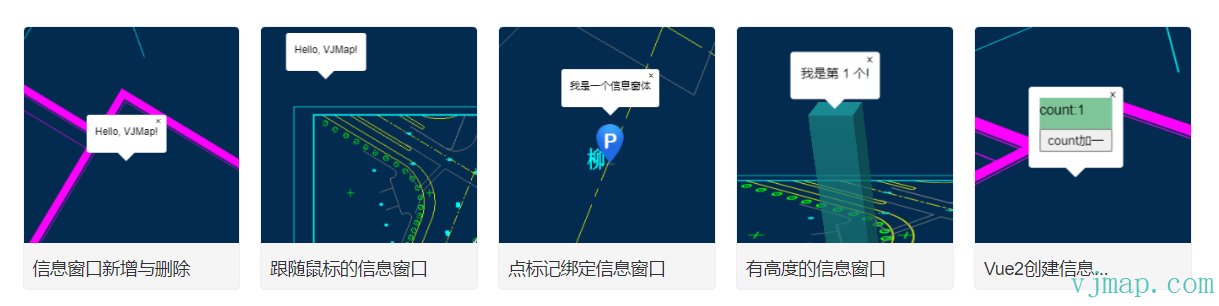
[信息窗口新增与删除](https://vjmap.com/demo/#/demo/map/popup/01popupadd)
[跟随鼠标的信息窗口](https://vjmap.com/demo/#/demo/map/popup/02popupTrackPointer)
[点标记绑定信息窗口](https://vjmap.com/demo/#/demo/map/popup/03markerPopup)
[有高度的信息窗口](https://vjmap.com/demo/#/demo/map/popup/04popupHeight)
[Vue2创建信息窗口](https://vjmap.com/demo/#/demo/map/popup/05popupMvvm)
## 类型定义
```ts
/**
* Popup
*/
export class Popup extends Evented {
constructor(options?: {
closeButton?: boolean | undefined;
closeOnClick?: boolean | undefined;
/**
* @param {boolean} [options.closeOnMove=false] 如果为“true”,则当地图移动时,弹出窗口将关闭。
*/
closeOnMove?: boolean | undefined;
/**
* @param {boolean} [options.focusAfterOpen=true] 如果为true,弹出窗口将尝试聚焦弹出窗口内的第一个可聚焦元素。
*/
focusAfterOpen?: boolean | null | undefined;
anchor?: Anchor | undefined;
offset?: Offset | null | undefined;
className?: string | undefined;
maxWidth?: string | undefined;
});
/**
* 设置高度
* @param height 高度值
*/
setHeight(height: number): Popup;
/**
* 得到高度值
*/
getHeight(): number | undefined;
addTo(map: vjmap.Map): this;
isOpen(): boolean;
remove(): this;
getLngLat(): vjmap.LngLat;
/**
* 设置弹出窗口锚点的位置,并将弹出窗口移动到该锚点。替换trackPointer()行为。
*
* @param lnglat 将位置设置为弹出窗口的锚点。
*/
setLngLat(lnglat: LngLatLike): this;
/**
* 在带有指针设备的屏幕上(将在触摸屏上隐藏),将弹出锚点跟踪到光标位置。替换setLngLat行为。
* 对于大多数情况,此处还应将“closeOnClick”和“closeButton”设置为“false”。
*/
trackPointer(): this;
/** Returns the `Popup`'s HTML element. */
getElement(): HTMLElement;
setText(text: string): this;
setHTML(html: string): this;
setDOMContent(htmlNode: Node): this;
getMaxWidth(): string;
setMaxWidth(maxWidth: string): this;
/**
* 将CSS类添加到弹出容器元素中。
*
* @param {string} className 要添加到弹出容器中的具有CSS类名的非空字符串
*
* @example
* let popup = new vjmap.Popup()
* popup.addClassName('some-class')
*/
addClassName(className: string): void;
/**
* 从弹出容器元素中删除CSS类。
*
* @param {string} className 从弹出容器中删除具有CSS类名的非空字符串
*
* @example
* let popup = new vjmap.Popup()
* popup.removeClassName('some-class')
*/
removeClassName(className: string): void;
/**
* 设置偏移量
*
* @param offset Sets the popup's offset.
* @returns {Popup} `this`
*/
setOffset(offset?: Offset | null): this;
/**
* 在弹出容器上添加或删除给定的CSS类,具体取决于容器当前是否具有该类。
*
* @param {string} className Non-empty string with CSS class name to add/remove
*
* @returns {boolean} if the class was removed return false, if class was added, then return true
*
* @example
* let popup = new vjmap.Popup()
* popup.toggleClassName('toggleClass')
*/
toggleClassName(className: string): void;
}
```
---
# 右键菜单
`ContextMenu` 上下文菜单用于右键弹出菜单界面显示。
## 常用方法
|方法|描述|
|:---|:---|
|add|增加菜单项|
|show|显示菜单 |
|hide|隐藏菜单|
|toggle|切换菜单状态|
## 菜单项类型
|类型|描述|
|:---|:---|
|seperator|分隔线|
|custom|自定义菜单项|
|multi|多个按钮|
|submenu|子菜单项|
|hovermenu|悬浮菜单项|
|normal|缺省正常菜单项|
## 示例
### 地图上下文菜单
[地图上下文菜单](https://vjmap.com/demo/#/demo/map/contextmenu/01contextmenuMap)
```js
// 选中的图标,也可以直接指定src路径
const checkIcon = "data:image/png;base64,iVBORw0KGgoAAAANSUhEUgAAABAAAAAQCAYAAAAf8/9hAAAAAXNSR0IArs4c6QAAANpJREFUOE9jZKAQMFKon2FgDKjZHVHf4rqiEeR6kl1QuzOyn+E/4/lmj2WLSDagekdkASMjg1aL+/I0WNgR7YLaHRG2/xgZYlrdV6QjBzzRBtTsijzzl4nVvd1l0VucBtTsjlz5/z/jt1a3ZYnIimp2RZ7//+9fQ6vHyo3o0Q53Qc32CAcGpv88DIxMxQyMDB9aXJcHghTX7IxcyMjAeLTZfdksbGkGqxdqdkUuZ2BgkPjPyDCFgeG/W6srqr+JCoPqXZG9jAwM9iyszy0aHA/8wZViiQ7EYWwAAPShQBF/1IlVAAAAAElFTkSuQmCC";
map.setMenu(event => {
return new vjmap.ContextMenu({
event: event.originalEvent,
theme: "dark", //light
width: "250px",
items: [
{type: 'custom', markup: `菜单右键功能演示`},
{type: 'multi', items: [
{label: '全图', onClick: () => { map.fitMapBounds(); }},
{label: '不旋转', onClick: () => { map.setBearing(0); }},
{label: '不倾斜', onClick: () => { map.setPitch(0); }},
]},
{label: '获取此位置的坐标', onClick: () => {
let point = map.fromLngLat(event.lngLat);
map.logInfo(`当前坐标为 x: ${point.x}, y: ${point.y}`);
}},
{type: 'seperator'},
{type: 'submenu', label: '地图缩放', items: [
{label: '放大一级', onClick: () => { map.setZoom(map.getZoom() + 1)}},
{label: '缩小一级', onClick: () => { map.setZoom(map.getZoom() - 1)}, enabled: map.getZoom() - 1 > 0},
{label: '缩小至最小级', onClick: () => { map.setZoom(0)}},
{label: '飞行至此位置', onClick: () => {
map.flyTo({
center: event.lngLat,
pitch: 60,
zoom: 5
})
}}
]},
{type: 'hovermenu', label: '地图设置', items: [
{
label: '双击鼠标进行缩放',
icon: map.doubleClickZoom.isEnabled() ? checkIcon : "",
onClick: () => {
if (map.doubleClickZoom.isEnabled()) {
map.doubleClickZoom.disable()
} else {
map.doubleClickZoom.enable()
}
}
},
{
label: '允许地图旋转',
icon: map.dragRotate.isEnabled() ? checkIcon : "",
onClick: () => {
if (map.dragRotate.isEnabled()) {
map.dragRotate.disable();
} else {
map.dragRotate.enable();
}
}
},
{
label: '允许地图倾斜',
icon: map.getMaxPitch() != 0 ? checkIcon : "",
onClick: () => {
if (map.getMaxPitch() == 0) {
map.setMaxPitch(85)
} else {
map.setMaxPitch(0)
}
}
}
]}
]
});
})
```
// --地图上下文菜单--
// 地图服务对象
let svc = new vjmap.Service(env.serviceUrl, env.accessToken)
// 打开地图
let res = await svc.openMap({
    mapid: env.exampleMapId, // 地图ID
    mapopenway: vjmap.MapOpenWay.GeomRender, // 以几何数据渲染方式打开
    style: vjmap.openMapDarkStyle() // div为深色背景颜色时,这里也传深色背景样式
})
if (res.error) {
    // 如果打开出错
    message.error(res.error)
}
// 根据地图范围建立几何投影坐标系
let prj = new vjmap.GeoProjection(res.bounds);
// 地图对象
let map = new vjmap.Map({
    container: 'map', // DIV容器ID
    style: svc.rasterStyle(), // 样式,这里是栅格样式
    center: prj.toLngLat(prj.getMapExtent().center()), // 设置地图中心点
    zoom: 2, // 设置地图缩放级别
    renderWorldCopies: false
});
// 关联服务对象和投影对象
map.attach(svc, prj);
let mapBounds = map.getGeoBounds(); // 得到地图地理范围
// 选中的图标,也可以直接指定src路径
const checkIcon = "data:image/png;base64,iVBORw0KGgoAAAANSUhEUgAAABAAAAAQCAYAAAAf8/9hAAAAAXNSR0IArs4c6QAAANpJREFUOE9jZKAQMFKon2FgDKjZHVHf4rqiEeR6kl1QuzOyn+E/4/lmj2WLSDagekdkASMjg1aL+/I0WNgR7YLaHRG2/xgZYlrdV6QjBzzRBtTsijzzl4nVvd1l0VucBtTsjlz5/z/jt1a3ZYnIimp2RZ7//+9fQ6vHyo3o0Q53Qc32CAcGpv88DIxMxQyMDB9aXJcHghTX7IxcyMjAeLTZfdksbGkGqxdqdkUuZ2BgkPjPyDCFgeG/W6srqr+JCoPqXZG9jAwM9iyszy0aHA/8wZViiQ7EYWwAAPShQBF/1IlVAAAAAElFTkSuQmCC";
map.setMenu(event => {
    return new vjmap.ContextMenu({
        event: event.originalEvent,
        theme: "dark", //light
        width: "250px",
        items: [
            {type: 'custom', markup: `<span style="color: #ffff00; padding-left: 30px">菜单右键功能演示</span>`},
            {type: 'multi', items: [
                    {label: '全图', onClick: () => { map.fitMapBounds(); }},
                    {label: '不旋转', onClick: () => { map.setBearing(0); }},
                    {label: '不倾斜', onClick: () => { map.setPitch(0); }},
                ]},
            {label: '获取此位置的坐标', onClick: () => {
                    let point = map.fromLngLat(event.lngLat);
                    map.logInfo(`当前坐标为 x: ${point.x}, y: ${point.y}`);
                }},
            {type: 'seperator'},
            {type: 'submenu', label: '地图缩放', items: [
                    {label: '放大一级', onClick: () => { map.setZoom(map.getZoom() + 1)}},
                    {label: '缩小一级', onClick: () => { map.setZoom(map.getZoom() - 1)}, enabled: map.getZoom() - 1 > 0},
                    {label: '缩小至最小级', onClick: () => { map.setZoom(0)}},
                    {label: '飞行至此位置', onClick: () => {
                            map.flyTo({
                                center: event.lngLat,
                                pitch: 60,
                                zoom: 5
                            })
                        }}
                ]},
            {type: 'hovermenu', label: '地图设置', items: [
                    {
                        label: '双击鼠标进行缩放',
                        icon: map.doubleClickZoom.isEnabled() ? checkIcon : "",
                        onClick: () => {
                            if (map.doubleClickZoom.isEnabled()) {
                                map.doubleClickZoom.disable()
                            } else {
                                map.doubleClickZoom.enable()
                            }
                        }
                    },
                    {
                        label: '允许地图旋转',
                        icon: map.dragRotate.isEnabled() ? checkIcon : "",
                        onClick: () => {
                            if (map.dragRotate.isEnabled()) {
                                map.dragRotate.disable();
                            } else {
                                map.dragRotate.enable();
                            }
                        }
                    },
                    {
                        label: '允许地图倾斜',
                        icon: map.getMaxPitch() != 0 ? checkIcon : "",
                        onClick: () => {
                            if (map.getMaxPitch() == 0) {
                                map.setMaxPitch(85)
                            } else {
                                map.setMaxPitch(0)
                            }
                        }
                    }
                ]}
        ]
    });
})
map.logInfo('请点击右键弹出菜单');
### 覆盖物图层右键菜单
[覆盖物图层右键菜单](https://vjmap.com/demo/#/demo/map/contextmenu/02contextmenuOverlay)
```js
// 设置点击一个覆盖物时弹出菜单,key值可以自定义设置。如果函数返回空时,将触发上面的地图右键菜单。如果函数不返回空,则会弹出此函数的菜单
map.setMenu(event => {
let features = map.queryRenderedFeatures(event.point, {
layers: [polygon.layerId]
});
if (features.length == 0) {
// 如果点击位置没有上面多边形图层的实体,则将回空,这样将会弹出上面的默认地图菜单
return null;
}
// 如果点击位置有上面多边形图层的实体,则弹出此图层的自定义右键菜单
return new vjmap.ContextMenu({
event: event.originalEvent,
theme: "dark", //light
width: "250px",
items: [
{type: 'custom', markup: `我是多边形图层的右键菜单`},
{
label: '查看选择的多边形信息',
onClick: () => {
map.logInfo(`当前多边形ID: ${features[0].properties.id}, 当前多边形颜色: ${features[0].properties.color}`);
}
},
{
label: '删除',
onClick: () => {
let data = polygon.getData();
data.features = data.features.filter(f => f.id != features[0].properties.id);
polygon.setData(data);
}
}
]
});
}, "overlay")
```
// --覆盖物图层右键菜单--
// 地图服务对象
let svc = new vjmap.Service(env.serviceUrl, env.accessToken)
// 打开地图
let res = await svc.openMap({
    mapid: env.exampleMapId, // 地图ID
    mapopenway: vjmap.MapOpenWay.GeomRender, // 以几何数据渲染方式打开
    style: vjmap.openMapDarkStyle() // div为深色背景颜色时,这里也传深色背景样式
})
if (res.error) {
    // 如果打开出错
    message.error(res.error)
}
// 根据地图范围建立几何投影坐标系
let prj = new vjmap.GeoProjection(res.bounds);
// 地图对象
let map = new vjmap.Map({
    container: 'map', // DIV容器ID
    style: svc.rasterStyle(), // 样式,这里是栅格样式
    center: prj.toLngLat(prj.getMapExtent().center()), // 设置地图中心点
    zoom: 2, // 设置地图缩放级别
    renderWorldCopies: false
});
// 关联服务对象和投影对象
map.attach(svc, prj);
await map.onLoad();
// 下面加很多多边形做测试,在多边形上右键时将弹出多边形的右键菜单,否则弹出地图的右键菜单
let mapBounds = map.getGeoBounds(0.6);
let len = mapBounds.width() / 50;
let polygons = []
for(let i = 0; i < 200; i++) {
    const p1 = mapBounds.randomPoint();
    const p2 = vjmap.geoPoint([p1.x, p1.y + len]);
    const p3 = vjmap.geoPoint([p1.x + len, p1.y]);
    polygons.push({
        points: map.toLngLat([p1, p2, p3]),
        properties: {
            name: "polygon" + (i + 1),
            color: vjmap.randomColor()
        }
    })
}
let polygon = new vjmap.Polygon({
    data: polygons,
    // 如果是hover状态时,用红色,非hover状态时,取属性中的'color'做为颜色值
    fillColor: ['case', ['to-boolean', ['feature-state', 'hover']], 'red', ['get', 'color']],
    fillOpacity: 0.8,
    fillOutlineColor: "#f00",
    isHoverPointer: true,
    isHoverFeatureState: true
});
polygon.addTo(map);
polygon.clickLayer(e => map.logInfo(`您点击了第 ${e.features[0].id} 个,名称为 ${e.features[0].properties.name},颜色为 ${e.features[0].properties.color} 的多边形`))
// 默认情况下显示的是地图菜单,因为这里的key是空,如果多次设置setMenu时,根据key值排序倒序,空值会在最后面
map.setMenu(event => {
    return new vjmap.ContextMenu({
        event: event.originalEvent,
        theme: "dark", //light
        width: "250px",
        items: [
            {type: 'custom', markup: `<span style="color: #ffff00; padding-left: 30px">我是地图的右键菜单</span>`},
            {
                label: '全图范围显示',
                onClick: () => {
                    map.setBearing(0);
                    map.setPitch(0);
                    map.fitMapBounds();
                }
            },
            {
                label: '获取此位置的坐标',
                onClick: () => {
                    let point = map.fromLngLat(event.lngLat);
                    map.logInfo(`当前坐标为 x: ${point.x}, y: ${point.y}`);
                }
            }
        ]
    });
})
// 设置点击一个覆盖物时弹出菜单,key值可以自定义设置。如果函数返回空时,将触发上面的地图右键菜单。如果函数不返回空,则会弹出此函数的菜单
map.setMenu(event => {
    let features = map.queryRenderedFeatures(event.point, {
        layers: [polygon.layerId]
    });
    if (features.length == 0) {
        // 如果点击位置没有上面多边形图层的实体,则将回空,这样将会弹出上面的默认地图菜单
        return null;
    }
    // 如果点击位置有上面多边形图层的实体,则弹出此图层的自定义右键菜单
    return new vjmap.ContextMenu({
        event: event.originalEvent,
        theme: "dark", //light
        width: "250px",
        items: [
            {type: 'custom', markup: `<span style="color: #ffff00; padding-left: 30px">我是多边形图层的右键菜单</span>`},
            {
                label: '查看选择的多边形信息',
                onClick: () => {
                    map.logInfo(`当前多边形ID: ${features[0].properties.id}, 当前多边形颜色: ${features[0].properties.color}`);
                }
            },
            {
                label: '删除',
                onClick: () => {
                    let data = polygon.getData();
                    data.features = data.features.filter(f => f.id != features[0].properties.id);
                    polygon.setData(data);
                }
            }
        ]
    });
}, "overlay")
// 绘图控件右键菜单
const draw = new vjmap.Draw.Tool();
map.addControl(draw, 'top-right');
map.on("draw.simpleselect.contextmenu", function (e) {
    // 如果不是此draw对象的事件,则不用管
    if (e.styleId != draw.options.styleId) return;
    let feature = e.event.featureTarget
    if (!feature) return
    //if (draw.getMode() != "simple_select") return
    let selectFeatureId = feature.properties.id
    // 需要选中的才能右键
    let selectIds = draw.getSelectedIds() || []
    if (selectIds.indexOf(selectFeatureId)== -1) return
    let event = e.event.originalEvent
    // 阻止地图默认右键菜单触发
    event.preventDefault();
    event.stopPropagation();
    return new vjmap.ContextMenu({
        event: event,
        theme: "dark", //light
        width: "250px",
        items: [
            {
                label: "删除",
                onClick: () => {
                    draw.delete(selectFeatureId)
                }
            }
        ]
    });
});
### 标记Marker右键菜单
[标记Marker右键菜单](https://vjmap.com/demo/#/demo/map/contextmenu/03contextmenuMarker)
```js
// marker与多边形等覆盖物图层不同的时,marker是div,而覆盖物图层是canvas渲染与map属于同一个div
// 所以marker的右键,得由自己的div的上下文菜单来触发
marker.getElement().addEventListener("mousedown", event => {
if (event.button != 2) return;//不是右键
// 阻止地图默认右键菜单触发
event.preventDefault();
event.stopPropagation();
return new vjmap.ContextMenu({
event: event,
theme: "dark", //light
width: "250px",
items: [
{type: 'custom', markup: `我是标注Marker的右键菜单`},
{
label: '获取此Marker的信息',
onClick: () => {
map.logInfo(`当前MarkerId为 ${marker.id}`);
}
}
]
});
})
```
// --标记Marker右键菜单--
// 地图服务对象
let svc = new vjmap.Service(env.serviceUrl, env.accessToken)
// 打开地图
let res = await svc.openMap({
    mapid: env.exampleMapId, // 地图ID
    mapopenway: vjmap.MapOpenWay.GeomRender, // 以几何数据渲染方式打开
    style: vjmap.openMapDarkStyle() // div为深色背景颜色时,这里也传深色背景样式
})
if (res.error) {
    // 如果打开出错
    message.error(res.error)
}
// 根据地图范围建立几何投影坐标系
let prj = new vjmap.GeoProjection(res.bounds);
// 地图对象
let map = new vjmap.Map({
    container: 'map', // DIV容器ID
    style: svc.rasterStyle(), // 样式,这里是栅格样式
    center: prj.toLngLat(prj.getMapExtent().center()), // 设置地图中心点
    zoom: 2, // 设置地图缩放级别
    renderWorldCopies: false
});
// 关联服务对象和投影对象
map.attach(svc, prj);
await map.onLoad();
map.setMenu(event => {
    return new vjmap.ContextMenu({
        event: event.originalEvent,
        theme: "dark", //light
        width: "250px",
        items: [
            {type: 'custom', markup: `<span style="color: #ffff00; padding-left: 30px">我是地图的右键菜单</span>`},
            {
                label: '全图范围显示',
                onClick: () => {
                    map.setBearing(0);
                    map.setPitch(0);
                    map.fitMapBounds();
                }
            },
            {
                label: '获取此位置的坐标',
                onClick: () => {
                    let point = map.fromLngLat(event.lngLat);
                    app.logInfo(`当前坐标为 x: ${point.x}, y: ${point.y}`);
                }
            }
        ]
    });
})
let mapBounds = map.getGeoBounds(); // 得到地图地理范围
for(let i = 0; i < 50; i++) {
    let point = mapBounds.randomPoint(); // 在地理范围里随机生成一个点
    // marker
    let marker = new vjmap.Marker({
        color: vjmap.randomColor()
    });
    marker.setLngLat(map.toLngLat(point))
    marker.addTo(map);
    marker.id = i + 1;
    // marker与多边形等覆盖物图层不同的时,marker是div,而覆盖物图层是canvas渲染与map属于同一个div
    // 所以marker的右键,得由自己的div的上下文菜单来触发
    marker.getElement().addEventListener("mousedown", event => {
        if (event.button != 2) return;//不是右键
        // 阻止地图默认右键菜单触发
        event.preventDefault();
        event.stopPropagation();
        return new vjmap.ContextMenu({
            event: event,
            theme: "dark", //light
            width: "250px",
            items: [
                {type: 'custom', markup: `<span style="color: #ffff00; padding-left: 30px">我是标注Marker的右键菜单</span>`},
                {
                    label: '获取此Marker的信息',
                    onClick: () => {
                        map.logInfo(`当前MarkerId为 ${marker.id}`);
                    }
                }
            ]
        });
    })
}
# 类型定义文件
```ts
/**
* 上下文菜单.
*
**/
export class ContextMenu {
private options;
private menuControl;
private position;
/**
* Creates a new ContextMenu menu
* @param {object} opts options which build the menu e.g. position and items
* @param {number} opts.width sets the width of the menu including children
* @param {object} opts.event 事件对象
* @param {theme} opts.theme 自定义的样式主题,支持dark和light,默认dark
* @param {boolean} opts.isSticky sets how the menu apears, follow the mouse or sticky
* @param {Array} opts.items sets the default items in the menu
*/
constructor(opts: ContextMenuOptions);
/**
* Adds item to this ContextMenu menu instance
* @param {ContextMenuItem} item item to add to the ContextMenu menu
*/
add(item: any): void;
/**
* Makes this ContextMenu menu visible
*/
show(): void;
/**
* Hides this ContextMenu menu
*/
hide(): void;
/**
* Toggle visibility of menu
*/
toggle(): void;
}
/**
* 上下文菜单选项.
*
**/
export interface ContextMenuOptions {
/** 事件对象. */
event: Event;
/** 菜单宽度(包括子菜单),像素,默认150px. */
width?: string;
/** 菜单主题色.(dark和light,默认dark)*/
theme?: string;
/** 菜单外面容器的内部宽,用于菜单超时范围时自动调位置,默认是window大小宽 可通过 map.getContainer().getBoundingClientRect().width来设置 */
innerWidth?: number;
/** 菜单外面容器的内部宽,用于菜单超时范围时自动调位置,默认是window大小高 可通过 map.getContainer().getBoundingClientRect().height来设置 */
innerHeight?: number;
/** 子项 */
items: ContextMenuSubItemOptions[];
}
/**
* 上下文菜单子项选项.
*
**/
export interface ContextMenuSubItemOptions {
/** 子菜单类型. */
type?: "custom" | "multi" | "Button" | "seperator" | "submenu" | "hovermenu" | "normal";
/** 类型为'custom'时的自定义html内容 */
markup?: string;
/** 类型为'multi'时子菜单项*/
items?: ContextMenuSubItemOptions[];
/** 点击事件*/
onClick?: Function;
/** 菜单名称*/
label?: string;
/** 快捷菜单*/
shortcut?: string;
/** 是否能用*/
enabled?: boolean;
/** css图标*/
cssIcon?: string;
/** 图标*/
icon?: string;
}
```
---
# div覆盖物
`DivOverlay` 在一个地理范围内创建一个随缩放而缩放的div的覆盖物
如果是svg,则需设置为 viewBox="0 0 width height" preserveAspectRatio="xMinYMin meet", updateDivSize选项设置为true
## 常用方法
|方法|描述|
|:---|:---|
|setVisible|设置是否显示隐藏|
|addTo|增加至地图 |
|remove|移除 |
|updateBounds|更新范围|
|updateSize|更新大小|
## 菜单项类型
|类型|描述|
|:---|:---|
|bounds|范围,四个点坐标|
|element|html元素|
|width|元素宽|
|height|元素高|
|minZoom|显示最大级别|
|maxZoom|显示最小级别|
|maxZoom|显示最小级别|
|maxPitch|显示最大倾斜角|
|updateDivSize|自动更新div大小,(如果需要svg放大,需要设置为true) |
|maxDivSize|放大div时,最大的div大小,超过了就像素放大了|
## 用法
```js
const imageWidth = 1280; // 图像宽
const imageHeight = 905; // 图像高
const image = document.createElement( "img" );
image.style.position = "absolute"; // 有多个divoverlay时,一定要加定位,否则会导致其他绘制不对
image.style.left = '0px';
image.style.top = '0px';
image.style.width = imageWidth + "px";
image.style.height = imageHeight + "px";
image.style.opacity = '0.8';
image.style.zIndex = '-1';
image.src = "https://vjmap.com/static/assets/images/park.jpg"
image.style.pointerEvents = "none"
// 增加一个DIV的Image覆盖物
const divOverlay = new vjmap.DivOverlay({
bounds: points, // 四个点的位置
element: image, // DIV 元素
width: imageWidth,// DIV 宽
height: imageHeight,// DIV 高
minZoom: 5, // 能显示的最小级别 (可以不填)
maxZoom: 15 // 能显示的最大级别 (可以不填)
})
divOverlay.addTo(map);
```
// --div覆盖物绘制图片--
// 地图服务对象
let svc = new vjmap.Service(env.serviceUrl, env.accessToken)
// 打开地图
let res = await svc.openMap({
    mapid: env.exampleMapId, // 地图ID
    mapopenway: vjmap.MapOpenWay.GeomRender, // 以几何数据渲染方式打开
    style: vjmap.openMapDarkStyle() // div为深色背景颜色时,这里也传深色背景样式
})
if (res.error) {
    // 如果打开出错
    message.error(res.error)
}
// 获取地图范围
let mapExtent = vjmap.GeoBounds.fromString(res.bounds);
// 根据地图范围建立几何投影坐标系
let prj = new vjmap.GeoProjection(mapExtent);
// 地图对象
let map = new vjmap.Map({
    container: 'map', // DIV容器ID
    style: svc.rasterStyle(), // 样式,这里是栅格样式
    center: prj.toLngLat(mapExtent.center()), // 设置地图中心点
    zoom: 9, // 设置地图缩放级别,
    pitch: 30, // 倾斜角度
    renderWorldCopies: false // 不显示多屏地图
});
// 关联服务对象和投影对象
map.attach(svc, prj);
// 根据地图本身范围缩放地图至全图显示
//map.fitMapBounds();
await map.onLoad();
const mapBounds = map.getGeoBounds(0.001);
const colors = ["#FF0000", "#00FF00", "#0000FF", "#FFFF00"];
const points = [[mapBounds.min.x, mapBounds.min.y], [mapBounds.min.x, mapBounds.max.y], [mapBounds.max.x, mapBounds.max.y], [mapBounds.max.x, mapBounds.min.y]]
const markers = []
// 增加四个覆盖物用来调节位置
for(let c = 0; c <  colors.length; c++) {
    const marker = new vjmap.Marker({
        color: colors[c],
        draggable: true
    });
    marker.setLngLat(map.toLngLat(points[c])).addTo(map);
    marker.on('drag', e => {
        updateBounds();
    });
    markers.push(marker);
}
const imageWidth = 1280; // 图像宽
const imageHeight = 905; // 图像高
const image = document.createElement( "img" );
image.style.position = "absolute"; // 有多个divoverlay时,一定要加定位,否则会导致其他绘制不对
image.style.left = '0px';
image.style.top = '0px';
image.style.width = imageWidth + "px";
image.style.height = imageHeight + "px";
image.style.opacity = '0.8';
image.style.zIndex = '-1';
image.src = "https://vjmap.com/static/assets/images/park.jpg"
image.style.pointerEvents = "none"
// 增加一个DIV的Image覆盖物
const divOverlay = new vjmap.DivOverlay({
    bounds: points, // 四个点的位置
    element: image, // DIV 元素
    width: imageWidth,// DIV 宽
    height: imageHeight,// DIV 高
    minZoom: 5, // 能显示的最小级别 (可以不填)
    maxZoom: 15 // 能显示的最大级别 (可以不填)
})
divOverlay.addTo(map);
const updateBounds = () => {
    // 更新位置
    divOverlay.updateBounds([map.fromLngLat(markers[0].getLngLat()), map.fromLngLat(markers[1].getLngLat()), map.fromLngLat(markers[2].getLngLat()), map.fromLngLat(markers[3].getLngLat())])
}
map.logInfo("拖动四个点来调节图片位置");
## 示例
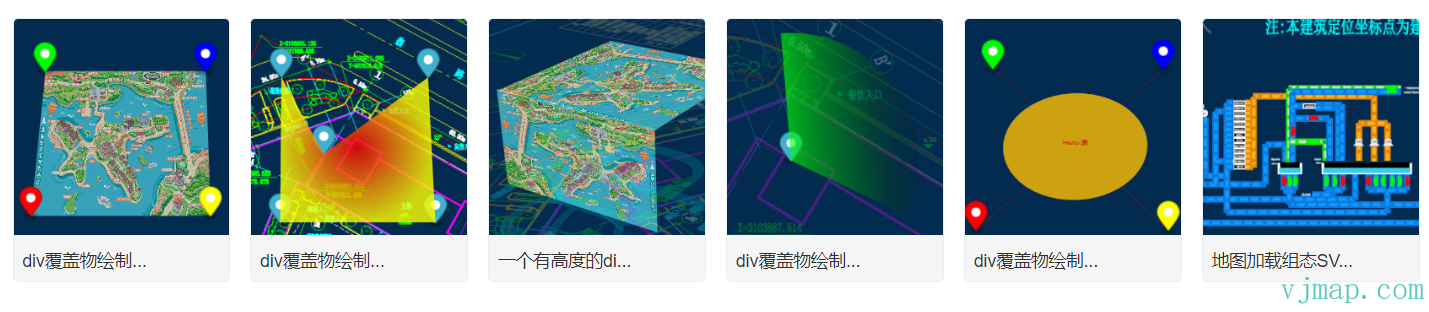
[div覆盖物绘制图片](https://vjmap.com/demo/#/demo/map/overlay/div/divOverlay)
[div覆盖物绘制渐变多边形](https://vjmap.com/demo/#/demo/map/overlay/div/divOverlayGradientPolygon)
[一个有高度的div覆盖物](https://vjmap.com/demo/#/demo/map/overlay/div/divOverlayHeight)
[div覆盖物绘制雷达效果](https://vjmap.com/demo/#/demo/map/overlay/div/divOverlayRadar)
[div覆盖物绘制SVG图形](https://vjmap.com/demo/#/demo/map/overlay/div/divOverlaySvg)
[地图加载组态SVG图形](https://vjmap.com/demo/#/demo/map/overlay/div/divOverlaySvgScada)
## 类型定义文件
```ts
/**
* 在一个地理范围内创建一个随缩放而缩放的div的覆盖物
* 注:如果是svg,则需设置为 viewBox="0 0 width height" preserveAspectRatio="xMinYMin meet", updateDivSize选项设置为true
**/
export class DivOverlay {
options: DivOverlayOptions;
_map?: Map;
isShow: boolean;
minZoom: number;
maxZoom: number;
maxPitch: number;
isRemoved: boolean;
parentContainer?: HTMLElement;
constructor(options: DivOverlayOptions);
addTo(map: Map, insertId?: string | HTMLElement): void;
private _isShow;
private _add;
private _remove;
/**
* 设置是否显示隐藏
* @param visible 是否显示
* @param isDisplay true的话,表示用style的display去控制隐藏显示,dom还在文档中。false的话,会从文档动态清空增加
*/
setVisible(visible?: boolean, isDisplay?: boolean): void;
remove(): void;
updateBounds(bounds: [GeoPointLike, GeoPointLike, GeoPointLike, GeoPointLike] | GeoBounds): void;
updateSize(width: number, height: number): void;
private _updateZoom;
private _updateDivSize;
private _adjustCoord;
private _update;
}
export interface DivOverlayOptions {
/** 范围,四个点坐标 */
bounds: [GeoPointLike, GeoPointLike, GeoPointLike, GeoPointLike] | GeoBounds;
/** html元素 */
element: HTMLElement;
/** 元素宽 */
width: number;
/** 元素高 */
height: number;
/** 显示最大级别 */
minZoom?: number;
/** 显示最小级别 */
maxZoom?: number;
/** 显示最大倾斜角 */
maxPitch?: number;
/** 自动更新div大小,(如果需要svg放大,需要设置为true) */
updateDivSize?: boolean;
/** 放大div时,最大的div大小,超过了就像素放大了 */
maxDivSize?: number;
}
```
---
# svg覆盖物
`SvgOverlay` 在一个地理范围内创建一个随缩放而缩放的svg的覆盖物
svg覆盖物性能低,不建议大量使用,同时在级别特别大时会导致失真,在倾斜角很大时会导致不可见
## 类型定义
```ts
// 在一个地理范围内创建一个随缩放而缩放的svg的覆盖物
export class SvgOverlay {
constructor(options?: {
/** 显示最大级别 */
minZoom?: number;
/** 显示最小级别 */
maxZoom?: number;
/** 显示最大倾斜角 */
maxPitch?: number;
/** 自动更新div大小,(如果需要svg放大,需要设置为true) */
updateDivSize?: boolean;
/** 放大div时,最大的div大小,超过了就像素放大了 */
maxDivSize?: number;
/** 当移动结束时不自动更新范围 */
noUpdateBoundsWhenMoveend?: boolean;
/** 类名 */
divClassName?: string;
/** svg初始化时最大像素宽,默认1000 */
svgMaxWidth?: number;
/** svg初始化时最大像素高,默认1000 */
svgMaxHeight?: number;
/** svg初始化时Offset像素距离,默认100 */
svgOffset?: number;
});
addTo(map: Map, insertId?: string | HTMLElement): void;
remove(): void;
/**
* 增加svg元素
* @param element 要增加的元素
* @param noUpdate 不立即更新
*/
addElement(element: SvgElementOptions | string, noUpdate?: boolean): void;
/**
* 增加svg元素
* @param elements 多个元素内容
* @param noUpdate 不立即更新
*/
addElements(elements: SvgElementOptions[], noUpdate?: boolean): void;
/**
* 获取svg获取
*/
getSvgContainer(): SVGSVGElement;
/**
* 获取所有的元素
*/
getElements(): SvgElementOptions[];
/**
* 移动一个元素
*/
removeElements(id: string[] | string): SvgElementOptions[];
/**
* 更新一个元素
*/
updateElements(elements: SvgElementOptions[] | SvgElementOptions): SvgElementOptions[];
/**
* 圆心半径属性字符串
*/
static attr_cx_cy_r(cx: number, cy: number, r: number): string;
/**
* 椭圆心半径属性字符串
*/
static attr_cx_cy_rx_ry(cx: number, cy: number, rx: number, ry: number): string;
/**
* 直线坐标属性字符串
*/
static attr_x1_y1_x2_y2(x1: number, y1: number, x2: number, y2: number): string;
/**
* 坐标宽高属性字符串
*/
static attr_x_y_w_h(x: number, y: number, w: number, h: number): string;
/**
* 坐标属性字符串
*/
static attr_x_y(x: number, y: number): string;
/**
* 字体属性字符串
*/
static attr_fontsize(fontsize: number): string;
/**
* 和长度有关属性字符串
*/
static attr_length(len: number): string;
/**
* 和点坐标有关属性字符串
*/
static attr_point(point: GeoPoint, joinComma?: boolean): string;
/**
* 坐标序列属性字符串
*/
static attr_points(points: GeoPoint[]): string;
/**
* 路径序列属性字符串
*/
static attr_path(points: GeoPoint[]): string;
}
```
## 用法
```js
let mapBounds = map.getGeoBounds();
let len = mapBounds.width() / 5;
let svgOverlay = new vjmap.SvgOverlay({
maxZoom: 5, // 第5级时全部不显示了
maxPitch: 60 // 倾角超过60度就不显示了
});
svgOverlay.addTo(map);
// 增加一个渐变色
svgOverlay.addElement(`
`)
const getStyle = (style = {}) => {
return Object.keys(style).map(key => `${key}:${style[key]}`).join(";")
}
const svgCircleHtml = (id, point, r, style) => {
return ` `
}
const addCircle = ()=> {
let id = "circle" + vjmap.RandomID();
return svgOverlay.addElement({
html: svgCircleHtml(id, mapBounds.randomPoint(), len / 4, {fill: "url(#grad1)", stroke: vjmap.randomColor(), "stroke-width": 3, cursor: "pointer"}),
event: svgParentElement => {
// 事件回调
let ele = svgParentElement.getElementById(id);
if (!ele) return;
ele.addEventListener("mouseover", e => ele.style.opacity = 0.6);
ele.addEventListener("mouseout", e => ele.style.opacity = 1.0);
ele.addEventListener("click", e => message.info("点击了圆" + id));
}
})
}
for(let i = 0; i < 10; i++) {
addCircle();
}
```
// 新建地图服务对象,传入服务地址和token
let svc = new vjmap.Service(env.serviceUrl, env.accessToken)
// 打开地图
let res = await svc.openMap({
    mapid: env.exampleMapId, // 地图ID,(请确保此ID已存在,可上传新图形新建ID)
    mapopenway: vjmap.MapOpenWay.GeomRender, // 以几何数据渲染方式打开
    style: vjmap.openMapDarkStyle() // div为深色背景颜色时,这里也传深色背景样式
})
if (res.error) {
    message.error(res.error)
}
// 获取地图的范围
let mapExtent = vjmap.GeoBounds.fromString(res.bounds);
// 建立坐标系
let prj = new vjmap.GeoProjection(mapExtent);
// 新建地图对象
let map = new vjmap.Map({
    container: 'map', // container ID
    style: svc.rasterStyle(), // 栅格瓦片样式
    center: prj.toLngLat(mapExtent.center()), // 中心点
    zoom: 2,
    renderWorldCopies: false
});
// 地图关联服务对象和坐标系
map.attach(svc, prj);
await map.onLoad();
let mapBounds = map.getGeoBounds();
let len = mapBounds.width() / 5;
let svgOverlay = new vjmap.SvgOverlay({
    maxZoom: 5, // 第5级时全部不显示了
    maxPitch: 60 // 倾角超过60度就不显示了
});
svgOverlay.addTo(map);
// 增加一个渐变色
svgOverlay.addElement(`
          <defs>
            <radialGradient id="grad1" cx="50%" cy="50%" r="50%" fx="50%" fy="50%">
              <stop offset="0%" style="stop-color:${vjmap.randomColor()};stop-opacity:0.6" />
              <stop offset="100%" style="stop-color:${vjmap.randomColor()};stop-opacity:1" />
            </radialGradient>
          </defs>
        `)
const getStyle = (style = {}) => {
    return Object.keys(style).map(key => `${key}:${style[key]}`).join(";")
}
const svgCircleHtml = (id, point, r, style) => {
    return ` <circle id="${id}" ${vjmap.SvgOverlay.attr_cx_cy_r(point.x, point.y, r)} style="${getStyle(style)}"/>`
}
const addCircle = ()=> {
    let id = "circle" + vjmap.RandomID();
    return svgOverlay.addElement({
        html: svgCircleHtml(id, mapBounds.randomPoint(), len / 4, {fill: "url(#grad1)", stroke: vjmap.randomColor(), "stroke-width": 3, cursor: "pointer"}),
        event: svgParentElement => {
            // 事件回调
            let ele = svgParentElement.getElementById(id);
            if (!ele) return;
            ele.addEventListener("mouseover", e => ele.style.opacity = 0.4);
            ele.addEventListener("mouseout", e => ele.style.opacity = 0.6);
            ele.addEventListener("click", e => map.logInfo("点击了圆" + id));
        }
    })
}
for(let i = 0; i < 10; i++) {
    addCircle();
}
## 示例
[SVG覆盖物](https://vjmap.com/demo/#/demo/map/overlay/svg/svgOverlay)
[SVG事件](https://vjmap.com/demo/#/demo/map/overlay/svg/svgOverlayEvent)
[SVG动画](https://vjmap.com/demo/#/demo/map/overlay/svg/svgOverlayFlow)
---
# 文本
`Text` 用`div`的方式创建一个文本组件, 是里面引用的是`Marker`对象。
## 类型定义
```ts
/**
* 创建文本组件.
*
* @param {Object} [options]
* @param {object} [options.text] 文字内容
* @param {object} [options.style] 文字样式
* @param {HTMLElement} [options.element] 用作文本的 DOM 元素。
* @param {string} [options.anchor='center'] 一个字符串,指示应该放置在最靠近坐标的标记部分。选项有“center”、“top”、“bottom”、“left”、“right”、“top-left”、“top-right”、“top-right” “左下”和“右下”.
* @param {PointLike} [options.offset] 作为要应用的对象相对于元素中心的偏移量(以像素为单位)。负数表示向左和向上.
* @param {string} [options.color='#3FB1CE'] 如果未提供`options.element`.
* @param {number} [options.scale=1] 如果未提供`options.element`,则用于默认文本的比例。.
* @param {boolean} [options.draggable=false] 一个布尔值,指示是否可以将文本拖动到地图上的新位置.
* @param {number} [options.clickTolerance=0] 用户在单击文本期间可以移动鼠标指针以将其视为有效单击(与文本拖动相反)的最大像素数。默认是继承地图的`clickTolerance`.
* @param {number} [options.rotation=0] 文本相对于其各自的“rotationAlignment”设置的旋转角度(以度为单位)。正值将顺时针旋转文本.
* @param {string} [options.pitchAlignment='auto'] `map` 将 `Text` 与地图平面对齐。 `viewport` 将 `Text` 与视口平面对齐。 `auto` 自动匹配 `rotationAlignment` 的值.
* @param {string} [options.rotationAlignment='auto'] `map` 对齐 `Text` 相对于地图的旋转,在地图旋转时保持方位。 `viewport` 对齐 `Text` 相对于视口的旋转,与地图旋转无关。 `auto` 等价于 `viewport`.
* @example
* // Create a new Text.
* const text = new vjmap.Text({text: "abc“})
* .setLngLat([30.5, 50.5])
* .addTo(map);
* @example
* // Set text options.
* const text = new vjmap.Text({
* text: "abc“,
* draggable: true
* }).setLngLat([30.5, 50.5])
* .addTo(map);
*/
class Text extends Evented {
private readonly _marker;
_textContainerDom: HTMLElement;
_style: object;
/**
* 构造函数
* @param options
*/
constructor(options?: {
/** 文本内容. */
text?: string;
/** 文本样式. */
style?: object;
/** 用作标记的DOM元素。默认值是淡蓝色、液滴形状的SVG标记 */
element?: HTMLElement | undefined;
/** 以像素为单位偏移为PointLike对象,以相对于元素的中心应用。负数表示向左和向上。*/
offset?: PointLike | undefined;
/** 一个字符串,指示标记中应通过Marker.setLngLat定位到最接近描点的部分。
* 选项有 `'center'`, `'top'`, `'bottom'`, `'left'`, `'right'`, `'top-left'`, `'top-right'`, `'bottom-left'`, and `'bottom-right'`.
* The default value os `'center'`
*/
anchor?: Anchor | undefined;
/** 如果未提供options.element,则使用默认标记的颜色。默认值为浅蓝色(#3FB1CE) */
color?: string | undefined;
/** 一个布尔值,指示标记是否能够被拖动到地图上的新位置。默认值为false */
draggable?: boolean | undefined;
/**
* 用户在点击标记时可以移动鼠标指针以使其被视为有效点击的最大像素数
* (与标记拖动相反)。默认值(0)是继承地图的clickTolerance。
*/
clickTolerance?: number | null | undefined;
/** 标记相对于其“旋转对齐”设置的旋转角度(度)。正值将使标记顺时针旋转.
* The default value is 0.
*/
rotation?: number | undefined;
/** map 对齐 Marker 相对于地图的旋转,在地图旋转时保持方位。
*`viewport`使`Marker`的旋转相对于视口对齐,与地图旋转无关。
*`auto`相当于`viewport`。
*/
rotationAlignment?: Alignment | undefined;
/** map 将 Marker 与地图平面对齐.
* `viewport`将`Marker`与视口平面对齐.
* `auto`自动匹配`rotationAlignment`的值`
* The default value is `auto`.
*/
pitchAlignment?: Alignment | undefined;
/** 如果未提供options.element,则使用默认标记的比例.
* 默认比例(1)对应于高度“41px”和宽度“27px”`.
*/
scale?: number | undefined;
});
/**
* 将 `Text` 附加到 `Map` 对象。
*
* @param {Map} map to add the text to.
* @returns {Text} Returns itself to allow for method chaining.
* @example
* const text = new vjmap.Text({text: "abc"})
* .setLngLat([30.5, 50.5])
* .addTo(map); // add the text to the map
*/
addTo(map: Map): Text;
/**
* 从地图中删除文本。
*
* @example
* const text = new vjmap.Text().addTo(map);
* text.remove();
* @returns {Text} Returns itself to allow for method chaining.
*/
remove(): Text;
/**
* 得到经纬度
* @return {any}
*/
getLngLat(): LngLatLike;
/**
* 设置经纬度
* @param lnglat
* @return {this}
*/
setLngLat(lnglat: LngLatLike): Text;
/**
* 返回 `Text` 的 HTML 元素。
*
* @returns {HTMLElement} Returns the text element.
* @example
* const element = text.getElement();
*/
getElement(): HTMLElement;
/**
* 返回 `Text` 的 Marker 对象。
*/
getMarker(): Marker;
/**
* Binds a `Popup` to the `Text`
* @param popup
* @return {this}
*/
setPopup(popup?: Popup): Text;
/**
* 返回绑定到 `Text` 的 `Popup` 实例。
*
* @returns {Popup} Returns the popup.
*/
getPopup(): Popup;
/**
* 根据 `Popup` 的当前状态打开或关闭绑定到 `Text` 的 `Popup` 实例.
*
* @returns {Text} Returns itself to allow for method chaining.
*/
togglePopup(): Text;
/**
* 获取文本的偏移量.
*
* @returns {Point} The text's screen coordinates in pixels.
*/
getOffset(): number;
/**
* 设置文本的偏移量.
*
* @param {PointLike} offset 以像素为单位的偏移量,作为 PointLike 对象相对于元素的中心应用。负数表示向左和向上。
* @returns {Text} Returns itself to allow for method chaining.
*/
setOffset(offset: PointLike): Text;
/**
* 设置文本的 `draggable` 属性和功能.
*
* @param {boolean} [shouldBeDraggable=false] Turns drag functionality on/off.
* @returns {Text} Returns itself to allow for method chaining.
*/
setDraggable(shouldBeDraggable: boolean): Text;
/**
* 如果可以拖动文本,则返回 true。
*
* @returns {boolean} True if the text is draggable.
*/
isDraggable(): boolean;
/**
* Sets the `rotation` property of the text.
*
* @param {number} [rotation=0] 文本相对于其各自设置的旋转角度(顺时针,以度为单位).
* @returns {Text} Returns itself to allow for method chaining.
*/
setRotation(rotation: number): Text;
/**
* 返回文本的当前旋转角度(以度为单位).
*
* @returns {number} The current rotation angle of the text.
*/
getRotation(): number;
/**
* 设置文本的 `rotationAlignment` 属性.
*
* @param {string} [alignment='auto'] 设置文本的 `rotationAlignment` 属性.
* @returns {Text} Returns itself to allow for method chaining.
*/
setRotationAlignment(alignment: string): this;
/**
* 返回文本的当前 `rotationAlignment` 属性.
*
* @returns {string} The current rotational alignment of the text.
*/
getRotationAlignment(): string;
/**
* 设置文本的 `pitchAlignment` 属性.
*
* @param {string} [alignment] 设置文本的 `pitchAlignment` 属性。如果alignment是'auto',它会自动匹配'rotationAlignment'.
* @returns {Text} Returns itself to allow for method chaining.
*/
setPitchAlignment(alignment: string): Text;
/**
* 返回文本的当前 `pitchAlignment` 属性.
*
* @returns {string} The current pitch alignment of the text in degrees.
*/
getPitchAlignment(): string;
/**
* 设置动画
* @param animationType
* MAP_ANIMATION_NONE 无动画
* MAP_ANIMATION_BOUNCE 弹跳
* MAP_ANIMATION_DROP 坠落
*/
setAnimation(animationType: string): void;
/**
* 显示
*/
show(): void;
/**
* 隐藏
*/
hide(): void;
/**
* 设置光标
* @param cur 光标名称
*/
setCursor(cur: string): void;
/**
* 设置文本内容
* @param txt
*/
setText(txt: string): Text;
/**
* 得到文本内容
*/
getText(): string;
/**
* 设置文本样式
* @param style
*/
setStyle(style?: object): Text;
/**
* 得到文本样式
*/
getStyle(): object;
}
```
## 用法
```js
let text = new vjmap.Text({
text: "中国ABC",
anchor: "top",
draggable: true,
offset: [0, 0], // x,y 方向像素偏移量
style:{ // 自定义样式
'cursor': 'pointer',
'opacity': 1,
'padding': '12px',
'border-radius': '4px',
'background-color': '#0ff',
'border-width': 0,
'box-shadow': '0px 2px 6px 0px rgba(97,113,166,0.2)',
'text-align': 'center',
'font-size': '14px',
'color': '#F33'
}
});
text.setLngLat(map.getCenter()).addTo(map);
```
// --添加文本标记--这是基本dom的文本标记,如果数量多的文本,请用symbol来保证性能
// 地图服务对象
let svc = new vjmap.Service(env.serviceUrl, env.accessToken)
// 打开地图
let res = await svc.openMap({
    mapid: env.exampleMapId, // 地图ID
    mapopenway: vjmap.MapOpenWay.GeomRender, // 以几何数据渲染方式打开
    style: vjmap.openMapDarkStyle() // div为深色背景颜色时,这里也传深色背景样式
})
if (res.error) {
    // 如果打开出错
    message.error(res.error)
}
// 获取地图范围
let mapExtent = vjmap.GeoBounds.fromString(res.bounds);
// 根据地图范围建立几何投影坐标系
let prj = new vjmap.GeoProjection(mapExtent);
// 地图对象
let map = new vjmap.Map({
    container: 'map', // DIV容器ID
    style: svc.rasterStyle(), // 样式,这里是栅格样式
    center: prj.toLngLat(mapExtent.center()), // 设置地图中心点
    zoom: 2, // 设置地图缩放级别
    renderWorldCopies: false // 不显示多屏地图
});
// 关联服务对象和投影对象
map.attach(svc, prj);
// 根据地图本身范围缩放地图至全图显示
map.fitMapBounds();
let mapBounds = map.getGeoBounds();
await map.onLoad();
let marker = new vjmap.Marker();
marker.setLngLat(map.getCenter()).addTo(map);
let text = new vjmap.Text({
    text: "中国ABC",
    anchor: "top",
    draggable: true,
    offset: [0, 0], // x,y 方向像素偏移量
    style:{     // 自定义样式
        'cursor': 'pointer',
        'opacity': 1,
        'padding': '12px',
        'border-radius': '4px',
        'background-color': '#0ff',
        'border-width': 0,
        'box-shadow': '0px 2px 6px 0px rgba(97,113,166,0.2)',
        'text-align': 'center',
        'font-size': '14px',
        'color': '#F33'
    }
});
text.setLngLat(map.getCenter()).addTo(map);
// 设置一些自定义的属性
let customAttr = { "item": "test"};
text.customAttr = customAttr;
text.on('dragstart', (e) => {
    console.log("dragstart", e);
});
text.on('click', (e) => {
    // 获取自定义属性
    let txt = e.target;
    console.log("click", txt.customAttr.item);
});
text.on('mouseover', (e) => {
    console.log("mouseover", e);
});
text.on('mouseleave', (e) => {
    console.log("mouseleave", e);
});
text.on('dblclick', (e) => {
    console.log("dblclick", e);
});
text.on('contextmenu', (e) => {
    console.log("contextmenu", e);
});
text.on('mousedown', (e) => {
    console.log("mousedown", e);
});
text.on('mouseup', (e) => {
    console.log("mouseup", e);
});
## 示例
[添加文本标记](https://vjmap.com/demo/#/demo/map/overlay/text/01textSingle)
[能缩放的DIV文本](https://vjmap.com/demo/#/demo/map/overlay/text/02scaledivtext)
[能缩放的符号文本](https://vjmap.com/demo/#/demo/map/overlay/text/02scalesymboltext)
[能缩放的文字多边形](https://vjmap.com/demo/#/demo/map/overlay/text/03scalezpolygontext)
---
# 多段线
## 用法
```js
let data = {
"type": "FeatureCollection",
"features": [
{
"id": "1",
"type": "Feature",
"properties": {
"name": "polyline1",
"color": "#00ffff"
},
"geometry": {
"coordinates": [
[
3006.0952985307595,
15198.972934052355
],
[
12606.64046359223,
9285.59366571666
],
[
4745.324495099878,
3720.060236694666
],
[
3006.0952985307595,
15198.972934052355
]
],
"type": "LineString"
}
},
{
"id": "2",
"type": "Feature",
"properties": {
"name": "polyline2",
"color": "#ff00ff"
},
"geometry": {
"coordinates": [
[
19841.833921319492,
13807.589576796912
],
[
19841.833921319492,
4207.0444117340885
],
[
26172.62819683108,
4207.0444117340885
],
[
26172.62819683108,
13807.589576796912
],
[
19841.833921319492,
13807.589576796912
]
],
"type": "LineString"
}
}
]
}
let polyline = new vjmap.Polyline({
data: map.toLngLat(data), // CAD几何坐标转渲染经纬度
// 如果是hover状态时,用红色,非hover状态时,取属性中的'color'做为颜色值
lineColor: ['case', ['to-boolean', ['feature-state', 'hover']], 'red', ['get', 'color']],
lineWidth: 3,
isHoverPointer: true,
isHoverFeatureState: true
});
polyline.addTo(map);
polyline.clickLayer(e => map.logInfo(`您点击了第 ${e.features[0].id} 个,名称为 ${e.features[0].properties.name},颜色为 ${e.features[0].properties.color} `))
polyline.hoverPopup(f => `ID: ${f.properties.name}
Color: ${f.properties.color}`, { anchor: 'bottom' });
```
let svc = new vjmap.Service(env.serviceUrl, env.accessToken)
// 打开地图
let res = await svc.openMap({
    mapid: "sys_hello", // 地图ID
    mapopenway: vjmap.MapOpenWay.GeomRender, // 以几何数据渲染方式打开
    style: vjmap.openMapLightStyle() // div为深色背景颜色时,这里也传深色背景样式
})
if (res.error) {
    // 如果打开出错
    showError(res.error)
    return;
}
// 获取地图范围
let mapBounds = vjmap.GeoBounds.fromString(res.bounds);
// 根据地图范围建立几何投影坐标系
let prj = new vjmap.GeoProjection(mapBounds);
//
// 地图对象
let map = new vjmap.Map({
    container: 'map', // DIV容器ID
    style: svc.rasterStyle(), // 样式,这里是栅格样式
    center: prj.toLngLat(mapBounds.center()), // 设置地图中心点
    zoom: 1, // 设置地图缩放级别
    pitch: 0,
    renderWorldCopies: false // 不显示多屏地图
});
// 关联服务对象和投影对象
map.attach(svc, prj);
await map.onLoad();
let data = {
    "type": "FeatureCollection",
    "features": [
        {
            "id": "1",
            "type": "Feature",
            "properties": {
                "name": "polyline1",
                "color": "#00ffff"
            },
            "geometry": {
                "coordinates": [
                    [
                        3006.0952985307595,
                        15198.972934052355
                    ],
                    [
                        12606.64046359223,
                        9285.59366571666
                    ],
                    [
                        4745.324495099878,
                        3720.060236694666
                    ],
                    [
                        3006.0952985307595,
                        15198.972934052355
                    ]
                ],
                "type": "LineString"
            }
        },
        {
            "id": "2",
            "type": "Feature",
            "properties": {
                "name": "polyline2",
                "color": "#ff00ff"
            },
            "geometry": {
                "coordinates": [
                    [
                        19841.833921319492,
                        13807.589576796912
                    ],
                    [
                        19841.833921319492,
                        4207.0444117340885
                    ],
                    [
                        26172.62819683108,
                        4207.0444117340885
                    ],
                    [
                        26172.62819683108,
                        13807.589576796912
                    ],
                    [
                        19841.833921319492,
                        13807.589576796912
                    ]
                ],
                "type": "LineString"
            }
        }
    ]
}
let polyline = new vjmap.Polyline({
    data: map.toLngLat(data), // CAD几何坐标转渲染经纬度
    // 如果是hover状态时,用红色,非hover状态时,取属性中的'color'做为颜色值
    lineColor: ['case', ['to-boolean', ['feature-state', 'hover']], 'red', ['get', 'color']],
    lineWidth: 3,
    isHoverPointer: true,
    isHoverFeatureState: true
});
polyline.addTo(map);
// 点击事件
polyline.clickLayer(e => map.logInfo(`您点击了第 ${e.features[0].id} 个,名称为 ${e.features[0].properties.name},颜色为 ${e.features[0].properties.color} `))
// hover事件
polyline.hoverPopup(f => `<h3>ID: ${f.properties.name}</h3>Color: ${f.properties.color}`, { anchor: 'bottom' });
也可以用先单独创建数据源,再创建线图层的写法,如
```js
map.addSource("lines", {
type: "geojson",
data: data
});
map.addLayer({
id: 'lineLayers',
source: 'lines',
type: 'line',
"layout": {
"line-cap": "square", //butt 尖头,round 圆头,square平头
"line-join": "round" //bevel平拐,round 圆拐,miter棱拐
},
"paint": {
"line-width": 3, //宽度
"line-color": ['case', ['to-boolean', ['feature-state', 'hover']], 'red', ['get', 'color']] //颜色
}
})
```
或 属性用驼峰式大小写,不用区分layout还是paint属性
```js
map.addGeoJSONSource("lines", data);
map.addLineLayer("route", "lines", {
lineCap: "square", //butt 尖头,round 圆头,square平头
lineJoin: "round", //bevel平拐,round 圆拐,miter棱拐
lineWidth: 3, //宽度
lineColor: ['case', ['to-boolean', ['feature-state', 'hover']], 'red', ['get', 'color']] //颜色
})
```
这种通过创建数据源和图层的写法,响应事件时,需要监听`地图的图层事件`进行处理
```js
map.on("click", layerId, e => {})
```
## 常用方法
修改数据用 `setData`
```js
polyline.setData(newDataJson);
```
获取图层ID、数据源ID
```js
// 获取图层ID
polyline.getLayerId()
// 获取数据源ID
polyline.getSourceId()
```
显示或隐藏
```js
// 显示
polyline.show()
// 隐藏
polyline.hide()
```
删除
```js
// 删除
polyline.remove()
```
## 相关示例
[单个多段线](https://vjmap.com/demo/#/demo/map/overlay/polyline/00polylineingle)
[批量绘制不同类型的多段线](https://vjmap.com/demo/#/demo/map/overlay/polyline/01polylineManyType)
[路径动画](https://vjmap.com/demo/#/demo/map/overlay/polyline/polylineAnimate)
[渐变线](https://vjmap.com/demo/#/demo/map/overlay/polyline/polylineGradient)
[多段线线型设置](https://vjmap.com/demo/#/demo/map/overlay/polyline/polylineLinetype)
[线型填充图案动画](https://vjmap.com/demo/#/demo/map/overlay/polyline/polylinePattern)
[多段线转多边形](https://vjmap.com/demo/#/demo/map/overlay/polyline/polylinetoPolygon)
## 类型定义
```ts
/**
* 创建多段线.
*
**/
export class Polyline extends OverlayLayerBase {
options: PolylineOptions;
constructor(options: PolylineOptions);
addTo(map: Map, beforeId?: string): void;
/** 替换 GeoJSON 图层的当前数据。
@param {GeoJSON} [data] GeoJSON object to set. If not provided, defaults to an empty FeatureCollection.
*/
setData(data: PointGeoJsonInput | PointGeoJsonInput[] | GeoJsonGeomertry | GeoPointLike | any): void;
setLineCap(value: DataDrivenPropertyValueSpecification<"butt" | "round" | "square">): this;
getLineCap(): DataDrivenPropertyValueSpecification<"butt" | "round" | "square">;
setLineJoin(value: DataDrivenPropertyValueSpecification<"bevel" | "round" | "miter">): this;
getLineJoin(): DataDrivenPropertyValueSpecification<"bevel" | "round" | "miter">;
setLineMiterMimit(value: PropertyValueSpecificationEx): this;
getLineMiterMimit(): PropertyValueSpecificationEx;
setLineRoundLimit(value: PropertyValueSpecificationEx): this;
getLineRoundLimit(): PropertyValueSpecificationEx;
setLineSortKey(value: DataDrivenPropertyValueSpecification): this;
getLineSortKey(): DataDrivenPropertyValueSpecification;
setLineOpacity(value: DataDrivenPropertyValueSpecification): this;
getLineOpacity(): DataDrivenPropertyValueSpecification;
setLineColor(value: DataDrivenPropertyValueSpecification): this;
getLineColor(): DataDrivenPropertyValueSpecification;
setLineTranslate(value: PropertyValueSpecificationEx<[number, number]>): this;
getLineTranslate(): PropertyValueSpecificationEx<[number, number]>;
setLineTranslateAnchor(value: PropertyValueSpecificationEx<"map" | "viewport">): this;
getLineTranslateAnchor(): PropertyValueSpecificationEx<"map" | "viewport">;
setLineWidth(value: DataDrivenPropertyValueSpecification): this;
getLineWidth(): DataDrivenPropertyValueSpecification;
setLineGapWidth(value: DataDrivenPropertyValueSpecification): this;
getLineGapWidth(): DataDrivenPropertyValueSpecification;
setLineOffset(value: DataDrivenPropertyValueSpecification): this;
getLineOffset(): DataDrivenPropertyValueSpecification;
setLineBlur(value: DataDrivenPropertyValueSpecification): this;
getLineBlur(): DataDrivenPropertyValueSpecification;
setLineDasharray(value: DataDrivenPropertyValueSpecification): this;
getLineDasharray(): DataDrivenPropertyValueSpecification;
setLinePattern(value: DataDrivenPropertyValueSpecification): this;
getLinePattern(): DataDrivenPropertyValueSpecification;
setLineGradient(value: ExpressionSpecificationEx): this;
getLineGradient(): ExpressionSpecificationEx;
}
export class OverlayLayerBase {
sourceId?: string;
layerId?: string;
_map?: Map;
constructor();
addTo(map: Map, beforeId?: string): void;
/**
* 获取数据源ID
* @return {string | undefined}
*/
getSourceId(): string | undefined;
/**
* 获取图层ID
* @return {string | undefined}
*/
getLayerId(): string | undefined;
/**
* 获取数据源的数据
* @return {GeoJsonGeomertry | undefined}
*/
getData(): GeoJsonGeomertry | undefined;
remove(): void;
/** 每当鼠标悬停在这些图层上时,将地图的光标设置为“指针”。
@returns A function to remove the handler.
* @param layerOrLayers
*/
hoverPointer(): void;
/**
每当将鼠标悬停在这些图层中的某个特征上时,更新连接源 [s] 中特征的特征状态。
* @param enterCb
* @param leaveCb
*/
hoverFeatureState(enterCb?: (arg0: {}) => void, leaveCb?: (arg0: {}) => void): void;
/** 将鼠标悬停在这些图层中的某个要素上时,会显示一个弹出窗口。
@param htmlFunc Function that receives feature and popup, returns HTML.
@param {Object} popupOptions Options passed to `Popup()` to customise popup.
@example hoverPopup(f => `${f.properties.Name}
${f.properties.Description}`, { anchor: 'left' });
*/
hoverPopup(htmlFunc: any, popupOptions?: PopupOptions): any;
/** 每当单击这些图层中的要素时都会显示一个弹出窗口。
@param htmlFunc Function that receives feature and popup, returns HTML.
@param {Object} popupOptions Options passed to `Popup()` to customise popup.
@returns A function that removes the handler.
@example clickPopup(f => `${f.properties.Name}
${f.properties.Description}`, { maxWidth: 500 });
*/
clickPopup(htmlFunc: (arg0: {}) => void, popupOptions?: PopupOptions): any;
/** 每当单击这些图层中的要素时都会触发回调。
@param {function} cb Callback that receives event with .features property
@returns A function that removes the handler.
*/
clickLayer(cb: any): any;
/** 当鼠标悬停在这些图层中的要素上时触发回调。
@returns A function to remove the handler.
*/
hoverLayer(cb: any): any;
/**
* 使给定的图层可见。
* @param layer
*/
show(): void;
/**
* 使给定的图层不可见。
* @param layer
*/
hide(): void;
/** 根据参数使给定的图层隐藏或可见。
@param {boolean} state True for visible, false for hidden.
*/
toggle(state: boolean): boolean;
/** 在一个或多个图层上设置绘制或布局属性。
@example setProperty('fillOpacity', 0.5)
*/
setProperty(prop: string | object, value?: any): void;
/** 根据样式规范,获取给定图层 ID 的图层定义。
*/
getLayerStyle(): LayerSpecification;
/**
* 设置图层样式
* @param layer
* @param style
*/
setLayerStyle(style: any): void;
/** 替换一个图层的过滤器。
@param {Array} filter New filter to set.
@example setFilter(['==','level','0']]);
*/
setFilter(filter: FilterSpecification): void;
}
export interface OverlayLayerBaseOptions {
sourceId?: string;
sourceLayer?: string;
layerId?: string;
minzoom?: number;
maxzoom?: number;
filter?: any;
visibility?: "visible" | "none";
isHoverPointer?: boolean;
isHoverFeatureState?: boolean;
}
export type LineLayerSpecification = {
id: string;
type: "line";
metadata?: unknown;
source: string;
"source-layer"?: string;
minzoom?: number;
maxzoom?: number;
filter?: FilterSpecification;
layout?: {
"line-cap"?: DataDrivenPropertyValueSpecification<"butt" | "round" | "square">;
"line-join"?: DataDrivenPropertyValueSpecification<"bevel" | "round" | "miter">;
"line-miter-limit"?: PropertyValueSpecificationEx;
"line-round-limit"?: PropertyValueSpecificationEx;
"line-sort-key"?: DataDrivenPropertyValueSpecification;
visibility?: "visible" | "none";
};
paint?: {
"line-opacity"?: DataDrivenPropertyValueSpecification;
"line-color"?: DataDrivenPropertyValueSpecification;
"line-translate"?: PropertyValueSpecificationEx<[number, number]>;
"line-translate-anchor"?: PropertyValueSpecificationEx<"map" | "viewport">;
"line-width"?: DataDrivenPropertyValueSpecification;
"line-gap-width"?: DataDrivenPropertyValueSpecification;
"line-offset"?: DataDrivenPropertyValueSpecification;
"line-blur"?: DataDrivenPropertyValueSpecification;
"line-dasharray"?: DataDrivenPropertyValueSpecification>;
"line-pattern"?: DataDrivenPropertyValueSpecification;
"line-gradient"?: ExpressionSpecificationEx;
};
};
export type LineLayerStyleProp = {
metadata?: unknown;
source?: string;
sourceLayer?: string;
minzoom?: number;
maxzoom?: number;
filter?: FilterSpecification;
lineCap?: DataDrivenPropertyValueSpecification<"butt" | "round" | "square">;
lineJoin?: DataDrivenPropertyValueSpecification<"bevel" | "round" | "miter">;
lineMiterMimit?: PropertyValueSpecificationEx;
lineRoundLimit?: PropertyValueSpecificationEx;
lineSortKey?: DataDrivenPropertyValueSpecification;
visibility?: "visible" | "none";
lineOpacity?: DataDrivenPropertyValueSpecification;
lineColor?: DataDrivenPropertyValueSpecification;
lineTranslate?: PropertyValueSpecificationEx<[number, number]>;
lineTranslateAnchor?: PropertyValueSpecificationEx<"map" | "viewport">;
lineWidth?: DataDrivenPropertyValueSpecification;
lineGapWidth?: DataDrivenPropertyValueSpecification;
lineOffset?: DataDrivenPropertyValueSpecification;
lineBlur?: DataDrivenPropertyValueSpecification;
lineDasharray?: DataDrivenPropertyValueSpecification>;
linePattern?: DataDrivenPropertyValueSpecification;
lineGradient?: ExpressionSpecificationEx;
};
```
---
# 多边形
## 用法
```js
let data = {
"type": "FeatureCollection",
"features": [
{
"id": "1",
"type": "Feature",
"properties": {
"name": "polygon1",
"color": "#00ffff"
},
"geometry": {
"coordinates": [
[
[
3006.0952985307595,
15198.972934052355
],
[
12606.64046359223,
9285.59366571666
],
[
4745.324495099878,
3720.060236694666
],
[
3006.0952985307595,
15198.972934052355
]
]
],
"type": "Polygon"
}
},
{
"id": "2",
"type": "Feature",
"properties": {
"name": "polygon2",
"color": "#ff00ff"
},
"geometry": {
"coordinates": [
[
[
19841.833921319492,
13807.589576796912
],
[
19841.833921319492,
4207.0444117340885
],
[
26172.62819683108,
4207.0444117340885
],
[
26172.62819683108,
13807.589576796912
],
[
19841.833921319492,
13807.589576796912
]
]
],
"type": "Polygon"
}
}
]
}
let polygon = new vjmap.Polygon({
data: map.toLngLat(data), // CAD几何坐标转渲染经纬度
fillColor: ['case', ['to-boolean', ['feature-state', 'hover']], 'red', ['get', 'color']],
fillOpacity: 0.8,
fillOutlineColor: "#f00",
isHoverPointer: true,
isHoverFeatureState: true
});
polygon.addTo(map);
polygon.clickLayer(e => map.logInfo(`您点击了第 ${e.features[0].id} 个,名称为 ${e.features[0].properties.name},颜色为 ${e.features[0].properties.color} `))
polygon.hoverPopup(f => `ID: ${f.properties.name}
Color: ${f.properties.color}`, { anchor: 'bottom' });
```
let svc = new vjmap.Service(env.serviceUrl, env.accessToken)
// 打开地图
let res = await svc.openMap({
    mapid: "sys_hello", // 地图ID
    mapopenway: vjmap.MapOpenWay.GeomRender, // 以几何数据渲染方式打开
    style: vjmap.openMapLightStyle() // div为深色背景颜色时,这里也传深色背景样式
})
if (res.error) {
    // 如果打开出错
    showError(res.error)
    return;
}
// 获取地图范围
let mapBounds = vjmap.GeoBounds.fromString(res.bounds);
// 根据地图范围建立几何投影坐标系
let prj = new vjmap.GeoProjection(mapBounds);
//
// 地图对象
let map = new vjmap.Map({
    container: 'map', // DIV容器ID
    style: svc.rasterStyle(), // 样式,这里是栅格样式
    center: prj.toLngLat(mapBounds.center()), // 设置地图中心点
    zoom: 1, // 设置地图缩放级别
    pitch: 0,
    renderWorldCopies: false // 不显示多屏地图
});
// 关联服务对象和投影对象
map.attach(svc, prj);
await map.onLoad();
let data = {
    "type": "FeatureCollection",
    "features": [
        {
            "id": "1",
            "type": "Feature",
            "properties": {
                "name": "polygon1",
                "color": "#00ffff"
            },
            "geometry": {
                "coordinates": [
                    [
                        [
                            3006.0952985307595,
                            15198.972934052355
                        ],
                        [
                            12606.64046359223,
                            9285.59366571666
                        ],
                        [
                            4745.324495099878,
                            3720.060236694666
                        ],
                        [
                            3006.0952985307595,
                            15198.972934052355
                        ]
                    ]
                ],
                "type": "Polygon"
            }
        },
        {
            "id": "2",
            "type": "Feature",
            "properties": {
                "name": "polygon2",
                "color": "#ff00ff"
            },
            "geometry": {
                "coordinates": [
                    [
                        [
                            19841.833921319492,
                            13807.589576796912
                        ],
                        [
                            19841.833921319492,
                            4207.0444117340885
                        ],
                        [
                            26172.62819683108,
                            4207.0444117340885
                        ],
                        [
                            26172.62819683108,
                            13807.589576796912
                        ],
                        [
                            19841.833921319492,
                            13807.589576796912
                        ]
                    ]
                ],
                "type": "Polygon"
            }
        }
    ]
}
let polygon = new vjmap.Polygon({
    data: map.toLngLat(data), // CAD几何坐标转渲染经纬度
    fillColor: ['case', ['to-boolean', ['feature-state', 'hover']], 'red', ['get', 'color']],
    fillOpacity: 0.8,
    fillOutlineColor: "#f00",
    isHoverPointer: true,
    isHoverFeatureState: true
});
polygon.addTo(map);
// 点击事件
polygon.clickLayer(e => map.logInfo(`您点击了第 ${e.features[0].id} 个,名称为 ${e.features[0].properties.name},颜色为 ${e.features[0].properties.color} `))
// hover事件
polygon.hoverPopup(f => `<h3>ID: ${f.properties.name}</h3>Color: ${f.properties.color}`, { anchor: 'bottom' });
也可以用先单独创建数据源,再创建填充图层的写法,如
```js
map.addSource("fillSources", {
type: "geojson",
data: data
});
map.addLayer({
id: 'fillLayers',
source: 'fillSources',
type: 'fill',
"layout": {},
"paint": {
"fill-color": ['case', ['to-boolean', ['feature-state', 'hover']], 'red', ['get', 'color']], //颜色
'fill-opacity': 0.8,
'fill-outline-color': "#f00"
}
})
```
或 属性用驼峰式大小写,不用区分layout还是paint属性
```js
map.addGeoJSONSource("fillSources", data);
map.addFillLayer("fillLayers", "fillSources", {
fillColor: ['case', ['to-boolean', ['feature-state', 'hover']], 'red', ['get', 'color']], //颜色
fillOpacity: 0.8,
fillOutlineColor: "#f00"
})
```
这种通过创建数据源和图层的写法,响应事件时,需要监听`地图的图层事件`进行处理
```js
map.on("click", layerId, e => {})
```
## 常用方法
修改数据用 `setData`
```js
polygon.setData(newDataJson);
```
获取图层ID、数据源ID
```js
// 获取图层ID
polygon.getLayerId()
// 获取数据源ID
polygon.getSourceId()
```
显示或隐藏
```js
// 显示
polygon.show()
// 隐藏
polygon.hide()
```
删除
```js
// 删除
polygon.remove()
```
## 相关示例
[单个多边形](https://vjmap.com/demo/#/demo/map/overlay/polygon/01polygonSingle)
[两个多边形](https://vjmap.com/demo/#/demo/map/overlay/polygon/02polygonTwo)
[批量绘制多边形](https://vjmap.com/demo/#/demo/map/overlay/polygon/03polygonMany)
[多边形条件过滤](https://vjmap.com/demo/#/demo/map/overlay/polygon/polygonFilter)
[批量绘制不同类型的多边形](https://vjmap.com/demo/#/demo/map/overlay/polygon/polygonManyType)
[缕空多边形](https://vjmap.com/demo/#/demo/map/overlay/polygon/polygonMulti)
[复杂缕空多边形](https://vjmap.com/demo/#/demo/map/overlay/polygon/polygonMultiHole)
[多边形图案样式](https://vjmap.com/demo/#/demo/map/overlay/polygon/polygonPattern)
[多边形高亮时显示线宽](https://vjmap.com/demo/#/demo/map/overlay/polygon/polygonzHoverLineWidth)
## 类型定义
```ts
/**
* 创建多边形.
*
**/
export class Polygon extends OverlayLayerBase {
options: PolygonOptions;
constructor(options: PolygonOptions);
addTo(map: Map, beforeId?: string): void;
/** 替换 GeoJSON 图层的当前数据。
@param {GeoJSON} [data] GeoJSON object to set. If not provided, defaults to an empty FeatureCollection.
*/
setData(data: PointGeoJsonInput | PointGeoJsonInput[] | GeoJsonGeomertry | GeoPointLike | any): void;
/** 为一层或多层设置`fill-sort-key`布局属性。 */
setFillSortKey(value: DataDrivenPropertyValueSpecification): this;
/** 为一个或多个图层设置`fill-antialias` 绘制属性。 */
setFillAntialias(value: PropertyValueSpecificationEx): this;
/** 为一个或多个图层设置`fill-opacity` 绘画属性。 */
setFillOpacity(value: DataDrivenPropertyValueSpecification): this;
/** 为一个或多个图层设置`fill-color` 绘画属性。 */
setFillColor(value: DataDrivenPropertyValueSpecification): this;
/** 为一个或多个图层设置`fill-outline-color` 绘画属性。*/
setFillOutlineColor(value: DataDrivenPropertyValueSpecification): this;
/** 为一个或多个图层设置`fill-translate` 绘制属性。 */
setFillTranslate(value: DataDrivenPropertyValueSpecification): this;
/** 为一个或多个图层设置`fill-translate-anchor` 绘制属性。 */
setFillTranslateAnchor(value: PropertyValueSpecificationEx<"map" | "viewport">): this;
/** 为一个或多个图层设置`fill-pattern` 绘制属性。 */
setFillPattern(value: DataDrivenPropertyValueSpecification): this;
/** 获取图层的`fill-sort-key` 布局属性. */
getFillSortKey(): DataDrivenPropertyValueSpecification;
/** 获取图层的“填充抗锯齿”绘制属性。 */
getFillAntialias(): PropertyValueSpecificationEx;
/** 获取图层的 `fill-opacity` 绘制属性。 */
getFillOpacity(): DataDrivenPropertyValueSpecification;
/** 获取图层的 `fill-color` 绘制属性。 */
getFillColor(): DataDrivenPropertyValueSpecification;
/** 获取图层的 `fill-outline-color` 绘制属性。 */
getFillOutlineColor(): DataDrivenPropertyValueSpecification;
/** 获取图层的 `fill-translate` 绘制属性。 */
getFillTranslate(): PropertyValueSpecificationEx<[number, number]>;
/** 获取图层的 `fill-translate-anchor` 绘制属性。 */
getFillTranslateAnchor(): PropertyValueSpecificationEx<"map" | "viewport">;
/** 获取图层的`fill-pattern` 绘制属性。 */
getFillPattern(): DataDrivenPropertyValueSpecification;
}
export class OverlayLayerBase {
sourceId?: string;
layerId?: string;
_map?: Map;
constructor();
addTo(map: Map, beforeId?: string): void;
/**
* 获取数据源ID
* @return {string | undefined}
*/
getSourceId(): string | undefined;
/**
* 获取图层ID
* @return {string | undefined}
*/
getLayerId(): string | undefined;
/**
* 获取数据源的数据
* @return {GeoJsonGeomertry | undefined}
*/
getData(): GeoJsonGeomertry | undefined;
remove(): void;
/** 每当鼠标悬停在这些图层上时,将地图的光标设置为“指针”。
@returns A function to remove the handler.
* @param layerOrLayers
*/
hoverPointer(): void;
/**
每当将鼠标悬停在这些图层中的某个特征上时,更新连接源 [s] 中特征的特征状态。
* @param enterCb
* @param leaveCb
*/
hoverFeatureState(enterCb?: (arg0: {}) => void, leaveCb?: (arg0: {}) => void): void;
/** 将鼠标悬停在这些图层中的某个要素上时,会显示一个弹出窗口。
@param htmlFunc Function that receives feature and popup, returns HTML.
@param {Object} popupOptions Options passed to `Popup()` to customise popup.
@example hoverPopup(f => `${f.properties.Name}
${f.properties.Description}`, { anchor: 'left' });
*/
hoverPopup(htmlFunc: any, popupOptions?: PopupOptions): any;
/** 每当单击这些图层中的要素时都会显示一个弹出窗口。
@param htmlFunc Function that receives feature and popup, returns HTML.
@param {Object} popupOptions Options passed to `Popup()` to customise popup.
@returns A function that removes the handler.
@example clickPopup(f => `${f.properties.Name}
${f.properties.Description}`, { maxWidth: 500 });
*/
clickPopup(htmlFunc: (arg0: {}) => void, popupOptions?: PopupOptions): any;
/** 每当单击这些图层中的要素时都会触发回调。
@param {function} cb Callback that receives event with .features property
@returns A function that removes the handler.
*/
clickLayer(cb: any): any;
/** 当鼠标悬停在这些图层中的要素上时触发回调。
@returns A function to remove the handler.
*/
hoverLayer(cb: any): any;
/**
* 使给定的图层可见。
* @param layer
*/
show(): void;
/**
* 使给定的图层不可见。
* @param layer
*/
hide(): void;
/** 根据参数使给定的图层隐藏或可见。
@param {boolean} state True for visible, false for hidden.
*/
toggle(state: boolean): boolean;
/** 在一个或多个图层上设置绘制或布局属性。
@example setProperty('fillOpacity', 0.5)
*/
setProperty(prop: string | object, value?: any): void;
/** 根据样式规范,获取给定图层 ID 的图层定义。
*/
getLayerStyle(): LayerSpecification;
/**
* 设置图层样式
* @param layer
* @param style
*/
setLayerStyle(style: any): void;
/** 替换一个图层的过滤器。
@param {Array} filter New filter to set.
@example setFilter(['==','level','0']]);
*/
setFilter(filter: FilterSpecification): void;
}
export interface OverlayLayerBaseOptions {
sourceId?: string;
sourceLayer?: string;
layerId?: string;
minzoom?: number;
maxzoom?: number;
filter?: any;
visibility?: "visible" | "none";
isHoverPointer?: boolean;
isHoverFeatureState?: boolean;
}
export type FillLayerSpecification = {
id: string;
type: "fill";
metadata?: unknown;
source: string;
"source-layer"?: string;
minzoom?: number;
maxzoom?: number;
filter?: FilterSpecification;
layout?: {
"fill-sort-key"?: DataDrivenPropertyValueSpecification;
visibility?: "visible" | "none";
};
paint?: {
"fill-antialias"?: PropertyValueSpecificationEx;
"fill-opacity"?: DataDrivenPropertyValueSpecification;
"fill-color"?: DataDrivenPropertyValueSpecification;
"fill-outline-color"?: DataDrivenPropertyValueSpecification;
"fill-translate"?: PropertyValueSpecificationEx<[number, number]>;
"fill-translate-anchor"?: PropertyValueSpecificationEx<"map" | "viewport">;
"fill-pattern"?: DataDrivenPropertyValueSpecification;
};
};
export type FillLayerStyleProp = {
metadata?: unknown;
source?: string;
sourceLayer?: string;
minzoom?: number;
maxzoom?: number;
filter?: FilterSpecification;
visibility?: "visible" | "none";
fillSortKey?: DataDrivenPropertyValueSpecification;
fillAntialias?: PropertyValueSpecificationEx;
fillOpacity?: DataDrivenPropertyValueSpecification;
fillColor?: DataDrivenPropertyValueSpecification;
fillOutlineColor?: DataDrivenPropertyValueSpecification;
fillTranslate?: PropertyValueSpecificationEx<[number, number]>;
fillTranslateAnchor?: PropertyValueSpecificationEx<"map" | "viewport">;
fillPattern?: DataDrivenPropertyValueSpecification;
};
export type FilterSpecification = ["has", string] | ["!has", string] | ["==", string, string | number | boolean] | ["!=", string, string | number | boolean] | [">", string, string | number | boolean] | [">=", string, string | number | boolean] | ["<", string, string | number | boolean] | ["<=", string, string | number | boolean] | Array;
```
---
# 拉伸
## 用法
```js
let data = {
"type": "FeatureCollection",
"features": [
{
"id": "1",
"type": "Feature",
"properties": {
"name": "fillExtrusion1",
"color": "#00ffff",
baseHeight: 0,
height: vjmap.randInt(1000000, 2000000)
},
"geometry": {
"coordinates": [
[
[
3006.0952985307595,
15198.972934052355
],
[
12606.64046359223,
9285.59366571666
],
[
4745.324495099878,
3720.060236694666
],
[
3006.0952985307595,
15198.972934052355
]
]
],
"type": "Polygon"
}
},
{
"id": "2",
"type": "Feature",
"properties": {
"name": "fillExtrusion2",
"color": "#ff00ff",
baseHeight: 0,
height: vjmap.randInt(1000000, 2000000)
},
"geometry": {
"coordinates": [
[
[
19841.833921319492,
13807.589576796912
],
[
19841.833921319492,
4207.0444117340885
],
[
26172.62819683108,
4207.0444117340885
],
[
26172.62819683108,
13807.589576796912
],
[
19841.833921319492,
13807.589576796912
]
]
],
"type": "Polygon"
}
}
]
}
let fillExtrusion = new vjmap.FillExtrusion({
data: map.toLngLat(data), // CAD几何坐标转渲染经纬度
// 如果是hover状态时,用红色,非hover状态时,取属性中的'color'做为颜色值
fillExtrusionColor: ['case', ['to-boolean', ['feature-state', 'hover']], 'red', ['get', 'color']],
fillExtrusionOpacity: 1,
fillExtrusionHeight: ['get', 'height'],
fillExtrusionBase: ['get', 'baseHeight'],
isHoverPointer: true,
isHoverFeatureState: true
});
fillExtrusion.addTo(map);
fillExtrusion.clickLayer(e => map.logInfo(`您点击了第 ${e.features[0].id} 个,名称为 ${e.features[0].properties.name},颜色为 ${e.features[0].properties.color} `))
fillExtrusion.hoverPopup(f => `ID: ${f.properties.name}
Color: ${f.properties.color}`, { anchor: 'bottom' });
```
let svc = new vjmap.Service(env.serviceUrl, env.accessToken)
// 打开地图
let res = await svc.openMap({
    mapid: "sys_hello", // 地图ID
    mapopenway: vjmap.MapOpenWay.GeomRender, // 以几何数据渲染方式打开
    style: vjmap.openMapLightStyle() // div为深色背景颜色时,这里也传深色背景样式
})
if (res.error) {
    // 如果打开出错
    showError(res.error)
    return;
}
// 获取地图范围
let mapBounds = vjmap.GeoBounds.fromString(res.bounds);
// 根据地图范围建立几何投影坐标系
let prj = new vjmap.GeoProjection(mapBounds);
//
// 地图对象
let map = new vjmap.Map({
    container: 'map', // DIV容器ID
    style: svc.rasterStyle(), // 样式,这里是栅格样式
    center: prj.toLngLat(mapBounds.center()), // 设置地图中心点
    zoom: 1, // 设置地图缩放级别
    pitch: 45,
    antialias: true,
    renderWorldCopies: false // 不显示多屏地图
});
// 关联服务对象和投影对象
map.attach(svc, prj);
await map.onLoad();
let data = {
    "type": "FeatureCollection",
    "features": [
        {
            "id": "1",
            "type": "Feature",
            "properties": {
                "name": "fillExtrusion1",
                "color": "#00ffff",
                 baseHeight: 0,
                 height: vjmap.randInt(1000000, 2000000)
            },
            "geometry": {
                "coordinates": [
                    [
                        [
                            3006.0952985307595,
                            15198.972934052355
                        ],
                        [
                            12606.64046359223,
                            9285.59366571666
                        ],
                        [
                            4745.324495099878,
                            3720.060236694666
                        ],
                        [
                            3006.0952985307595,
                            15198.972934052355
                        ]
                    ]
                ],
                "type": "Polygon"
            }
        },
        {
            "id": "2",
            "type": "Feature",
            "properties": {
                "name": "fillExtrusion2",
                "color": "#ff00ff",
                 baseHeight: 0,
                 height: vjmap.randInt(1000000, 2000000)
            },
            "geometry": {
                "coordinates": [
                    [
                        [
                            19841.833921319492,
                            13807.589576796912
                        ],
                        [
                            19841.833921319492,
                            4207.0444117340885
                        ],
                        [
                            26172.62819683108,
                            4207.0444117340885
                        ],
                        [
                            26172.62819683108,
                            13807.589576796912
                        ],
                        [
                            19841.833921319492,
                            13807.589576796912
                        ]
                    ]
                ],
                "type": "Polygon"
            }
        }
    ]
}
let fillExtrusion = new vjmap.FillExtrusion({
    data: map.toLngLat(data), // CAD几何坐标转渲染经纬度
    // 如果是hover状态时,用红色,非hover状态时,取属性中的'color'做为颜色值
    fillExtrusionColor: ['case', ['to-boolean', ['feature-state', 'hover']], 'red', ['get', 'color']],
    fillExtrusionOpacity: 1,
    fillExtrusionHeight: ['get', 'height'],
    fillExtrusionBase: ['get', 'baseHeight'],
    isHoverPointer: true,
    isHoverFeatureState: true
});
fillExtrusion.addTo(map);
// 点击事件
fillExtrusion.clickLayer(e => map.logInfo(`您点击了第 ${e.features[0].id} 个,名称为 ${e.features[0].properties.name},颜色为 ${e.features[0].properties.color} `))
// hover事件
fillExtrusion.hoverPopup(f => `<h3>ID: ${f.properties.name}</h3>Color: ${f.properties.color}`, { anchor: 'bottom' });
也可以用先单独创建数据源,再创建拉伸图层的写法,如
```js
map.addSource("fillExtrusionSources", {
type: "geojson",
data: data
});
map.addLayer({
id: 'fillExtrusionLayer',
source: 'fillExtrusionSources',
type: 'fill-extrusion',
"layout": {},
"paint": {
"fill-extrusion-opacity": 1.0,
"fill-extrusion-color": ['case', ['to-boolean', ['feature-state', 'hover']], 'red', ['get', 'color']], //颜色
"fill-extrusion-height": ['get', 'height'],
"fill-extrusion-base": ['get', 'baseHeight']
}
})
```
或 属性用驼峰式大小写,不用区分layout还是paint属性
```js
map.addGeoJSONSource("fillExtrusionSources", data);
map.addFillExtrusionLayer("fillExtrusionLayer", "fillExtrusionSources", {
fillExtrusionColor: ['case', ['to-boolean', ['feature-state', 'hover']], 'red', ['get', 'color']],
fillExtrusionOpacity: 1,
fillExtrusionHeight: ['get', 'height'],
fillExtrusionBase: ['get', 'baseHeight']
})
```
这种通过创建数据源和图层的写法,响应事件时,需要监听`地图的图层事件`进行处理
```js
map.on("click", layerId, e => {})
```
## 常用方法
修改数据用 `setData`
```js
fillExtrusion.setData(newDataJson);
```
获取图层ID、数据源ID
```js
// 获取图层ID
fillExtrusion.getLayerId()
// 获取数据源ID
fillExtrusion.getSourceId()
```
显示或隐藏
```js
// 显示
fillExtrusion.show()
// 隐藏
fillExtrusion.hide()
```
删除
```js
// 删除
fillExtrusion.remove()
```
## 相关示例
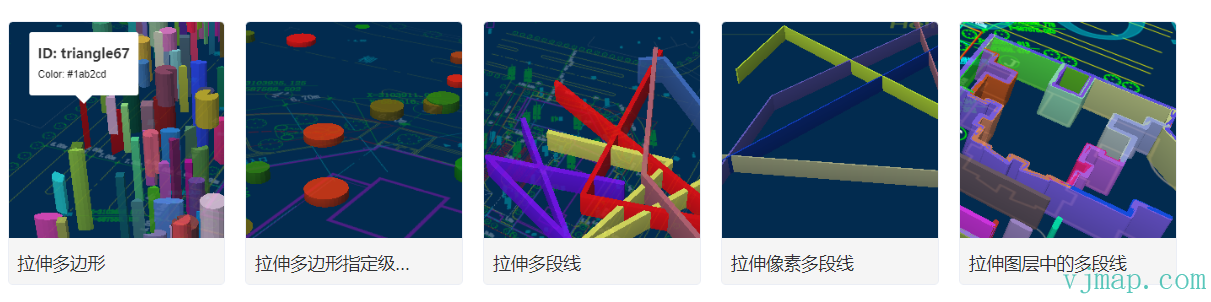
[拉伸多边形](https://vjmap.com/demo/#/demo/map/overlay/fillextrusion/fillextrusion)
[拉伸多边形指定级别显示](https://vjmap.com/demo/#/demo/map/overlay/fillextrusion/fillextrusionInterpolate)
[拉伸多段线](https://vjmap.com/demo/#/demo/map/overlay/fillextrusion/fillExtrusionsPolyline)
[拉伸像素多段线](https://vjmap.com/demo/#/demo/map/overlay/fillextrusion/fillExtrusionsPolylinePixel)
[拉伸图层中的多段线](https://vjmap.com/demo/#/demo/map/overlay/fillextrusion/fillExtrusionsZFromMapLayer)
## 类型定义
```ts
/**
* 创建拉伸的多边形.
*
**/
export class FillExtrusion extends OverlayLayerBase {
options: FillExtrusionOptions;
constructor(options: FillExtrusionOptions);
addTo(map: Map, beforeId?: string): void;
/** 替换 GeoJSON 图层的当前数据。
@param {GeoJSON} [data] GeoJSON object to set. If not provided, defaults to an empty FeatureCollection.
*/
setData(data: PointGeoJsonInput | PointGeoJsonInput[] | GeoJsonGeomertry | GeoPointLike | any): void;
setFillExtrusionOpacity(value: PropertyValueSpecificationEx): this;
getFillExtrusionOpacity(): PropertyValueSpecificationEx;
setFillExtrusionColor(value: DataDrivenPropertyValueSpecification): this;
getFillExtrusionColor(): DataDrivenPropertyValueSpecification;
setFillExtrusionTranslate(value: PropertyValueSpecificationEx<[number, number]>): this;
getFillExtrusionTranslate(): PropertyValueSpecificationEx<[number, number]>;
setFillExtrusionTranslateAnchor(value: PropertyValueSpecificationEx<"map" | "viewport">): this;
getFillExtrusionTranslateAnchor(): PropertyValueSpecificationEx<"map" | "viewport">;
setFillExtrusionPattern(value: DataDrivenPropertyValueSpecification): this;
getFillExtrusionPattern(): DataDrivenPropertyValueSpecification;
setFillExtrusionHeight(value: DataDrivenPropertyValueSpecification): this;
getFillExtrusionHeight(): DataDrivenPropertyValueSpecification;
setFillExtrusionBase(value: DataDrivenPropertyValueSpecification): this;
getFillExtrusionBase(): DataDrivenPropertyValueSpecification;
setFillExtrusionVerticalGradient(value: PropertyValueSpecificationEx): this;
getFillExtrusionVerticalGradient(): PropertyValueSpecificationEx;
}
export type FillExtrusionLayerSpecification = {
id: string;
type: "fill-extrusion";
metadata?: unknown;
source: string;
"source-layer"?: string;
minzoom?: number;
maxzoom?: number;
filter?: FilterSpecification;
layout?: {
visibility?: "visible" | "none";
};
paint?: {
"fill-extrusion-opacity"?: PropertyValueSpecificationEx;
"fill-extrusion-color"?: DataDrivenPropertyValueSpecification;
"fill-extrusion-translate"?: PropertyValueSpecificationEx<[number, number]>;
"fill-extrusion-translate-anchor"?: PropertyValueSpecificationEx<"map" | "viewport">;
"fill-extrusion-pattern"?: DataDrivenPropertyValueSpecification;
"fill-extrusion-height"?: DataDrivenPropertyValueSpecification;
"fill-extrusion-base"?: DataDrivenPropertyValueSpecification;
"fill-extrusion-vertical-gradient"?: PropertyValueSpecificationEx;
};
};
export type FillExtrusionLayerStyleProp = {
metadata?: unknown;
source?: string;
sourceLayer?: string;
minzoom?: number;
maxzoom?: number;
filter?: FilterSpecification;
visibility?: "visible" | "none";
fillExtrusionOpacity?: PropertyValueSpecificationEx;
fillExtrusionColor?: DataDrivenPropertyValueSpecification;
fillExtrusionTranslate?: PropertyValueSpecificationEx<[number, number]>;
fillExtrusionTranslateAnchor?: PropertyValueSpecificationEx<"map" | "viewport">;
fillExtrusionPattern?: DataDrivenPropertyValueSpecification;
fillExtrusionHeight?: DataDrivenPropertyValueSpecification;
fillExtrusionBase?: DataDrivenPropertyValueSpecification;
fillExtrusionVerticalGradient?: PropertyValueSpecificationEx;
};
export interface FillExtrusionOptions extends OverlayLayerBaseOptions {
data: PointGeoJsonInput | PointGeoJsonInput[] | GeoJsonGeomertry | GeoPointLike | any;
fillExtrusionOpacity?: PropertyValueSpecificationEx;
fillExtrusionColor?: DataDrivenPropertyValueSpecification;
fillExtrusionTranslate?: PropertyValueSpecificationEx<[number, number]>;
fillExtrusionTranslateAnchor?: PropertyValueSpecificationEx<"map" | "viewport">;
fillExtrusionPattern?: DataDrivenPropertyValueSpecification;
fillExtrusionHeight?: DataDrivenPropertyValueSpecification;
fillExtrusionBase?: DataDrivenPropertyValueSpecification;
fillExtrusionVerticalGradient?: PropertyValueSpecificationEx;
}
export class OverlayLayerBase {
sourceId?: string;
layerId?: string;
_map?: Map;
constructor();
addTo(map: Map, beforeId?: string): void;
/**
* 获取数据源ID
* @return {string | undefined}
*/
getSourceId(): string | undefined;
/**
* 获取图层ID
* @return {string | undefined}
*/
getLayerId(): string | undefined;
/**
* 获取数据源的数据
* @return {GeoJsonGeomertry | undefined}
*/
getData(): GeoJsonGeomertry | undefined;
remove(): void;
/** 每当鼠标悬停在这些图层上时,将地图的光标设置为“指针”。
@returns A function to remove the handler.
* @param layerOrLayers
*/
hoverPointer(): void;
/**
每当将鼠标悬停在这些图层中的某个特征上时,更新连接源 [s] 中特征的特征状态。
* @param enterCb
* @param leaveCb
*/
hoverFeatureState(enterCb?: (arg0: {}) => void, leaveCb?: (arg0: {}) => void): void;
/** 将鼠标悬停在这些图层中的某个要素上时,会显示一个弹出窗口。
@param htmlFunc Function that receives feature and popup, returns HTML.
@param {Object} popupOptions Options passed to `Popup()` to customise popup.
@example hoverPopup(f => `${f.properties.Name}
${f.properties.Description}`, { anchor: 'left' });
*/
hoverPopup(htmlFunc: any, popupOptions?: PopupOptions): any;
/** 每当单击这些图层中的要素时都会显示一个弹出窗口。
@param htmlFunc Function that receives feature and popup, returns HTML.
@param {Object} popupOptions Options passed to `Popup()` to customise popup.
@returns A function that removes the handler.
@example clickPopup(f => `${f.properties.Name}
${f.properties.Description}`, { maxWidth: 500 });
*/
clickPopup(htmlFunc: (arg0: {}) => void, popupOptions?: PopupOptions): any;
/** 每当单击这些图层中的要素时都会触发回调。
@param {function} cb Callback that receives event with .features property
@returns A function that removes the handler.
*/
clickLayer(cb: any): any;
/** 当鼠标悬停在这些图层中的要素上时触发回调。
@returns A function to remove the handler.
*/
hoverLayer(cb: any): any;
/**
* 使给定的图层可见。
* @param layer
*/
show(): void;
/**
* 使给定的图层不可见。
* @param layer
*/
hide(): void;
/** 根据参数使给定的图层隐藏或可见。
@param {boolean} state True for visible, false for hidden.
*/
toggle(state: boolean): boolean;
/** 在一个或多个图层上设置绘制或布局属性。
@example setProperty('fillOpacity', 0.5)
*/
setProperty(prop: string | object, value?: any): void;
/** 根据样式规范,获取给定图层 ID 的图层定义。
*/
getLayerStyle(): LayerSpecification;
/**
* 设置图层样式
* @param layer
* @param style
*/
setLayerStyle(style: any): void;
/** 替换一个图层的过滤器。
@param {Array} filter New filter to set.
@example setFilter(['==','level','0']]);
*/
setFilter(filter: FilterSpecification): void;
}
export interface OverlayLayerBaseOptions {
sourceId?: string;
sourceLayer?: string;
layerId?: string;
minzoom?: number;
maxzoom?: number;
filter?: any;
visibility?: "visible" | "none";
isHoverPointer?: boolean;
isHoverFeatureState?: boolean;
}
```
---
# 符号
## 用法
```js
let data = {
"type": "FeatureCollection",
"features": [
{
"id": "1",
"type": "Feature",
"properties": {
"name": "point1",
"color": "#00ffff",
"icon": "icon1"
},
"geometry": {
"coordinates": [
6971.5378667085715,
14385.014943907285
],
"type": "Point"
}
},
{
"id": "2",
"type": "Feature",
"properties": {
"name": "point2",
"color": "#ff00ff",
"icon": "icon2"
},
"geometry": {
"coordinates": [
21789.770621477073,
14037.169104593304
],
"type": "Point"
}
}
]
}
let symbol = new vjmap.Symbol({
data: map.toLngLat(data), // CAD几何坐标转渲染经纬度
// 图标名来源于geojson属性中的icon字段
iconImage: ['get', 'icon'],
iconOffset: [0, -12],
// 鼠标hover时设置透明度0.8,不悬浮1.0
iconOpacity: ['case', ['to-boolean', ['feature-state', 'hover']], 0.8, 1.0],
textField: ['get', 'name'],
textFont: ['Arial Unicode MS Regular'],
textSize: 14,
textColor: '#FFA0FD',
textOffset: [0, 0.5],
textAnchor: 'top',
iconAllowOverlap: false,
textAllowOverlap: false,
isHoverPointer: true,
isHoverFeatureState: true
});
symbol.addTo(map);
symbol.clickLayer(e => map.logInfo(`您点击了第 ${e.features[0].id} 个,名称为 ${e.features[0].properties.name},颜色为 ${e.features[0].properties.color} `))
symbol.hoverPopup(f => `ID: ${f.properties.name}
Color: ${f.properties.color}`, { anchor: 'bottom' });
```
let svc = new vjmap.Service(env.serviceUrl, env.accessToken)
// 打开地图
let res = await svc.openMap({
    mapid: "sys_hello", // 地图ID
    mapopenway: vjmap.MapOpenWay.GeomRender, // 以几何数据渲染方式打开
    style: vjmap.openMapLightStyle() // div为深色背景颜色时,这里也传深色背景样式
})
if (res.error) {
    // 如果打开出错
    showError(res.error)
    return;
}
// 获取地图范围
let mapBounds = vjmap.GeoBounds.fromString(res.bounds);
// 根据地图范围建立几何投影坐标系
let prj = new vjmap.GeoProjection(mapBounds);
//
// 地图对象
let map = new vjmap.Map({
    container: 'map', // DIV容器ID
    style: svc.rasterStyle(), // 样式,这里是栅格样式
    center: prj.toLngLat(mapBounds.center()), // 设置地图中心点
    zoom: 1, // 设置地图缩放级别
    pitch: 0,
    antialias: true,
    renderWorldCopies: false // 不显示多屏地图
});
// 关联服务对象和投影对象
map.attach(svc, prj);
await map.onLoad();
let data = {
    "type": "FeatureCollection",
    "features": [
        {
            "id": "1",
            "type": "Feature",
            "properties": {
                "name": "point1",
                "color": "#00ffff",
                "icon": "icon1"
            },
            "geometry": {
                "coordinates": [
                    6971.5378667085715,
                    14385.014943907285
                ],
                "type": "Point"
            }
        },
        {
            "id": "2",
            "type": "Feature",
            "properties": {
                "name": "point2",
                "color": "#ff00ff",
                "icon": "icon2"
            },
            "geometry": {
                "coordinates": [
                    21789.770621477073,
                    14037.169104593304
                ],
                "type": "Point"
            }
        }
    ]
}
for (let i = 1; i <= 2; i++) {
    await map.loadImageEx("icon" + i, `https://vjmap.com/static/assets/images/sensor${i + 1}.png`);
}
let symbol = new vjmap.Symbol({
    data: map.toLngLat(data), // CAD几何坐标转渲染经纬度
    // 图标名来源于geojson属性中的icon字段
    iconImage: ['get', 'icon'],
    iconOffset: [0, -12],
    // 鼠标hover时设置透明度0.8,不悬浮1.0
    iconOpacity: ['case', ['to-boolean', ['feature-state', 'hover']], 0.8, 1.0],
    textField: ['get', 'name'],
    textFont: ['Arial Unicode MS Regular'],
    textSize: 14,
    textColor: '#FFA0FD',
    textOffset: [0, 0.5],
    textAnchor: 'top',
    iconAllowOverlap: false,
    textAllowOverlap: false,
    isHoverPointer: true,
    isHoverFeatureState: true
});
symbol.addTo(map);
// 点击事件
symbol.clickLayer(e => map.logInfo(`您点击了第 ${e.features[0].id} 个,名称为 ${e.features[0].properties.name},颜色为 ${e.features[0].properties.color} `))
// hover事件
symbol.hoverPopup(f => `<h3>ID: ${f.properties.name}</h3>Color: ${f.properties.color}`, { anchor: 'bottom' });
也可以用先单独创建数据源,再创建符号图层的写法,如
```js
map.addSource("symbolSources", {
type: "geojson",
data: data
});
map.addLayer({
id: 'symbolLayer',
source: 'symbolSources',
type: 'symbol',
"layout": {},
"paint": {
'icon-image': ['get', 'icon'],
'icon-offset': [0, -12],
// 鼠标hover时设置透明度0.8,不悬浮1.0
'icon-opacity': ['case', ['to-boolean', ['feature-state', 'hover']], 0.8, 1.0],
'text-field': ['get', 'name'],
'text-font': ['Arial Unicode MS Regular'],
'text-size': 14,
'text-color': '#FFA0FD',
'text-offset': [0, 0.5],
'text-anchor': 'top',
'icon-allow-overlap': false,
'text-allow-overlap': false,
}
})
```
或 属性用驼峰式大小写,不用区分layout还是paint属性
```js
map.addGeoJSONSource("symbolSources", data);
map.addSymbolLayer("symbolLayer", "symbolSources", {
iconImage: ['get', 'icon'],
iconOffset: [0, -12],
// 鼠标hover时设置透明度0.8,不悬浮1.0
iconOpacity: ['case', ['to-boolean', ['feature-state', 'hover']], 0.8, 1.0],
textField: ['get', 'name'],
textFont: ['Arial Unicode MS Regular'],
textSize: 14,
textColor: '#FFA0FD',
textOffset: [0, 0.5],
textAnchor: 'top',
iconAllowOverlap: false,
textAllowOverlap: false,
})
```
这种通过创建数据源和图层的写法,响应事件时,需要监听`地图的图层事件`进行处理
```js
map.on("click", layerId, e => {})
```
## 常用方法
修改数据用 `setData`
```js
symbol.setData(newDataJson);
```
获取图层ID、数据源ID
```js
// 获取图层ID
symbol.getLayerId()
// 获取数据源ID
symbol.getSourceId()
```
显示或隐藏
```js
// 显示
symbol.show()
// 隐藏
symbol.hide()
```
删除
```js
// 删除
symbol.remove()
```
## 相关示例
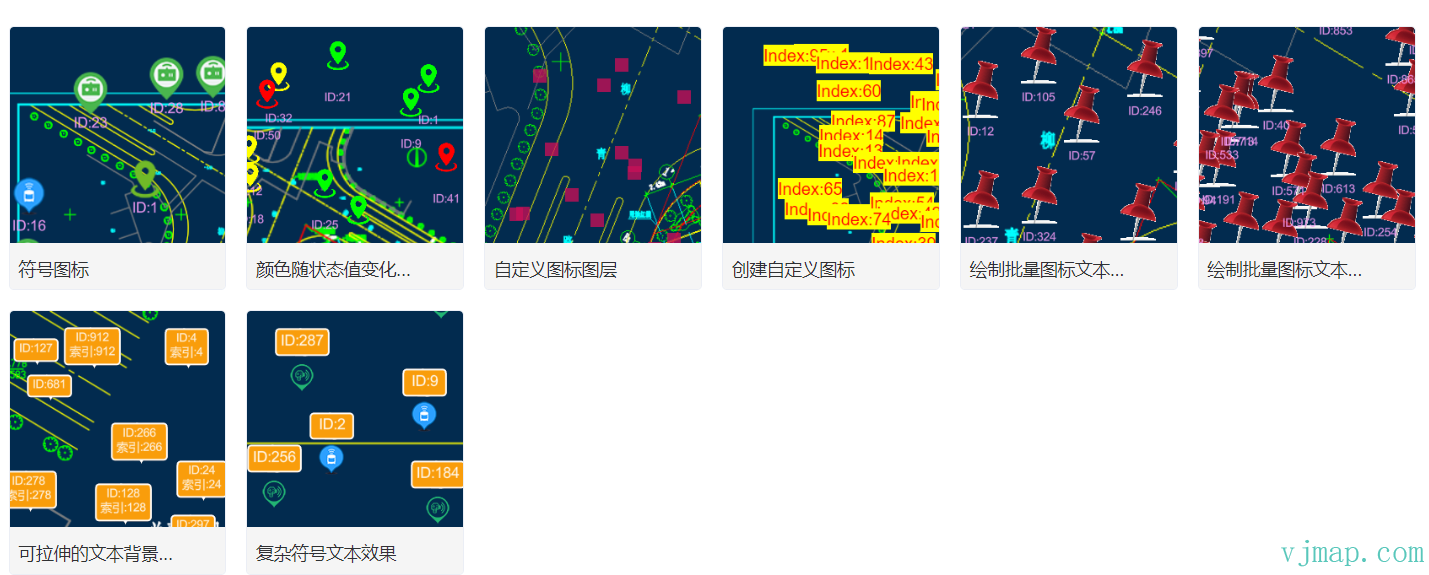
[符号图标](https://vjmap.com/demo/#/demo/map/overlay/symbol/symbol)
[颜色随状态值变化的符号图标](https://vjmap.com/demo/#/demo/map/overlay/symbol/symbolColorIcon)
[自定义图标图层](https://vjmap.com/demo/#/demo/map/overlay/symbol/symbolCustomImage)
[创建自定义图标](https://vjmap.com/demo/#/demo/map/overlay/symbol/symbolCustomText)
[绘制批量图标文本(不重叠)](https://vjmap.com/demo/#/demo/map/overlay/symbol/symbolManyNoOverlap)
[绘制批量图标文本(允许重叠)](https://vjmap.com/demo/#/demo/map/overlay/symbol/symbolManyOverlap)
[可拉伸的文本背景图片](https://vjmap.com/demo/#/demo/map/overlay/symbol/symbolStretchImage)
[复杂符号文本效果](https://vjmap.com/demo/#/demo/map/overlay/symbol/symbolzCompose)
## 类型定义
```ts
/**
* 创建符号图层.
*
**/
class Symbol extends OverlayLayerBase {
options: SymbolOptions;
constructor(options: SymbolOptions);
addTo(map: Map, beforeId?: string): void;
/** 替换 GeoJSON 图层的当前数据。
@param {GeoJSON} [data] GeoJSON object to set. If not provided, defaults to an empty FeatureCollection.
*/
setData(data: PointGeoJsonInput | PointGeoJsonInput[] | GeoJsonGeomertry | GeoPointLike | any): void;
setSymbolPlacement(value: PropertyValueSpecificationEx<"point" | "line" | "line-center">): this;
getSymbolPlacement(): PropertyValueSpecificationEx<"point" | "line" | "line-center">;
setSymbolSpacing(value: PropertyValueSpecificationEx): this;
getSymbolSpacing(): PropertyValueSpecificationEx;
setSymbolAvoidEdges(value: PropertyValueSpecificationEx): this;
getSymbolAvoidEdges(): PropertyValueSpecificationEx;
setSymbolSortKey(value: DataDrivenPropertyValueSpecification): this;
getSymbolSortKey(): DataDrivenPropertyValueSpecification;
setSymbolZOrder(value: PropertyValueSpecificationEx<"auto" | "viewport-y" | "source">): this;
getSymbolZOrder(): PropertyValueSpecificationEx<"auto" | "viewport-y" | "source">;
setIconAllowOverlap(value: PropertyValueSpecificationEx): this;
getIconAllowOverlap(): PropertyValueSpecificationEx;
setIconIgnorePlacement(value: PropertyValueSpecificationEx): this;
getIconIgnorePlacement(): PropertyValueSpecificationEx;
setIconOptional(value: PropertyValueSpecificationEx): this;
getIconOptional(): PropertyValueSpecificationEx;
setIconRotationAlignment(value: PropertyValueSpecificationEx<"map" | "viewport" | "auto">): this;
getIconRotationAlignment(): PropertyValueSpecificationEx<"map" | "viewport" | "auto">;
setIconSize(value: DataDrivenPropertyValueSpecification): this;
getIconSize(): DataDrivenPropertyValueSpecification;
setIconTextFit(value: PropertyValueSpecificationEx<"none" | "width" | "height" | "both">): this;
getIconTextFit(): PropertyValueSpecificationEx<"none" | "width" | "height" | "both">;
setIconTextFitPadding(value: PropertyValueSpecificationEx<[number, number, number, number]>): this;
getIconTextFitPadding(): PropertyValueSpecificationEx<[number, number, number, number]>;
setIconImage(value: DataDrivenPropertyValueSpecification): this;
getIconImage(): DataDrivenPropertyValueSpecification;
setIconRotate(value: DataDrivenPropertyValueSpecification): this;
getIconRotate(): DataDrivenPropertyValueSpecification;
setIconPadding(value: PropertyValueSpecificationEx): this;
getIconPadding(): PropertyValueSpecificationEx;
setIconKeepUpright(value: PropertyValueSpecificationEx): this;
getIconKeepUpright(): PropertyValueSpecificationEx;
setIconOffset(value: DataDrivenPropertyValueSpecification<[number, number]>): this;
getIconOffset(): DataDrivenPropertyValueSpecification<[number, number]>;
setIconAnchor(value: DataDrivenPropertyValueSpecification<"center" | "left" | "right" | "top" | "bottom" | "top-left" | "top-right" | "bottom-left" | "bottom-right">): this;
getIconAnchor(): DataDrivenPropertyValueSpecification<"center" | "left" | "right" | "top" | "bottom" | "top-left" | "top-right" | "bottom-left" | "bottom-right">;
setIconPitchAlignment(value: PropertyValueSpecificationEx<"map" | "viewport" | "auto">): this;
getIconPitchAlignment(): PropertyValueSpecificationEx<"map" | "viewport" | "auto">;
setTextPitchAlignment(value: PropertyValueSpecificationEx<"map" | "viewport" | "auto">): this;
getTextPitchAlignment(): PropertyValueSpecificationEx<"map" | "viewport" | "auto">;
setTextRotationAlignment(value: PropertyValueSpecificationEx<"map" | "viewport" | "auto">): this;
getTextRotationAlignment(): PropertyValueSpecificationEx<"map" | "viewport" | "auto">;
setTextField(value: DataDrivenPropertyValueSpecification): this;
getTextField(): DataDrivenPropertyValueSpecification;
setTextFont(value: DataDrivenPropertyValueSpecification): this;
getTextFont(): DataDrivenPropertyValueSpecification;
setTextSize(value: DataDrivenPropertyValueSpecification): this;
getTextSize(): DataDrivenPropertyValueSpecification;
setTextMaxWidth(value: DataDrivenPropertyValueSpecification): this;
getTextMaxWidth(): DataDrivenPropertyValueSpecification;
setTextLineHeight(value: DataDrivenPropertyValueSpecification): this;
getTextLineHeight(): DataDrivenPropertyValueSpecification;
setTextLetterSpacing(value: DataDrivenPropertyValueSpecification): this;
getTextLetterSpacing(): DataDrivenPropertyValueSpecification;
setTextJustify(value: DataDrivenPropertyValueSpecification<"auto" | "left" | "center" | "right">): this;
getTextJustify(): DataDrivenPropertyValueSpecification<"auto" | "left" | "center" | "right">;
setTextRadialOffset(value: DataDrivenPropertyValueSpecification): this;
getTextRadialOffset(): DataDrivenPropertyValueSpecification;
setTextVariableAnchor(value: PropertyValueSpecificationEx>): this;
getTextVariableAnchor(): PropertyValueSpecificationEx>;
setTextAnchor(value: DataDrivenPropertyValueSpecification<"center" | "left" | "right" | "top" | "bottom" | "top-left" | "top-right" | "bottom-left" | "bottom-right">): this;
getTextAnchor(): DataDrivenPropertyValueSpecification<"center" | "left" | "right" | "top" | "bottom" | "top-left" | "top-right" | "bottom-left" | "bottom-right">;
setTextMaxAngle(value: PropertyValueSpecificationEx): this;
getTextMaxAngle(): PropertyValueSpecificationEx;
setTextWritingMode(value: PropertyValueSpecificationEx>): this;
getTextWritingMode(): PropertyValueSpecificationEx>;
setTextRotate(value: DataDrivenPropertyValueSpecification): this;
getTextRotate(): DataDrivenPropertyValueSpecification;
setTextPadding(value: PropertyValueSpecificationEx): this;
getTextPadding(): PropertyValueSpecificationEx;
setTextKeepUpright(value: PropertyValueSpecificationEx): this;
getTextKeepUpright(): PropertyValueSpecificationEx;
setTextTransform(value: DataDrivenPropertyValueSpecification<"none" | "uppercase" | "lowercase">): this;
getTextTransform(): DataDrivenPropertyValueSpecification<"none" | "uppercase" | "lowercase">;
setTextOffset(value: DataDrivenPropertyValueSpecification<[number, number]>): this;
getTextOffset(): DataDrivenPropertyValueSpecification<[number, number]>;
setTextAllowOverlap(value: PropertyValueSpecificationEx): this;
getTextAllowOverlap(): PropertyValueSpecificationEx;
setTextIgnorePlacement(value: PropertyValueSpecificationEx): this;
getTextIgnorePlacement(): PropertyValueSpecificationEx;
setTextOptional(value: PropertyValueSpecificationEx): this;
getTextOptional(): PropertyValueSpecificationEx;
setIconOpacity(value: DataDrivenPropertyValueSpecification): this;
getIconOpacity(): DataDrivenPropertyValueSpecification;
setIconColor(value: DataDrivenPropertyValueSpecification): this;
getIconColor(): DataDrivenPropertyValueSpecification;
setIconHaloColor(value: DataDrivenPropertyValueSpecification): this;
getIconHaloColor(): DataDrivenPropertyValueSpecification;
setIconHaloWidth(value: DataDrivenPropertyValueSpecification): this;
getIconHaloWidth(): DataDrivenPropertyValueSpecification;
setIconHaloBlur(value: DataDrivenPropertyValueSpecification): this;
getIconHaloBlur(): DataDrivenPropertyValueSpecification;
setIconTranslate(value: PropertyValueSpecificationEx<[number, number]>): this;
getIconTranslate(): PropertyValueSpecificationEx<[number, number]>;
setIconTranslateAnchor(value: PropertyValueSpecificationEx<"map" | "viewport">): this;
getIconTranslateAnchor(): PropertyValueSpecificationEx<"map" | "viewport">;
setTextOpacity(value: DataDrivenPropertyValueSpecification): this;
getTextOpacity(): DataDrivenPropertyValueSpecification;
setTextColor(value: DataDrivenPropertyValueSpecification): this;
getTextColor(): DataDrivenPropertyValueSpecification;
setTextHaloColor(value: DataDrivenPropertyValueSpecification): this;
getTextHaloColor(): DataDrivenPropertyValueSpecification;
setTextHaloWidth(value: DataDrivenPropertyValueSpecification): this;
getTextHaloWidth(): DataDrivenPropertyValueSpecification;
setTextHaloBlur(value: DataDrivenPropertyValueSpecification): this;
getTextHaloBlur(): DataDrivenPropertyValueSpecification;
setTextTranslate(value: PropertyValueSpecificationEx<[number, number]>): this;
getTextTranslate(): PropertyValueSpecificationEx<[number, number]>;
setTextTranslateAnchor(value: PropertyValueSpecificationEx<"map" | "viewport">): this;
getTextTranslateAnchor(): PropertyValueSpecificationEx<"map" | "viewport">;
}
export class OverlayLayerBase {
sourceId?: string;
layerId?: string;
_map?: Map;
constructor();
addTo(map: Map, beforeId?: string): void;
/**
* 获取数据源ID
* @return {string | undefined}
*/
getSourceId(): string | undefined;
/**
* 获取图层ID
* @return {string | undefined}
*/
getLayerId(): string | undefined;
/**
* 获取数据源的数据
* @return {GeoJsonGeomertry | undefined}
*/
getData(): GeoJsonGeomertry | undefined;
remove(): void;
/** 每当鼠标悬停在这些图层上时,将地图的光标设置为“指针”。
@returns A function to remove the handler.
* @param layerOrLayers
*/
hoverPointer(): void;
/**
每当将鼠标悬停在这些图层中的某个特征上时,更新连接源 [s] 中特征的特征状态。
* @param enterCb
* @param leaveCb
*/
hoverFeatureState(enterCb?: (arg0: {}) => void, leaveCb?: (arg0: {}) => void): void;
/** 将鼠标悬停在这些图层中的某个要素上时,会显示一个弹出窗口。
@param htmlFunc Function that receives feature and popup, returns HTML.
@param {Object} popupOptions Options passed to `Popup()` to customise popup.
@example hoverPopup(f => `${f.properties.Name}
${f.properties.Description}`, { anchor: 'left' });
*/
hoverPopup(htmlFunc: any, popupOptions?: PopupOptions): any;
/** 每当单击这些图层中的要素时都会显示一个弹出窗口。
@param htmlFunc Function that receives feature and popup, returns HTML.
@param {Object} popupOptions Options passed to `Popup()` to customise popup.
@returns A function that removes the handler.
@example clickPopup(f => `${f.properties.Name}
${f.properties.Description}`, { maxWidth: 500 });
*/
clickPopup(htmlFunc: (arg0: {}) => void, popupOptions?: PopupOptions): any;
/** 每当单击这些图层中的要素时都会触发回调。
@param {function} cb Callback that receives event with .features property
@returns A function that removes the handler.
*/
clickLayer(cb: any): any;
/** 当鼠标悬停在这些图层中的要素上时触发回调。
@returns A function to remove the handler.
*/
hoverLayer(cb: any): any;
/**
* 使给定的图层可见。
* @param layer
*/
show(): void;
/**
* 使给定的图层不可见。
* @param layer
*/
hide(): void;
/** 根据参数使给定的图层隐藏或可见。
@param {boolean} state True for visible, false for hidden.
*/
toggle(state: boolean): boolean;
/** 在一个或多个图层上设置绘制或布局属性。
@example setProperty('fillOpacity', 0.5)
*/
setProperty(prop: string | object, value?: any): void;
/** 根据样式规范,获取给定图层 ID 的图层定义。
*/
getLayerStyle(): LayerSpecification;
/**
* 设置图层样式
* @param layer
* @param style
*/
setLayerStyle(style: any): void;
/** 替换一个图层的过滤器。
@param {Array} filter New filter to set.
@example setFilter(['==','level','0']]);
*/
setFilter(filter: FilterSpecification): void;
}
export interface OverlayLayerBaseOptions {
sourceId?: string;
sourceLayer?: string;
layerId?: string;
minzoom?: number;
maxzoom?: number;
filter?: any;
visibility?: "visible" | "none";
isHoverPointer?: boolean;
isHoverFeatureState?: boolean;
}
export type SymbolLayerSpecification = {
id: string;
type: "symbol";
metadata?: unknown;
source: string;
"source-layer"?: string;
minzoom?: number;
maxzoom?: number;
filter?: FilterSpecification;
layout?: {
"symbol-placement"?: PropertyValueSpecificationEx<"point" | "line" | "line-center">;
"symbol-spacing"?: PropertyValueSpecificationEx;
"symbol-avoid-edges"?: PropertyValueSpecificationEx;
"symbol-sort-key"?: DataDrivenPropertyValueSpecification;
"symbol-z-order"?: PropertyValueSpecificationEx<"auto" | "viewport-y" | "source">;
"icon-allow-overlap"?: PropertyValueSpecificationEx;
"icon-ignore-placement"?: PropertyValueSpecificationEx;
"icon-optional"?: PropertyValueSpecificationEx;
"icon-rotation-alignment"?: PropertyValueSpecificationEx<"map" | "viewport" | "auto">;
"icon-size"?: DataDrivenPropertyValueSpecification;
"icon-text-fit"?: PropertyValueSpecificationEx<"none" | "width" | "height" | "both">;
"icon-text-fit-padding"?: PropertyValueSpecificationEx<[number, number, number, number]>;
"icon-image"?: DataDrivenPropertyValueSpecification;
"icon-rotate"?: DataDrivenPropertyValueSpecification;
"icon-padding"?: PropertyValueSpecificationEx;
"icon-keep-upright"?: PropertyValueSpecificationEx;
"icon-offset"?: DataDrivenPropertyValueSpecification<[number, number]>;
"icon-anchor"?: DataDrivenPropertyValueSpecification<"center" | "left" | "right" | "top" | "bottom" | "top-left" | "top-right" | "bottom-left" | "bottom-right">;
"icon-pitch-alignment"?: PropertyValueSpecificationEx<"map" | "viewport" | "auto">;
"text-pitch-alignment"?: PropertyValueSpecificationEx<"map" | "viewport" | "auto">;
"text-rotation-alignment"?: PropertyValueSpecificationEx<"map" | "viewport" | "auto">;
"text-field"?: DataDrivenPropertyValueSpecification;
"text-font"?: DataDrivenPropertyValueSpecification>;
"text-size"?: DataDrivenPropertyValueSpecification;
"text-max-width"?: DataDrivenPropertyValueSpecification;
"text-line-height"?: DataDrivenPropertyValueSpecification;
"text-letter-spacing"?: DataDrivenPropertyValueSpecification;
"text-justify"?: DataDrivenPropertyValueSpecification<"auto" | "left" | "center" | "right">;
"text-radial-offset"?: DataDrivenPropertyValueSpecification;
"text-variable-anchor"?: PropertyValueSpecificationEx>;
"text-anchor"?: DataDrivenPropertyValueSpecification<"center" | "left" | "right" | "top" | "bottom" | "top-left" | "top-right" | "bottom-left" | "bottom-right">;
"text-max-angle"?: PropertyValueSpecificationEx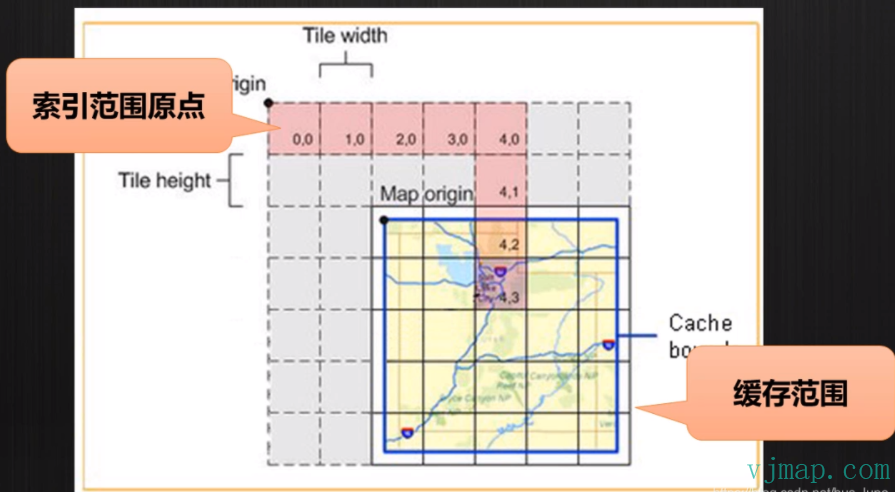 # 矢量瓦片
概念:矢量图层以矢量瓦片的形式进行切分和存储。
优点:创建效率高,传输和渲染速度快,前端可自定义渲染样式
矢量瓦片的原理与机制:
矢量瓦片类似栅格瓦片,是将矢量数据用多层次模型分割成矢量要素描述文件存储在服务器端,再到客户端根据指定样式进行渲染绘制地图,在单个矢量瓦片上存储着投影于一个矩形区域内的几何信息和属性信息。当客户端通过分布式网络获取矢量瓦片、地图标注字体、图标、样式文件等数据后,最终在客户端进行渲染输出地图。
矢量瓦片数据组织分成两层,一层是地图表达范围内的瓦片数据集组织模型,另一层是单个瓦片内要素的组织模型。
矢量瓦片数据集的组织模型类似栅格瓦片金字塔模型,包含坐标系、投影方式、瓦片编号已实现任意精度、空间位置与矢量瓦片的对应关系,并被栅格瓦片规范相互兼容,这样方便将矢量瓦片转换成栅格瓦片,毕竟两者采用相似的投影方式和瓦片编号方式。
单个瓦片要素的组织模型将几何信息和属性信息分开存储,几何信息主要包括点、线、面和未知要素类,元数据信息包含了图层属性和要素属性。
矢量瓦片的数据内容示例如下:
# 矢量瓦片
概念:矢量图层以矢量瓦片的形式进行切分和存储。
优点:创建效率高,传输和渲染速度快,前端可自定义渲染样式
矢量瓦片的原理与机制:
矢量瓦片类似栅格瓦片,是将矢量数据用多层次模型分割成矢量要素描述文件存储在服务器端,再到客户端根据指定样式进行渲染绘制地图,在单个矢量瓦片上存储着投影于一个矩形区域内的几何信息和属性信息。当客户端通过分布式网络获取矢量瓦片、地图标注字体、图标、样式文件等数据后,最终在客户端进行渲染输出地图。
矢量瓦片数据组织分成两层,一层是地图表达范围内的瓦片数据集组织模型,另一层是单个瓦片内要素的组织模型。
矢量瓦片数据集的组织模型类似栅格瓦片金字塔模型,包含坐标系、投影方式、瓦片编号已实现任意精度、空间位置与矢量瓦片的对应关系,并被栅格瓦片规范相互兼容,这样方便将矢量瓦片转换成栅格瓦片,毕竟两者采用相似的投影方式和瓦片编号方式。
单个瓦片要素的组织模型将几何信息和属性信息分开存储,几何信息主要包括点、线、面和未知要素类,元数据信息包含了图层属性和要素属性。
矢量瓦片的数据内容示例如下:
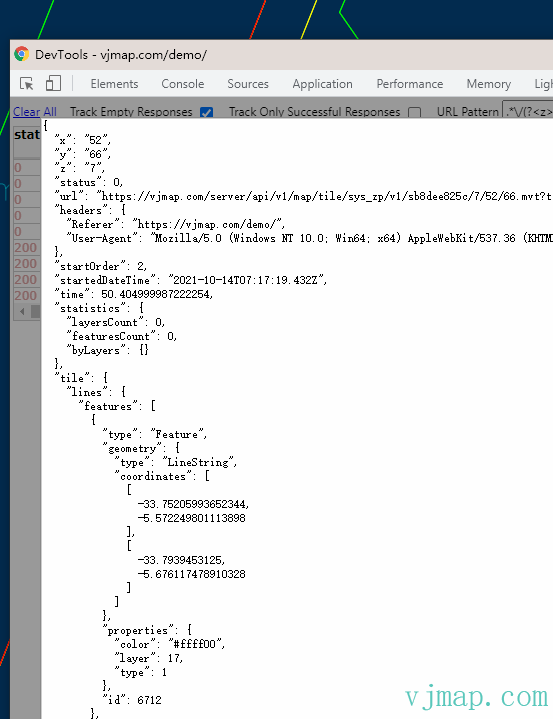 ## 栅格瓦片和矢量瓦片的对比
| 项目 | **矢量瓦片** | **栅格瓦片** |
| ---- | ---- | ---- |
| 地图瓦片 | 将矢量数据通过不同的描述文件来组织和定义,在客户端实时解析数据完成绘制 | 预先在服务端绘制好固定的PNG或其他格式的图片集合 |
| 瓦片体量 | 小 | 大 |
| 生成瓦片效率 | 高 | 低 |
| 更新机制 | 持平 | 持平 |
| 样式修改 | 支持 | 不支持 |
| 前端技术要求 | 高(HTML5) | 低 |
| 显示差异 | 有差异 | 无差异 |
| 成熟度 | 一般 | 高 |
| 应用场景 | 特殊(移动端、风格修改) | 广泛 |
| 管理机制 | 持平 | 持平 |
| | 优势 | 劣势 |
| -------- | ------------------------------------------------------------ | ------------------------------------------------------------ |
| 矢量瓦片 | 瓦片占用空间低,瓦片切图效率高,渲染地图效果快,可以随时动态调整地图样式,地图分辨率高。 | 对客户端性能要求比较高,对旧设备兼容性存在问题。 图形比较大时,加载稍慢 |
| 栅格瓦片 | 瓦片提前渲染,对客户端性能要求低,性能稳定。 | 瓦片占用空间高,瓦片切图效率低,无法随时动态调整地图样式,地图分辨率低,加载速度比较慢。 |
# 实现
[唯杰地图vjmap](https://vjmap.com/) 为CAD图WebGIS可视化显示开发提供的一站式解决方案, 完全兼容dwg格式,23d效果完美切换,高性能webgl渲染,个性化地图,跨平台私有化部署,矢量栅格瓦片全支持, 实现把CAD地图通过栅格瓦片或矢量瓦片Web展示,只需两步:
第一步:设置渲染方式为几何渲染 `GeomRender`
第二步:设置样式为栅格瓦片风格(`rasterStyle`)或矢量瓦片(`vectorStyle`)
相关代码如下:
```js
// --打开地图[矢量瓦片]--以矢量瓦片方式打开已上传的CAD的DWG格式的图
// js代码
// 新建地图服务对象,传入服务地址和token
let svc = new vjmap.Service(env.serviceUrl, env.accessToken)
// 打开地图
let res = await svc.openMap({
mapid: env.exampleMapId, // 地图ID,(请确保此ID已存在,可上传新图形新建ID)
mapopenway: vjmap.MapOpenWay.GeomRender, // 以几何数据渲染方式打开
style: vjmap.openMapDarkStyle() // div为深色背景颜色时,这里也传深色背景样式
})
if (res.error) {
message.error(res.error)
}
// 获取地图的范围
let mapExtent = vjmap.GeoBounds.fromString(res.bounds);
// 建立坐标系
let prj = new vjmap.GeoProjection(mapExtent);
// 新建地图对象
let map = new vjmap.Map({
container: 'map', // container ID
style: svc.vectorStyle(), // 矢量瓦片样式 如需栅格样式需改成 rasterStyle()
center: prj.toLngLat(mapExtent.center()), // 中心点
zoom: 2,
renderWorldCopies: false
});
// 地图关联服务对象和坐标系
map.attach(svc, prj);
// 使地图全部可见
map.fitMapBounds();
// 点击有高亮状态(鼠标点击地图元素上时,会高亮)
map.enableLayerClickHighlight(svc, e => {
let msg = {
content: `type: ${e.name}, id: ${e.objectid}, layer: ${e.layerindex}`,
key: "layerclick",
duration: 5
}
e && message.info(msg);
})
```
# 效果
[栅格瓦片示例](https://vjmap.com/demo/#/demo/map/service/02openMapRaster)
## 栅格瓦片和矢量瓦片的对比
| 项目 | **矢量瓦片** | **栅格瓦片** |
| ---- | ---- | ---- |
| 地图瓦片 | 将矢量数据通过不同的描述文件来组织和定义,在客户端实时解析数据完成绘制 | 预先在服务端绘制好固定的PNG或其他格式的图片集合 |
| 瓦片体量 | 小 | 大 |
| 生成瓦片效率 | 高 | 低 |
| 更新机制 | 持平 | 持平 |
| 样式修改 | 支持 | 不支持 |
| 前端技术要求 | 高(HTML5) | 低 |
| 显示差异 | 有差异 | 无差异 |
| 成熟度 | 一般 | 高 |
| 应用场景 | 特殊(移动端、风格修改) | 广泛 |
| 管理机制 | 持平 | 持平 |
| | 优势 | 劣势 |
| -------- | ------------------------------------------------------------ | ------------------------------------------------------------ |
| 矢量瓦片 | 瓦片占用空间低,瓦片切图效率高,渲染地图效果快,可以随时动态调整地图样式,地图分辨率高。 | 对客户端性能要求比较高,对旧设备兼容性存在问题。 图形比较大时,加载稍慢 |
| 栅格瓦片 | 瓦片提前渲染,对客户端性能要求低,性能稳定。 | 瓦片占用空间高,瓦片切图效率低,无法随时动态调整地图样式,地图分辨率低,加载速度比较慢。 |
# 实现
[唯杰地图vjmap](https://vjmap.com/) 为CAD图WebGIS可视化显示开发提供的一站式解决方案, 完全兼容dwg格式,23d效果完美切换,高性能webgl渲染,个性化地图,跨平台私有化部署,矢量栅格瓦片全支持, 实现把CAD地图通过栅格瓦片或矢量瓦片Web展示,只需两步:
第一步:设置渲染方式为几何渲染 `GeomRender`
第二步:设置样式为栅格瓦片风格(`rasterStyle`)或矢量瓦片(`vectorStyle`)
相关代码如下:
```js
// --打开地图[矢量瓦片]--以矢量瓦片方式打开已上传的CAD的DWG格式的图
// js代码
// 新建地图服务对象,传入服务地址和token
let svc = new vjmap.Service(env.serviceUrl, env.accessToken)
// 打开地图
let res = await svc.openMap({
mapid: env.exampleMapId, // 地图ID,(请确保此ID已存在,可上传新图形新建ID)
mapopenway: vjmap.MapOpenWay.GeomRender, // 以几何数据渲染方式打开
style: vjmap.openMapDarkStyle() // div为深色背景颜色时,这里也传深色背景样式
})
if (res.error) {
message.error(res.error)
}
// 获取地图的范围
let mapExtent = vjmap.GeoBounds.fromString(res.bounds);
// 建立坐标系
let prj = new vjmap.GeoProjection(mapExtent);
// 新建地图对象
let map = new vjmap.Map({
container: 'map', // container ID
style: svc.vectorStyle(), // 矢量瓦片样式 如需栅格样式需改成 rasterStyle()
center: prj.toLngLat(mapExtent.center()), // 中心点
zoom: 2,
renderWorldCopies: false
});
// 地图关联服务对象和坐标系
map.attach(svc, prj);
// 使地图全部可见
map.fitMapBounds();
// 点击有高亮状态(鼠标点击地图元素上时,会高亮)
map.enableLayerClickHighlight(svc, e => {
let msg = {
content: `type: ${e.name}, id: ${e.objectid}, layer: ${e.layerindex}`,
key: "layerclick",
duration: 5
}
e && message.info(msg);
})
```
# 效果
[栅格瓦片示例](https://vjmap.com/demo/#/demo/map/service/02openMapRaster)